
RoadStar is an ELD solution that tracks driver Hours of Service and vehicle locations. Connect RoadStar to Alvys to view real-time truck and trailer locations on the Asset Map and in the Dispatch Planner. Also referred to as RoadStar ELD, RoadStar telematics, or RoadStar tracking.
Overview
RoadStar is an electronic logging device (ELD) solution that tracks driver Hours of Service and vehicle locations. Connecting RoadStar to Alvys lets you view real-time truck and trailer locations on the Asset Map and in the Dispatch Planner. This integration is also referred to as RoadStar ELD, RoadStar telematics, or RoadStar tracking. The RoadStar integration pulls real-time location and driver Hours of Service (HOS) data from your RoadStar-equipped trucks and trailers into Alvys. Once connected, Alvys displays asset positions on the Asset Map, shows HOS clocks in the Asset Map asset panel and in the Dispatch Planner sidebar, and makes location data available for dispatch planning. This is a one-way integration: RoadStar sends data to Alvys. Alvys does not write data back to RoadStar.Prerequisites
Before you begin, confirm the following:- You have an active RoadStar account with the ability to generate tokens.
- Your trucks and trailers are registered in your RoadStar account.
- You are signed in to Alvys with the “Admin” or “Partner Admin” role.
How to connect?
Setting up the integration requires three parts: generating a token in RoadStar, entering that token in Alvys, then mapping each asset to its RoadStar asset ID.Generate a token in RoadStar
- Log into your RoadStar account.
- Navigate to “Management”, then select “API Tokens”.
- Click “Generate Token”.
 RoadStar API Tokens screen showing the Generate Token button
- Enter a name for the token (for example, “Alvys Integration”) and click “OK”.
- The page refreshes and displays the new token. Copy this token; you will need it in the next part.
Enter the token in Alvys
- In Alvys, click your profile icon in the lower-left corner to open “Company Profile”.
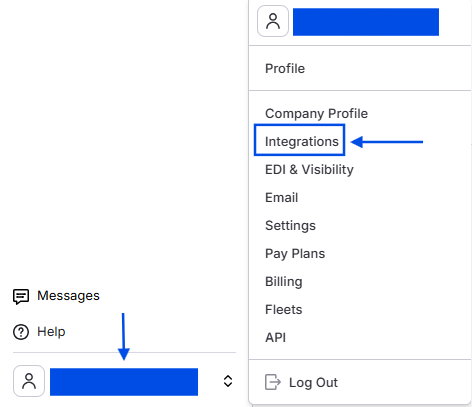 *Image showing navigation to the Alvys Integrations page *
- If your account has multiple subsidiaries, select the subsidiary you want to configure.
- Click the “Integrations” tab.
- Expand the “ELD” section.
 *Image showing ELD tab expanded on the Alvys Integrations page *
- Click the “Inactive” button on the RoadStar card.
- Paste your RoadStar token into the “API Token” field.
- Click “Save”.
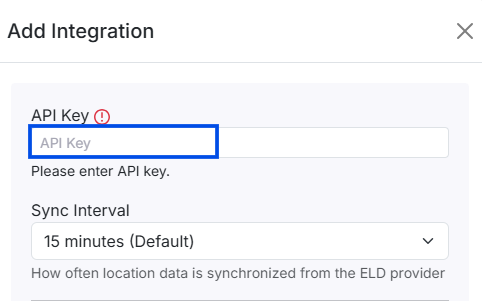 *Image showing the Alvys “Add Integration” form for RoadStar Eld *
Map each asset to its RoadStar asset ID
After the integration is active, you must link each truck or trailer in Alvys to its corresponding record in RoadStar using the RoadStar asset ID. This mapping tells Alvys which RoadStar asset to pull location data from for each vehicle. To find a RoadStar asset ID: open the asset in your RoadStar account and look at the URL. The number at the end of the URL path is the asset ID. For example, if the URL is app.brightroadstar.com/client/trucks/25236, the asset ID is 25236.- Go to “Assets” in the left navigation menu and select “Trucks” or “Trailers”.
- Double-click the asset you want to configure to open its profile.
- Scroll down to the “ELD Integrations” section and click “Add Integration”.
- Select “RoadStar” from the dropdown.
- Enter the RoadStar asset ID in the “Integration ID” field.
- Click “Save”.
 *Image showing “Add Integration” dropdown on asset profile *
What syncs?
- Data flows one way: from RoadStar to Alvys.
- Alvys receives location updates as RoadStar transmits them from the ELD device.
- Both trucks and trailers can be mapped for location tracking.
- Driver Hours of Service (HOS) clocks from RoadStar are visible on the Asset Map asset panel and in the Dispatch Planner sidebar. HOS data is not currently surfaced within individual load or trip records.
- Each asset must be mapped individually; there is no bulk-import of asset IDs. What is not supported:
- Alvys does not send data back to RoadStar. Changes made in Alvys (such as driver assignments) are not synced to RoadStar.
- Each asset must be mapped individually. There is no bulk configuration option.
- Driver HOS data from RoadStar is visible on the Asset Map asset panel and in the Dispatch Planner sidebar. It is not currently surfaced within individual load or trip records. To verify the integration is working after completing setup and mapping at least one asset:
- Go to “Assets” > “Map” in the left navigation menu.
- Confirm the mapped trucks and trailers appear on the Asset Map with current location data.
- Click on a mapped asset to view its location details, including the “Last Modified” timestamp that shows when the position was last received from RoadStar.
Troubleshooting
Token rejected on save
- Confirm you copied the full token from RoadStar without any extra spaces.
- Return to your RoadStar account under “Management” > “API Tokens” and generate a new token.
- Enter the new token in the Alvys Company Profile > “Integrations” tab > ELD section and click “Save”.
Asset not appearing on the Asset Map after mapping
- Confirm the asset ID you entered matches the number in the asset’s URL in your RoadStar account.
- Verify the ELD device on the truck or trailer is powered on and transmitting.
- Check the “Last Modified” timestamp on the asset’s sidebar in the Asset Map — if the timestamp is recent, the device is transmitting. If it is stale, the device may be offline.
- If none of these conditions apply, contact Alvys support for assistance.
Integration card not visible in Company Profile
- Confirm you are signed in with the “Admin” or “Partner Admin” role. The ELD integration settings are only visible to Admins and Partner Admins.
- Confirm you are on the correct subsidiary. Integration settings are configured per subsidiary.