
The SkyBitz integration automatically pulls real-time GPS location data from your SkyBitz-equipped trucks and trailers into Alvys: also known as SkyBitz GPS tracking, SkyBitz asset tracking, or SkyBitz telematics.
Overview
The SkyBitz integration lets Alvys automatically pull real-time GPS location data from your SkyBitz-equipped trucks and trailers, making those assets visible on the Asset Map and available for dispatch planning — no manual location updates required. This integration is also referred to as SkyBitz GPS tracking, SkyBitz asset tracking, or SkyBitz telematics. SkyBitz is a GPS telematics provider for asset tracking specializing in trailer and container location monitoring. Once the integration is active and your assets are mapped, live positions appear on the Alvys Asset Map and update continuously as your trucks and trailers move. Setting up the integration involves two stages: connecting your SkyBitz account credentials in Alvys, then mapping each truck or trailer to its corresponding SkyBitz unit number.Prerequisites
Before you begin:- You must have an active SkyBitz account. You need your SkyBitz “Client ID” and “Secret” — these are provided by SkyBitz and are separate from your portal login.
- Your role in Alvys must be “Admin”, “Partner Admin”, or “Support” to access the Integrations settings.
How to connect
Setting up the integration involves three parts: opening the SkyBitz settings, entering your credentials, then mapping each asset to its SkyBitz unit number.Open the SkyBitz integration settings in Alvys
- Click your profile icon in the lower-left corner of Alvys.
- From the menu that appears, select the subsidiary you want to configure.
- Click the “Integrations” tab.
- Expand the “ELD” section and locate the SkyBitz card.
- Click the pencil icon on the SkyBitz card to open the credential entry form.
 ELD section of the Integrations tab showing the SkyBitz card with pencil icon
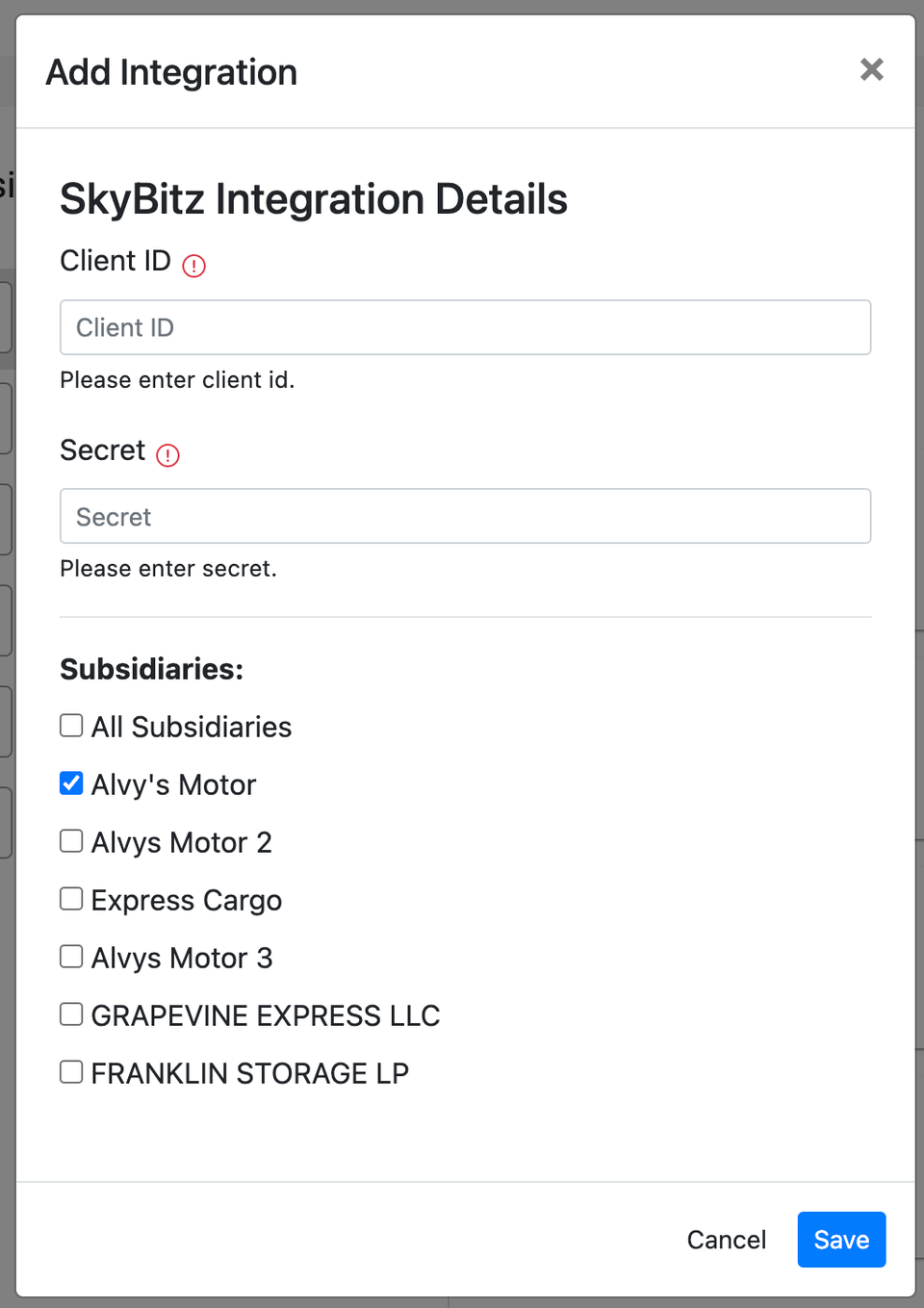
Enter your SkyBitz credentials
- Enter your SkyBitz “Client ID” in the Client ID field.
- Enter your “Secret” in the Secret field.
- Click “Save”.
Map each asset to its SkyBitz unit number
After the credentials are saved and the integration is active, you need to tell Alvys which SkyBitz unit corresponds to each truck or trailer in your fleet.- Go to “Assets” in the left navigation and select “Trucks” or “Trailers”.
- Double-click the asset you want to configure to open its profile.
- Scroll down to the “ELD Integrations” section and click “Add Integration”.
- In the Add Integration dialog, select “SkyBitz” from the provider dropdown.
- Enter the SkyBitz unit number for that asset in the “Integration ID” field.
- Click “Save”.
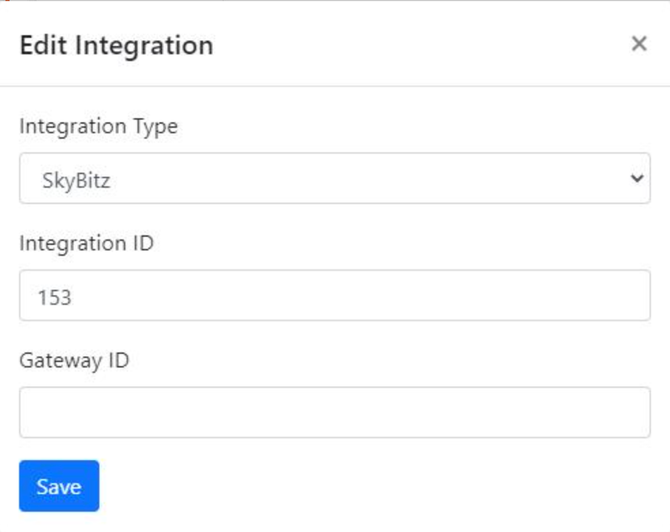 Asset profile showing the ELD Integrations section with the Add Integration button and SkyBitz unit number field
What syncs
The SkyBitz integration is one-way: SkyBitz sends GPS location data to Alvys. Alvys does not write any data back to SkyBitz. Location updates flow in continuously as long as the integration is active and the SkyBitz device on the asset is powered and transmitting. Mapped assets display their current location on the Alvys Asset Map. What is not supported:- The SkyBitz integration supports GPS location tracking only. Hours of Service data, IFTA mileage reporting, and driver vehicle inspection reports are not available through SkyBitz.
- SkyBitz is primarily a trailer and container tracking solution. While trucks can be configured with SkyBitz unit numbers, driver workflow features such as pre-trip inspections and HOS logs require a separate ELD integration.
- Each asset can have only one SkyBitz unit number mapped to it. To reassign an asset to a different SkyBitz unit, remove the existing mapping first, then add the new one.
- The integration credentials are configured per subsidiary. If your Alvys account includes multiple subsidiaries, you must configure SkyBitz separately for each subsidiary that uses SkyBitz-equipped assets.
Troubleshooting
Asset does not appear on the Asset Map after mapping
- Confirm that the SkyBitz unit number entered in the Integration ID field matches the unit number shown in your SkyBitz portal.
- Check that the integration credentials are still active by returning to Company Profile > Integrations, expanding the ELD section, and confirming the SkyBitz card shows an active status.
- Confirm the SkyBitz device on the asset is powered and transmitting.