
This article explains how to set up the EFS (WEX) fuel card integration in Alvys, configure automatic daily imports or manual CSV uploads, and add EFS fuel card numbers to driver profiles.
Overview
The EFS integration connects your EFS (WEX) fuel card (fuel network) account to Alvys to import fuel transactions either automatically through the API or manually by CSV upload. EFS also supports e-check issuance for driver payments such as advances, lumper fees, and repairs. Automatic imports run daily at 1 AM and pull the last 2 days of transactions. Manual imports use a CSV file you download from the EFS site and upload to Alvys. The integration provides two services in Alvys:- Fuel management: Imports fuel transaction data from EFS into the Alvys Fuel Report. This can be set up as an automatic daily API import or as a manual CSV upload.
- E-check service: Enables secure digital payment issuance directly from Alvys. E-checks can be used for driver advances, lumper fees, repair costs, and similar expenses.
💡 EFS is sometimes referred to as EFS WEX, the EFS fuel card, or the EFS fuel network.
Prerequisites
Before configuring EFS in Alvys, confirm the following:- You have “Admin”, “Support”, or “Partner Admin” access in Alvys (set on your user role in the Company Profile).
- For the automatic API import: you must first add Alvys as a Data Share Partner on EFS and obtain API credentials from EFS support. These credentials are different from your regular EFS login.
- For the manual CSV import: no API credentials are required. You only need access to the EFS site to download transaction reports.
- Your drivers have been added to Alvys with their EFS fuel card numbers.
How to connect
Automatic API import
The automatic import requires credentials that EFS generates specifically for API access. Your standard EFS username and password cannot be used.- Add Alvys as a Data Share Partner on EFS. Download and follow the EFS Data Sharing Instructions PDF provided in the original EFS article on help.alvys.com. This document walks you through adding Alvys Inc as a data share partner in your EFS account.
-
Request API credentials from EFS support. After adding Alvys as a data share partner, email EFS support at EFSWEX-customersoftwaresupport@wexinc.com to request API credentials. Include the following in your email body, substituting your company’s details:
- Customer name: your company name as registered with EFS.
- Username: will be created by EFS.
- Password: will be created by EFS.
- Carrier ID: visible in your EFS eManager portal.
- Contract ID: ask EFS if unknown (found under Select Program > Credit Management > Available Credit).
- Master Contract ID: ask EFS if unknown.
-
Enter the EFS credentials in Alvys once EFS replies:
- Click your username in the bottom left corner of Alvys, then select Management.
- Go to the Integrations section.
- Scroll to the Fuel Cards drop-down and select the “Inactive” button next to EFS.
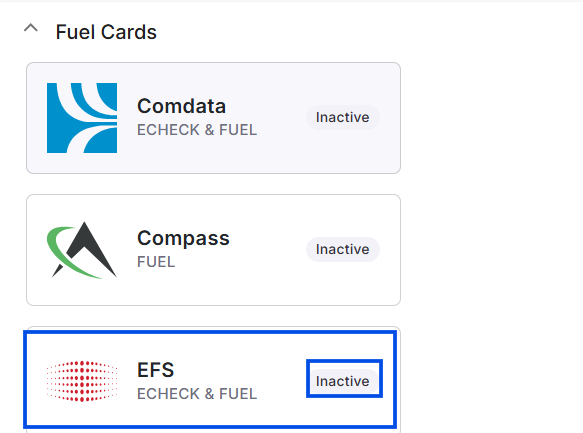 This image shows the EFS integration configuration form in Alvys with fields for username, password, contract ID, master contract ID, carrier ID, and subsidiary selection.
Manual CSV import
The manual import does not require API credentials. Set up a separate integration entry using the EFS CSV option.- Click your username in the bottom left corner of Alvys, then select Management.
- Go to the Integrations section.
- Scroll to the Fuel Cards drop-down and select EFSCSV.
- Select the subsidiary you want to integrate with.
- Click Save.
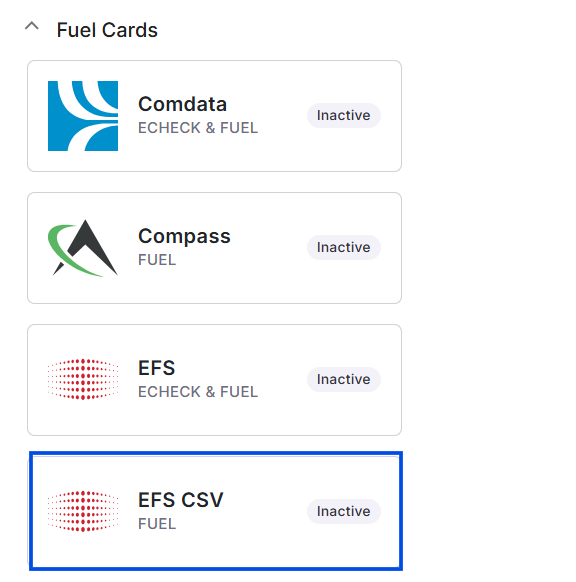 This image shows the Integrations section in Alvys Management with EFSCSV integration
💡 The automatic API path and the manual EFS CSV path are separate integration entries and can be used together.
Add EFS fuel card numbers to driver profiles
This applies to both automatic and manual imports.- From the blue Alvys toolbar, select Assets, then choose Drivers.
- Double-click a driver from the list to open their profile.
- Find the Fuel Card Numbers field next to the driver’s name and click the plus sign.
- Enter the full fuel card number, select EFS as the fuel card provider, and check the applicable boxes for deduct fuel or discounted fuel if needed.
- Click Save.
- Repeat for each driver with an EFS fuel card.
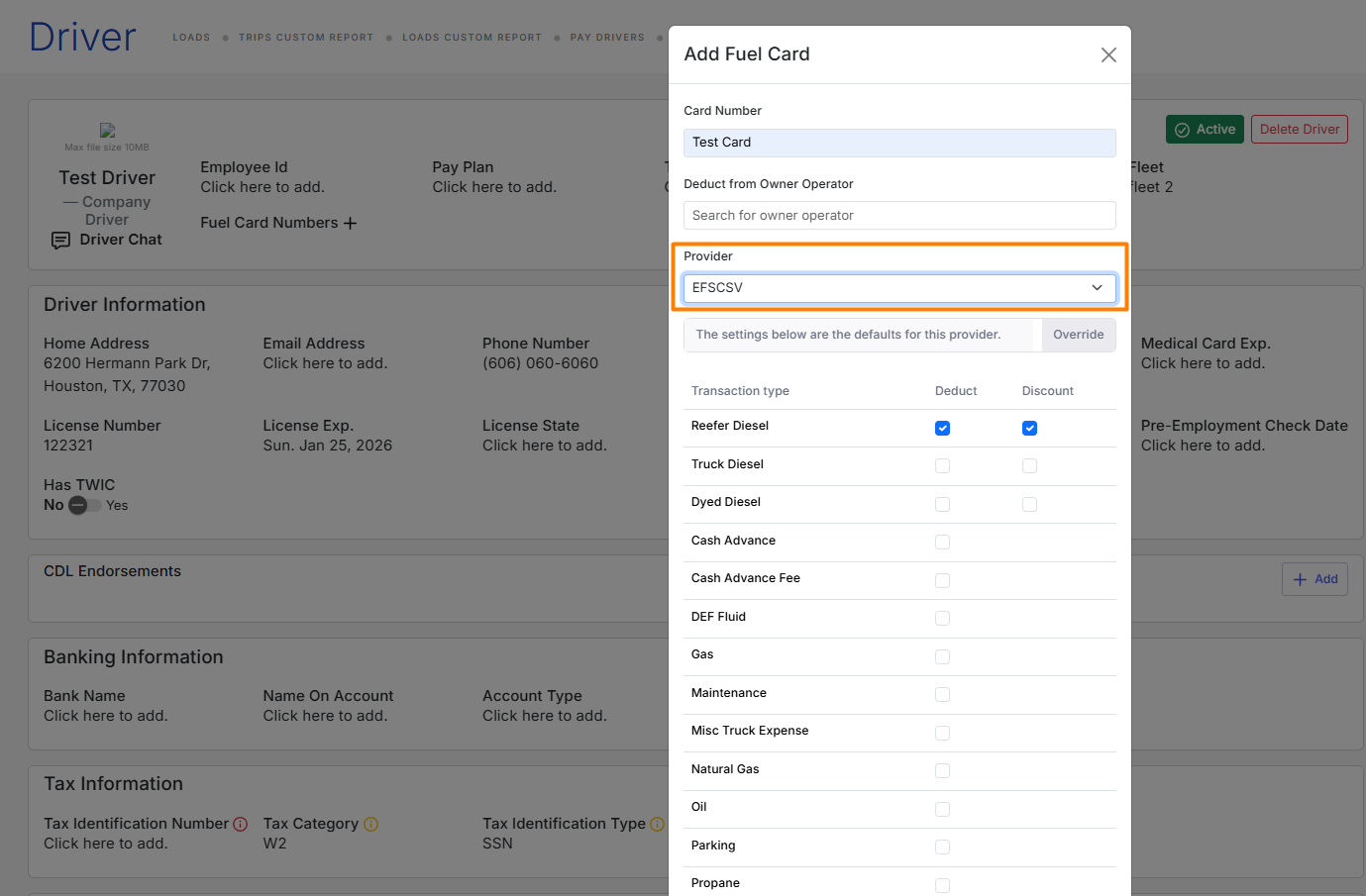 This image shows: a driver profile in Alvys with the “Add Fuel Card” form wit the following input fields: Card Number, Deduct from Owner Operator and Provider field with EFS selected.
Manual import only: download and upload the EFS transaction file
- Log in to the EFS site and download the fuel transactions report in Excel format.
- When exporting, ensure the following options are selected: Show Full Card Number, Show Transaction Time, and Show Discount Amount.
- Save the file to your device. Alvys provides a template file that shows the expected format (EFS Fuel template.xlsx); the template link is available in the Factoring Reports section on Alvys.
- From the Alvys toolbar, go to **Assets **and select Fuel Report.
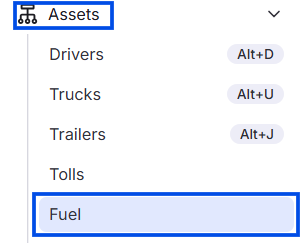 This image shows the Fuel Report page with the Transaction File Upload button visible.
- Click the vertical ellipsis icon (⋮) next to the “Add **Transaction” **button.
 Image showing ellipsis icon next to “Add Transaction” button
- Select the “Import Report” option.
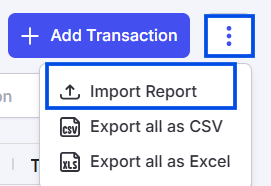 Image showing Import Report option
- In the pop-up window, select EFSCSV from the Integration Type drop-down menu.
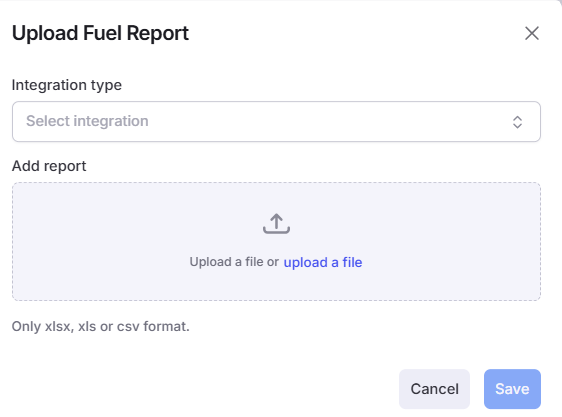 Image showing ”Upload Fuel Report” form with Integration type and Add report input fields.
- Upload the CSV file you downloaded from the Compass portal.
- Click the “Save” button
- Once the upload completes, use the Transaction Date range filter in the Fuel Report to review imported transactions.
What syncs
The EFS integration imports fuel transaction data from EFS into the Alvys Fuel Report and, separately, enables e-check issuance.- Automatic import: Fuel data imports daily at 1 AM, pulling all transactions from the past 2 days since the integration was configured. Transactions are automatically matched to the corresponding trucks and drivers in Alvys.
- Manual import: There is no automatic sync. You download a transaction file from the EFS site and upload it to Alvys whenever you need to import transactions.
- Matching: Alvys matches fuel transactions to driver profiles using the full EFS fuel card number stored on the driver’s profile. Each driver must have their EFS card number entered before transactions can be matched. The manual CSV must include the full card number, transaction time, and discount amount columns.