
One-way ELD / telematics integration: Alvys pulls truck locations, HOS status, and fuel level data from ELD Rider into your dispatch workflow.
Overview
ELD Rider is a telematics provider that connects with Alvys to bring truck locations, Hours of Service (HOS) status, and fuel level data directly into your dispatch workflow. It is also known as an ELD (electronic logging device), GPS tracking, or fleet tracking integration. Connecting ELD Rider to Alvys allows your dispatch team to view real-time truck locations and driver HOS status without leaving Alvys. Fuel level data is also pulled in when available from the device. Trailer locations are not supported by ELD Rider; only truck assets are tracked through this integration.Prerequisites
Before connecting, confirm you have the following:- An active ELD Rider account with API access enabled
- Your ELD Rider API key (generated directly from the ELD Rider platform or provided by your ELD Rider representative)
- The “Admin”, “Partner Admin”, or “Support” role in Alvys. These roles can access Management > Integrations.
How to connect?
- Open Integrations: go to Management > Integrations in the top navigation.
- Find ELD Rider in the list of available integrations and click to open it.
- In the credentials field, enter the API key provided by ELD Rider. This key authenticates Alvys to your ELD Rider account.
- Click Save. Alvys validates your API key before saving. As of February 2025, if the key is invalid, an error message appears immediately and the integration is not saved. If the key is valid, the integration status changes to active.
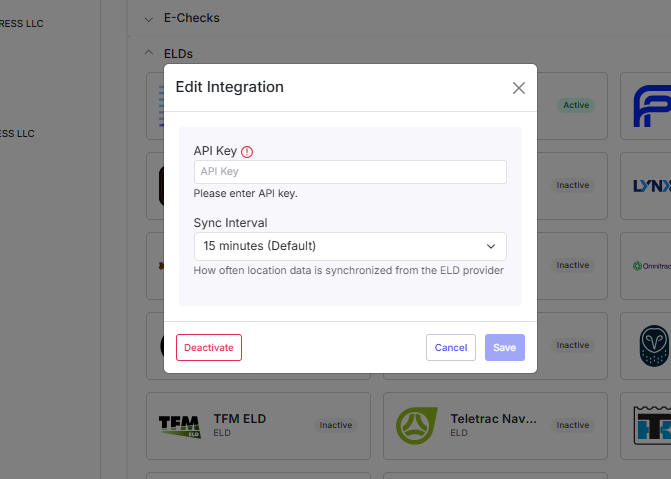 Image shows the ELD Rider integration screen in Management > Integrations page
Mapping assets for location tracking
After the integration is active, map your Alvys truck assets to their corresponding ELD Rider asset records. This step links each truck in Alvys to the ELD device installed in it so that GPS location data is matched to the correct truck asset.- Navigate to Assets in the left navigation and click Trucks to open the truck list.
- Double-click the truck you want to map to open its profile.
- Scroll to the ELD Integrations section of the truck profile.
- Click Add Integration.
- Select ELD Rider from the list of available integrations.
- Enter the ELD Rider asset ID for this truck. This ID is available in your ELD Rider portal.
- Click Save. The truck is now mapped. GPS location data from ELD Rider will appear for this truck when the device is active and reporting.
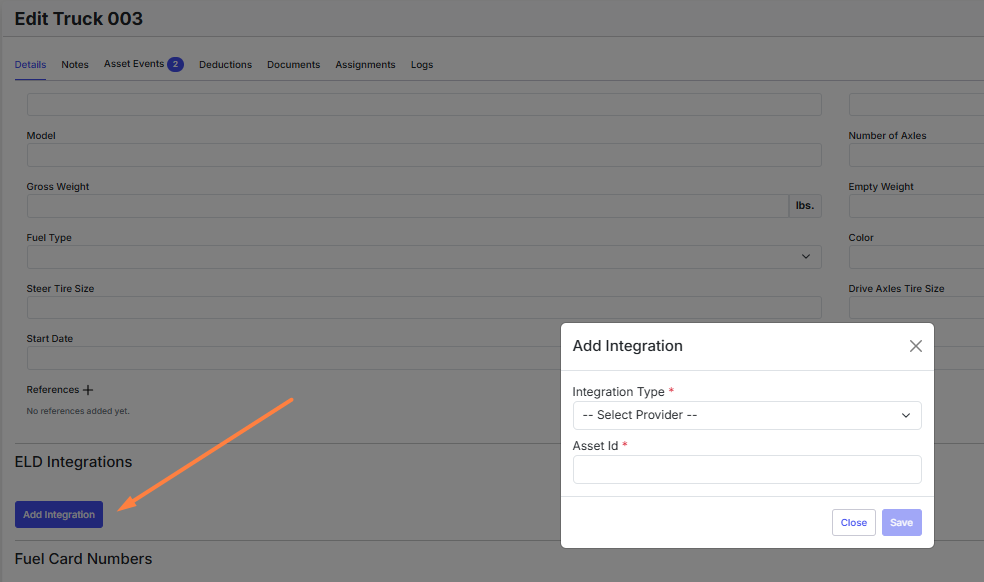 Image shows truck profile with the ELD Integrations section open
Mapping drivers for HOS tracking
Map each driver in Alvys to their ELD Rider driver record so that Hours of Service (HOS) data appears in Alvys. HOS clocks (cycle, shift, drive, and break time remaining) will display in the driver profile and on dispatched loads once mapping is complete.- Navigate to Assets in the left navigation and click Drivers to open the Drivers list.
- Double-click the driver you want to map to open their profile.
- Find the ELD Providers section of the driver profile.
- Click Add ELD.
- Select ELD Rider from the available ELD providers.
- Enter the ELD Rider driver ID for this driver. This ID is available in your ELD Rider portal.
- Click Save. The driver is now mapped. HOS data will appear in Alvys when the driver is logged in to their ELD Rider device.
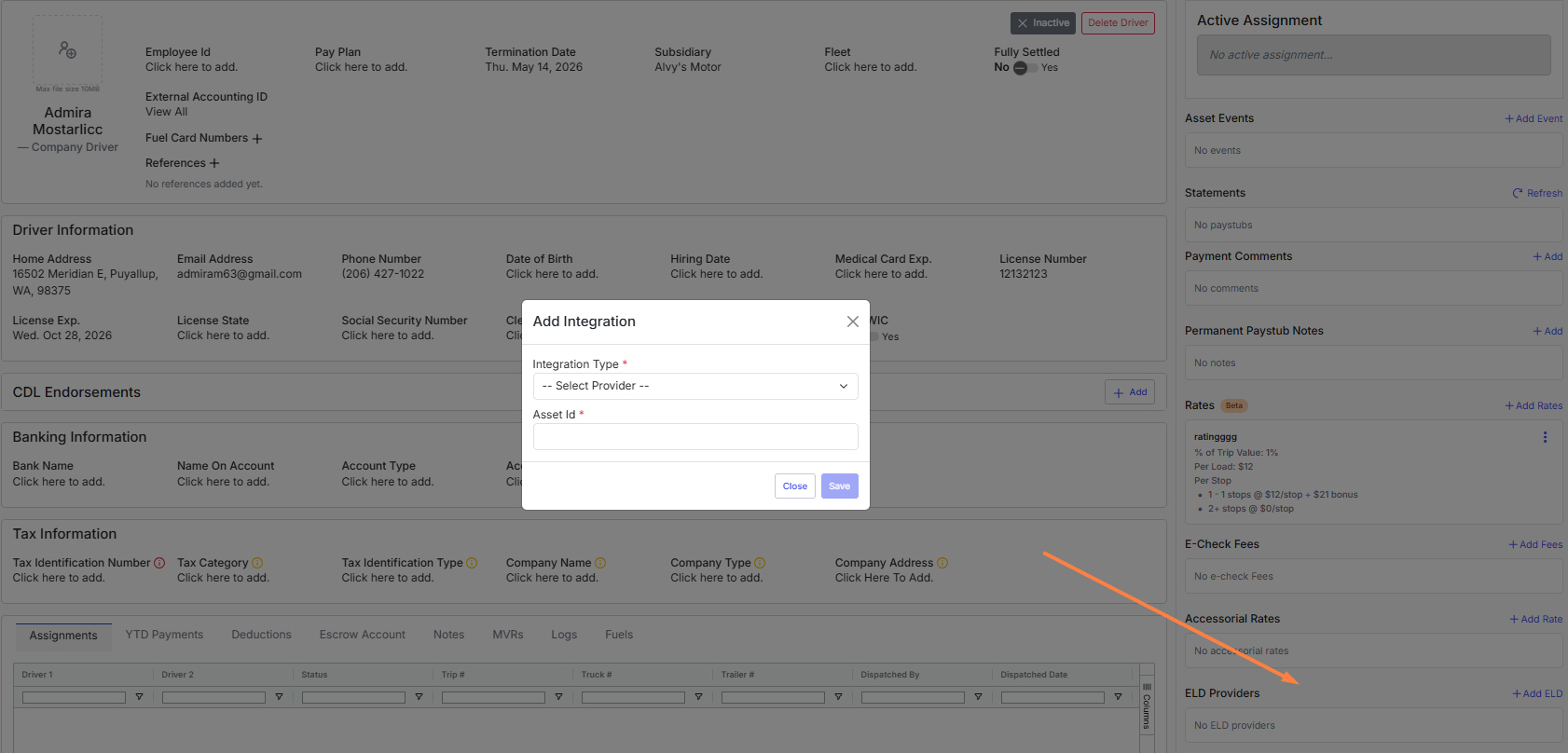 Image shows the driver profile with the ELD Providers section
What syncs / data flow?
The following data is pulled from ELD Rider into Alvys:- Truck location: Current GPS coordinates for each truck asset
- HOS clocks: Remaining time values for cycle time, shift time, drive time, and break time — these are countdown clocks showing time remaining, not time elapsed
- Fuel level: Displayed as a percentage when the device reports it
Verify it is working
- Go to Loads and open a load that has a driver assigned.
- Look for the truck location on the map or in the driver/asset tracking section. If the integration is active and the driver’s truck has an ELD Rider device, the location and HOS clocks should be visible.
- Confirm the remaining-time HOS values (cycle, shift, drive, break) appear next to the driver’s name or in the driver detail panel.
📋 Limits / unsupported: Trailer tracking is not supported: only trucks are tracked. · IFTA mileage reporting is not available through ELD Rider. · HOS values are remaining-time clocks only; elapsed time is not provided. · Battery level data is not displayed in Alvys.
Troubleshooting
Truck location is not showing
- Confirm the driver’s truck has an ELD Rider device installed and powered on.
- Verify the API key entered in Alvys matches the one provided by ELD Rider exactly — a mismatched or expired key will prevent data from loading.
- Check that the integration status in Management > Integrations shows as active.
HOS clocks are missing or blank
- Confirm the driver is actively using the ELD device and has logged in for their shift.
- Verify the device is transmitting data to ELD Rider’s servers. Contact ELD Rider support if the device appears offline in their portal.