
FleetPulse is a telematics provider that connects with Alvys to bring real-time trailer locations and tether status into your dispatch workflow. Also referred to as trailer tracking, asset tracking, or telematics integration.
Overview
FleetPulse is a telematics provider that connects with Alvys to bring real-time trailer locations and tether status into your dispatch workflow. This integration is also referred to as trailer tracking, asset tracking, or telematics integration. Connecting FleetPulse to Alvys allows your team to view current trailer locations and whether each trailer is tethered or untethered, directly from Alvys. FleetPulse is a trailer-focused integration.Prerequisites
Before connecting, confirm you have the following:- An active FleetPulse account
- Your FleetPulse username and password (must be API-enabled credentials — see note below)
- The “Admin” role in Alvys
How to connect
FleetPulse uses a username and password to authenticate. Alvys handles session management in the background after the initial connection.- In Alvys, select your Username in the bottom-left corner and click the integrations page
- Find “FleetPulse” in the list of available ELD integrations and click to open it.
- Enter your FleetPulse username and password. Only two fields are required.
- If your account has multiple subsidiaries, select the subsidiaries that should use this integration before clicking Save.
- Click “Save”. Alvys will authenticate with FleetPulse and store the session. Once confirmed, the integration status changes to active. Alvys automatically refreshes the connection in the background; you do not need to reconnect manually.
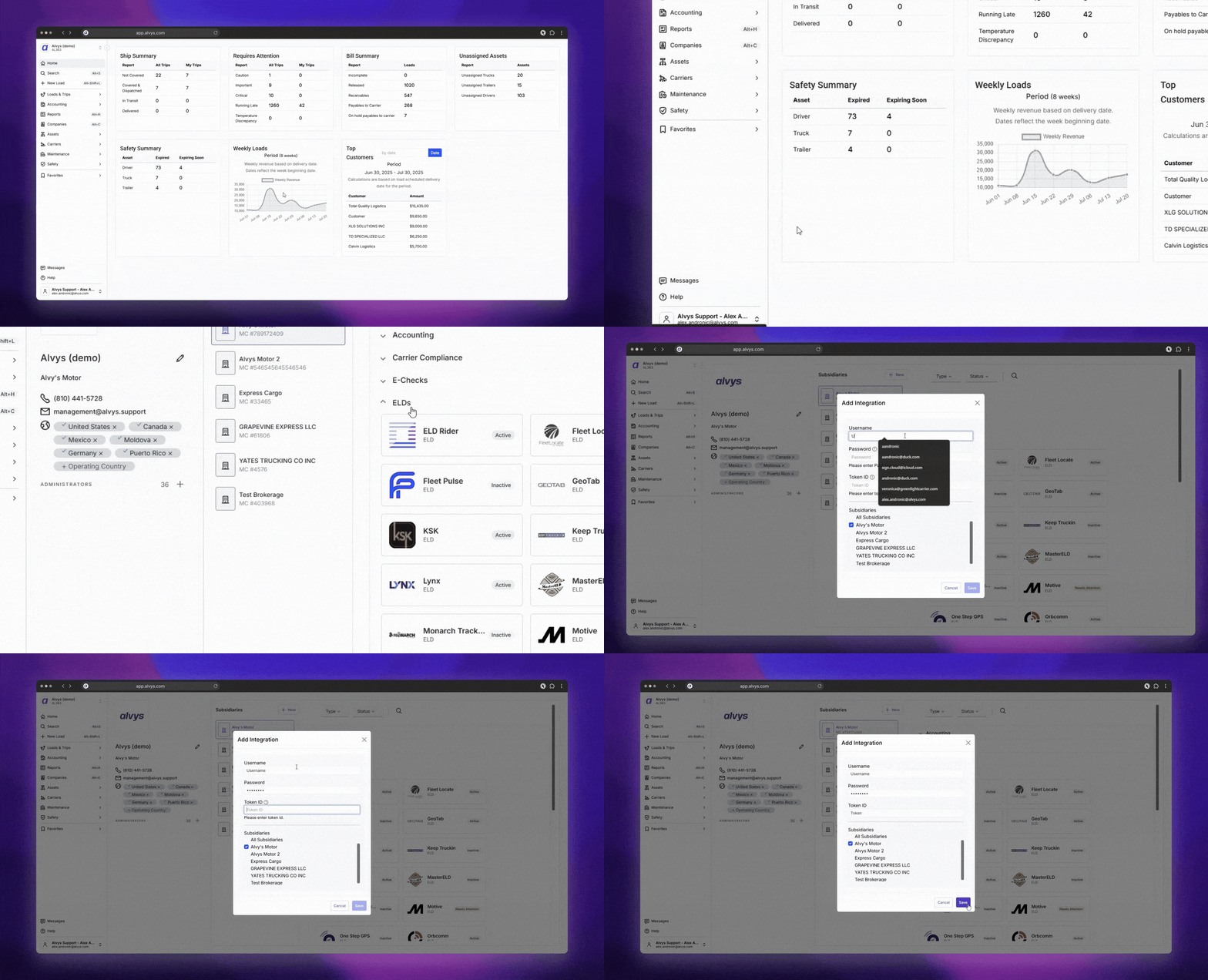
- GIF showing the FleetPulse integration setup in Alvys Management > Integrations with the username and password fields.*
Map trailers to FleetPulse Unit IDs
After the integration is active, map each trailer in Alvys to its corresponding FleetPulse Unit ID. This tells Alvys which FleetPulse device to pull location data from for each trailer.- Go to “Assets” > “Trailers” in the left navigation.
- Double-click a trailer to open its profile.
- Scroll to the “ELD Integrations” section and click “Add Integration”.
- Select “FleetPulse” from the dropdown.
- Enter the FleetPulse Unit ID for this trailer.
- Click “Update Trailer” to save your changes.
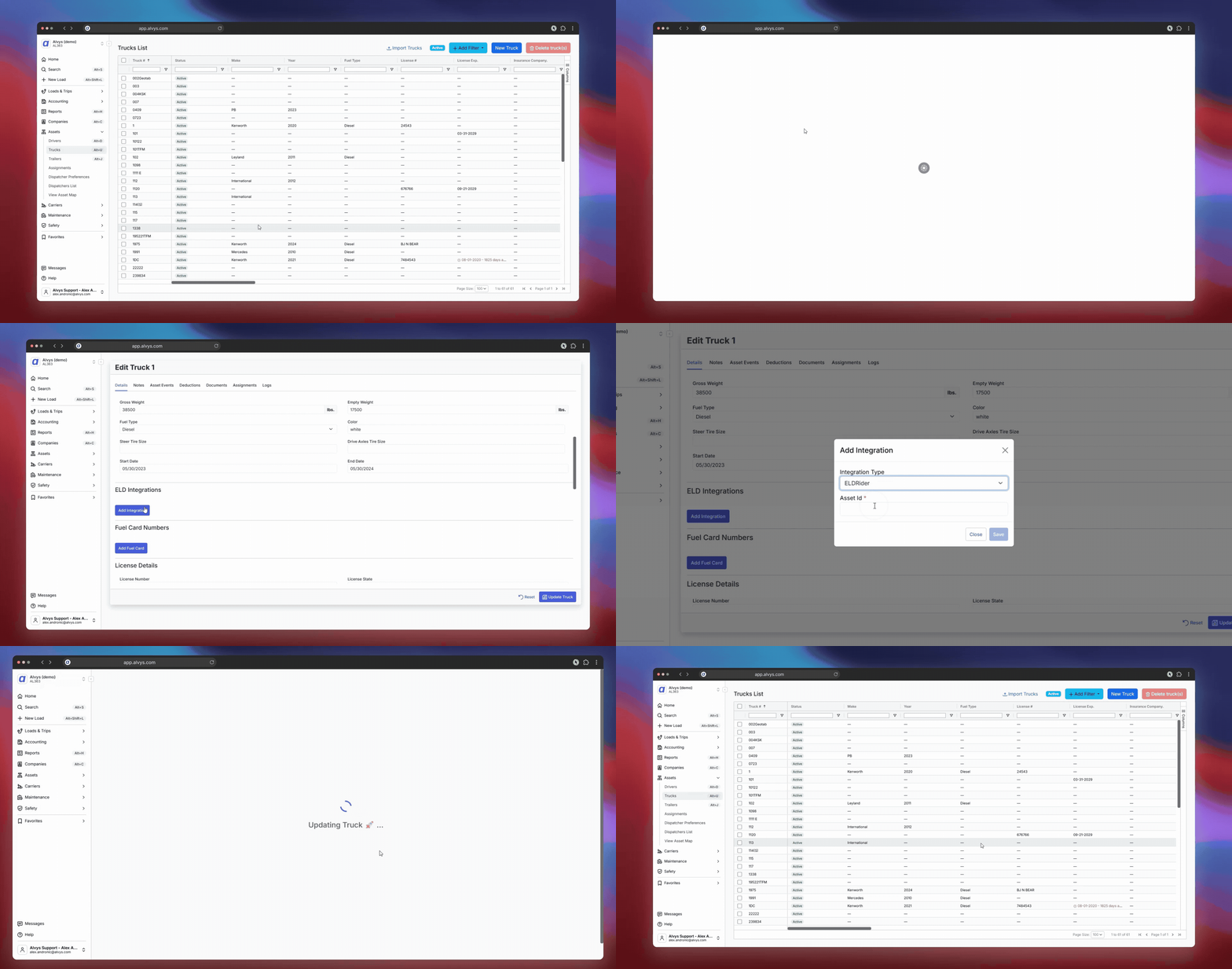 GIF showing the trailer profile in Alvys with the ELD Integrations section and the FleetPulse Unit ID field.
What syncs
The following data is pulled from FleetPulse into Alvys:- Trailer location: Current GPS coordinates for trailers that have an active location signal
- Tether status: Whether the trailer is currently “Tethered” (connected to a truck) or “Untethered” (not connected) Alvys requests updated trailer location and tether status from FleetPulse on a regular basis. Trailers must have a valid GPS signal (latitude and longitude) to appear in tracking. Trailers without an active GPS signal will not show a location. Alvys automatically refreshes the FleetPulse connection in the background. What is not supported:
- Truck location data is not supported — only trailers
- HOS (Hours of Service) clocks are not available through FleetPulse
- IFTA mileage reporting is not available through FleetPulse
- Trailers without a valid GPS signal will not show a location
Troubleshooting
Trailer location is not showing
- Confirm the trailer has a FleetPulse device installed and that the device has an active GPS signal. Trailers without a valid GPS reading will not display a location.
- Verify your username and password in Alvys match your FleetPulse account. Go to “Management” > “Integrations” and re-enter your credentials if needed.
- Check that the integration status shows as active.
Tether status is not displaying
- Confirm the trailer’s FleetPulse device is actively reporting data to FleetPulse’s servers.
- Verify the device supports tether status reporting — not all FleetPulse devices report tether status.
Truck location is missing
Truck location is not supported by FleetPulse. This is expected behavior. If you need truck location tracking, connect a different telematics provider such as Geotab or Motive.FAQs
Q: Why do I see trailer locations but not truck locations with FleetPulse? A: FleetPulse is designed for trailer tracking. Truck location data is not returned by this integration. To track truck locations, connect a telematics provider that supports truck tracking, such as Geotab or Motive. Q: What does “Untethered” mean? A: “Untethered” means the trailer is not currently connected to a truck. “Tethered” means the trailer is connected to and being pulled by a truck. Q: Do I need to log back in to FleetPulse regularly? A: No. Alvys automatically manages the session with FleetPulse in the background. You do not need to re-enter credentials or manually reconnect after the initial setup. Q: Why is a trailer’s location blank even though it has a device? A: Trailer location only shows when the device has an active GPS signal with valid coordinates. If the device is in a location with poor GPS reception, or if the device is powered off, the location will be blank. Q: Where can I find my FleetPulse Unit IDs? A: You can find the Unit ID for each trailer in your FleetPulse account. Open the trailer record in FleetPulse and look for the Unit ID field. Contact your FleetPulse representative if you need help locating this value. Q: Why do I need API-enabled credentials to connect FleetPulse? A: FleetPulse distinguishes between standard user credentials and API-enabled credentials. Standard credentials expire frequently and cause connection interruptions. API-enabled credentials are designed for integrations and provide stable, long-term access. Contact your FleetPulse representative to upgrade a standard user account to API access. Q: What trailer data does FleetPulse send to Alvys? A: FleetPulse sends current GPS coordinates (trailer location) and tether status to Alvys. Tether status indicates whether the trailer is currently connected to a truck (Tethered) or disconnected (Untethered). Truck location, HOS data, and IFTA mileage are not available through this integration.Go Deeper
- Setting Up ELD / Telematics Integrations