
Two-way maintenance integration: Fleetrock pushes repair order updates to Alvys via webhook and Alvys imports open repair orders on activation.
Overview
Fleetrock is a fleet maintenance management platform that connects with Alvys to keep your repair orders and scheduled maintenance items in sync. It is also known as a fleet maintenance integration, repair order integration, or maintenance tracking integration. Connecting Fleetrock to Alvys allows your team to view and manage repair orders directly in Alvys without switching to the Fleetrock portal. When a repair order is updated in Fleetrock, Alvys reflects the change automatically. Alvys also receives scheduled maintenance alerts from Fleetrock, which appear in the Dispatch Planner so dispatchers can see upcoming service needs alongside load assignments.Prerequisites
Before connecting, confirm you have the following:- An active Fleetrock account with API access.
- Your Fleetrock API credentials (username and password from Fleetrock).
- The “Admin” or “Partner Admin” role in Alvys. These roles can access Management > Integrations.
How to connect
- Open the Maintenance integrations: go to Management > Integrations > Maintenance in the top navigation.
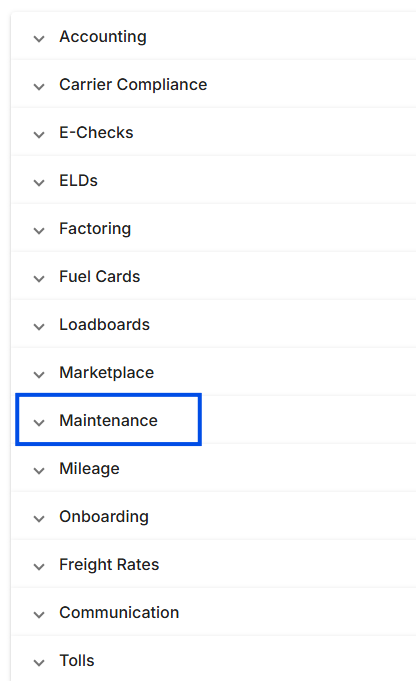 Image showing Maintenance integration drop down.
- Find Fleetrock in the list and click the “Inactive” status to open the configuration dialog.
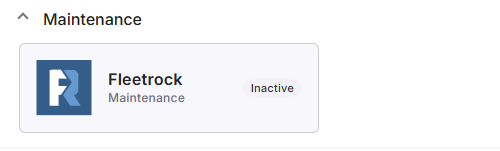 *Image showing Fleetrock integration card with inactive status, on the Alvys integrations page *
- Enter the Login URL supplied by Fleetrock. For example: https://www.fleetrock.com. Please note that tenants who are reseller partners may have a different login URL.
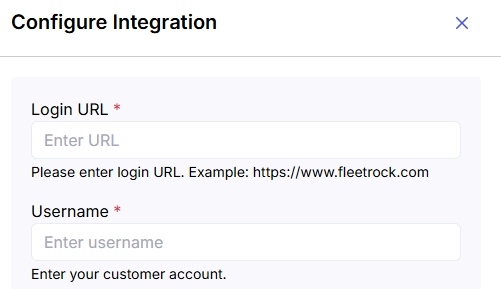 *Image showing the Alvys “Configure Integration” form for the Fleetrock integration with the login URL and the Username input fields *
- Enter the Username (e.g., Alvyscustomer). Only the owner or primary account should be used. This can be found in Fleetrock under Settings > Users.
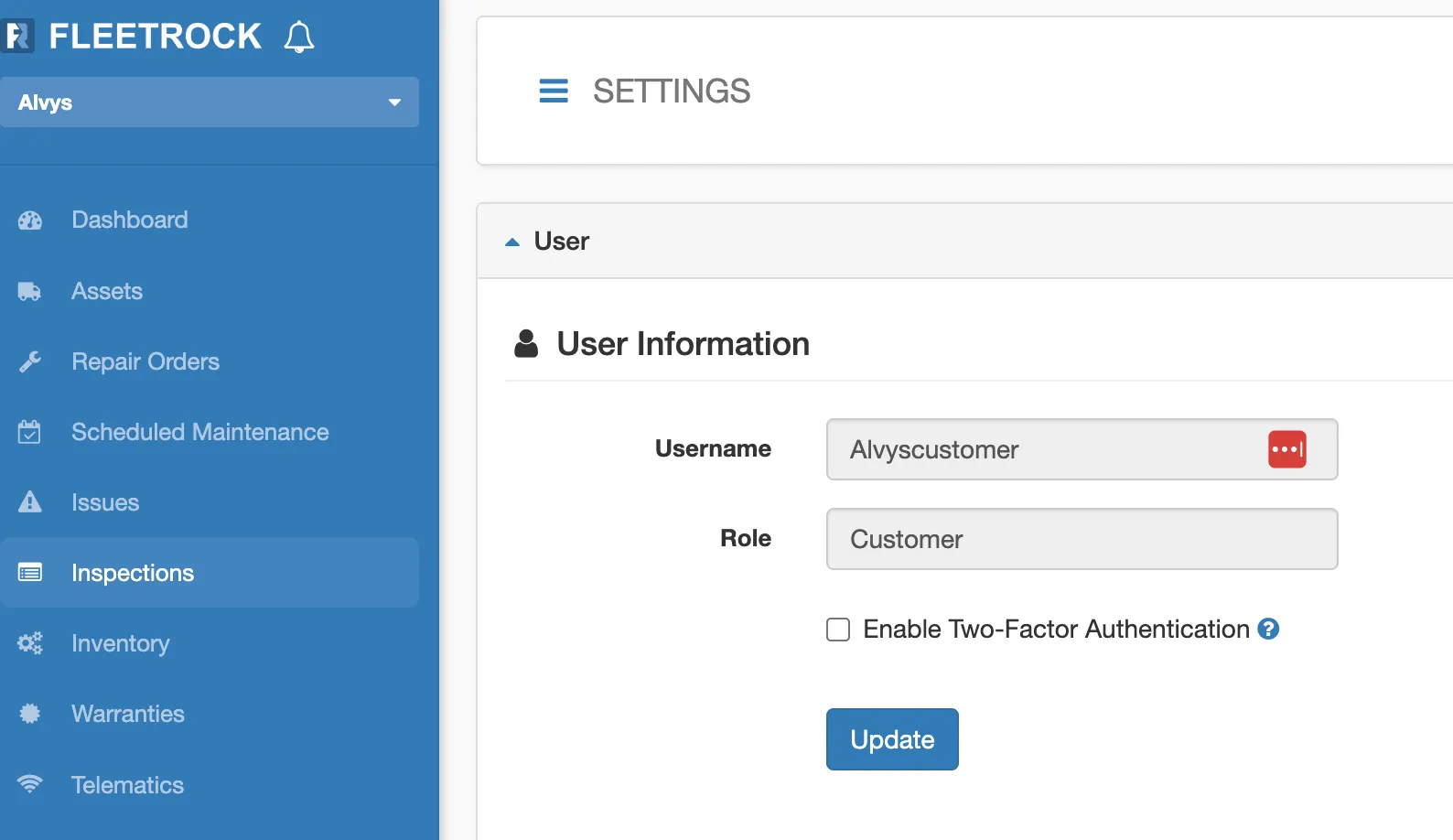 *Image showing Fleetrock Settings page with User details *
- **Generate the API Key. **In Fleetrock, go to the Settings menu, then select API. Enter ‘Alvys’ as the description and make sure to **uncheck **the ‘Use JSON Web Tokens (JWT)’ box, as the integration will not work if it is checked. Click “Generate Key” and copy the API key from the grey input field into the Alvys integration setup.
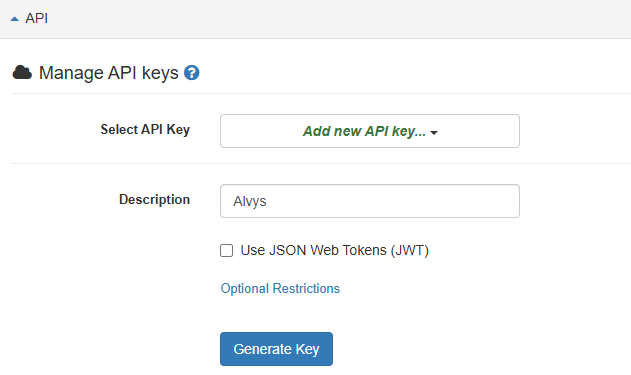 Image showing Fleetrock Settings page with API details
- Select the appropriate Subsidiary for the integration.
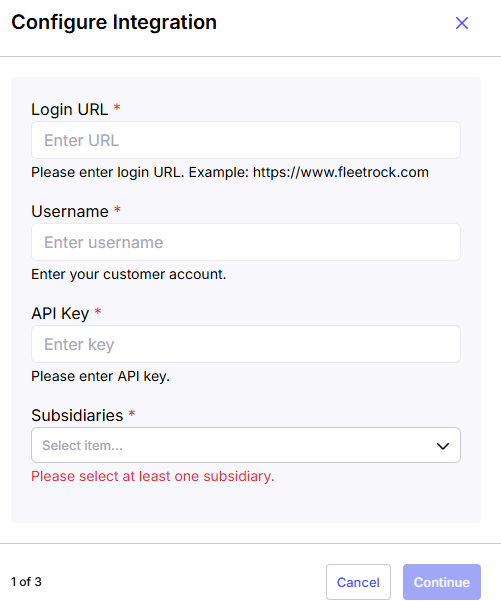 *Image showing the Alvys “Configure Integration” form for the Fleetrock integration with the “API key” and the “Subsidiaries” input fields *
- Select the Default Asset Group. Asset Groups in Fleetrock are required for asset creation and help organize units. A default group ensures new assets from Alvys are properly created and categorized in Fleetrock. Groups can be created and managed in Fleetrock by navigating to the Assets tab and selecting the Groups button.
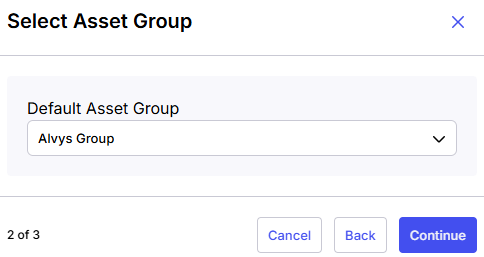 Image showing the Default Asset Group dropdown during the Alvys Fleetrock integration configuration.
- **Link Fleetrock and Alvys for Automatic Updates. **Fleetrock uses webhooks to send real-time data to Alvys. Copy the webhook URL provided by Alvys. Within Fleetrock, navigate to the Settings page and select Webhooks. Enable the webhook by selecting the “Enable” checkbox. Paste the webhook URL provided by Alvys into the “Endpoint URL” field.
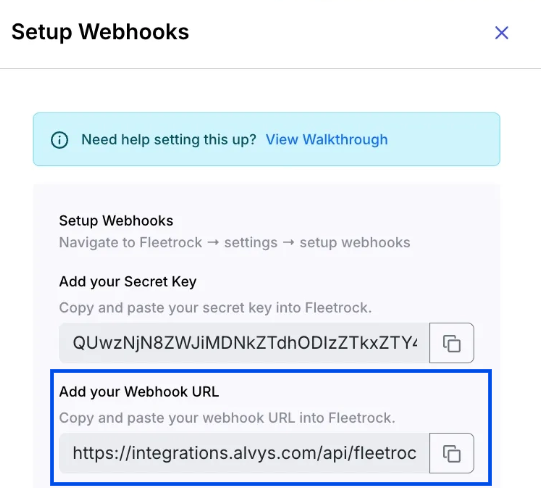 *Image showing “Setup Webhooks” dialog with webhook details such as secret key and webhook URL *
- Copy the secret key from Alvys and enter it into the “Webhook Secret” field.
- Select choose “All.” for the Send Events input field, then Click “Send Test Webhook” to verify the connection.
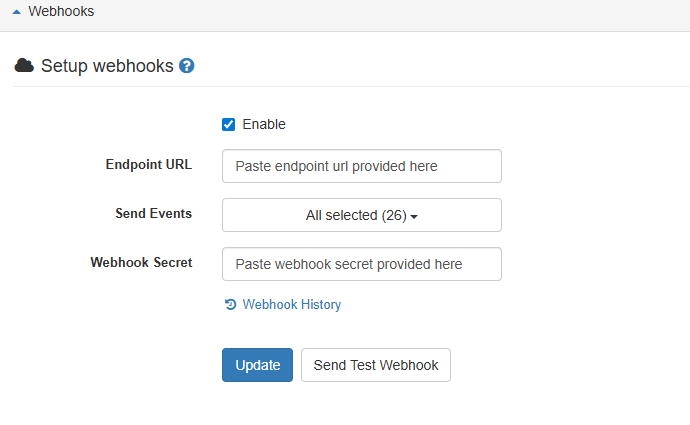 Image showing Fleetrock settings user interface for Webhook Setup.
- A success message will confirm correct setup. Finally, select “Update” to save the webhook configuration.
 *Image showing successful configuration of webhooks in Fleetrock *
- Navigate back to Alvys and select the Activate button.
 Image showing “Activate” button in final step of the Fleetrock integration configuration.
- The integration will now show as active
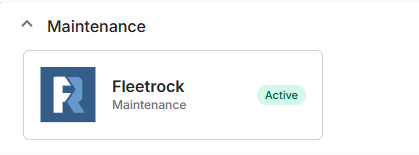 Image showing active Fleetrock integration
Asset Creation and Syncing with Fleetrock
When the integration with Fleetrock is first activated, Alvys does not create new assets in Fleetrock for units that exist only in Alvys. However, if an asset exists in both systems with the same VIN, the integration will automatically sync those records. After the integration is enabled, any new assets (trucks and trailers) created in Alvys will automatically be created in Fleetrock. This process eliminates duplicate data entry, keeps Fleetrock aligned with your current fleet information, and ensures maintenance schedules are correctly applied to the right assets. Fields Synced from Alvys to Fleetrock:- Truck/Trailer Number (Unit Number)
- License Number
- License State (Registration State)
- License (Registration Expiration)
- VIN - Once a valid VIN is provided, additional details such as make, model, and year will be automatically populated by Fleetrock under the VIN Data tab for the corresponding truck or trailer
- Status (Active/Inactive).
What syncs / data flow
Repair order statuses are mapped between Fleetrock and Alvys as follows:
Scheduled maintenance items from Fleetrock are also synced to Alvys. These appear as upcoming service reminders in the Dispatch Planner.
Fleetrock sends updates to Alvys automatically via webhook whenever a repair order is created or its status changes. You do not need to manually refresh or re-sync. Scheduled maintenance data is sent from Fleetrock to Alvys once daily at 5:00 AM Eastern Time.
VIN matching is used to link repair orders in Fleetrock to the correct truck in Alvys. The truck’s VIN in Alvys must match the VIN in Fleetrock for repair orders to appear on the correct asset.
How to view repair orders in Alvys
A Repair Order (also known as a Work Order) is a formal request to perform maintenance or repairs on a unit such as a truck or trailer. Once the Fleetrock integration is enabled, Alvys will automatically import any repair orders from Fleetrock that are either Not Started or In Progress. These repair orders are imported into Alvys as Asset Events.- Go to the Asset List (Truck List or Trailer List) in Alvys
- Select the Asset Events tab on the record. All active and completed repair orders synced from Fleetrock will appear here.
- Click a repair order to view its line items, status, and service history as reported by Fleetrock.
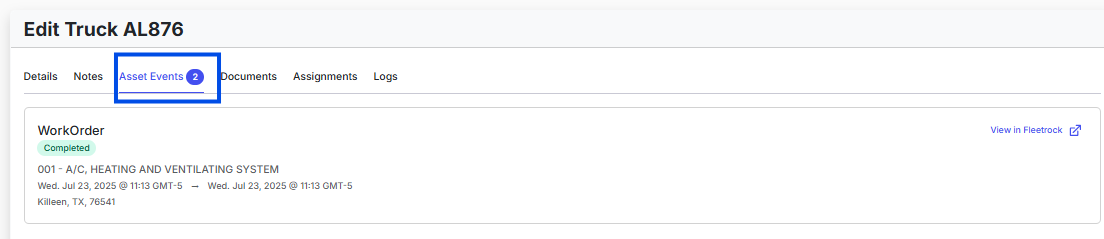 Image showing sample truck profile, “Asset Events” tab with Work Order details
How scheduled maintenance appears in the Dispatch Planner
The Dispatch Planner displays upcoming scheduled maintenance from Fleetrock in a dedicated column. Dispatchers can see:- The truck that has upcoming service.
- The type of service scheduled.
- The due date or mileage threshold for the service.
- The current status of any active repair order for that truck. This allows dispatchers to plan load assignments around maintenance needs before they become urgent.
- Only repair orders with Not Started or In Progress status are imported at activation.
- Scheduled maintenance syncs once daily (5:00 AM Eastern Time), not in real time.
- VIN matching is required, repair orders will not link to a truck if the VIN does not match.
- The JWT option must remain unchecked; JWT authentication is not supported for this integration.
Troubleshooting
Repair orders are not appearing after activation
- Confirm the JWT option was UNCHECKED when you saved the credentials. If JWT was checked, the connection will not authenticate correctly. Re-enter your credentials with JWT unchecked.
- Verify that the repair orders in Fleetrock have a status of Not Started or In Progress. Only these two statuses are imported during the initial activation.
- Check that the truck VINs in Alvys match the VINs in Fleetrock exactly. A VIN mismatch will prevent repair orders from appearing on the correct truck.
A repair order status change in Fleetrock is not updating in Alvys
- Confirm the Fleetrock webhook is active. Webhook connectivity is required for real-time updates. If the webhook was disrupted, contact Fleetrock to verify the webhook is pointed to the correct Alvys endpoint.
- Check the status mapping above — some Fleetrock statuses map to the same Alvys status (for example, Finished, Invoiced, and Paid all map to Completed).