
Configure which EDI events Alvys sends automatically to a customer, including location updates (heartbeats), appointment times, arrivals, departures, and estimated delivery time (ETA). Also known as automatic EDI updates, auto-send EDI, EDI 214 settings, and EDI status updates.
Overview
Auto Update Settings control when and how Alvys automatically sends EDI 214 (Shipment Status Update) messages to a customer’s system. These settings live on each customer’s company profile and let you configure what gets shared, when, and based on what data sources. You can enable automatic sharing for five types of events: location updates (heartbeats), appointments, arrivals, departures, and estimated delivery time (ETA). Each type has its own toggle and sub-options so you can tailor the behavior per customer.Before You Start
You need the “EditCustomer” permission to configure Auto Update Settings on a customer record. Admin, Partner Admin, and Office Admin users have this permission by default. Other users can be granted “EditCustomer” by an Admin. The customer must also have an active EDI integration configured. Auto Update Settings only appear and apply to customers with an active EDI connection.Steps
**Open the customer record. **Navigate to Companies > Customers and open the company profile for the customer you want to configure. Open Auto Update Settings. On the customer profile, find the Auto Update Settings section in the right-hand sidebar and click it to open the settings panel.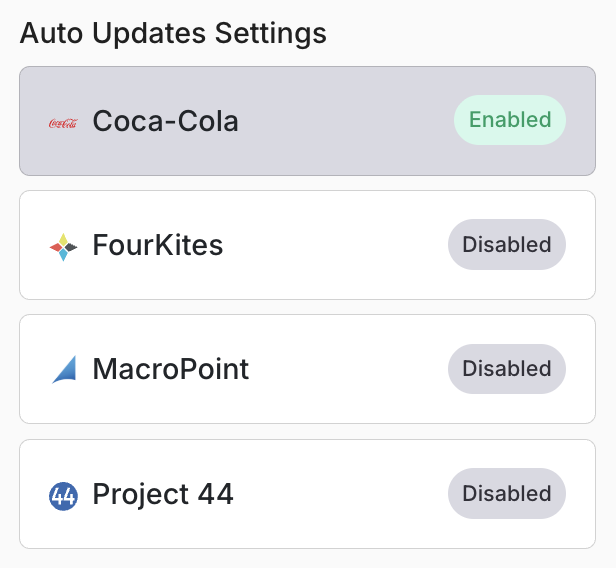 Auto Update Settings section in the customer profile right-hand sidebar.
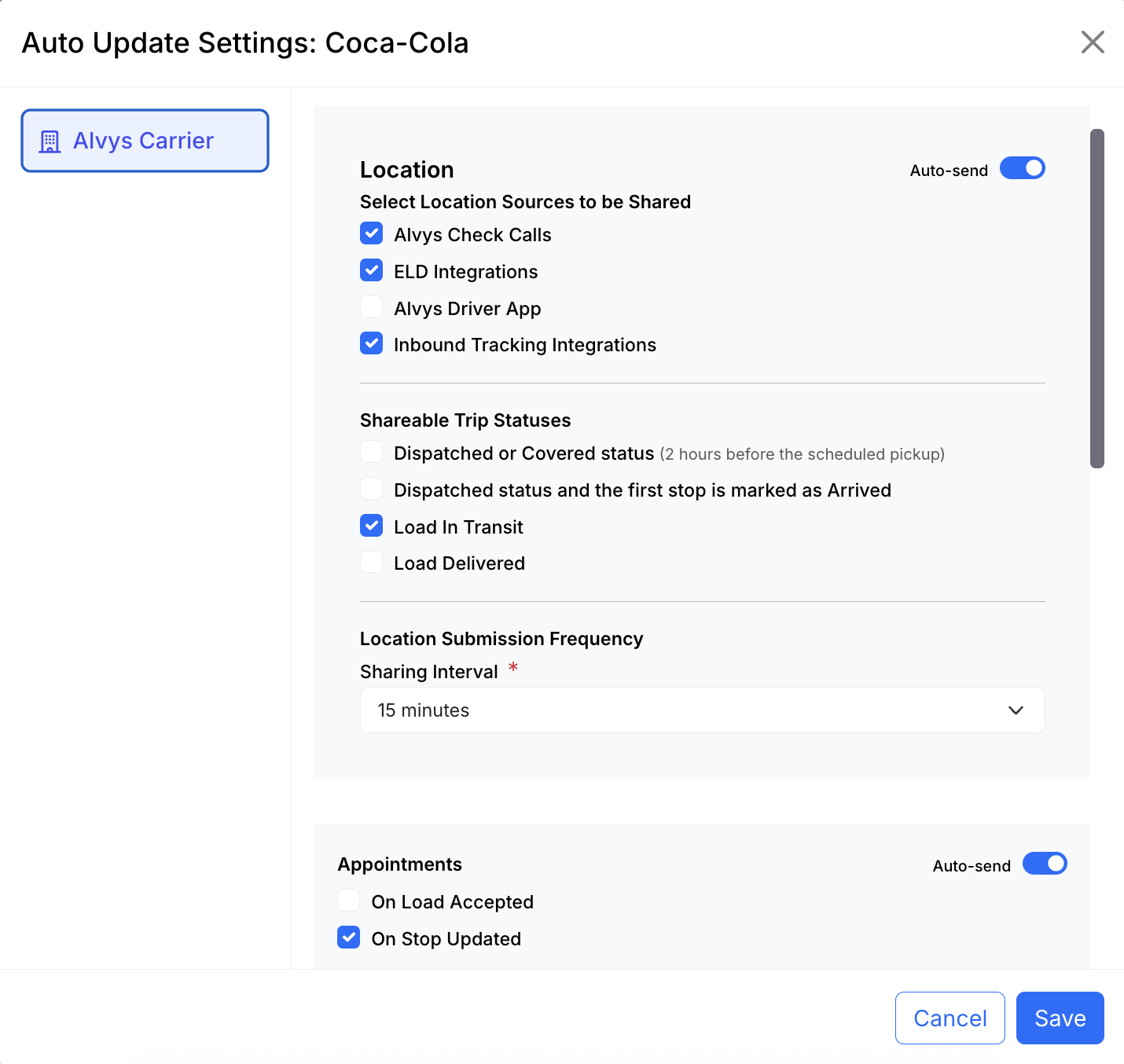 Location Updates Auto Send toggle and sub-options.
- Location sources to share: Choose which sources Alvys will use for location data: Alvys Check Calls; ELD integrations (for example, Samsara, Motive, Geotab); Alvys Driver App; inbound tracking integrations (for example, MacroPoint, Project44).
- Sharable trip statuses: Select which load statuses will trigger location updates: Dispatched or Covered Before Pickup, Dispatched After 1st Pickup, In Transit, Delivered.
- Location submission frequency: Set how often Alvys sends location updates. Options range from every 5 minutes to once per day.
- Configure Appointments. Enable the Auto Send toggle for Appointments to send appointment EDI updates automatically.
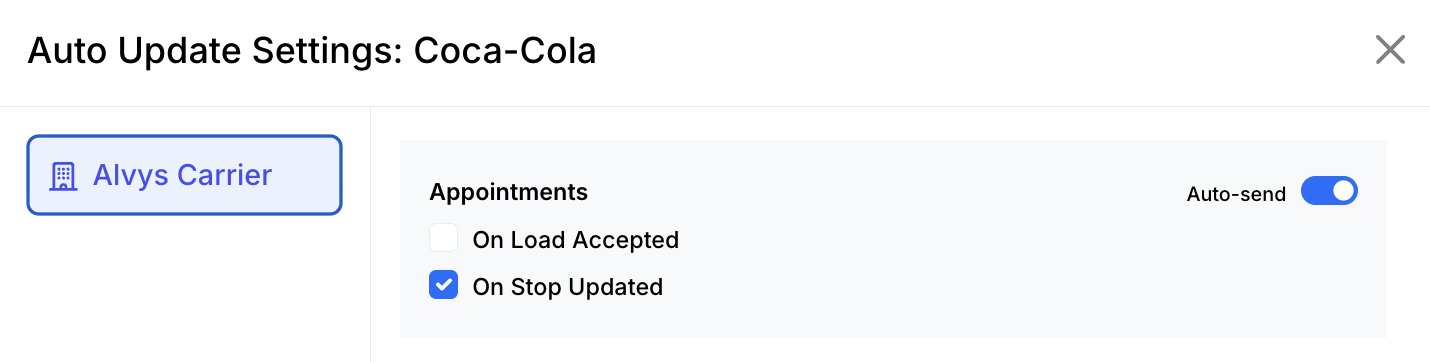 Appointments Auto Send toggle and trigger options.
- On Load Accepted: Sends the appointment EDI immediately when the load is accepted.
-
On Stop Updated: Sends the appointment EDI only when the appointment time is updated at a stop.
💡 Use “On Stop Updated” if appointment times are confirmed separately after load acceptance.
- **Configure Arrivals. **Enable the Auto Send toggle for Arrivals to send arrival EDI updates automatically when a truck arrives at a stop.
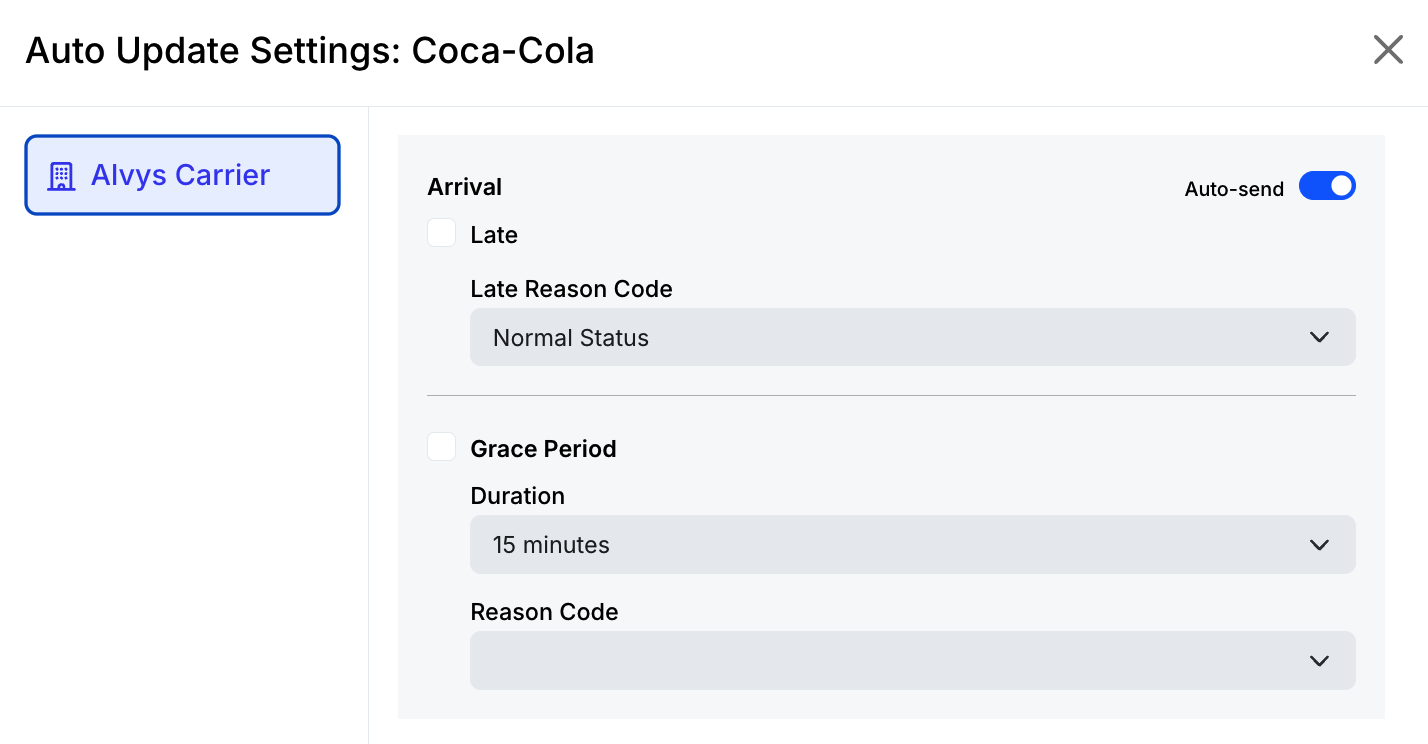 Arrivals Auto Send toggle and additional options.
- Send Late Arrivals Automatically: Enable this to auto-send even when the truck arrives late. When enabled, select a Late Reason Code.
- Grace Period: Enable this to treat arrivals within a set window as on time. Set the grace window (15 minutes to 2 hours) and select a Reason Code for arrivals within that window.
- Configure Departures. Enable the Auto Send toggle for Departures to send departure EDI updates automatically when the truck leaves a stop.
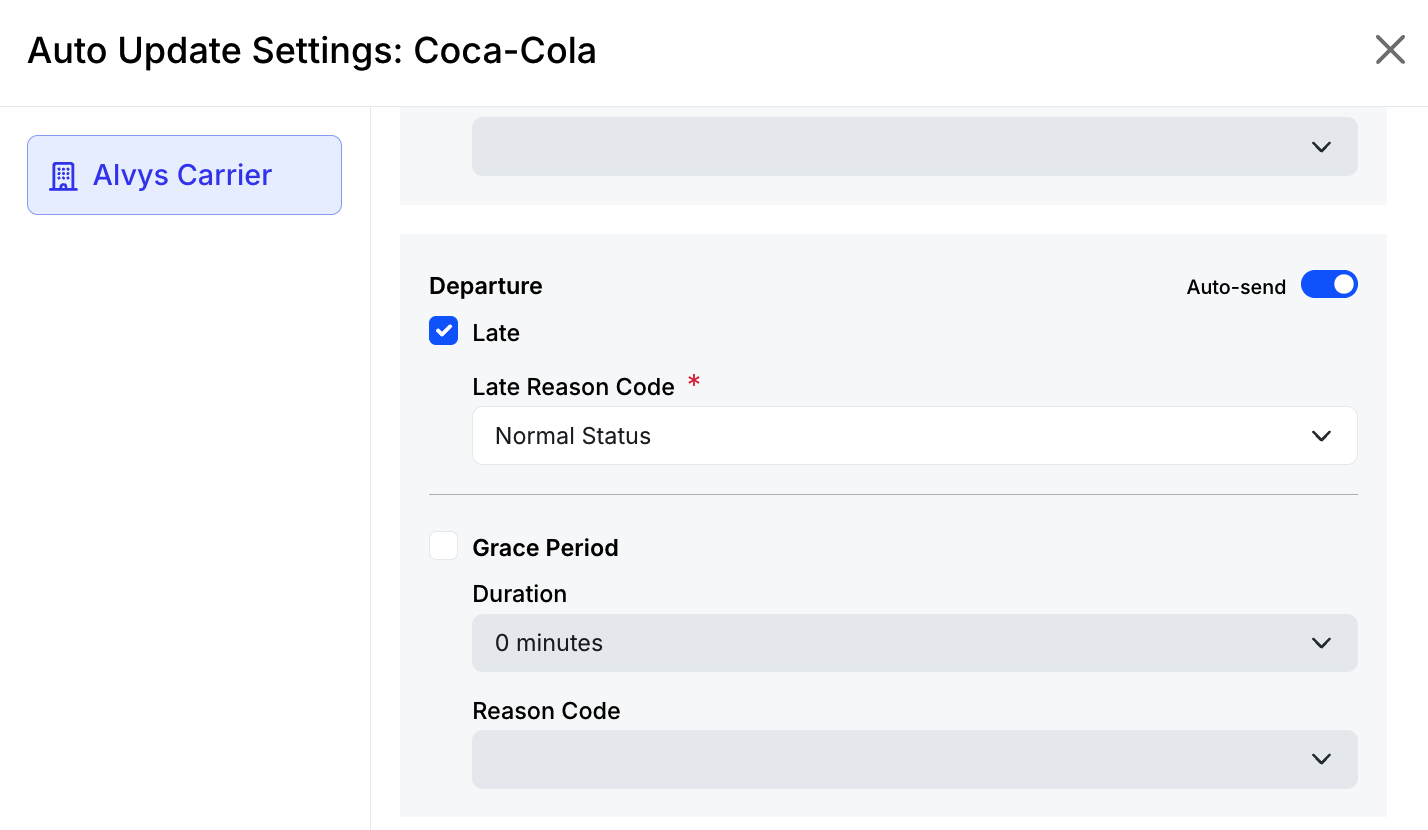 Departures Auto Send toggle and additional options.
- Send Late Departures Automatically (with Reason Code)
- Grace Period (with Reason Code and interval selection)
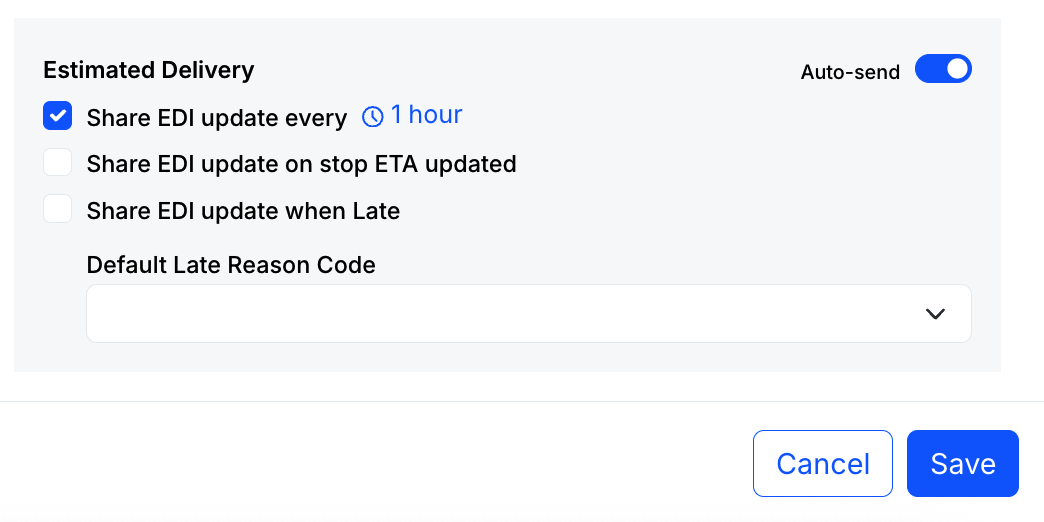 ETA Auto Send toggle and frequency/trigger options.
- On ETA Updated: Sends an update when the ETA changes.
- On ETA Late: Sends an update when the ETA is after the appointment time. When enabled, select a Reason Code.
- Save the settings. After configuring each event type, save the settings panel to apply the changes.
Result
After saving, Alvys will automatically send EDI 214 updates to the customer for the event types you enabled. Updates are sent whenever a qualifying event occurs on a load assigned to this customer.Variations
Disabling a setting: To turn off any auto-send behavior, return to the customer record, open Auto Update Settings, disable the relevant toggle, and save. Configuring for multiple customers: Auto Update Settings are per customer. Repeat these steps for each customer that requires different settings.Troubleshooting
Auto Update Settings section is not visible on the customer profile
- Confirm the customer has an active EDI integration. The Auto Update Settings section only appears for customers with an active EDI connection.
- Confirm you have the “EditCustomer” permission. Contact your Admin if you need this permission adjusted.
- If the Auto Update Settings section is still not visible after confirming both of the above, contact Alvys support and provide the customer name and your user role.
EDI updates are not being sent after enabling a setting
- Confirm the Auto Send toggle for the relevant event type is enabled and the customer record has been saved.
- Confirm the load is assigned to the customer where the setting is configured.
- For location updates, confirm at least one location source is selected and the relevant load status is included in the sharable trip statuses list.
- If updates are still not being sent after confirming all of the above, contact Alvys support and provide the customer name, event type, and load number.