
Send automated tracking updates from Trucker Tools directly to your customers by configuring outbound notifications on each customer profile. Also called Trucker Tools outbound tracking, outbound check calls, or customer tracking emails.
Overview
When you use Trucker Tools for inbound load tracking, you can also send tracking updates automatically to your customers. Configure this once on the customer’s profile in Alvys, and the settings apply every time you start a Trucker Tools tracking request on a load for that customer. Streamline your workflows by setting this up once per customer so updates go out automatically without any manual steps during dispatch.Before You Start
- The Trucker Tools inbound integration must be active on your account. See Trucker Tools Inbound Integration.
- A customer profile must already exist in Alvys for the customer you are configuring.
Steps
-
Navigate to the customer profile and open Auto Updates. In Alvys, open the profile for the customer you want to configure. Go to the Auto Updates section and locate the TruckerTools card.
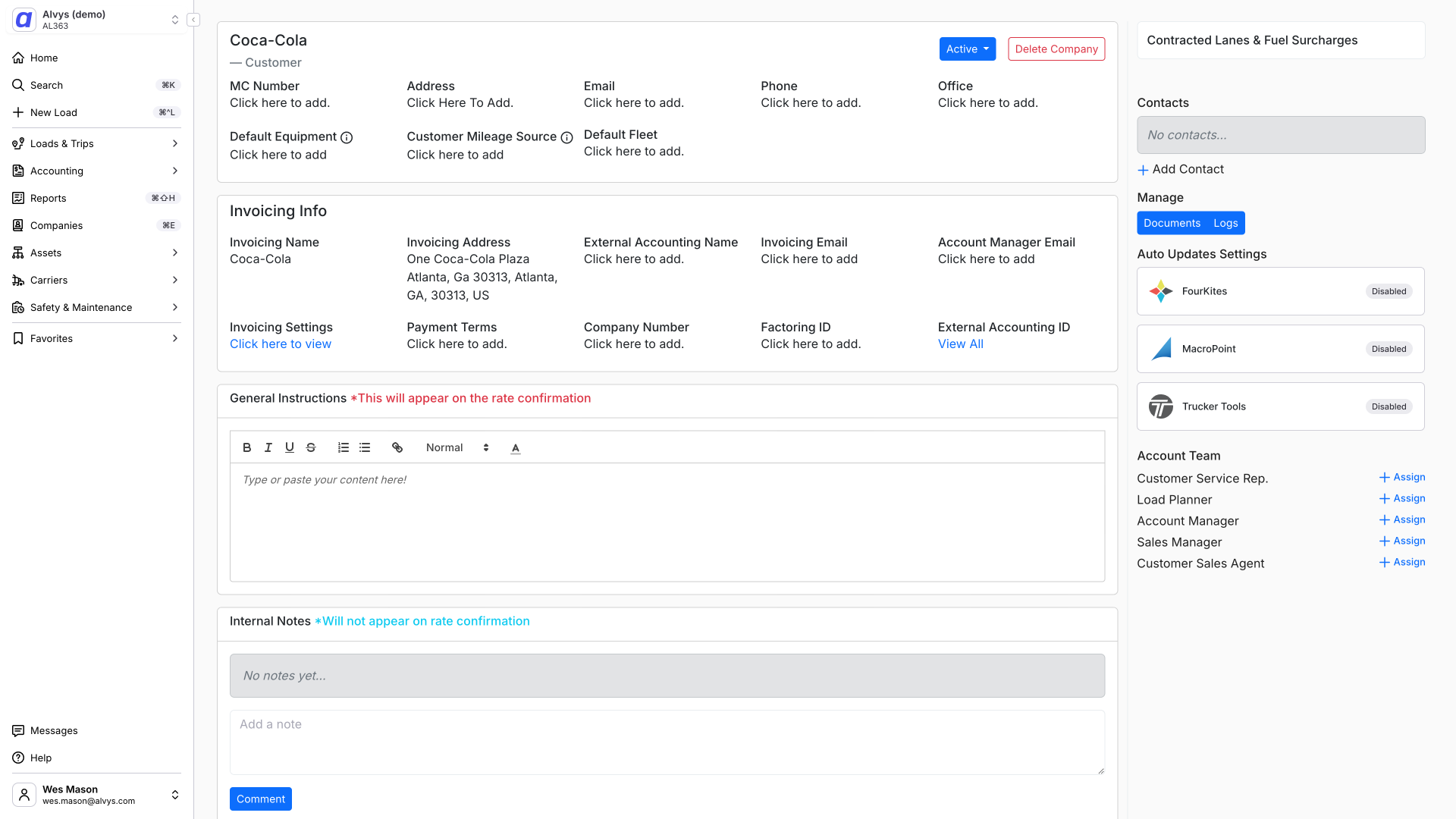 Customer profile Auto Updates section with the TruckerTools card.
Customer profile Auto Updates section with the TruckerTools card.
Customer profile Auto Updates section with the TruckerTools card.
-
Enable outbound updates. Select the checkbox to enable outbound tracking updates for this customer. The checkbox defaults on or off based on the customer’s existing TruckerTools outbound setting. Then configure the following:
- Contacts: Select one or more customer contacts who will receive email notifications.
-
Email Interval: Set how often the customer receives tracking email updates.
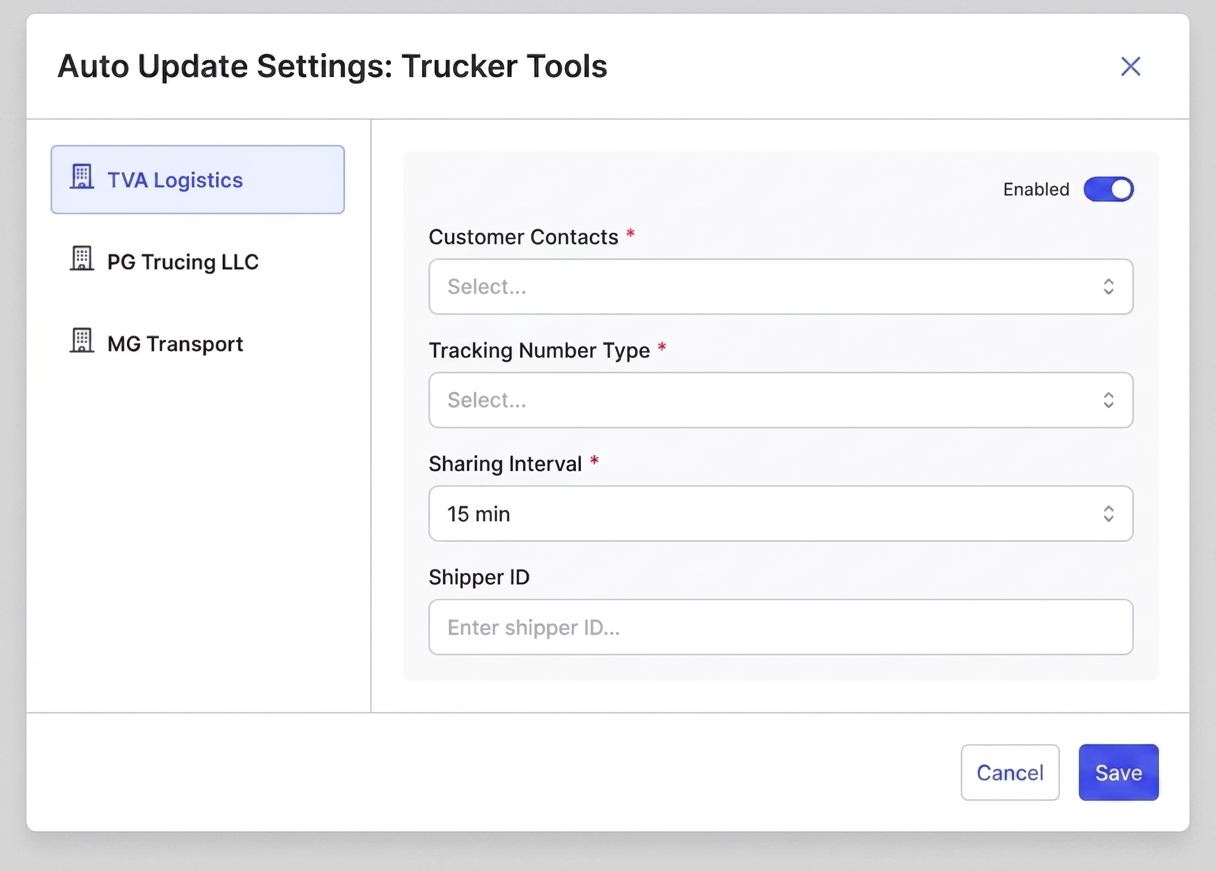 TruckerTools outbound checkbox enabled with Contacts and Email Interval fields.
TruckerTools outbound checkbox enabled with Contacts and Email Interval fields.
TruckerTools outbound checkbox enabled with Contacts and Email Interval fields.
- Map the load number. Under Map Load Number, choose which load identifier TruckerTools should use in customer communications: Order #, PO #, or Alvys Load #. If needed, enter an optional Shipper ID in the field provided.
- Start a tracking request on the load. When you create or update a Trucker Tools tracking request on a load for this customer, the settings from the customer profile apply automatically to determine how outbound updates are sent. In the tracking form, select Open Customer Profile in New Tab if you need to review or update these settings without leaving the load.
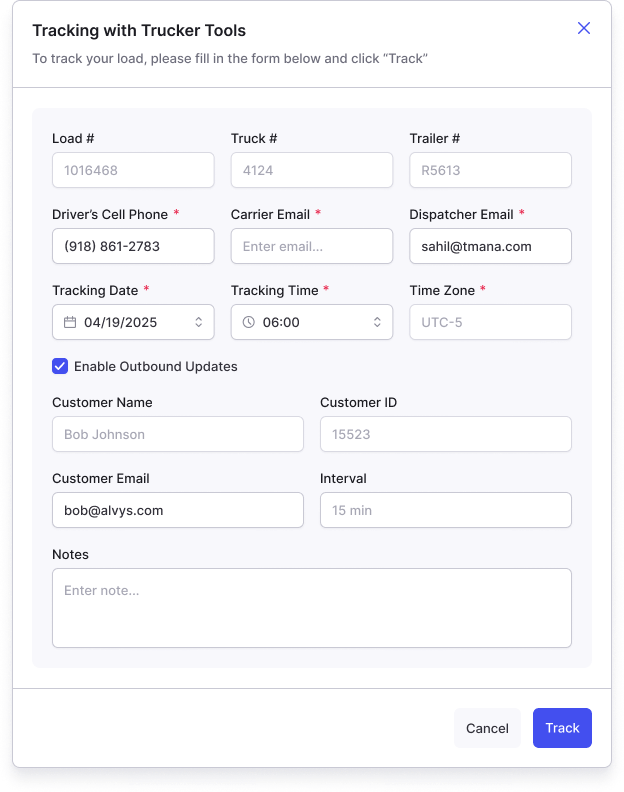 TruckerTools outbound checkbox enabled with Contacts and Email Interval fields.