
The Thermo King integration, also called Thermo King reefer tracking or trailer telematics, connects your Thermo King account to Alvys so that trailer location and temperature data sync automatically.
Overview
The Thermo King integration, also known as Thermo King reefer tracking or trailer telematics, connects your Thermo King account to Alvys so that trailer location and temperature data sync into Alvys automatically. The integration is one-way: Thermo King sends data to Alvys. Once connected and mapped, dispatchers can view trailer positions and temperature readings directly in Alvys without switching between systems.Prerequisites
Before connecting, confirm you have the following:- An active Thermo King account with API access enabled
- Your External Customer ID, username, and password from Thermo King. If you do not have these credentials, contact Thermo King at tracking@thermoking.com
- The trailer name for each trailer you want to track, exactly as it appears in Thermo King
- An “Admin”, “Partner Admin”, or “Support” role in Alvys
How to connect
- Go to “Management > Company Profile > Integrations” tab in Alvys.
- Locate the Thermo King integration, enter your External Customer ID, Username, and Password in the fields provided, and click “Save”.
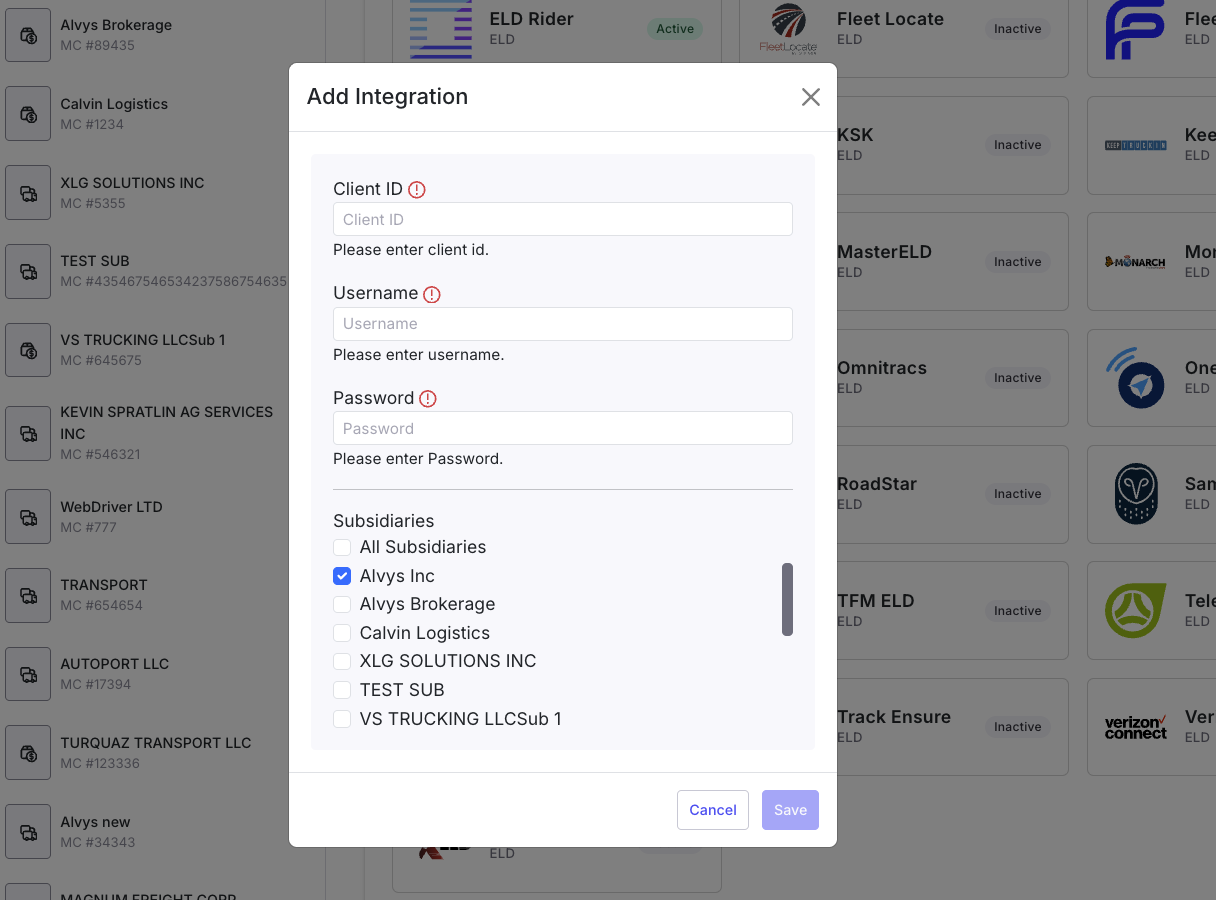 Integrations tab in Alvys showing the Thermo King section with the External Customer ID, Username, and Password fields.
Map your trailers
After connecting, map each trailer in Alvys to the corresponding record in Thermo King. Each trailer must be mapped individually; there is no bulk mapping option.- Go to “Management > Fleets > Trailers” and open the trailer record you want to map.
- In the ELD Integration section, select “Thermo King” from the provider dropdown.
- In the Integration ID field, enter the trailer name exactly as it appears in Thermo King, including capitalization and spacing.
- Click “Save”.
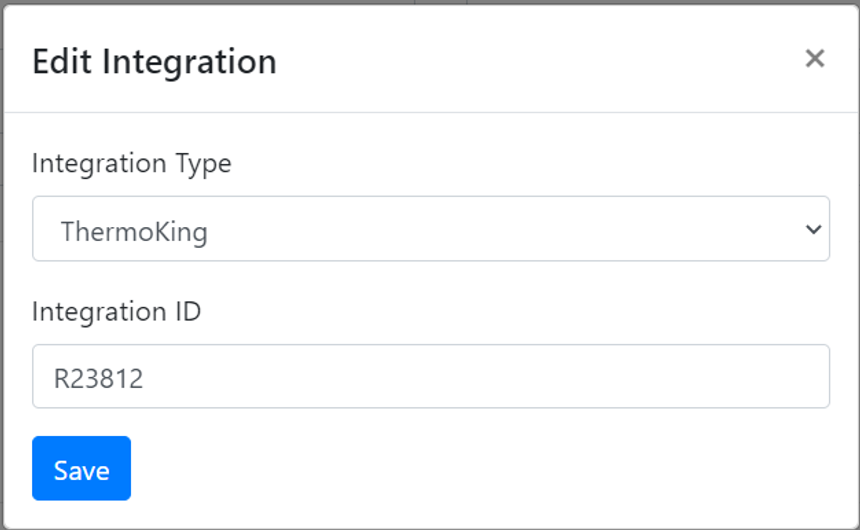 Trailer record in Alvys showing the Integration ID field filled in with the trailer name from Thermo King
Verify it’s working
- Open a mapped trailer in Alvys and confirm that a location is showing in the tracking view.
- Confirm that temperature data is displaying on the trailer record.
What syncs
Once trailers are mapped, Alvys pulls data from Thermo King automatically. The following data syncs from Thermo King to Alvys:- Trailer GPS location
- Temperature readings for up to three zones: ambient, probe, supply air, and return air
- Setpoint temperatures
- Fuel percentage
- Power status
📋 What is not available through Thermo King: truck location tracking · driver HOS data · IFTA mileage reporting. Each trailer must be mapped individually; there is no bulk mapping option.
Troubleshooting
Trailer location or temperature not showing in Alvys
- Confirm the trailer unit is powered on and has an active connection in Thermo King.
- Verify the Integration ID in Alvys matches the trailer name in Thermo King exactly, including capitalization and spacing. Go to “Management > Fleets > Trailers”, open the trailer record, and compare the Integration ID to the trailer name shown in Thermo King.
- If neither of those conditions applies, contact Alvys support.