
What This Integration Does
OTR Solutions connects to Alvys via a two-way API to automate invoice submission, broker credit checks, and purchase status reporting for factoring clients. Also referred to as OTR factoring or OTR Solutions factoring. Alvys submits invoice batches and broker credit check requests to OTR Solutions. OTR Solutions returns credit check results in real time and provides purchase status updates that sync back to Alvys nightly or on demand. When a load is funded by OTR Solutions, the load status in Alvys updates to Financed.Prerequisites
- Active account with OTR Solutions
- Username and password from the OTR Solutions client portal
- USDOT number set on each subsidiary that will submit batches
- MC number set on each customer or broker that will be included in a batch or credit check (a load missing an MC number will fail individually during submission; the rest of the batch proceeds)
- Notice of Assignment text provided by OTR Solutions
- Admin, Partner Admin, or Support access to configure the integration
- “Billing” permission to submit batches and access reporting
Connect & Authenticate
Configure your Notice of Assignment
- Navigate to Management > Company Profile.
-
In the General Info tab, locate the Important Information section. Click the (+) button. The Manage Important Info pop-up opens.
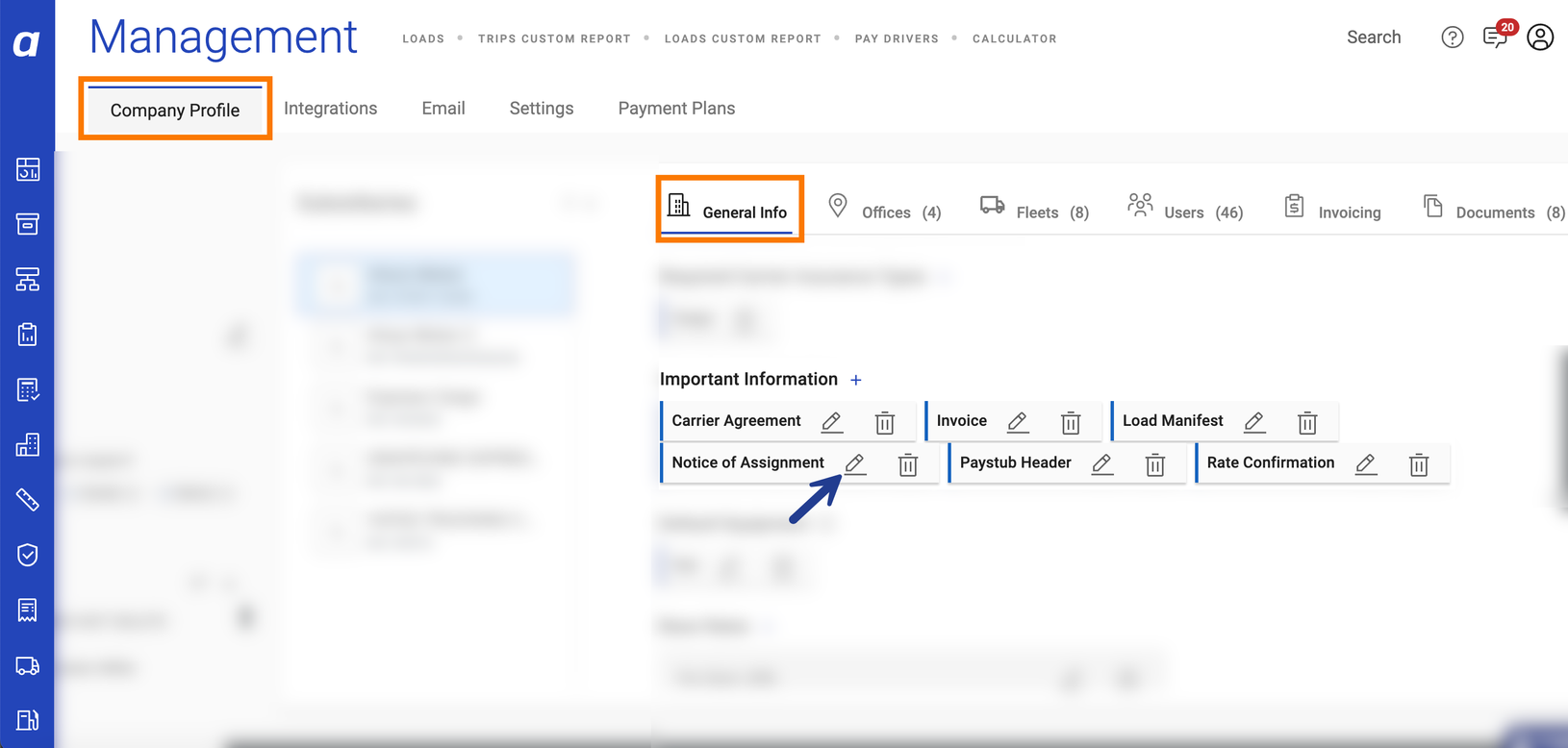 Manage Important Info pop-up opened from the Important Information section of the General Info tab
Manage Important Info pop-up opened from the Important Information section of the General Info tab
Manage Important Info pop-up opened from the Important Information section of the General Info tab
-
In the drop-down menu, select Notice of Assignment. Copy and paste the Notice of Assignment text provided by OTR Solutions.
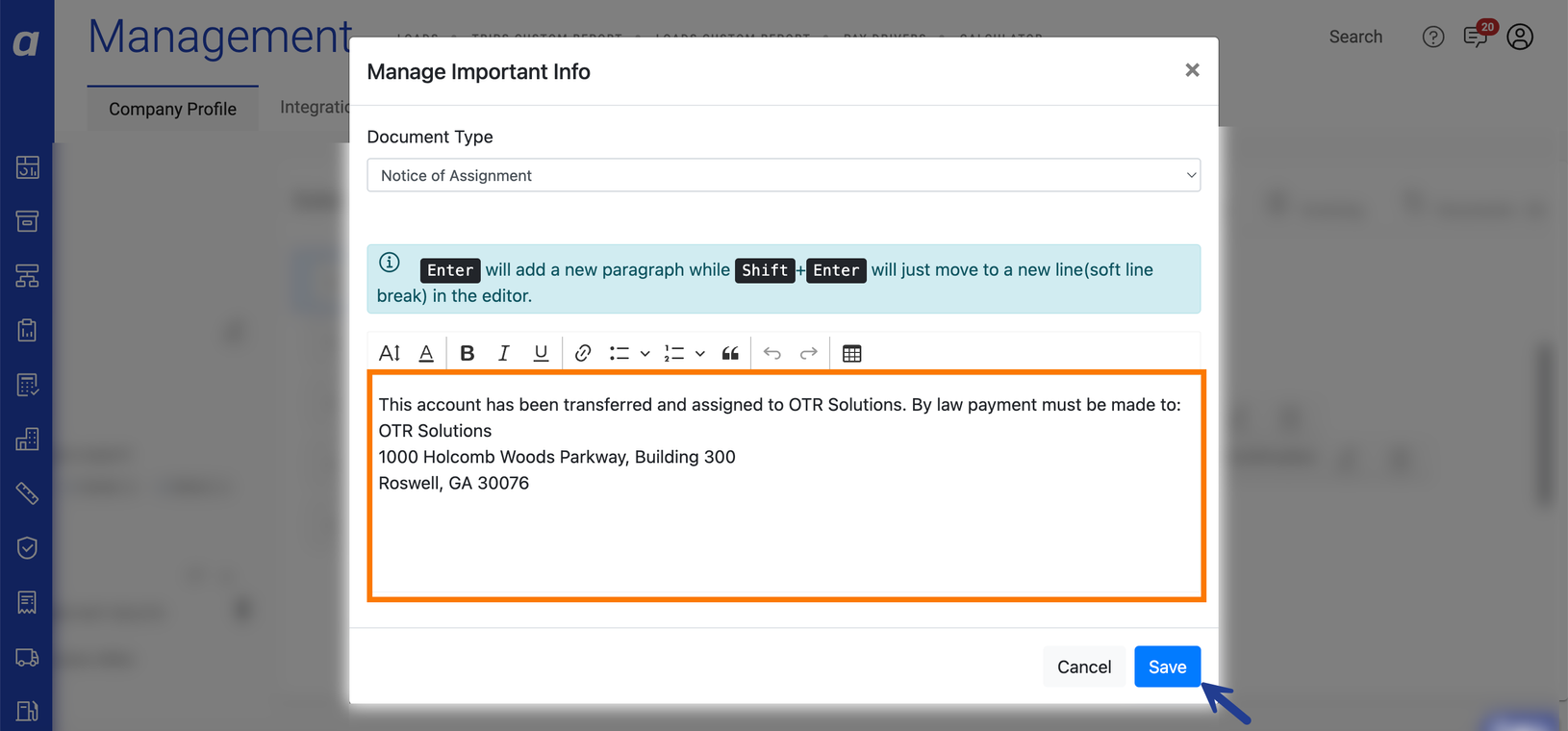 Notice of Assignment text pasted into the Manage Important Info field
Notice of Assignment text pasted into the Manage Important Info field
Notice of Assignment text pasted into the Manage Important Info field
- Click Save.
Configure the OTR Solutions integration
- Navigate to Management > Integrations.
-
Select the subsidiary you want to configure. Expand the Factoring section. Click the pencil icon next to OTR Solutions.
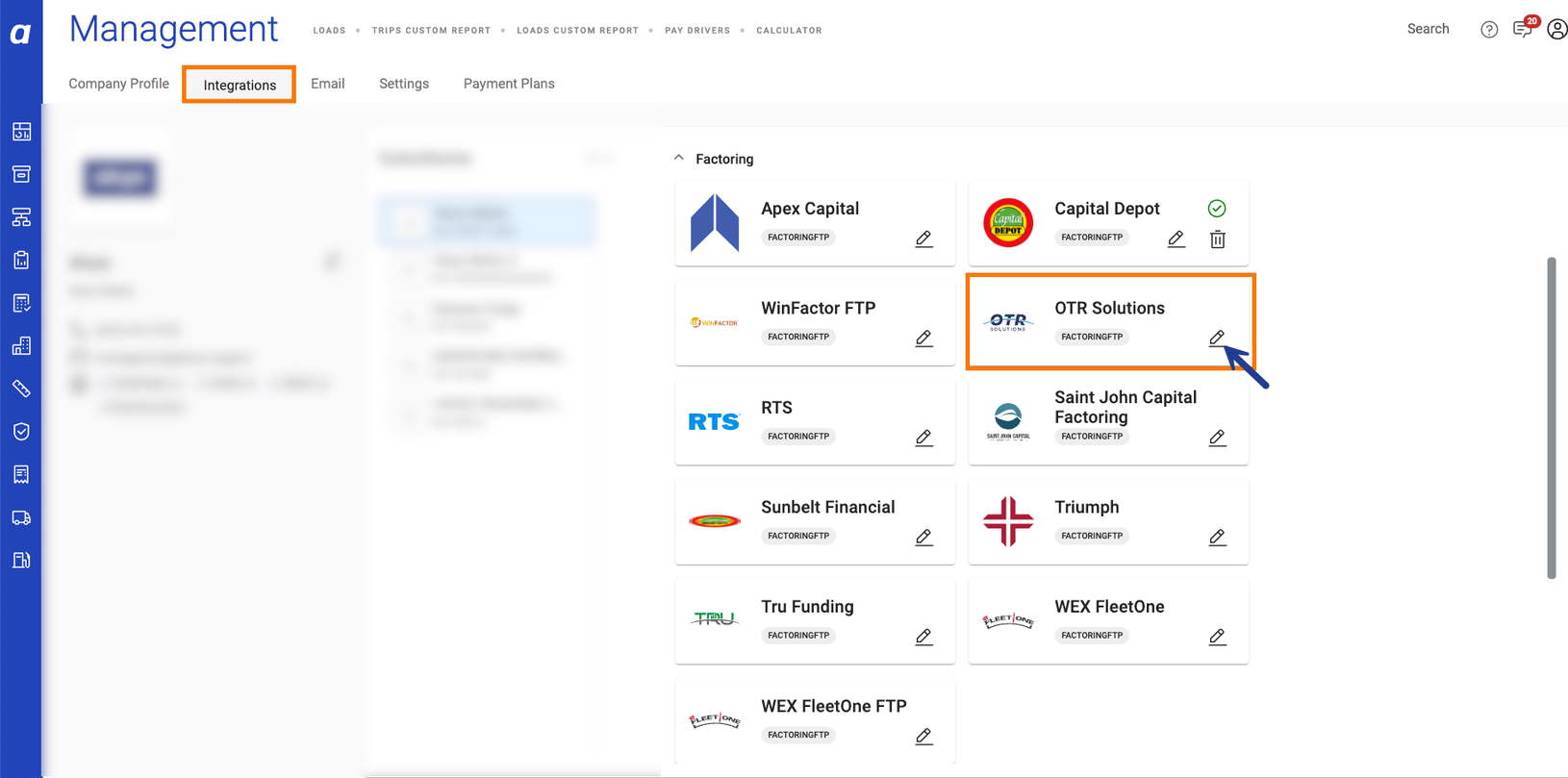 Factoring section expanded in Integrations with the OTR Solutions pencil icon
Factoring section expanded in Integrations with the OTR Solutions pencil icon
Factoring section expanded in Integrations with the OTR Solutions pencil icon
-
Enter the username and password you use to log in to the OTR Solutions client portal.
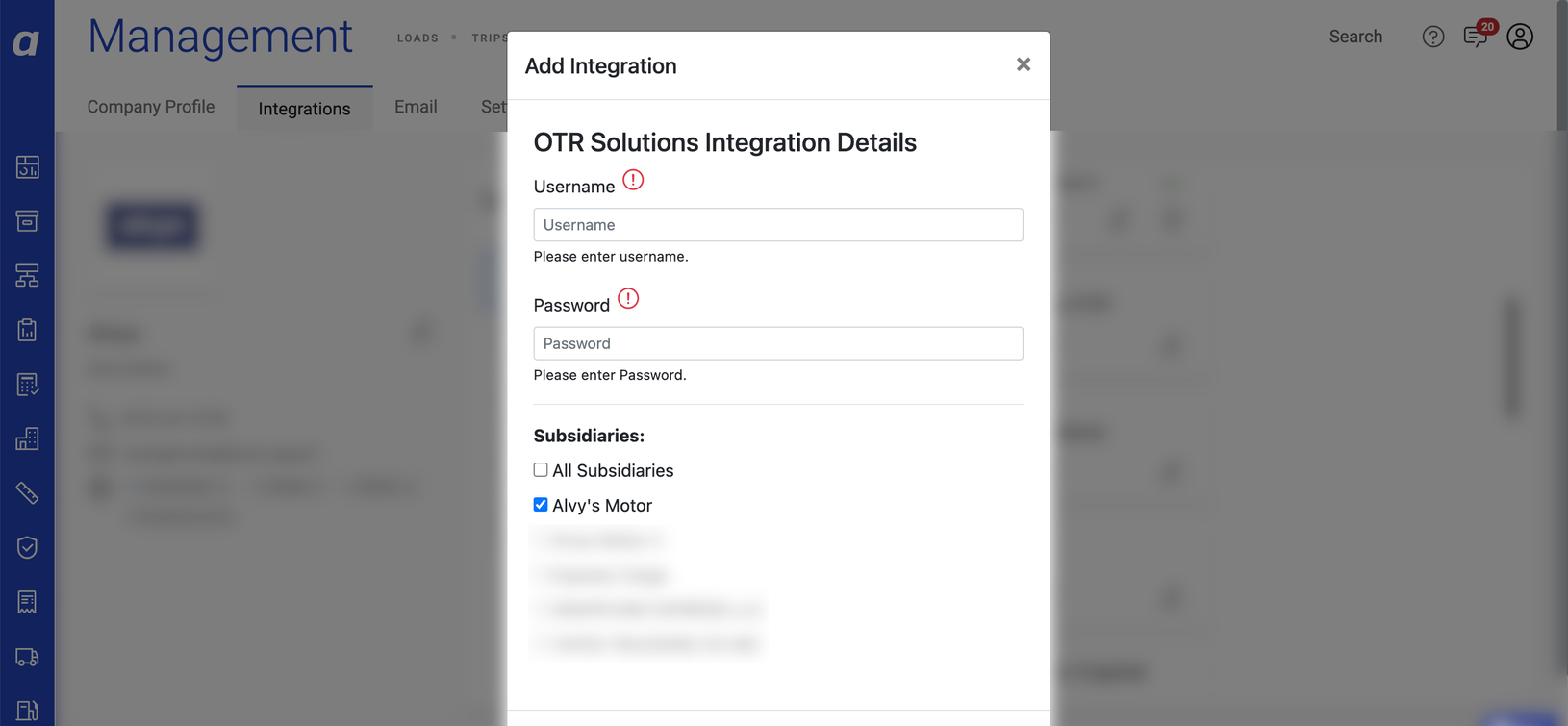 Credential entry fields for the OTR Solutions integration
Credential entry fields for the OTR Solutions integration
Credential entry fields for the OTR Solutions integration
- Click Save. The integration is now active for this subsidiary. Repeat steps 1 through 4 for each additional subsidiary.
How to submit a batch
- Navigate to Accounting > Factoring Upload. All loads must have a Queued status with the invoicing method set to factoring and documents merged.
-
Select the correct subsidiary.
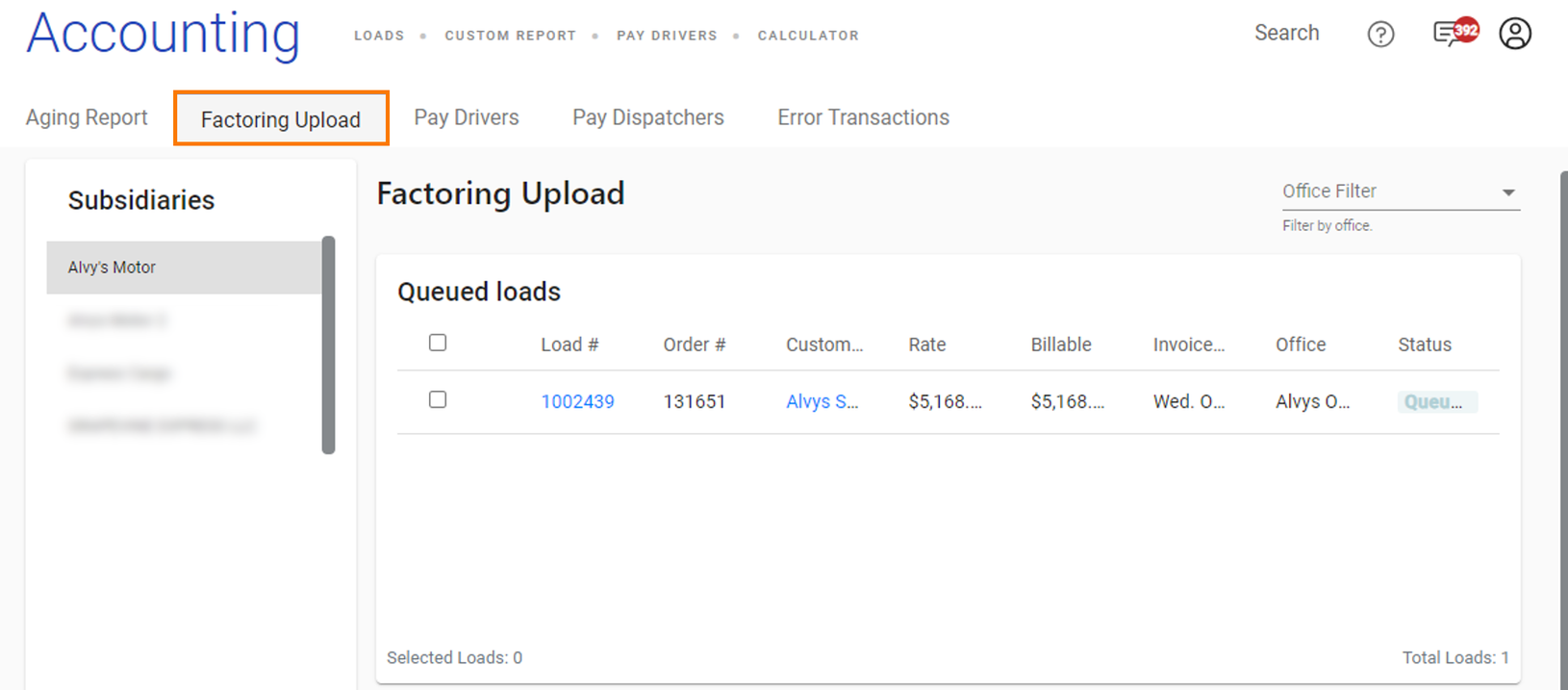 Subsidiary selection on the Factoring Upload page
Subsidiary selection on the Factoring Upload page
Subsidiary selection on the Factoring Upload page
-
Select the invoices to include in the batch. Confirm the subsidiary’s USDOT number is set. Any load whose customer is missing an MC number will fail individually during submission; the rest of the batch will proceed.
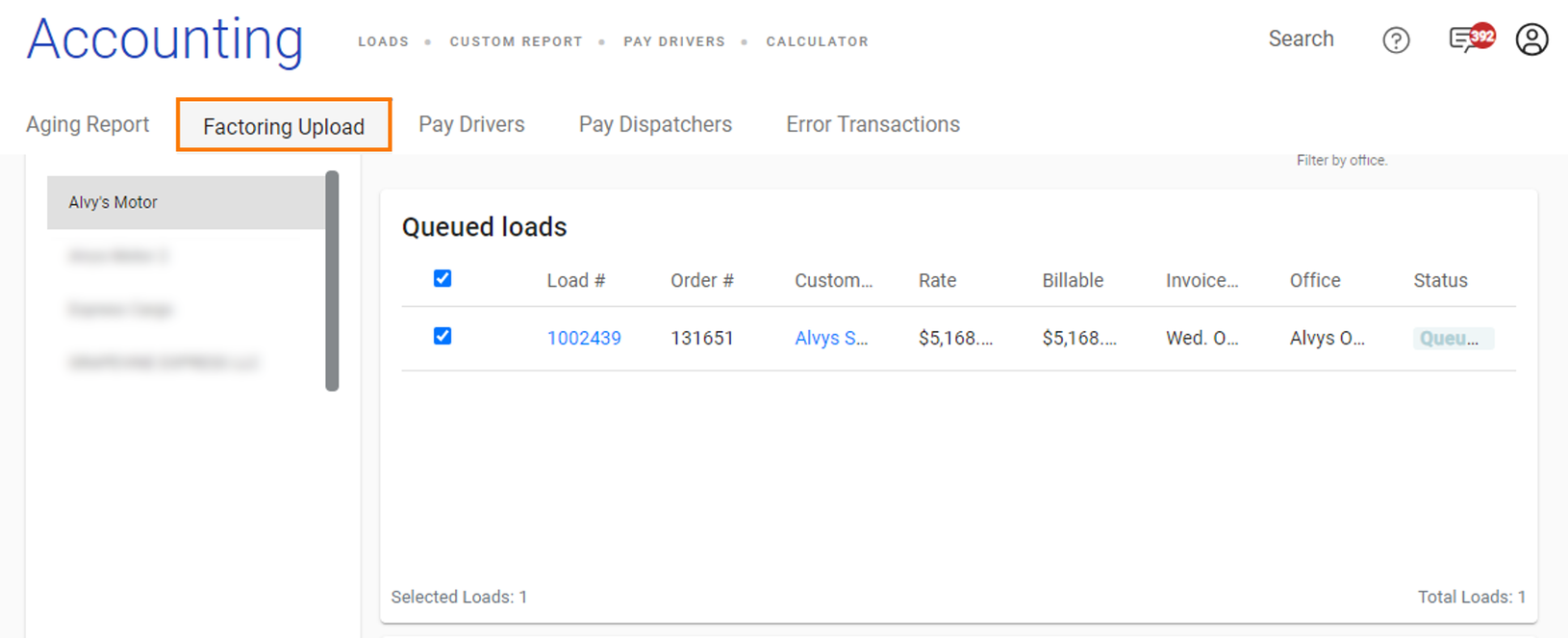 Invoice selection on the Factoring Upload page for an OTR Solutions batch
Invoice selection on the Factoring Upload page for an OTR Solutions batch
Invoice selection on the Factoring Upload page for an OTR Solutions batch
- Click Submit Batch. Wait until the submission completes. Do not close this page or navigate away during submission; doing so may disrupt the process.
Field & Data Mapping
Alvys sends invoice data to OTR Solutions when a batch is submitted, including the load number, debtor information, invoice amount, MC number, and the merged load document. The subsidiary’s USDOT number is included in every invoice submitted. The subsidiary’s USDOT number must be set. If a customer’s MC number is missing for a specific load, that load’s invoice will fail individually; other invoices in the batch will proceed.Sync Behavior
Credit check results sync from OTR Solutions to Alvys in real time. Purchase status updates sync from OTR Solutions to Alvys in two ways: automatically through a nightly sync, or on demand by clicking the SYNC TRANSACTIONS button in Reports > Factoring. When OTR Solutions reports a load as funded, the load status in Alvys changes to Financed. This update can occur through the nightly automated sync or through a manual SYNC TRANSACTIONS run; both mechanisms produce the same result.Broker credit checks
OTR Solutions performs broker credit checks to assess factoring eligibility. Credit check results appear as colored icons next to the customer or broker name:- Green icon: Approved
- Red icon: Not Approved
- Grey icon: no credit check has been run yet for this broker
- Amber icon: Call Credit (contact OTR Solutions to discuss this broker’s account) You can submit a load to OTR Solutions regardless of the credit check status. The credit check result is informational only and does not block batch submission. Alvys automatically triggers a credit check in two situations:
- When a load is created: if the last credit check for that broker was more than 24 hours ago
- When a load reaches Queued status: if the last credit check was more than 24 hours ago To manually trigger a credit check from a customer or broker profile:
- Navigate to the customer or broker profile.
- Confirm that a factoring invoicing method is assigned to the subsidiary where the OTR Solutions integration is configured. Save if changes are needed.
- Click the refresh icon (↻) next to the customer or broker name. A manual trigger always runs the check immediately, regardless of when the last check occurred.
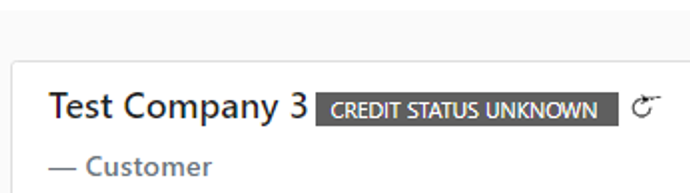 Refresh icon next to a customer or broker name to trigger a credit check
 Credit check result icon shown next to the customer or broker name
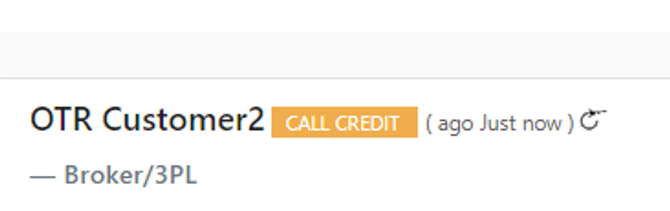 Additional credit check status icons displayed in Alvys
- Open or create a load. Confirm the customer has a factoring invoicing method assigned to the subsidiary where the OTR Solutions integration is configured.
- On the load details page, click the refresh icon (↻) to trigger a credit check immediately.
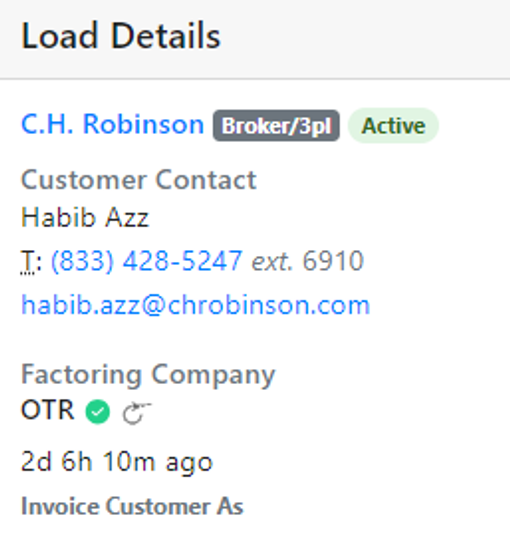 Refresh icon on the load details page used to trigger a credit check
- Select or create a load with a customer assigned to the subsidiary using the factoring invoicing method.
- Advance the load to Released status.
- Click Invoice Load to generate the invoice.
- Merge the required documents: Customer Rate Confirmation, Proof of Delivery (POD), and the invoice. The load moves to Queued status.
-
Navigate to Accounting > Factoring Upload. Select the load and create a batch.
 Load selected on the Factoring Upload page to create an OTR Solutions batch
Load selected on the Factoring Upload page to create an OTR Solutions batch
Load selected on the Factoring Upload page to create an OTR Solutions batch
- Submit the batch. All credit check statuses — Approved, Not Approved, and Call Credit — are permitted for submission.
Reporting: purchase status
OTR Solutions provides purchase status details for factoring batches. When OTR Solutions funds a load, the load status in Alvys changes to Financed. There are two ways to update load statuses from OTR Solutions: Nightly automated sync: Alvys automatically checks and updates purchase status for all invoices that have not yet been updated or funded. This sync runs once per day. No action is required to enable it. Manual sync (on demand): Navigate to Reports > Factoring and select a batch, then click the SYNC TRANSACTIONS button in the top right corner of the page.- Navigate to Reports > Factoring and select a batch.
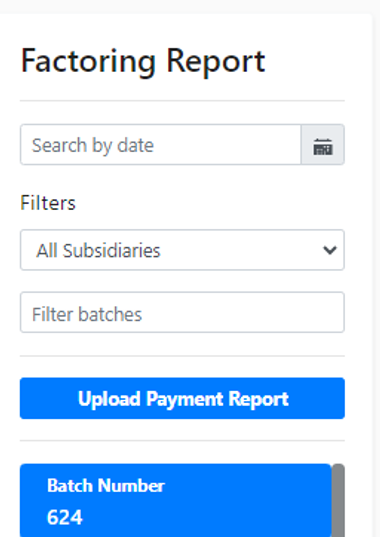 Batch selected on the Reports > Factoring page
-
Click the SYNC TRANSACTIONS button in the top right corner of the page.
 SYNC TRANSACTIONS button in the top right corner of the Factoring report page
SYNC TRANSACTIONS button in the top right corner of the Factoring report page
SYNC TRANSACTIONS button in the top right corner of the Factoring report page
- After the sync runs, any loads that OTR Solutions has funded will move to Financed status.
Examples
 Factoring report after a sync run
 Loads showing Financed status following an OTR Solutions sync
Verify It’s Working
After submitting a batch, confirm it appears in Reports > Factoring. After a nightly sync or a SYNC TRANSACTIONS run, confirm that funded loads show Financed status. Credit check result icons should update within seconds of triggering a check.Limits and Unsupported
Fuel card payments are not supported for OTR Solutions. Fuel card functionality is not available through this integration.Troubleshooting
Batch submission fails
- Confirm the subsidiary’s USDOT number is set. Navigate to the subsidiary settings and verify the USDOT number field is populated.
- Confirm each customer’s MC number is set. Navigate to the customer or broker profile and verify the MC number field is populated.
- Confirm valid OTR Solutions credentials are saved for the subsidiary. Navigate to Management > Integrations, locate OTR Solutions, and verify the username and password are saved.
- If the batch continues to fail after confirming the items above, contact Alvys support.
Load status did not change to Financed after sync
- Confirm the batch was submitted successfully and appears in Reports > Factoring.
- Click the SYNC TRANSACTIONS button to manually trigger an immediate status update for the selected batch.
- If the load status still does not update, the invoice may not yet be funded in OTR Solutions. Contact OTR Solutions to confirm the funding status on their side.
- If the load is confirmed as funded in OTR Solutions but the status does not update in Alvys, contact Alvys support.
Credit check icon does not appear
- Confirm the customer has a factoring invoicing method assigned to the subsidiary where the OTR Solutions integration is configured.
- Confirm the integration is active in Management > Integrations.
- Try triggering a manual credit check using the refresh icon (↻). If the icon still does not appear after a manual trigger, contact Alvys support.