
📋 Applies to: Admins · Partner AdminsModule: Management > Integrations · Settings > Mileage ProfilesProvider: PC Miler (Trimble) · Integration type: One-way · Direction: Alvys queries PC Miler to calculate mileage for loads and tripsConnect Alvys to PC Miler to create Mileage Profiles that define how mileage is calculated for loads and trips, using parameters such as routing type, toll preferences, hazmat classifications, and PC Miler version, at no additional cost beyond your existing PC Miler subscription.
What This Integration Does
The PC Miler integration enables Alvys to calculate load and trip mileage using PC Miler routing data instead of the default HereMaps provider. Once connected, you can create named Mileage Profiles that define precise routing parameters for different customer or operational needs. These profiles can then be applied at the tenant level or per customer. Key capabilities this integration provides:- Precise cost analysis: accurate mileage tracking supports exact transportation cost calculations and financial planning.
- Regulatory compliance: mileage reporting aligned with industry standards reduces the risk of non-compliance.
- Optimized route planning: PC Miler routing data supports fuel-efficient route selection.
- PC Miler version control: when customers require mileage billed to a specific PC Miler version, you can set that version in the profile to eliminate manual adjustments.
Prerequisites
- You must have an active PC Miler (Trimble) subscription to obtain API credentials.
- If you are not yet a PC Miler customer, contact Alvys Support to request API credentials on your behalf. Alvys will coordinate with Trimble to obtain them.
- If you are already a PC Miler customer, you can use your existing API credentials to set up the integration.
Connect / Authenticate
Navigate to integrations in Alvys
In Alvys, navigate to Management > Integrations. Locate the PC Miler integration option.Enter API credentials
Enter your PC Miler API credentials into the designated fields and enable the integration settings.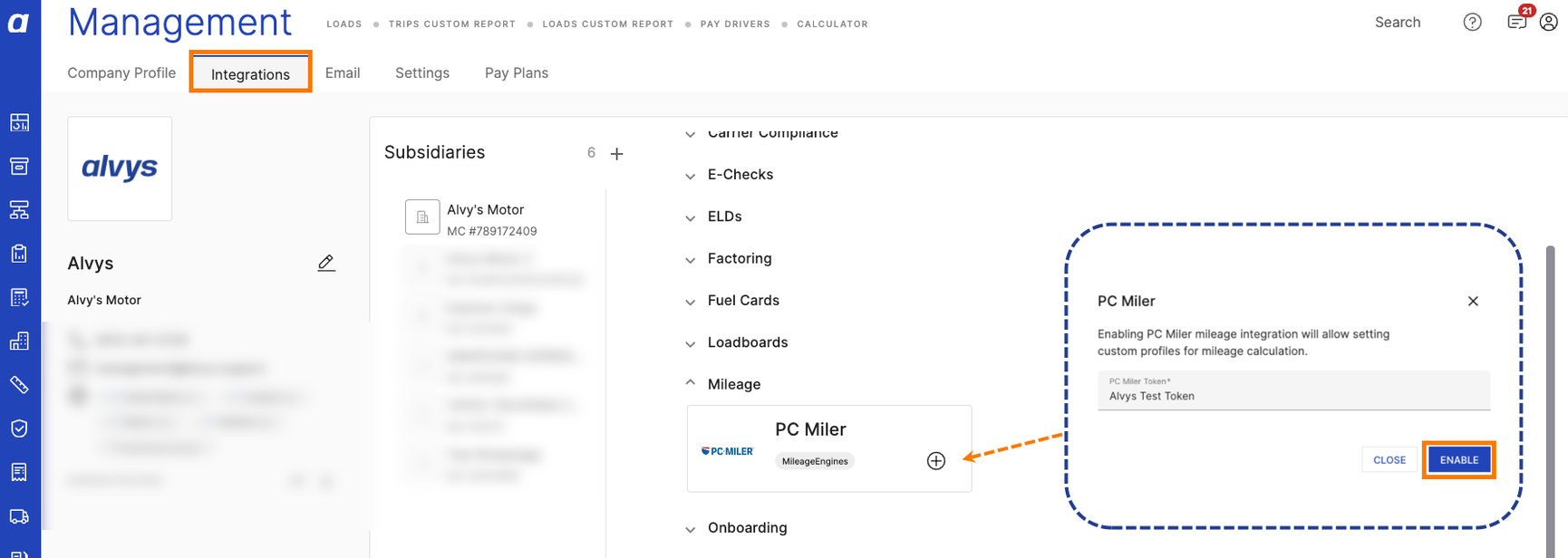 Screenshot of the PC Miler API credentials entry screen in Alvys integrations
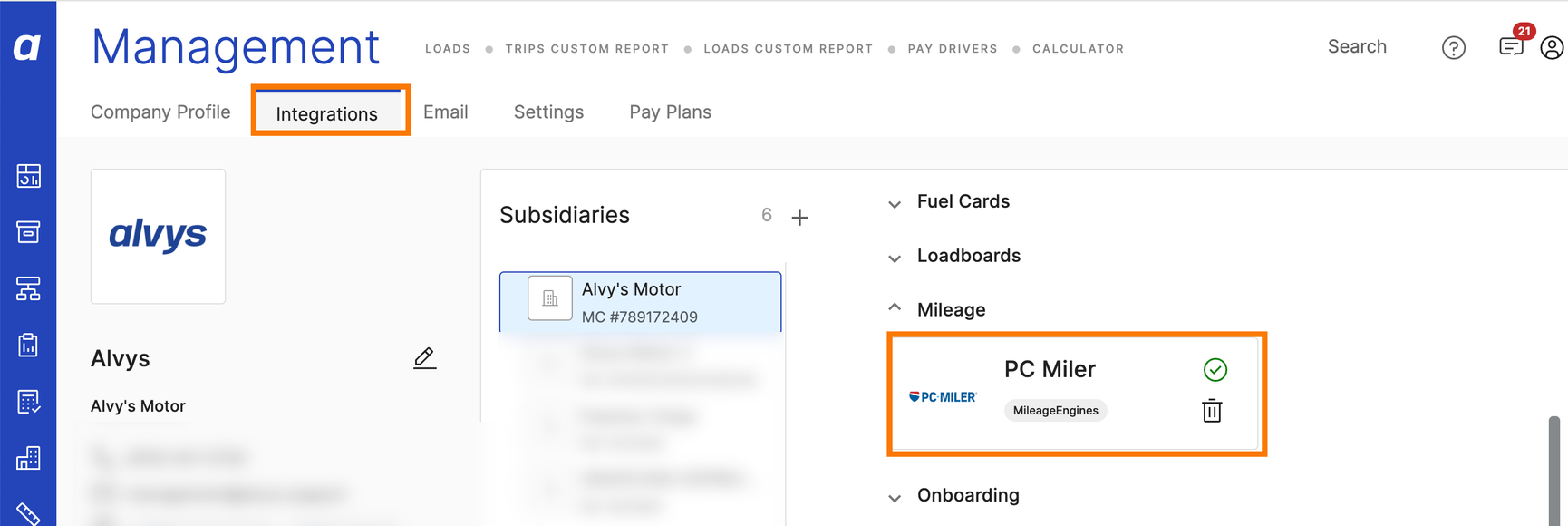 Screenshot showing the enabled state of PC Miler integration settings
Change the default mileage source to PC Miler
After saving the integration credentials, you must update the default mileage calculation setting from HereMaps to PC Miler to activate PC Miler routing for your loads. In Alvys, click the person icon in the lower-left corner of any page and select Settings. Locate the Mileage Profiles section. Change the default mileage calculation setting from HereMaps to PC Miler and save.Field & Data Mapping
Mileage profiles define the parameters PC Miler uses when calculating mileage for a load or trip. The configurable parameters for each Mileage Profile are:- Routing Type: Practical, Shortest, or Fastest
- Toll Roads: Always Avoid, Avoid if Possible, or Allow
- Borders Open: Yes or No
- Use Traffic: Yes or No (applies to Dispatch Mileage only)
- HazMat Types: None, General, Caustic, Explosives, Flammable, Inhalants, Radioactive, HarmfulToWater, or Tunnel (multiple selections allowed)
- PC Miler Version: a specific version number, selectable from a dropdown
Sync Behavior
PC Miler mileage is calculated on demand: when a load or trip is created or when mileage is recalculated, Alvys queries the PC Miler API using the parameters defined in the selected Mileage Profile. Mileage profiles can be assigned at the tenant level (applies to all loads unless overridden) or at the customer level (overrides the tenant default for loads tied to that customer).Verify It’s Working
After setup, create a test Mileage Profile and assign it to a load. Confirm the mileage displayed on the load reflects PC Miler routing data and not HereMaps. If the mileage source still shows HereMaps, confirm the default mileage setting was changed in Settings > Mileage Profiles.Troubleshooting
Mileage still calculated using HereMaps after setup
Step 1: Confirm the default mileage calculation setting was changed from HereMaps to PC Miler in Settings (click the person icon in the lower-left corner, select Settings, and check Mileage Profiles). Step 2: Confirm the API credentials saved in the integration are correct and the integration is in an enabled state. Step 3: Confirm the Mileage Profile you created is assigned to the load or to the customer profile.PC Miler version not producing expected mileage
Step 1: Confirm the PC Miler Version field in the Mileage Profile is set to the version required by the customer. Step 2: Confirm the Mileage Profile name includes the version number so the correct profile is selected from the list. If neither of the above steps resolves the issue, contact Alvys Support with the load number, the Mileage Profile name, and the mileage source shown on the load.Limits / Unsupported
- Co-Pilot integration is not supported. PC Miler is supported for mileage calculation only.
- The Use Traffic parameter applies to Dispatch Mileage only; it has no effect on Customer Mileage calculations.
- Multiple HazMat types can be selected per profile, but selecting conflicting types may affect routing results from PC Miler.