
Import fuel transactions from Ryder by downloading a Fuel Activity Report from the RyderGyde portal and uploading it to Alvys, where transactions are matched to trucks by Ryder Vehicle Number.
What this integration does
The Ryder fuel integration lets you upload a Fuel Activity Report from the RyderGyde app into Alvys, linking fuel transactions to trucks by Ryder Vehicle Number. This is a one-way, manual import: you download a report from RyderGyde and upload it into Alvys. Transactions are matched to trucks based on the Ryder Vehicle Number, not individual fuel cards. All Ryder fuel costs are treated as company expenses and are not deducted from driver pay. Unlike other fuel integrations, Ryder does not issue fuel cards (fuel network cards) and does not support automatic daily imports.💡 This integration is sometimes called the RyderGyde fuel report import, Ryder fuel activity upload, or Ryder fuel network import. · Matching is by Ryder Vehicle Number to truck number, with no driver-level fuel card mapping.
Prerequisites
Before you begin, confirm the following:- You have “Admin”, “Support”, or “Partner Admin” access in Alvys (set on your user role in the Company Profile) and can reach the Management > Integrations page.
- Your trucks in Alvys must have truck numbers that exactly match the Ryder Vehicle Numbers in your Ryder account. If these do not match, transactions will not link to the correct truck.
- You have access to the RyderGyde portal to export fuel reports.
Connect and authenticate
- Click your username in the bottom left corner and select Integrations (or navigate to Management and select the Integrations tab).
- Select the subsidiary you want to integrate with Ryder Fuel.
- Expand the Fuel Cards section and locate Ryder Fuel.
- Click the pencil icon to open the Add Integration window.
- Click Save to activate the integration. No credentials are required for the Ryder integration; enabling it simply activates the ability to upload Ryder fuel reports for that subsidiary.
- Download the Fuel Activity Report from RyderGyde:
- Log in to the RyderGyde portal and select Reports from the menu.
- Locate Fuel and select See Report for the Spreadsheet report. Do not select the Interactive report.
- Set your date criteria. The Dynamic Date option is recommended.
- Scroll to the bottom and click Run Report.
-
Under Report Home, select Export and choose Excel format. The report must be exported without summary information; the first row of the file must be the column names, not a summary header.
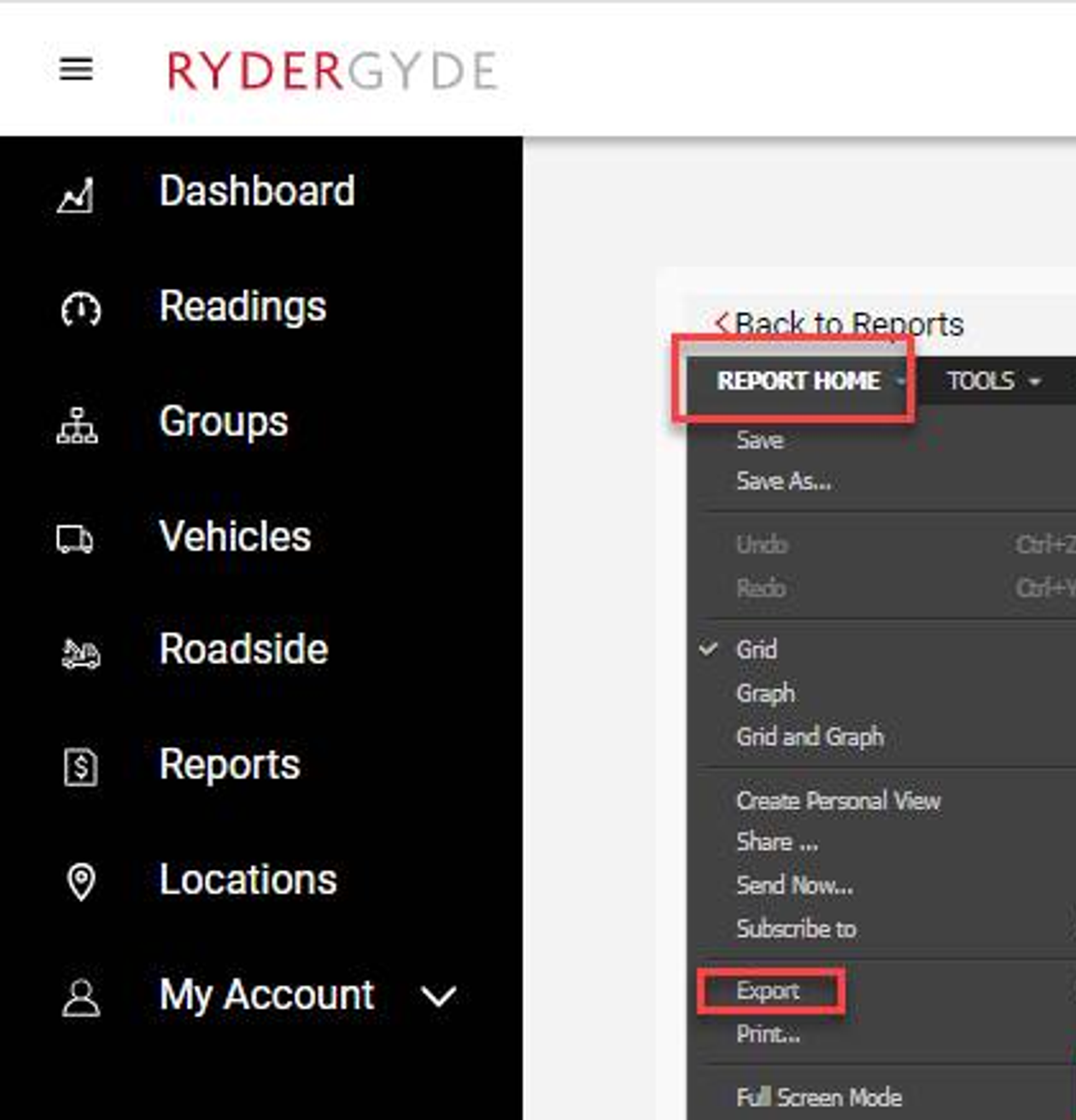 the RyderGyde Report Home screen with the Export option and Excel format selection highlighted
💡 Optional: RyderGyde lets you subscribe to automated report delivery so reports are generated and emailed on a schedule. · Under Report Home select Subscribe To, modify the subscription name if needed, open the Schedule dropdown and choose a recurring time, select Excel for the Delivery Format, select Send a preview now to receive a copy immediately, then click OK. · Even with a subscription, the first row of the file must be column names and summary information must not be included.
the RyderGyde Report Home screen with the Export option and Excel format selection highlighted
💡 Optional: RyderGyde lets you subscribe to automated report delivery so reports are generated and emailed on a schedule. · Under Report Home select Subscribe To, modify the subscription name if needed, open the Schedule dropdown and choose a recurring time, select Excel for the Delivery Format, select Send a preview now to receive a copy immediately, then click OK. · Even with a subscription, the first row of the file must be column names and summary information must not be included. - Upload the Fuel Activity Report to Alvys:
- From the Alvys sidebar, navigate to Reports and select Fuel Report.
-
Click the Transaction File Upload button.
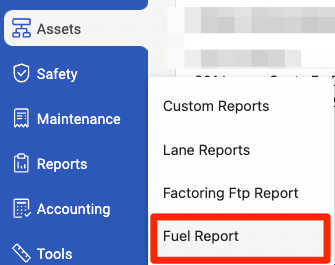 the Fuel Report page in Alvys with the Transaction File Upload button visible
-
In the pop-up window, select Ryder Fuel from the Integration Type drop-down menu.
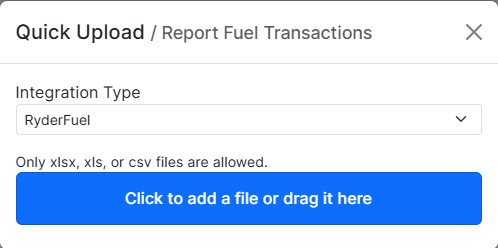 the file upload pop-up with the Integration Type dropdown open and Ryder Fuel selected
- Click the blue button to browse for your Ryder Fuel Activity Report file, or drag and drop the file into the window.
- Click Upload. Once uploaded, you can review the imported transactions by selecting a Transaction Date range in the Fuel Report.
Field and data mapping
- Matching: The Ryder Vehicle Number in the exported report must exactly match the truck number in Alvys. There are no fuel card numbers or driver-level mappings for Ryder fuel.
- Expense handling: All transactions are recorded as company expenses and are not deducted from driver settlements.
- Transaction grouping: Multiple fuel purchases on the same day with the same invoice number are combined into one transaction with multiple line items. Unique transaction IDs are generated using Ryder Vehicle Number + Location ID + Fuel Disbursement Date + Fuel Disbursement Time.
Sync behavior
The Ryder fuel integration imports fuel transactions from the RyderGyde Fuel Activity Report into the Alvys Fuel Report.- Direction: One-way, RyderGyde to Alvys, via manual file upload. There is no automatic daily import.
- Expense handling: All transactions are recorded as company expenses and are not deducted from driver settlements.