
This article (covering Sage Intacct payment sync, the Error Transactions queue, and re-sync troubleshooting) explains how Sage Intacct payments import into Alvys, how to use the Error Transactions page to identify and fix failed exports, and how to re-sync transactions after resolving the underlying issue.
Overview
After Alvys exports transactions to Sage Intacct, payments recorded in Sage are automatically imported back into Alvys on a 12-hour schedule. If a transaction fails to export — for example because a customer record cannot be matched or a GL account is not mapped — it appears in Accounting > Error Transactions with an error message. You can fix the underlying issue and re-sync eligible transaction types directly from that page.Where to Find It
- Error Transactions: Accounting > Error Transactions
-
Payment sync status and connection settings: Settings > Connections > Sage Intacct
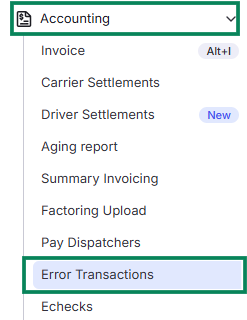 Accounting menu with Error Transactions highlighted
Key Concepts
Payment Import
Sage Intacct payments import into Alvys automatically every 12 hours. Each import run looks back 8 days in Sage to catch any payments that were recorded since the last sync. Note: The 8-day lookback window means payments recorded more than 8 days before the import run will not be imported automatically. If you need to bring in older payments, contact Alvys support with the specific payment dates and subsidiary name. Each imported payment includes: payment amount, payment date, payment method, check number, reference number, and note/memo. Alvys deduplicates payments by Sage detail ID, so the same payment will not import twice even if it falls within the lookback window of multiple import runs. Payment import is not supported for the following transaction types: Summary Invoicing, Carrier Settlements, Driver Settlements.Error Transactions
The Error Transactions page shows all transactions that failed to export from Alvys to Sage. Each row in the table includes the date, a reference identifier, the entity type, a description, the amount, the current status, the error message from Sage, and available actions (such as re-sync). Entity types that can appear in Error Transactions: Load, Trip, E-check, Paystub, Deduction, Accessorial Revenue, Fuel, Toll, Accounting Invoice, Carrier Statement, Driver Statement, Escrow.Which Transactions Can Be Re-Synced
After fixing the root cause of a failure, you can re-sync the following entity types directly from Accounting > Error Transactions: Load, Trip, E-check, Paystub. The following entity types cannot be re-synced from Error Transactions and must be resolved through other means: Deduction, Accessorial Revenue, Fuel, Toll, Accounting Invoice, Carrier Statement, Driver Statement.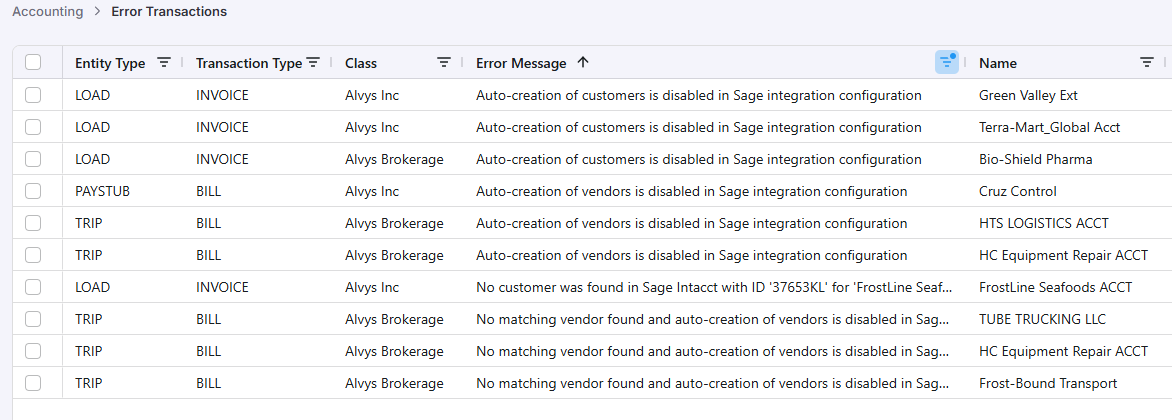 Error Transactions table with Sage export error messages
How to Use It
Viewing and Filtering Error Transactions
Go to Accounting > Error Transactions. The page shows all failed transactions for your connected subsidiaries. Use the filters to narrow by date range, entity type, or status.Re-Syncing a Transaction
- Identify the error message in the Error Message column to understand why the transaction failed.
- Fix the underlying issue (for example: add the missing GL account mapping, create the Sage customer or vendor record, correct the payment terms).
- Return to Accounting > Error Transactions, find the transaction, and click the re-sync action.
-
Alvys will attempt to re-export the transaction. If it succeeds, the row is removed from Error Transactions. If it fails again, the error message updates with the new failure reason.
 Re-syncing transactions with Retry sync and Mark as synced
Checking Payment Sync Status
Go to Settings > Connections > Sage Intacct. The connection page shows the current sync status for each subsidiary. Sync states are: Active, Paused, Not set up.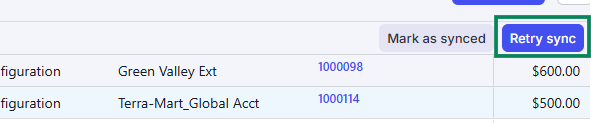 Retry sync button on the Error Transactions page
Settings & Permissions
Accounting > Error Transactions is accessible to any non-Driver user with the “Billing” permission.Limits & Behavior
- Payment import runs every 12 hours with an 8-day lookback window.
- Deduplication is based on Sage detail ID: the same payment will not import twice.
- Payment import is not supported for Summary Invoicing, Carrier Settlements, or Driver Settlements.
- Only Load, Trip, E-check, and Paystub transactions can be re-synced from Error Transactions.
- Deduction, Accessorial Revenue, Fuel, Toll, Accounting Invoice, Carrier Statement, and Driver Statement transactions cannot be re-synced from this page.
Troubleshooting
Connection not initializing
- Verify that your Sage Intacct Web Services credentials (Company ID, User ID, and password) are correct. In Sage, confirm the Web Services user account is active.
- Confirm that AlvysMPP is listed in Company > Web Services Authorizations in Sage.
- Confirm that Web Services is enabled in your Sage subscription.
-
If all of the above are correct and the connection still does not initialize, contact Alvys support with your subsidiary name and the error message shown.
 Error Transactions with the Sync all button highlighted
Customer or vendor not matched
Alvys could not find a matching customer (for AR) or vendor (for AP) in Sage.- Open the customer or carrier record in Alvys.
- Check whether a Sage Customer ID or Vendor ID is set. If not, enter the correct Sage ID to enable direct matching.
- If no Sage ID is set, verify that the customer or carrier name in Alvys exactly matches the name in Sage Intacct. Any difference in spacing, capitalization, or punctuation will cause a mismatch.
- If the customer or vendor does not exist in Sage, create it in Sage Intacct, then re-sync the transaction from Error Transactions.
GL account not mapped
A required GL account mapping is missing for a transaction line item type.- Go to Settings > Connections > Sage Intacct and open the Account Mappings tab for the subsidiary.
- Identify the category and line item type referenced in the error message.
- Add the missing mapping. If the Default category is not mapped, map it first: it is required for all exports.
- Return to Accounting > Error Transactions and re-sync the transaction.
Dimension value cannot be resolved
Alvys could not find the expected dimension value in Sage for an exported transaction.- Go to Settings > Connections > Sage Intacct and open the Dimensions tab for the subsidiary.
- Verify that the dimension value referenced in the error exists and is active in Sage Intacct.
- If the dimension type supports Active Non-Posting status (Department, Location, Class, Customer, Vendor, or Project), verify that the value is set to an appropriate posting status for your use case.
- Re-sync the transaction from Error Transactions after correcting the dimension value.
Required custom field value is missing
A Sage custom field is mapped to an Alvys field, but the Alvys field is empty on the load or trip record.- Open the load or trip record and verify that the Alvys field mapped to the Sage custom field has a value.
- If the field is a Custom Load Reference or Custom Trip Reference, confirm the reference field has been populated on the record.
- Once the value is added, re-sync the transaction from Error Transactions.
Custom field value exceeds maximum character length
The value of the mapped Alvys field is longer than the maximum character length configured for the Sage custom field.- Go to Settings > Connections > Sage Intacct and open the Custom Fields tab for the subsidiary.
- Check the Chars column for the affected field to see the character limit.
- Shorten the value in the Alvys field to within the limit, or adjust the character limit in the custom field mapping if appropriate.
- Re-sync the transaction from Error Transactions.
Payment term is not valid
The payment term assigned to a customer or carrier in Alvys does not exist in Sage Intacct.- Open the customer or carrier record in Alvys and note the payment term assigned.
- In Sage, confirm that exact payment term exists under the payment terms configuration.
- Either add the payment term to Sage or update the customer or carrier record in Alvys to use an existing Sage payment term. Alternatively, set a valid Default Payment Terms value in the Advanced Settings of the Sage Intacct connection.
- Re-sync the transaction from Error Transactions.
Invoice or bill cannot be modified because payments are applied
A payment has already been applied to the transaction in Sage, preventing modification.- In Sage Intacct, locate the transaction and remove the applied payment.
- Return to Alvys and make the necessary changes to the invoice or bill.
- Re-sync or re-export the transaction from Alvys. Alvys will create the appropriate reversal and post the corrected transaction.
AP bill requires manual reversal
The AP bill is in a state in Sage (Posted or Selected) that prevents Alvys from automatically reversing it.- In Sage Intacct, locate the AP bill.
- Manually create a reversal entry for the AP bill in Sage.
- Once the reversal is complete, return to Alvys and re-sync the transaction from Accounting > Error Transactions.
Transactions are not exporting or payments are not importing
Syncing has stopped or is paused for this subsidiary.- Go to Settings > Connections > Sage Intacct and find the subsidiary.
- Check the Primary Sync toggle. If it is set to Paused, enable it.
- Verify that the individual sync toggles for the relevant transaction type (for example, Export AR Invoices or Export AP Bills) are enabled.
- If the connection status shows Not set up, the subsidiary may have been disconnected. Reconnect through the connection wizard.
- If all toggles are active and syncing still is not occurring, contact Alvys support with your subsidiary name and the date since transactions stopped exporting.