
Saint Johns Capital connects to Alvys via a two-way API to automate invoice submission and broker credit checks for factoring clients. Synonyms: Saint John Capital, SJC, Saint Johns factoring.
What This Integration Does?
Saint Johns Capital connects to Alvys through a two-way API. When a batch is submitted, Alvys sends invoice data to Saint Johns Capital directly. Saint Johns Capital also performs automatic and manual broker credit checks, returning results to Alvys in real time.Prerequisites
- Active account with Saint Johns Capital
- Client ID provided by Saint Johns Capital
- Notice of Assignment text provided by Saint Johns Capital
- Admin, Partner Admin, or Support access to configure the integration
- “Billing” permission to submit batches
- MC number set on each customer/broker that will be included in a batch
Connect / Authenticate
Note: This integration uses an API connection.Part 1: Configure Your Notice of Assignment
- Navigate to Management > Company Profile.
- In the General Info tab, locate the Important Information section. Click the (+) button. The Manage Important Info pop-up opens.
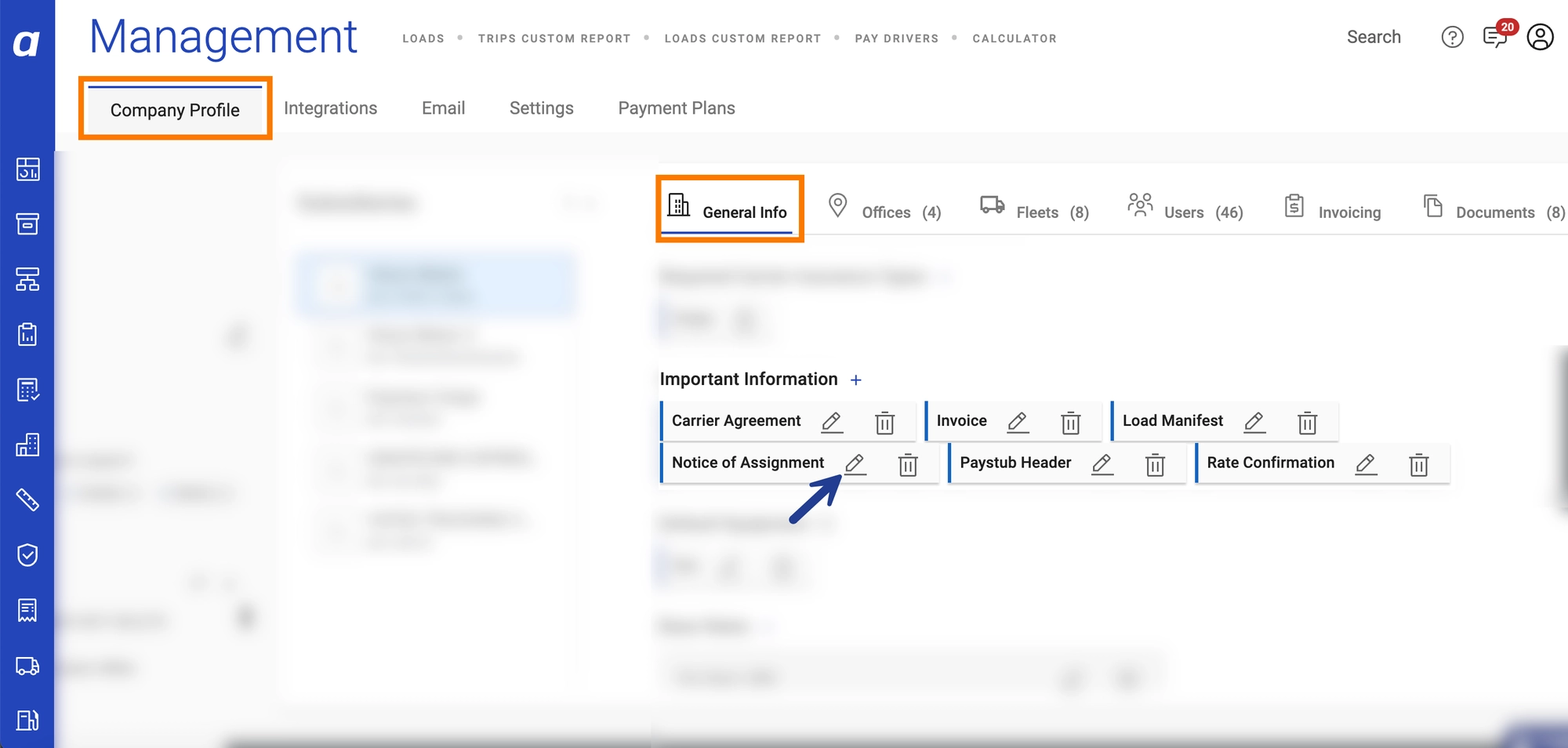
- Company Profile General Info tab showing Important Information section with (+) button*
- In the drop-down menu, select Notice of Assignment. Copy and paste the Notice of Assignment text provided by Saint Johns Capital.
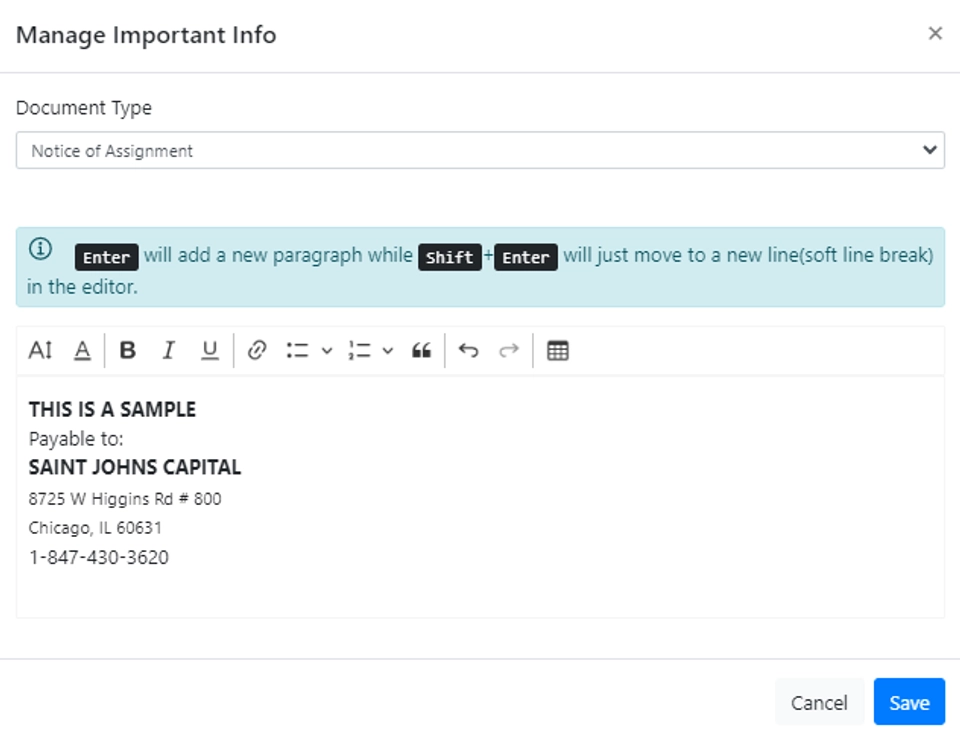 *Manage Important Info pop-up with Notice of Assignment selected and text pasted *
- Click Save.
Part 2: Configure the Saint Johns Capital Integration
- Navigate to Management > Integrations.
- Select the subsidiary you want to configure. Expand the Factoring section. Click the “Inactive” button to Saint John Capital.
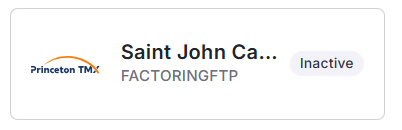 Integrations page showing Factoring section expanded with Saint John Capital “Inactive” button visible
- Enter your Client ID provided by Saint Johns Capital.
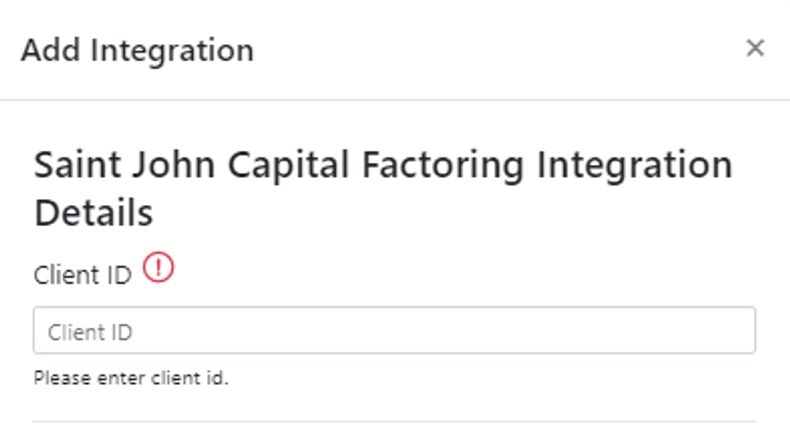 Add Integration dialog with Client ID field
- Click the blue Save button.
Field & Data Mapping
Alvys sends invoice data to Saint Johns Capital, including load number, debtor information, invoice amount, and MC number. Alvys also sends three supporting documents for each invoice: the Bill of Lading (or Rate Confirmation if no Bill of Lading is present), the Rate Confirmation as a separate rate sheet, and the Receipt. Each document type is submitted in a separate field. The customer’s MC number must be set in Alvys before a load can be included in a batch.Sync Behavior
Credit check results sync automatically from Saint Johns Capital to Alvys. Invoice batch data flows from Alvys to Saint Johns Capital at submission. There is no automated nightly batch sync; load status updates depend on batch submission.Submit a Batch
- Navigate to Accounting > Factoring Upload. All loads must have a Queued status with invoicing method set to factoring.
- Select the correct subsidiary.
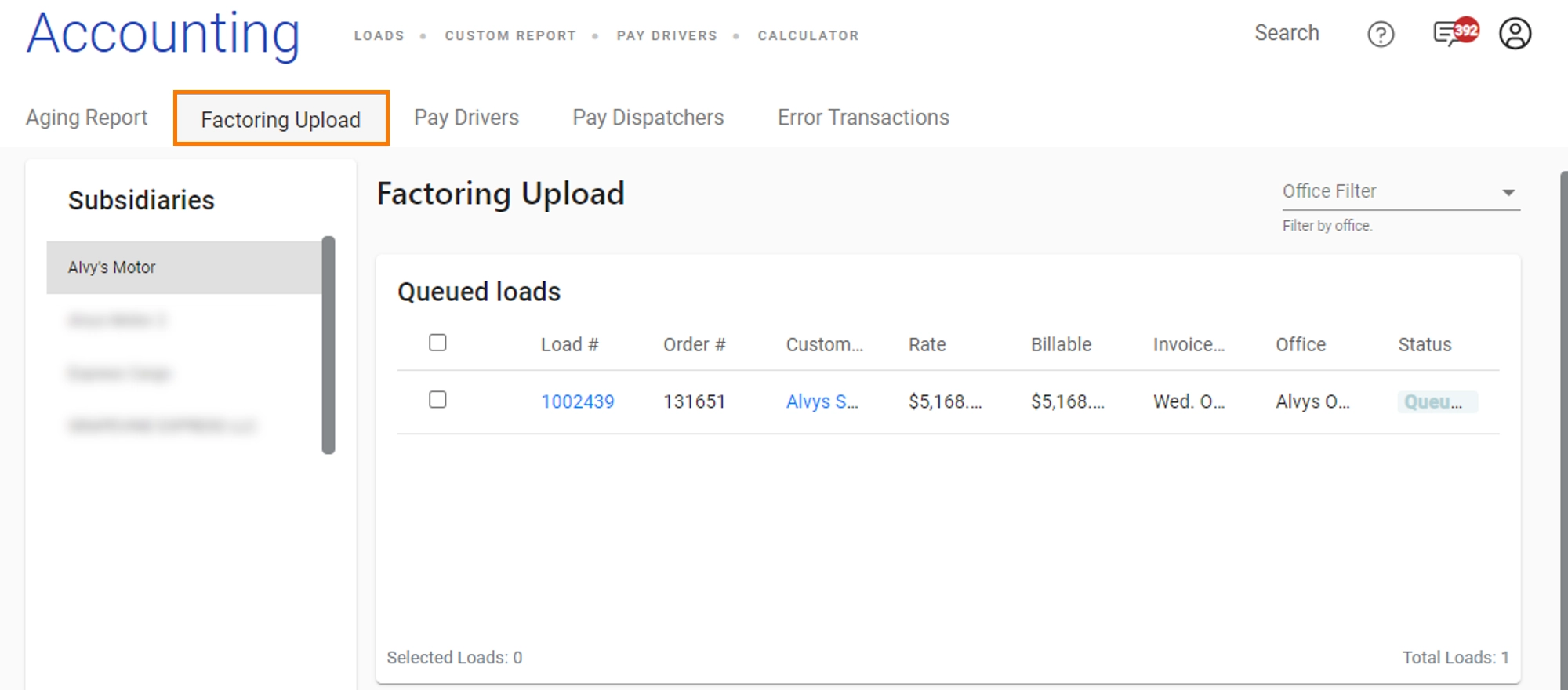 Subsidiary selector on Factoring Upload page
- Select the invoices to include in the batch. Ensure the MC number is set for each customer.
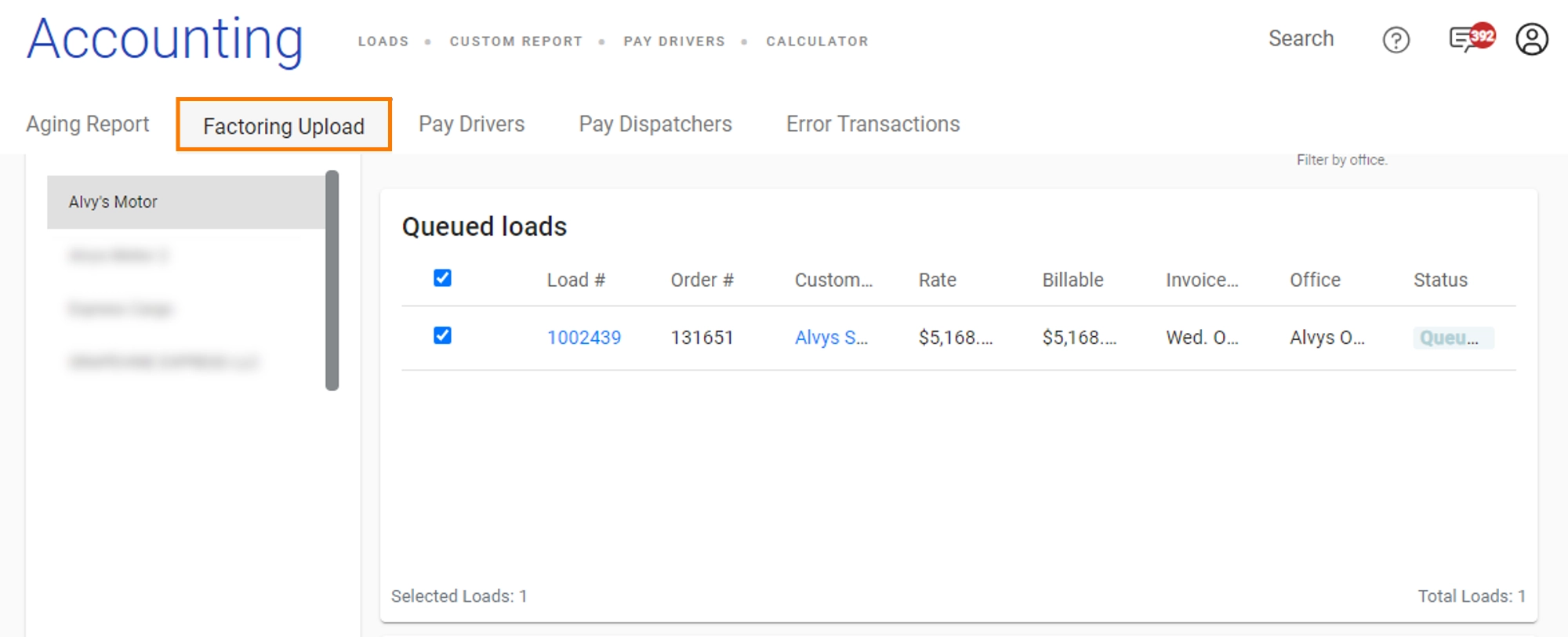 Load list with checkboxes on Factoring Upload page
- Click Submit Batch. A pop-up appears.

- Submit Batch button on Factoring Upload page*
- In the pop-up, select the Funding Method: Wire, ACH, Fuel Card, or Visa. Select the Payment Date using the calendar.
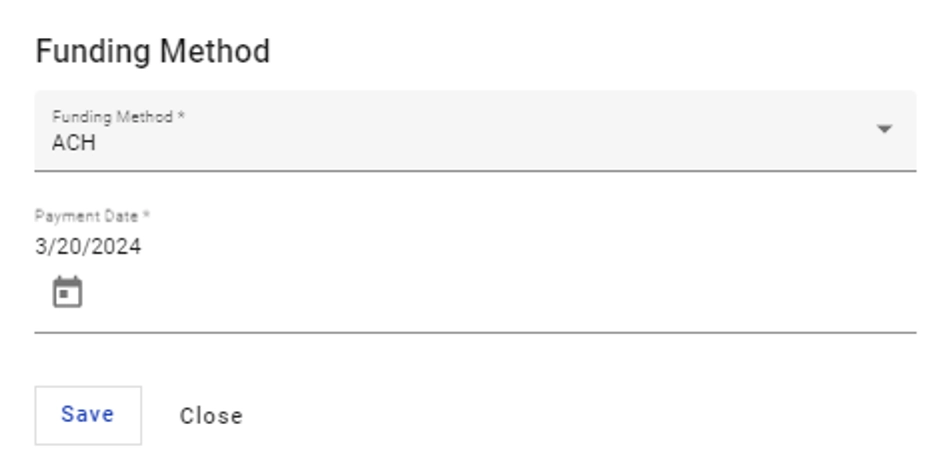 Batch submission pop-up showing Funding Method selector and Payment Date calendar
- Confirm the submission. Wait until the process is complete. Do not close this page or navigate away; doing so may disrupt the submission.
Broker Credit Checks
Saint Johns Capital performs broker credit checks to assess whether a broker is eligible for factoring. Credit check results appear as colored icons next to the customer/broker name:- Green: Approved
- Red: Declined
- Grey: Unknown (no credit check has been performed yet)
Automatic Credit Checks
Alvys automatically triggers a credit check in two situations:- When a load is created: if the last credit check for that broker was performed more than 24 hours ago
- When a load reaches Queued status: if the last credit check was more than 24 hours ago
Manually Trigger a Credit Check from a Customer/Broker Profile
- Navigate to the customer or broker profile.
- Add a factoring invoicing method to the subsidiary where the Saint Johns Capital integration was added, then save. This step is required before the refresh icon (↻) becomes visible.
- Click the refresh icon (↻) next to the customer or broker name to trigger a credit check. The credit check result icon updates next to the customer/broker name.
 Credit check status icons: green (Approved)
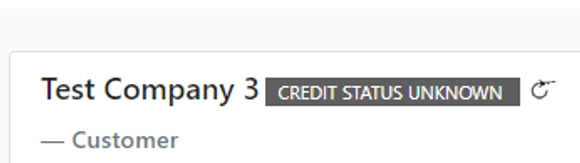 Credit check status icons: red (Declined)
- Credit check status icons: grey (Unknown)*
Manually Trigger a Credit Check from a Load Details Page
- Open or create a load. Confirm the customer has a subsidiary with the factoring invoicing method assigned.
- On the load details page, click the refresh icon (↻) to trigger a credit check.
Load details page showing refresh icon (↻)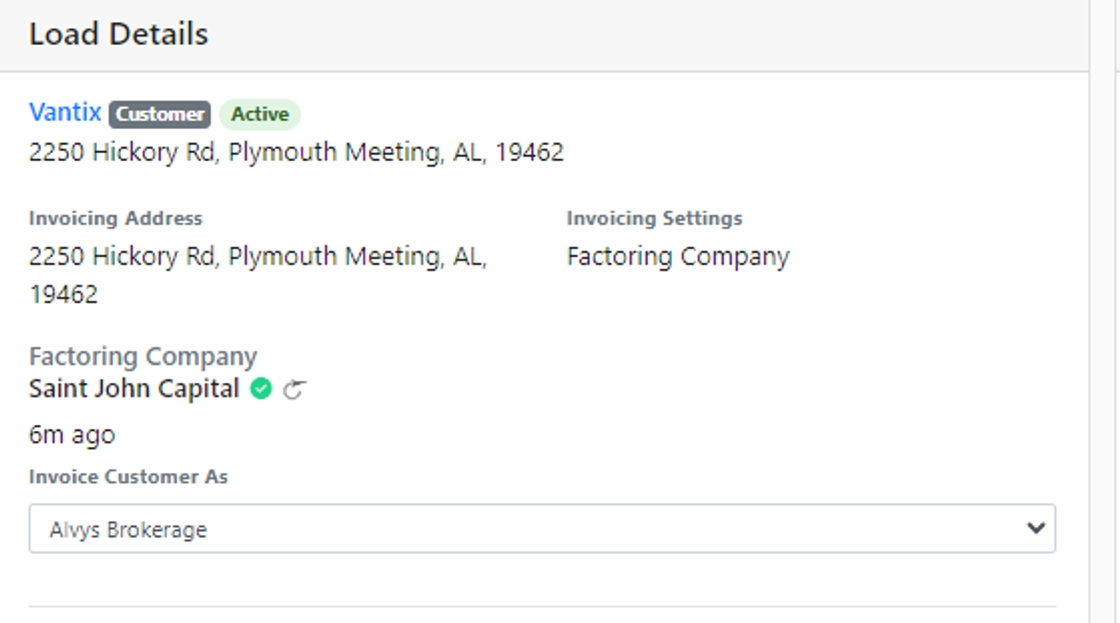
Submit a Load Based on Credit Check Status
- Select or create a load with a customer assigned to the subsidiary using the factoring invoicing method.
- Advance the load to Released status.
- Click Invoice Load to generate the invoice.
- Merge the required documents: Customer Rate Confirmation, Proof of Delivery (POD), and the invoice. The load moves to Queued status.
- Navigate to Accounting > Factoring Upload. Select the load and submit the batch.
Factoring Upload page with the load selected for batch submission
Verify It’s Working?
After submitting a batch, confirm that the selected loads have moved from Queued status to Invoiced status. Credit check results should appear as colored icons next to customer/broker names within a few seconds of triggering a check.Troubleshooting
Batch submission fails?
- Confirm the customer’s MC number is set. Navigate to the customer/broker profile and verify the MC number field is populated. A load cannot be submitted without it.
- Confirm the subsidiary has a valid Client ID configured in Management > Integrations.
- Contact Alvys support if the batch continues to fail after confirming the above.
Credit check icon does not appear?
- Confirm the customer has a factoring invoicing method assigned to the subsidiary where the Saint Johns Capital integration is configured.
- Confirm the integration is active in Management > Integrations.
- Trigger the credit check manually using the refresh icon (↻). If the icon does not appear after confirming both steps above, contact Alvys support.