What You Get
With Samsara Premium, your dispatchers and drivers benefit from:- Automatic stop check-in and check-out using Samsara geofences (no manual entry required)
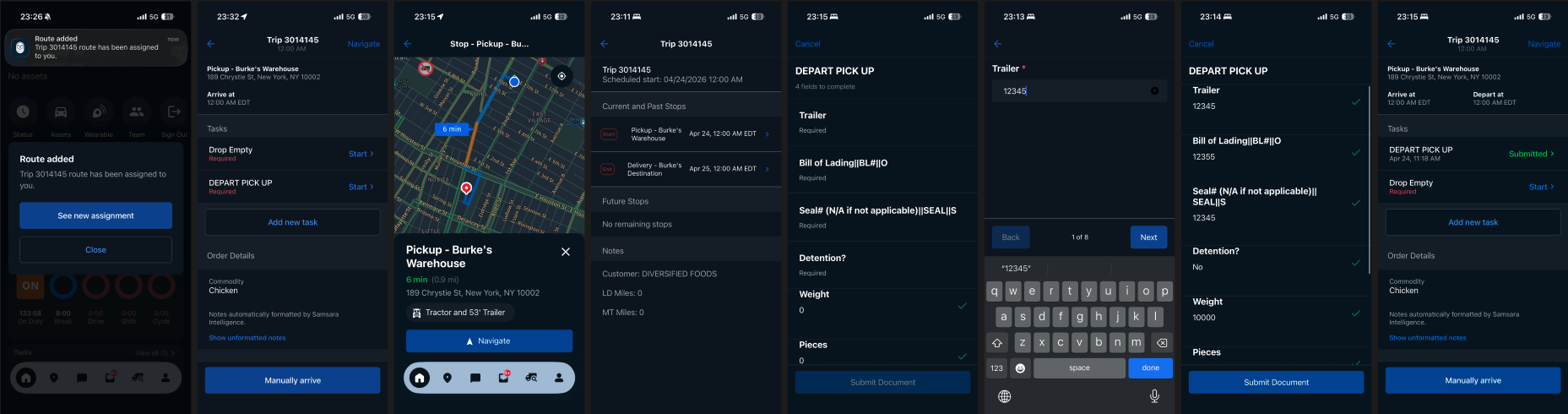
- Bi-directional data sync between Alvys and Samsara: dispatched trips in Alvys automatically appear as routes in the Samsara Driver app, and driver updates (BOL numbers, weights, pieces, documents) sync back to Alvys in real time
- Document collection at stops: drivers upload required documents (PODs, BOLs, etc.) through the Samsara app and they flow directly into Alvys
- Real-time route updates: any changes made by dispatch in Alvys (stop additions, reorders, appointment time changes) are instantly reflected on the driver’s Samsara screen
Prerequisites
Before enabling the Premium integration, you must have:- An active Samsara account with the Samsara Driver app in use by your fleet
- The standard Alvys + Samsara ELD integration already connected (this is the base integration that syncs vehicle locations, HOS, and ELD data)
- Drivers linked between both systems: every driver that will use the Premium integration must be linked to an existing, active driver in Samsara. If a driver ID is missing, the route will not sync. If an Alvys driver is linked to the wrong Samsara driver ID (for example, Alvys driver “Alice” carries Samsara driver “Bob’s” ID), the route will show as assigned to the wrong driver in Samsara.
- Samsara Premium enabled: Discuss with your dedicated Customer Success Manager, and they can assist in setting you up.
Step 1: Generate a Samsara API Token
Generate the API token through the Alvys app in the Samsara App Marketplace. This is the recommended approach because the token is created with the exact permissions Alvys needs — you do not need to configure scopes manually.- Log in to your Samsara Dashboard
- Open the App Marketplace
- Find and install the Alvys app
- Generate the API token from the Alvys app
- Provide the token to your Alvys implementation contact, or enter it in the Samsara integration settings within Alvys.
Step 2: Configure Geofences in Samsara (Optional)
Geofences are not required for the integration, but they improve the accuracy of automatic check-in and check-out. Where a geofence is not configured, Alvys falls back to a default radius of 300 meters from the location pin. If you want to fine-tune arrival and departure detection:- In the Samsara Dashboard, go to Geofences
- Create a geofence for each shipper, consignee, yard, or terminal location your drivers visit
- Make sure the geofence name or address matches what your dispatchers use in Alvys so the systems can correlate correctly
Step 3: Verify Driver Matching
For the integration to work correctly, drivers must be linked between the two systems. A trip must have a driver assigned to sync to Samsara. If the assigned driver is not linked a driver in Samsara, the route will not sync; if it points to the wrong Samsara driver, the route will appear assigned to that driver in Samsara. Your Alvys implementation contact can help you verify that your drivers are properly linked.Step 4: Define Your Document Requirements
Document collection at stops is self-serve and configurable — you can set it up yourself, and your Alvys implementation or support team can guide you if needed. Before go-live, decide:- Which document types are required at each stop type (e.g., pickup stops require a “Depart Pickup” confirmation and a BOL; delivery stops require a “Delivery” confirmation and POD upload)
- Which fields are mandatory vs. optional for your drivers to complete before they can close out a stop
- Bill of Lading number, Seal number and other references
- Weight
- Commodity description
- Pieces count
- Trailer number
- Detention events
- Notes
- Document uploads (BOLs, PODs, photos)
Step 5: Driver Training
Before go-live, make sure your drivers are prepared:- Install the Samsara Driver app on their phone or tablet (available on iOS and Android)
- Drivers will see dispatched routes appear automatically in the Samsara app once a trip is dispatched and assigned to them in Alvys
- Train drivers on:
- How to view route details and stop instructions
- How to upload documents at each stop
- How to fill out task fields (BOL, seal, weight, pieces, etc.)
- That arrival and departure will be tracked automatically via geofences (no need to manually check in/out at locations with a geofence configured)
How It Works Day-to-Day
Once everything is configured:- A dispatcher dispatches a trip in Alvys and assigns a driver
- Alvys automatically pushes the route to Samsara, including all stops, appointment times, reference numbers, and special instructions
- The driver sees the route in their Samsara Driver app with full stop details
- As the driver arrives at and departs from geofenced locations, check-in/check-out timestamps sync back to Alvys automatically
- The driver uploads documents and fills out fields (BOL, weight, pieces, etc.) through the Samsara app
- All driver-submitted data and documents sync back to Alvys in real time
- If dispatch makes changes to the trip in Alvys (adds/removes stops, changes appointment times, reassigns), those changes are pushed to Samsara immediately