
When one or more transactions fail to export from Alvys to NetSuite (also called NS sync failures, accounting export errors, or failed sync), they appear on the Error Transactions page. This article explains how to identify the cause of each failure and resolve it so the transaction syncs successfully.
Symptom
One or more transactions did not sync from Alvys to NetSuite. The failed transactions appear on the Error Transactions page (Accounting > Error Transactions) with an error message describing why the export failed. Affected transactions are not recorded in NetSuite until the error is resolved and the transaction is successfully re-synced.Cause
Transactions fail to sync when NetSuite rejects the export. Common rejection reasons include duplicate records, unrecognized customer or vendor names, multiple matching entities, mismatched subsidiary assignments, and internal ID conflicts on previously zero-valued transactions. Each failure is logged with a specific error message and error code to help identify the root cause.Resolution
Error Transactions page overview
The Error Transactions page (Accounting > Error Transactions) is a centralized list of all transactions that failed to export from Alvys to NetSuite or another connected accounting system.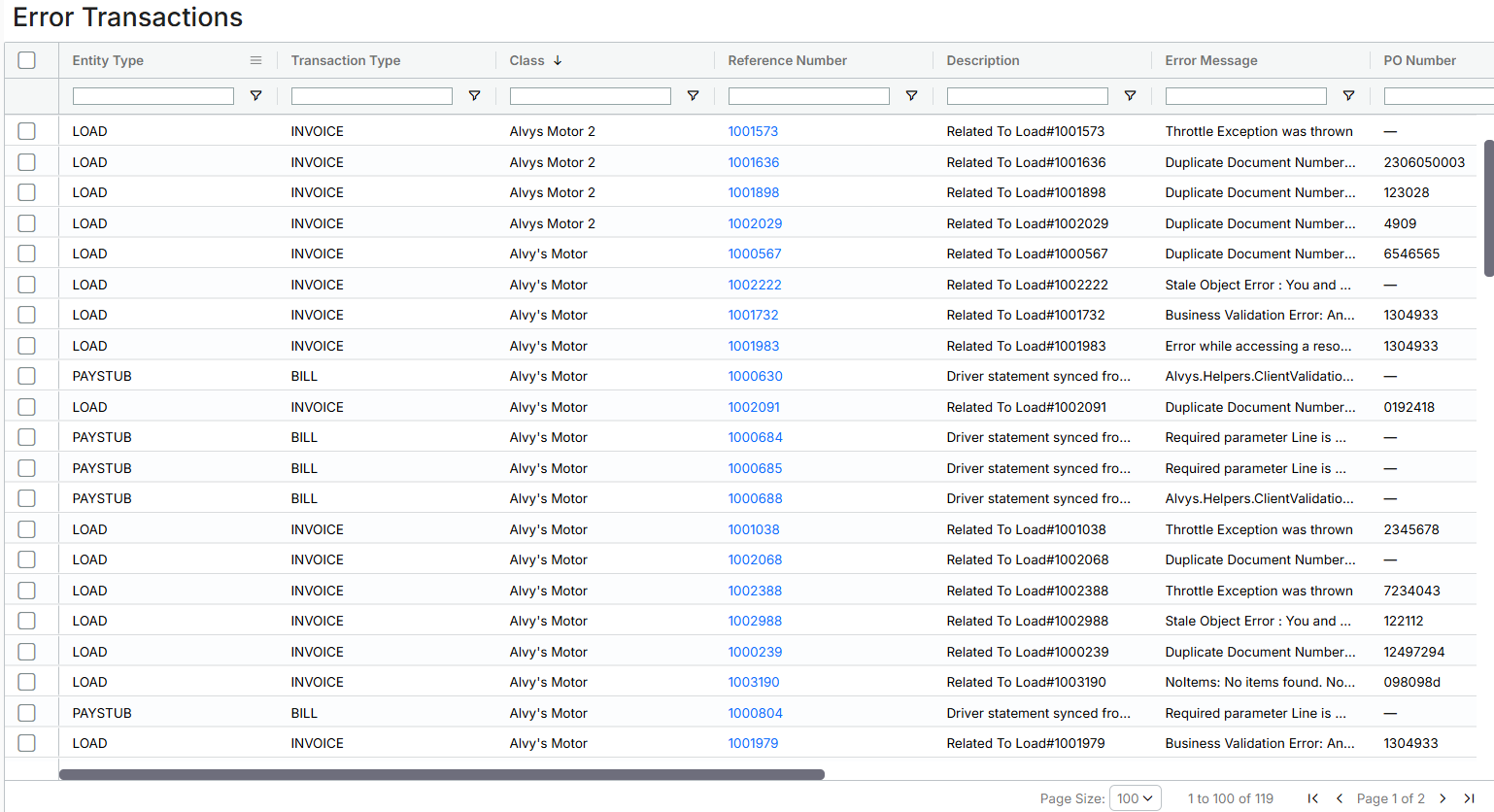 The Error Transactions page (Accounting > Error Transactions)
The Error Transactions page includes the following columns:
- Entity Type: The type of Alvys transaction that failed to export, showing where the transaction originated. Examples include Load, Trip, Paystub, Deduction, Accessorial Revenue, Toll, Fuel, Escrow, E-check, and Accounting Invoice.
- Transaction Type: How the record is classified in the external accounting system, such as Invoice, Bill, Credit Memo, Vendor Credit, or Journal Entry.
- Class: The subsidiary associated with the transaction.
- Error Message: The message returned by the external accounting system explaining why the transaction failed.
- **Status: **The current state of the transaction, such as Failed or Resolved.
- Reference: Additional identifiers to link the transaction, such as load number, summary invoice number, or trip number.
- Transaction Total: The total amount of the transaction.
- Date Created: The date the transaction was first attempted to be exported.
Supported Transaction Types That Can Be Re-Synced from Error Transactions
Not all transactions can be automatically re-synced from this page. Currently, only the following entity types can be re-synced:- Load
- Trip
- E-check
- Paystub Before re-syncing, ensure that any necessary corrections have been made to the transaction. To re-sync:
- Select one or more transactions from the Error Transactions page.
- Right-click to reveal the context menu options “Sync Transaction” or “Sync All Transactions.”
- Click Sync Transaction and confirm the action in the prompt.
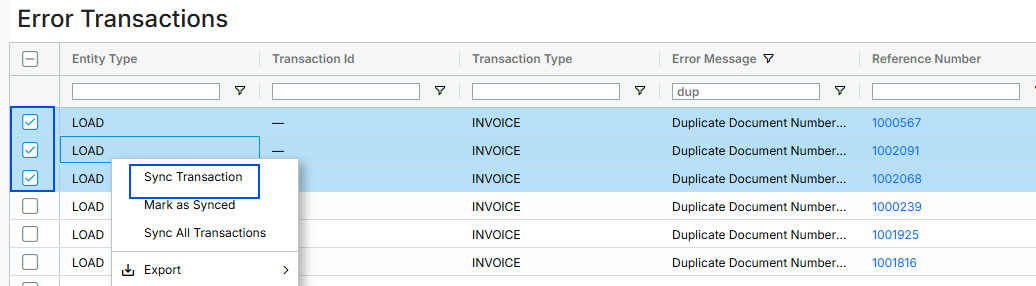 Context menu with the Sync Transaction option
The following entity types cannot be re-synced from the Error Transactions page:
- Deduction
- Accessorial Revenue
- Fuel
- Toll
- Accounting Invoice (same as a summary invoice)
- Escrow
- Carrier Statement
- Driver Statement
Clearing an Error Transaction Manually Fixed in the External System
If a transaction has been manually corrected in the external accounting system and no longer requires action in Alvys, it can be cleared from the Error Transactions page:- Select one or more transactions from the Error Transactions page.
- Right-click to reveal the context menu option “Mark as Synced.”
- Click Mark as Synced and confirm the action in the prompt.
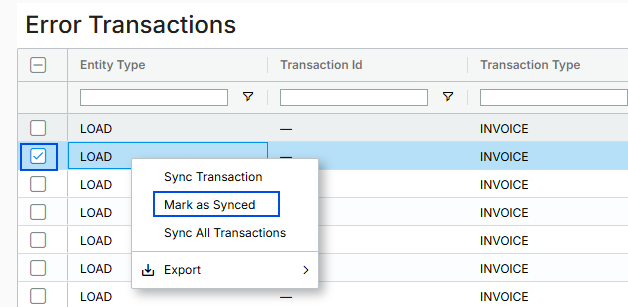 Context menu with the Mark as Synced option
Duplicate Record error on export
Error message: “DuplicateRecord: An attempt to create a duplicate record has been detected. The external id of the transaction matches an already existing transaction.” Cause: A record (invoice or bill) already exists in NetSuite with the same transaction number or External ID. NetSuite prevents creation of duplicate records.DuplicateRecord: An attempt to create a duplicate record has been detected. The external id of the transaction matches an already existing transaction. DuplicateRecord error in the Error Message column
DuplicateRecord error in the Error Message column- Search for the duplicate in NetSuite using Global Search or the transaction list. Search by transaction number, External ID, or the vendor or customer name associated with the transaction.
-
Resolve the conflict using one of the following approaches:
- If the existing NetSuite record is valid and correct: the transaction has already been recorded. Go to the Error Transactions page in Alvys, select the transaction, right-click, and choose Mark as synced to clear it from the error list.
- If the existing NetSuite record is incorrect or was created as a test: delete it in NetSuite, then proceed to the next step.
- Go to Accounting > Error Transactions in Alvys. Select the transaction, right-click, and click Retry sync. Confirm the action in the prompt.
- Verify in NetSuite that the transaction was created successfully and is linked to the correct customer, vendor, and subsidiary.
Customer not found in NetSuite
Error message: “CustomerNotFound: Customer not found for name ‘[Customer Name]’ and id ‘[Customer ID]’” Cause: Alvys cannot locate the customer in NetSuite using the NetSuite customer ID. This error is triggered when the “Use Existing Customers” setting is enabled and the External Accounting ID field in Alvys is missing, contains an incorrect ID, or points to a customer that no longer exists in NetSuite.- Verify that the customer exists and is active in NetSuite for the relevant subsidiary. To find the NetSuite customer ID, open the customer record in NetSuite; the ID appears in the page URL in the format:
https://[netsuite-url]/app/common/entity/custjob.nl?id=12345. - In Alvys, open the customer or broker profile. Enter the correct NetSuite customer ID in the External Accounting ID field for the relevant subsidiary. Save the record.
- Go to Accounting > Error Transactions. Select the transaction, right-click, and click Retry sync. Confirm the action in the prompt.
- Verify in NetSuite that the invoice was created and is linked to the correct customer and subsidiary.
Multiple entities found with the same name
Error message: “MultipleItems: Multiple items found. Multiple vendors found for name ‘[Entity Name]’” Cause: Alvys found more than one record in NetSuite with the same name and cannot determine which one to attach the transaction to. For bills, the entity is a vendor. For invoices, the entity is a customer.- Determine the transaction type: invoices use a customer as the entity; bills use a vendor.
-
Locate the duplicate entity records in NetSuite:
- For customers: navigate to Lists > Relationships > Customers and search for the entity name.
- For vendors: navigate to Lists > Relationships > Vendors and search for the entity name.
- Resolve the duplicates. The recommended approach is to rename the duplicate records so each entity name is unique in NetSuite. This allows Alvys to identify the correct entity on retry.
- Go to Accounting > Error Transactions. Select the transaction, right-click, and click Retry sync. Confirm the action in the prompt.
- Verify in NetSuite that the transaction was created and is linked to the correct entity.
Invalid combination of entity and subsidiary
Error message: “UnknownError: Error while accessing a resource. Invalid combination of entity and subsidiary.” Cause: The customer or vendor linked to the transaction is not assigned to the subsidiary being used. NetSuite requires each entity record to be explicitly assigned to the subsidiary referenced on the transaction.UnknownError: Error while accessing a resource. Invalid combination of entity and subsidiary. UnknownError: invalid combination of entity and subsidiary
UnknownError: invalid combination of entity and subsidiary- Identify the transaction type to determine the entity type: invoices use a customer; bills use a vendor.
-
In NetSuite, open the entity record and check the Subsidiary field:
- For customers: navigate to Lists > Relationships > Customers and open the customer record.
- For vendors: navigate to Lists > Relationships > Vendors and open the vendor record.
- Correct the subsidiary assignment in NetSuite. Edit the entity record and add or assign the correct subsidiary. Save the record. If your NetSuite account uses multi-subsidiary entities, verify that Multi-Subsidiary Customers or Multi-Subsidiary Vendors is enabled under Setup > Company > Enable Features > OneWorld.
- Go to Accounting > Error Transactions. Select the transaction, right-click, and click Retry sync. Confirm the action in the prompt.
- Verify in NetSuite that the transaction was created and is linked to the correct entity and subsidiary.
Failed export of an updated zero-valued transaction
Error message: “UnknownError: Unknown error. An unexpected error occurred. Error ID: [Sample Id]” Cause: The transaction was originally zero-valued ($0.00) while the “Ignore Zero Valued Transactions” setting was enabled in Alvys. Because the transaction was ignored at the time, NetSuite has no record of it. When the transaction was later updated to a non-zero value and an export was attempted, NetSuite rejected the export due to internal ID or edit sequence conflicts.UnknownError: Unknown error. An unexpected error occurred. Error ID: [Sample Id] UnknownError: unexpected error with an Error ID
UnknownError: unexpected error with an Error ID- Identify the affected transaction. Confirm that it was originally $0.00 and has since been updated to a non-zero value.
-
This error cannot be resolved manually. Contact Alvys Support and provide the following:
- Load Number
- Full error message
- Error ID (shown in the error message)
If That Didn’t Work
If a transaction continues to fail after following the resolution steps above, check the following before contacting support:- Confirm the correction was saved in NetSuite before retrying. Changes in NetSuite sometimes require a moment to propagate before a retry will succeed.
- Confirm the transaction is a supported entity type (Load, Trip, E-check, or Paystub). Unsupported types cannot be retried from the Error Transactions page and must be corrected from their source page.
- Review the Error Message and Error Code columns on the Error Transactions page. A changed error message after retry indicates the original issue was resolved but a new issue was introduced.