
Connect Twilio to Alvys to enable Driver Chat, which allows dispatchers to send and receive SMS messages with drivers directly inside Alvys. All customers must upgrade to the Twilio (New) integration to meet A2P 10DLC compliance requirements and continue using Driver Chat.
Overview
The Twilio (New) integration (also referred to as Twilio V2 or the upgraded Twilio integration) powers Driver Chat in Alvys. Once connected, dispatchers can send and receive text messages with drivers from within the Alvys platform. Twilio routes those messages as SMS to drivers’ phones. This version of the integration adds support for a subsidiary selector, which ensures messages are sent from the correct legal entity when you manage multiple brands or subsidiaries. It also includes an onboarding flow that registers your business with Twilio’s A2P 10DLC compliance framework, a requirement for all business texting in the United States. This is a one-way integration: Alvys sends outbound SMS through Twilio to drivers.Prerequisites
Before connecting Twilio (New), you need:- Admin or Partner Admin access in Alvys.
- A business website with a privacy policy and terms and conditions page that meets Twilio’s A2P 10DLC requirements. Review Twilio’s compliance guide for what must be included.
- A primary contact person Twilio can reach if issues arise during registration.
- The EIN (Employer Identification Number) for each legal entity you are registering.
How to connect
Navigate to Twilio (New) in Alvys.- Log in to Alvys and navigate to Management > Integrations.
- Locate the Twilio (New) integration.
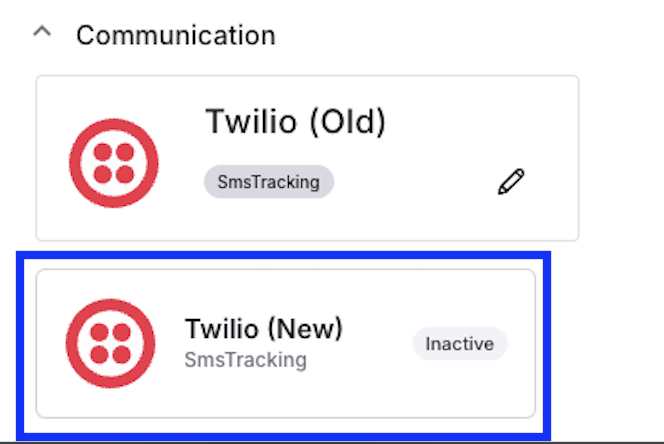 *Alvys Integrations page showing the Twilio (New) integration tile in the Management > Integrations section. *
- Choose your area code for your Twilio phone number.
- Set a forwarding number (optional) — calls to your Twilio number will forward to this number.
- Add subsidiaries: select any subsidiaries under your parent company that share the same EIN. For subsidiaries with separate EINs, complete the onboarding flow separately for each entity.
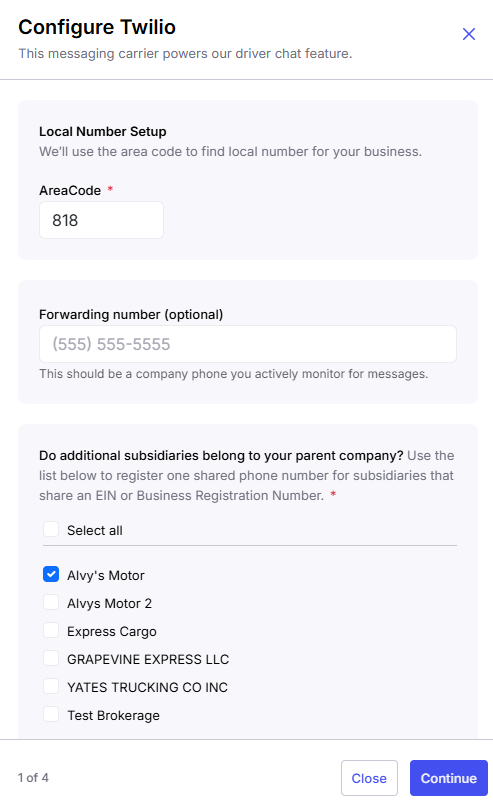 *Alvys Twilio (New) onboarding flow showing the “Configure Twilio” form subsidiary selector step. *
- Provide contact information: enter a primary contact person Twilio can reach if issues arise.
- Add your website, privacy policy, and terms and conditions. These must meet Twilio’s A2P 10DLC requirements — see Twilio’s compliance guide for exact requirements.
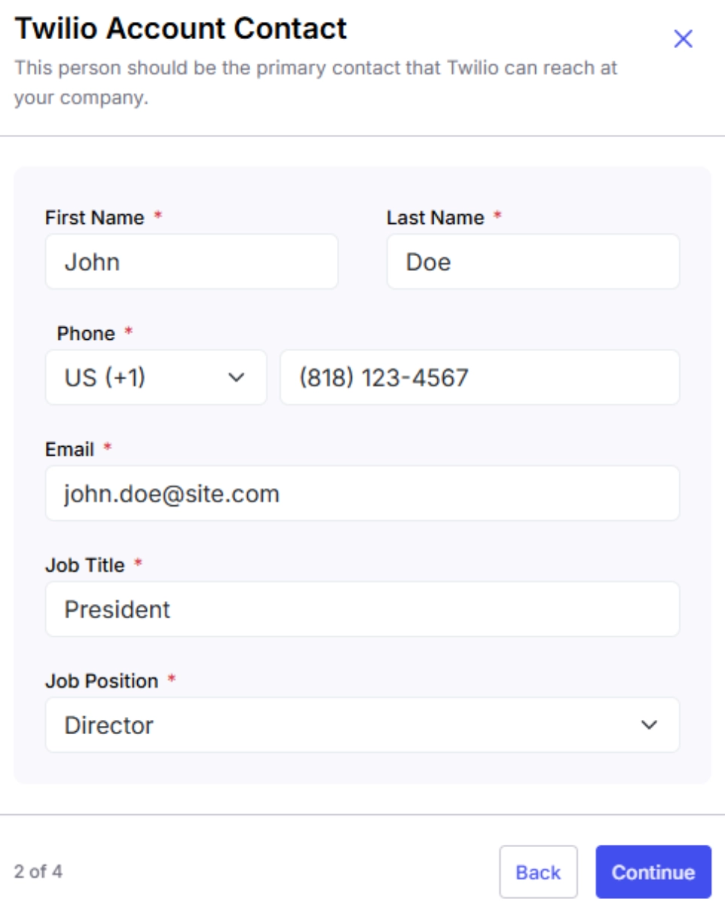 Alvys Twilio Step 2 of 4 “Account Contact” form
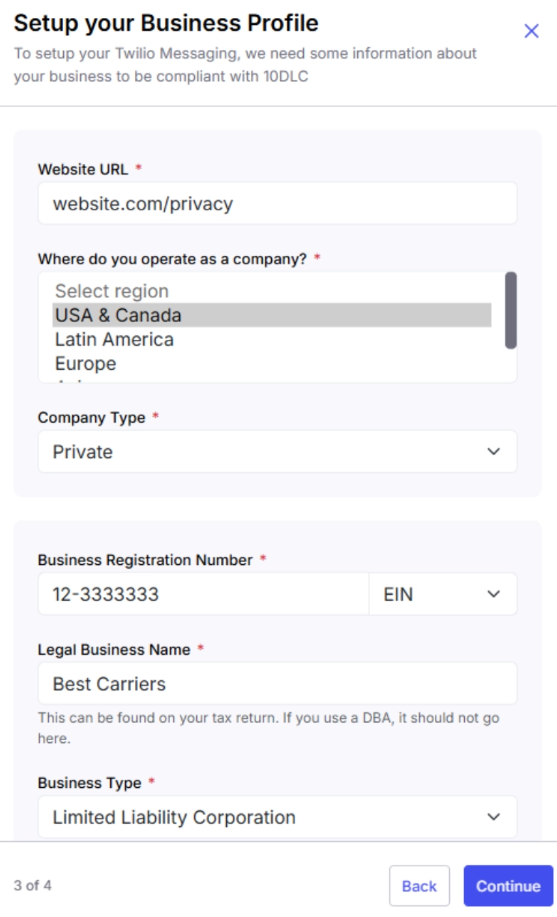 Alvys Twilio Step 3 of 4 “Setup your Business Profile“ form
- Monitor the progress tracker. After submitting, a progress tracker appears. All three of the following must turn green before your integration is active: Profile Status, Service Trust Product, and Brand Status. The review and approval timeline is controlled by Twilio and can take up to one month to complete.
- Deactivate the old Twilio integration. Once all three progress tracker steps are green, navigate back to Integrations and deactivate your old Twilio integration. Check all subsidiaries for previously activated old Twilio integrations and remove all of them.
What syncs
The Twilio (New) integration does not sync structured data fields between systems. It routes SMS messages between Alvys and drivers via Twilio’s messaging infrastructure. The onboarding flow collects your business profile information (legal entity name, EIN, contact details, website, and policy URLs) and submits it to Twilio for A2P 10DLC registration.- Messages sent from Alvys Driver Chat are routed outbound through Twilio to drivers’ phones via SMS.
- Drivers must opt in to receive messages from your Twilio number. A blue banner appears at the top of the driver chat window if the driver needs to opt in again after the upgrade, and it shows which number the driver should send the opt-in message to.
- Each legal entity (subsidiary) with a different EIN requires a separate Twilio registration and phone number. To confirm the integration is working after all three progress tracker steps turn green, navigate to Driver Chat in Alvys, open a conversation with a driver who has opted in to SMS, send a test message, and confirm the driver receives it on their phone. If the driver has not yet opted in, they will see a prompt to send an opt-in message to your Twilio number; once they opt in, messaging will work normally.
- Each legal entity with a separate EIN must be registered independently — you cannot combine subsidiaries with different EINs under a single registration.
- Previous driver chat history does not migrate.
- Drivers must re-opt in to SMS after the upgrade.
- Approval timelines are set by Twilio and can take up to one month.
Troubleshooting
Integration shows “needs attention”
Click the “needs attention” status to open the status detail panel.Twilio (New) integration showing “needs attention” status with a click indicator.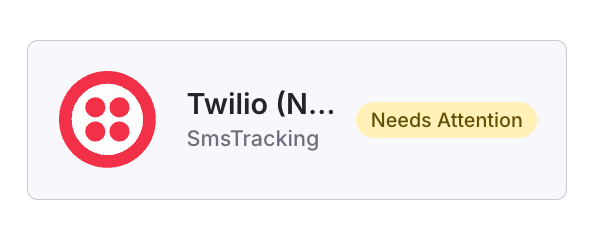
- Review the status panel to identify which section failed: Profile Status, Service Trust Product, or Brand Status.
- Click the edit icon next to the failed section and resubmit the corrected information to Twilio for additional review.
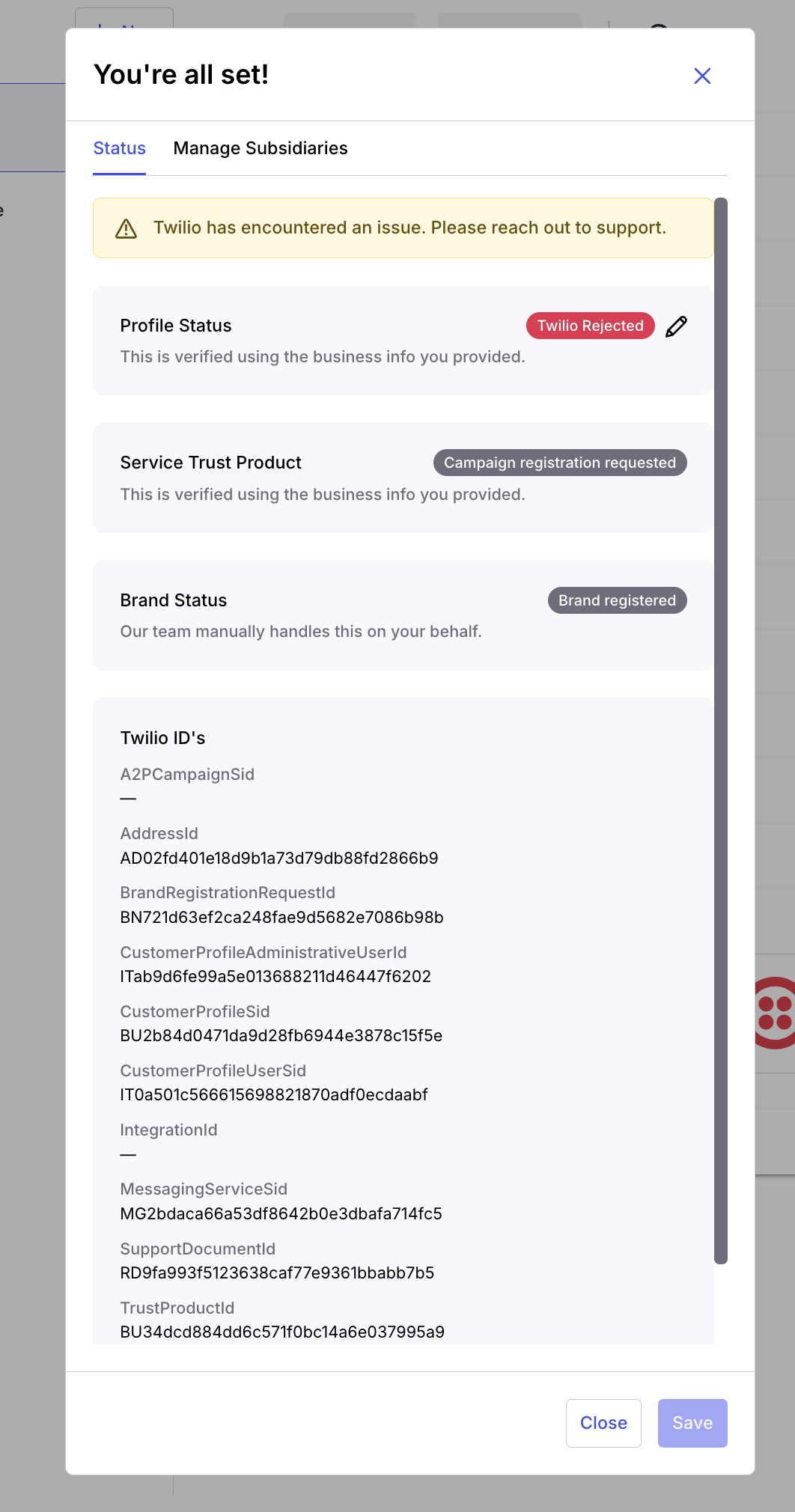 *Alvys Twilio (New) edit icon next to a failed section and the resubmission form. *
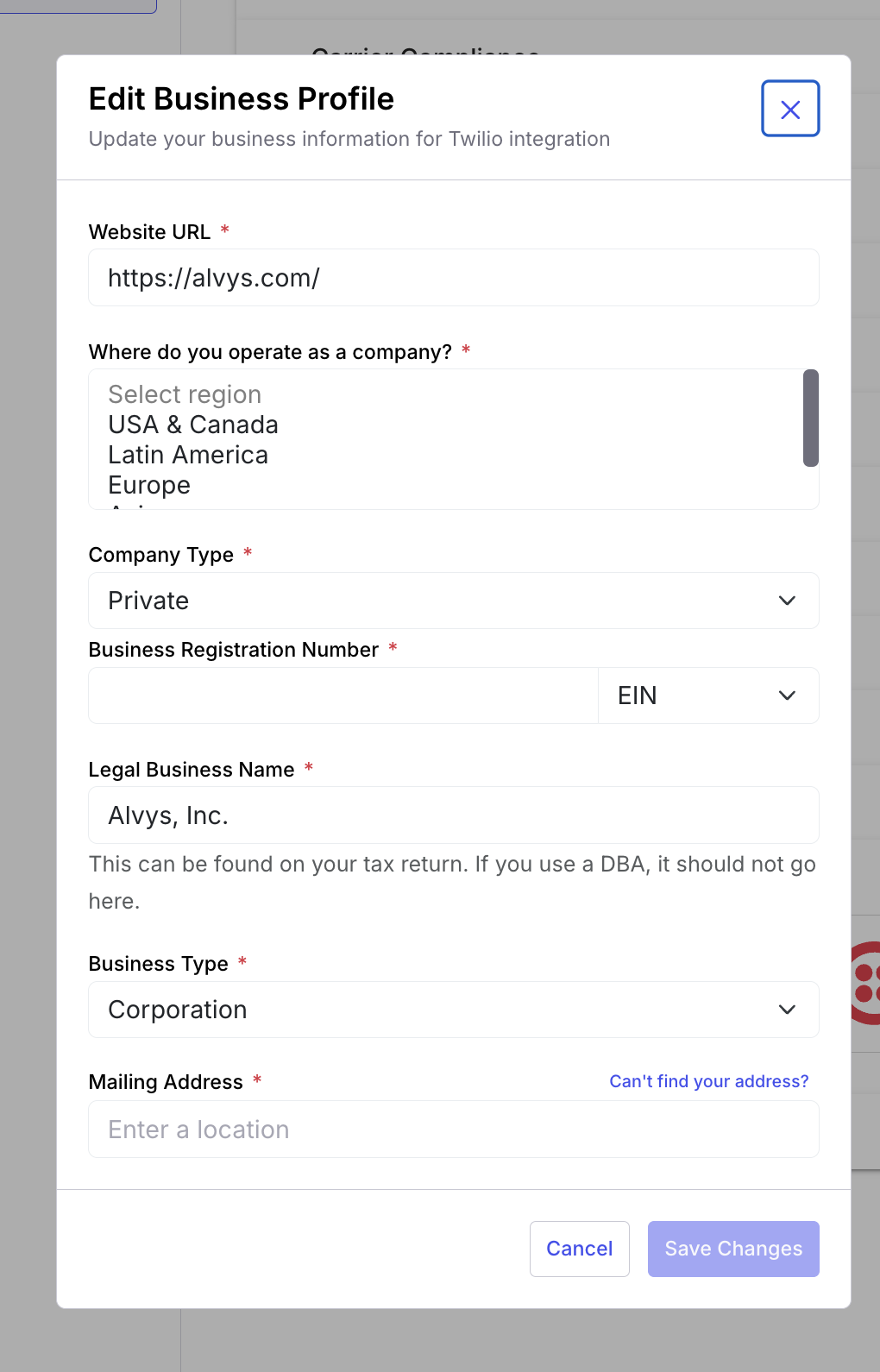 Image displaying “Edit Business Profile” form
Brand status failed
- Twilio will send an email to your listed contact with instructions to resolve the issue. Follow the instructions in that email, then resubmit through the edit icon in the status panel (see above).
Driver is not receiving messages
- Check whether a blue banner appears at the top of the driver’s chat window in Alvys. If it does, the driver has not yet opted in to the new Twilio number.
- Ask the driver to send the opt-in message to the number shown in the blue banner. Once they opt in, messaging will resume.
- If no blue banner appears and the driver is still not receiving messages, confirm all three progress tracker steps are green in Management > Integrations > Twilio (New). If any step is not green, the integration is not yet active.
- If all steps are green and the driver has opted in but messages are still not being received, contact Alvys support and include your Twilio account details and the affected driver’s information.