
Assign team members to specific roles on loads and trips, including Customer Sales Agent, Customer Service Representative, Sales Manager, Customer Account Manager, and Load Planner at the load level, and Carrier Sales Agent at the trip level. Roles can also be pre-configured in customer and carrier profiles to populate automatically on new loads.
How to Add Roles to Loads and Trips
Overview
Roles on loads and trips let you designate which team members are responsible for specific tasks within each load. Assigning roles improves accountability and makes it easier to track who owns each part of the workflow, from sales through carrier coordination. Also known as: assign rep, assign agent, load roles, trip roles. You can assign roles directly on a load or trip. You can also pre-configure default roles in a customer or carrier company profile so they are applied automatically to new loads. Synonyms: sales agent, service rep, load planner, account manager, carrier sales agent, assign rep, assign agent.Before You Start
Any authenticated Alvys user can assign roles to loads and trips. No special permission is required.Steps
- Open the Load Details Page. Navigate to the load you want to update and open the Load Details Page.
-
Assign load-level roles. In the load details section, locate the roles fields and assign any of the following:
- Customer Sales Agent (formerly Sales Agent): the salesperson who sold this load to the customer.
- Customer Service Representative: the team member managing customer communication for this load.
- Sales Manager: the manager overseeing the sales relationship for this load.
- Customer Account Manager: the account manager for the customer on this load.
-
Load Planner: the person responsible for planning the execution of this load.
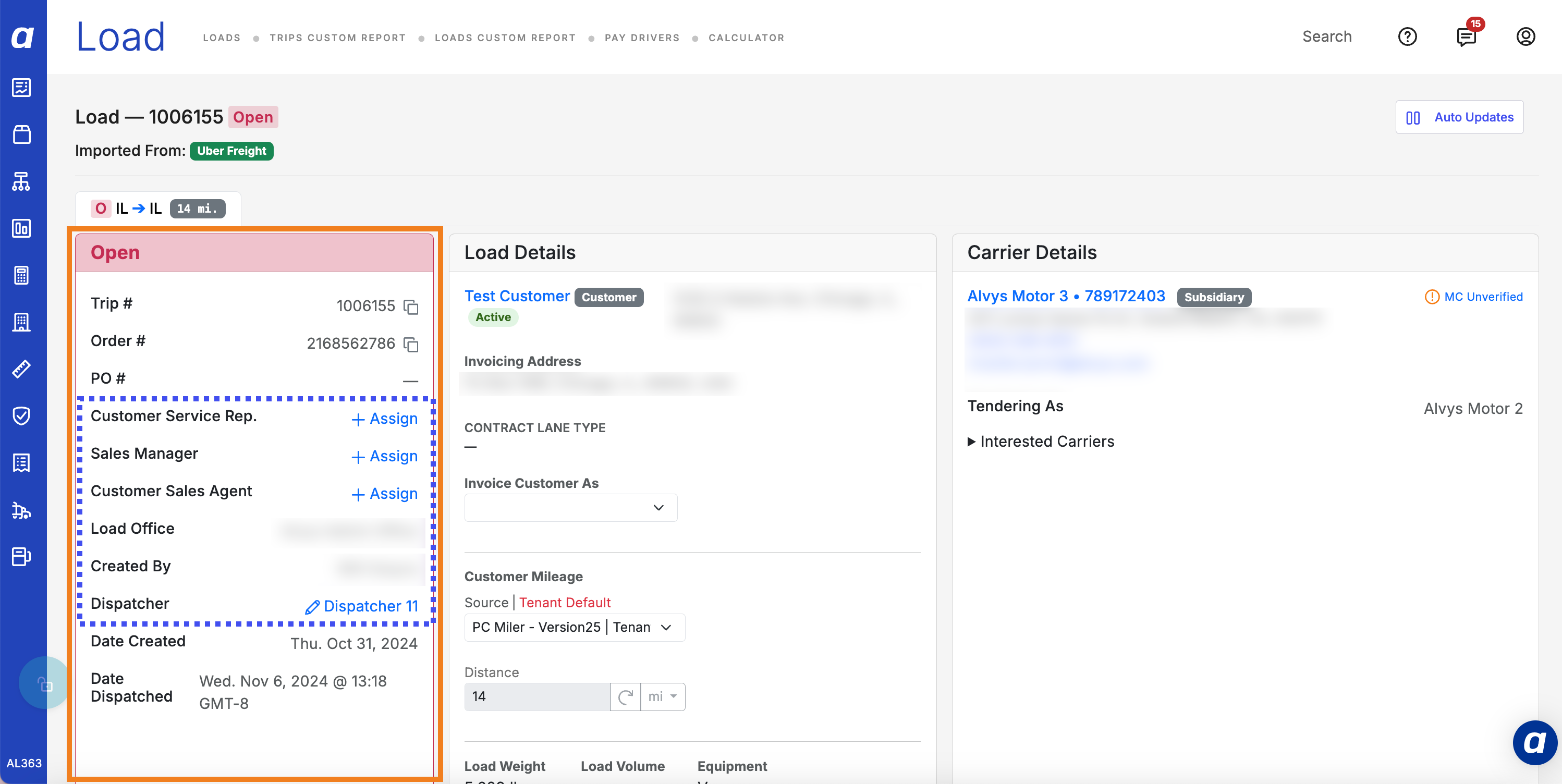 Load Details Page showing the role assignment fields.
-
Assign trip-level roles. Open the trip within the load. In the trip details, assign the following role:
- Carrier Sales Agent: the team member who arranged the carrier for this trip.
Result
Assigned roles appear on the load and trip details and are visible to all users who can access the load. Changes take effect immediately.Variations
Pre-configure roles in a customer profile
To save time on new loads, you can assign default roles directly in a customer’s company profile. The following roles can be pre-set there:- Customer Sales Agent
- Customer Service Representative
- Sales Manager
- Customer Account Manager
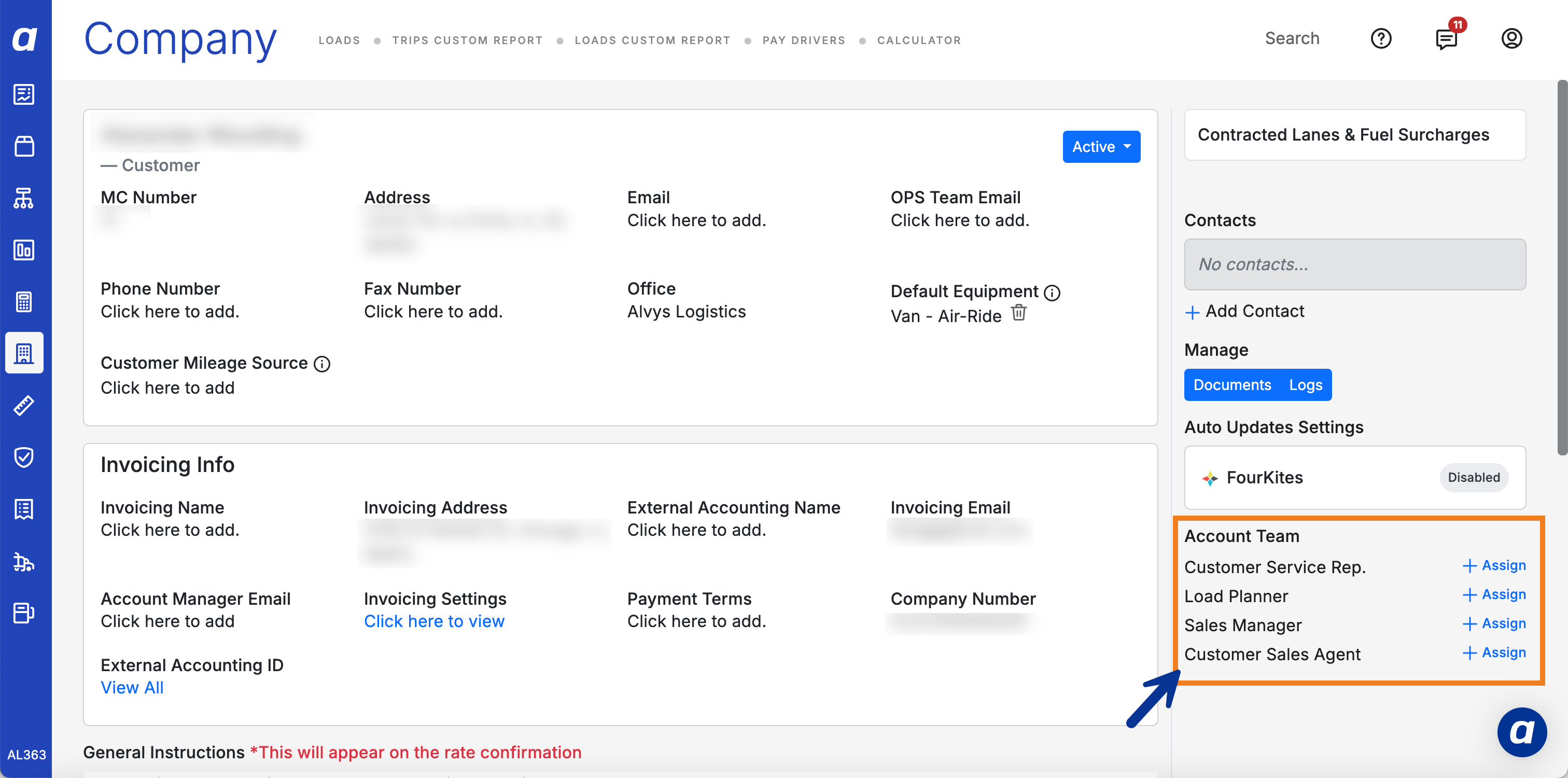 Customer company profile showing role pre-assignment fields.
Pre-configure a Carrier Sales Agent in a carrier profile
You can assign a Carrier Sales Agent within a carrier’s profile. Once set, that agent is automatically applied to any load or trip where that carrier is assigned.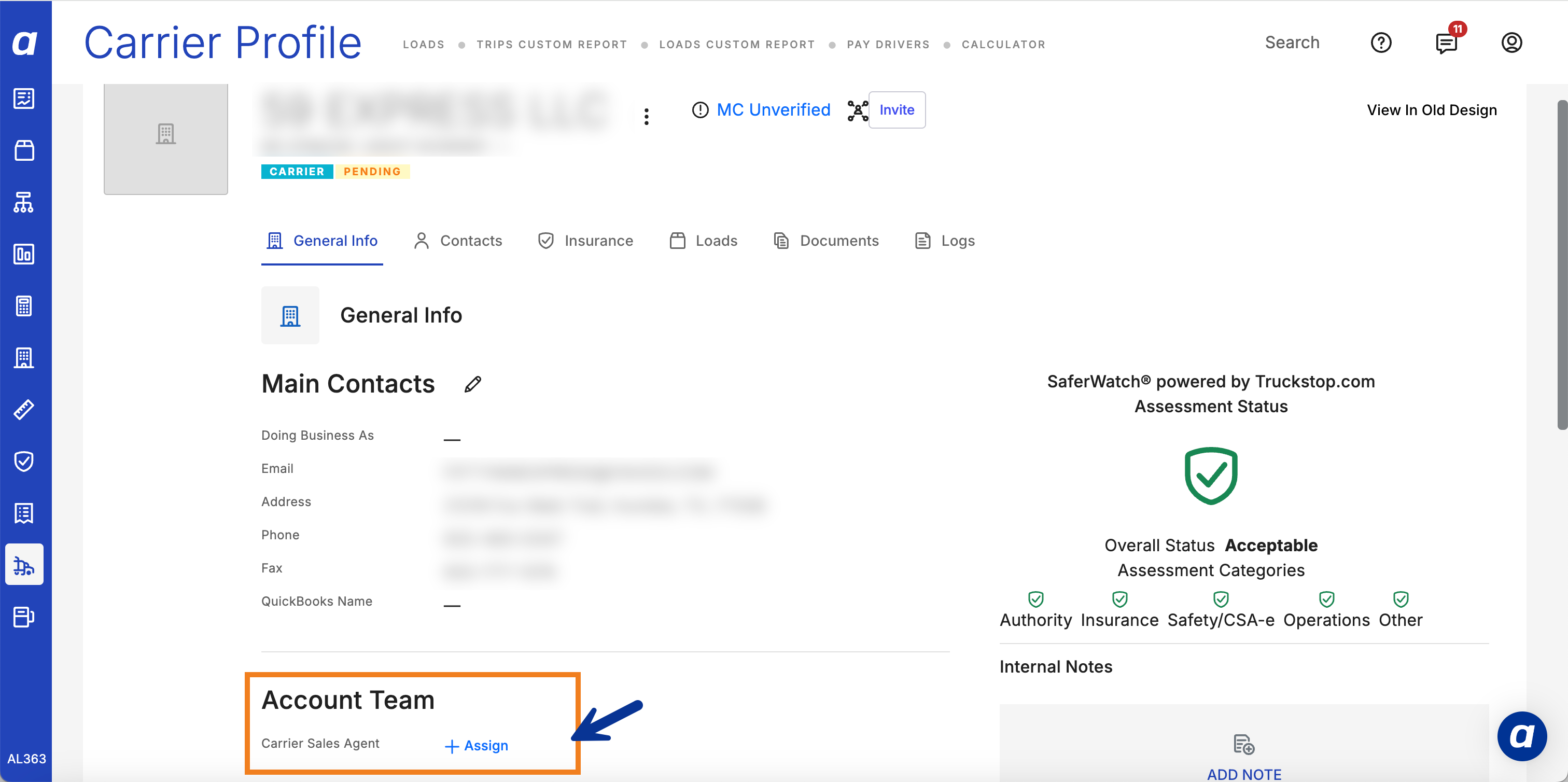 Carrier profile showing Carrier Sales Agent assignment field.