
A TONU (Truck Ordered, Not Used) records carrier compensation when a truck is dispatched but the load is cancelled or the carrier is turned away, and moves the load through the billing process.
Overview
TONU stands for Truck Ordered, Not Used. It applies when a carrier is dispatched to a pickup location but the load is cancelled or the carrier is turned away after arrival. Marking a load as TONU in Alvys records the agreed compensation for the unused trip and routes the load to billing. Synonyms: truck ordered not used, TONU charge, dry run, deadhead compensation, cancelled load fee.Before You Start
- You must have Dispatcher or Billing permissions to mark a load as TONU.
- The load must be in one of these statuses: Open, Covered, Dispatched, or In Transit.
- Confirm the TONU amount with the carrier before proceeding.
Steps
Find the load.- Use the Global Search bar in the upper right corner to locate the load. You can search by Alvys load number, trip number, or broker order number.
- Double-click the load from the search results to open it.
 Search bar for locating a load by number or customer name
- Inside the load, click Manage in the top-right action bar, then select TONU from the dropdown.
- A confirmation dialog appears asking “Are you sure? This cannot be undone.” Click Yes to confirm. The load status changes to TONU.
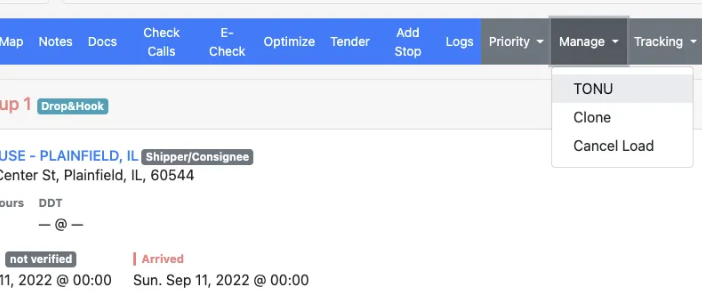 Manage dropdown menu with TONU option highlighted
- Select Customer Freight Amount, correct the amount the customer or broker pays you, then click Save.
- Select Carrier Line Haul, correct the amount owed to or from the carrier, then click Save.
- Select Driver Trip Value (for carriers), correct the amount accordingly, then click Save.
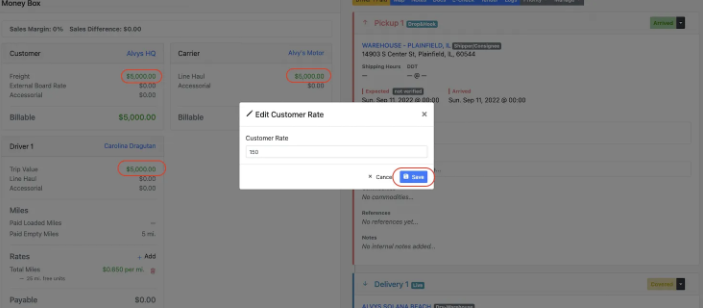 Money Box panel showing the Customer Rate and Carrier Line haul amount entry field
- Change the stop status to Arrived if the driver reached the shipper location.
- Leave or change the stop status to Covered if the driver did not arrive at the shipper.
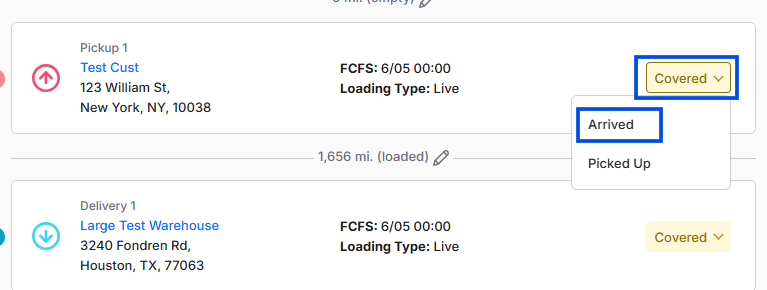 The Stops section of a load with the pickup stop status field shown, where the status can be set to Arrived or Covered after a TONU.
- Click Docs from the load management ribbon.
- Click the blue Add a File button to browse your computer, or drag and drop a file from your desktop into the documents area.
- Select the file type, then click the blue Upload button.
- Once the file is uploaded, close the documents panel.
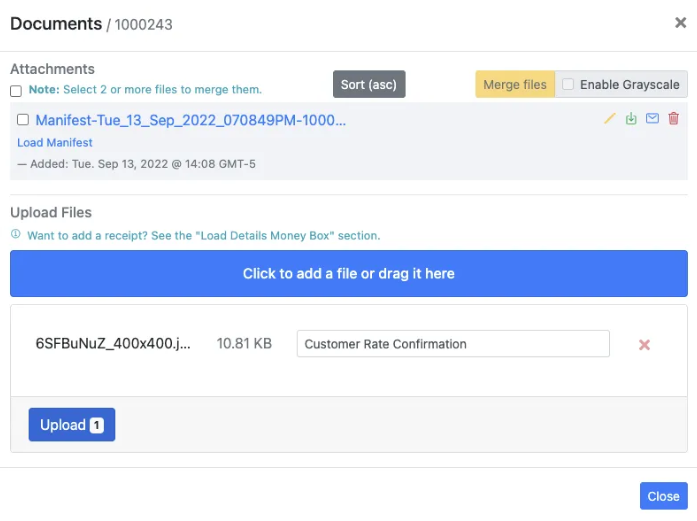 Document upload panel for attaching TONU confirmation files e.g. Rate confirmation
- Once the financial information is updated and the load status shows TONU, release the load. Click Manage in the load management ribbon, then select Release.
- This sends the load to your accounting and billing team for processing.
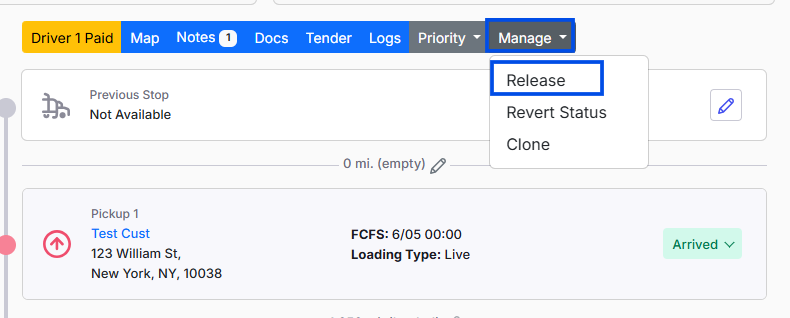 The Manage dropdown on the load with the Release option, used to send a TONU load to billing.
Result
- The load is marked as Released. The carrier’s compensation is saved, and the load moves to the billing queue for processing.
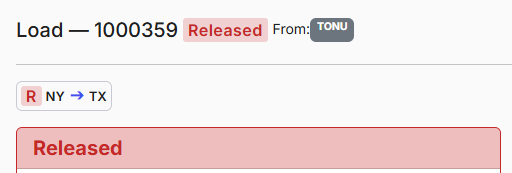 The load showing a Released status after a TONU has been released to billing.
Variations
- Partial completion: A TONU may not be appropriate if the carrier made a partial pickup. Contact your billing team to determine the correct charge type before proceeding.
- TONU not available in the Manage menu: See the Troubleshooting section of this article.
Troubleshooting
TONU option is not visible in the Manage menu
- Check the current load status. TONU is only available when the load is in one of these statuses: Open, Covered, Dispatched, or In Transit.
- Confirm you have Dispatcher or Billing permissions. If you are unsure, contact your administrator.
- TONU is not available on trips that were created by splitting a load. If this trip is part of a split load, TONU will not appear in the Manage dropdown. If none of these conditions apply, contact Alvys support.
TONU amount is incorrect after saving
- Open the load and review the carrier rate in the Money Box panel.
- If you have Billing permissions, update the carrier rate directly in the Money Box. If you do not have Billing permissions, contact your billing team to make the correction.