
Batch Invoicing is the central invoicing queue in Alvys where loads move through five statuses from Incomplete to Invoiced; use it to track, manage, and release multiple loads for billing in one action.
Overview
Batch Invoicing (also called the invoicing queue or billing queue) is the central place where your team tracks each load through the invoice lifecycle. Loads move through five statuses: from Incomplete (missing requirements) through Invoiced (sent). You can act on multiple loads at once from the Accounting > Invoicing page.Where to Find It
Navigate to Accounting in the left menu, then select Invoicing. The page opens to the Incomplete tab by default. Use the tab bar at the top to switch between statuses.
- Batch Invoicing page showing the five status tabs and the load list with checkboxes.*
Key Concepts
Incomplete: The load has been delivered or marked TONU but is missing required documents or information. Check the Reason Incomplete column to see exactly what is outstanding before moving the load forward. Released: All required documents are present and the load is ready to invoice. From Released you can create an invoice (moves the load to Queued) or create and send in one step (moves the load directly to Invoiced). Queued: An invoice has been created but not yet sent to the customer. Select multiple loads in this status and use Send Invoice to dispatch them. Invoiced: The invoice has been sent to the customer. From this status you can resend the invoice or send a payment reminder. Payment Discrepancies: A payment has been applied but an outstanding balance or credit remains. Review and resolve the discrepancy before the load is fully settled.How to Use It
The most common bulk action is moving multiple loads from Incomplete to Released at once.- Open Accounting > Invoicing and select the Incomplete tab.
- Check the boxes next to the loads you want to move.
- Select Move to Released. A confirmation modal appears before the move is finalized.
- After loads reach Released, select them and use Create Invoice or Create & Send to advance them toward payment.
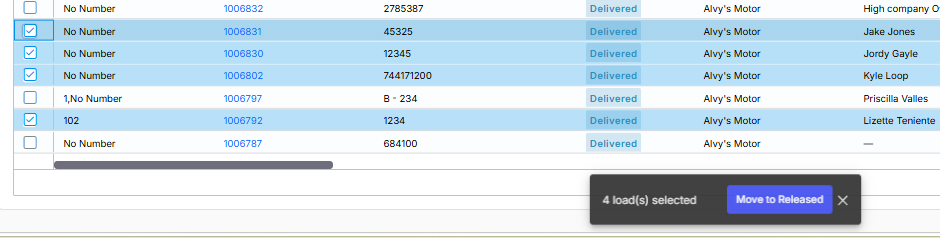 *Screenshot of the multi-select checkbox flow and Move to Released modal. *