
Overview
Invoicing Settings (also called billing settings or invoice configuration) give Admins and Partner Admins control over how invoices are generated and delivered. Company-level defaults apply to all customers unless a customer profile overrides them. Five configuration areas are available: Delivery Methods, Document Requirements, Invoice Type, AutoMerge, and the global Invoicing Settings toggle.Where to Find It
Navigate to Management > Company Profile > Invoicing Settings (https://app.alvys.com/#/manage/company-profile) for company-wide defaults.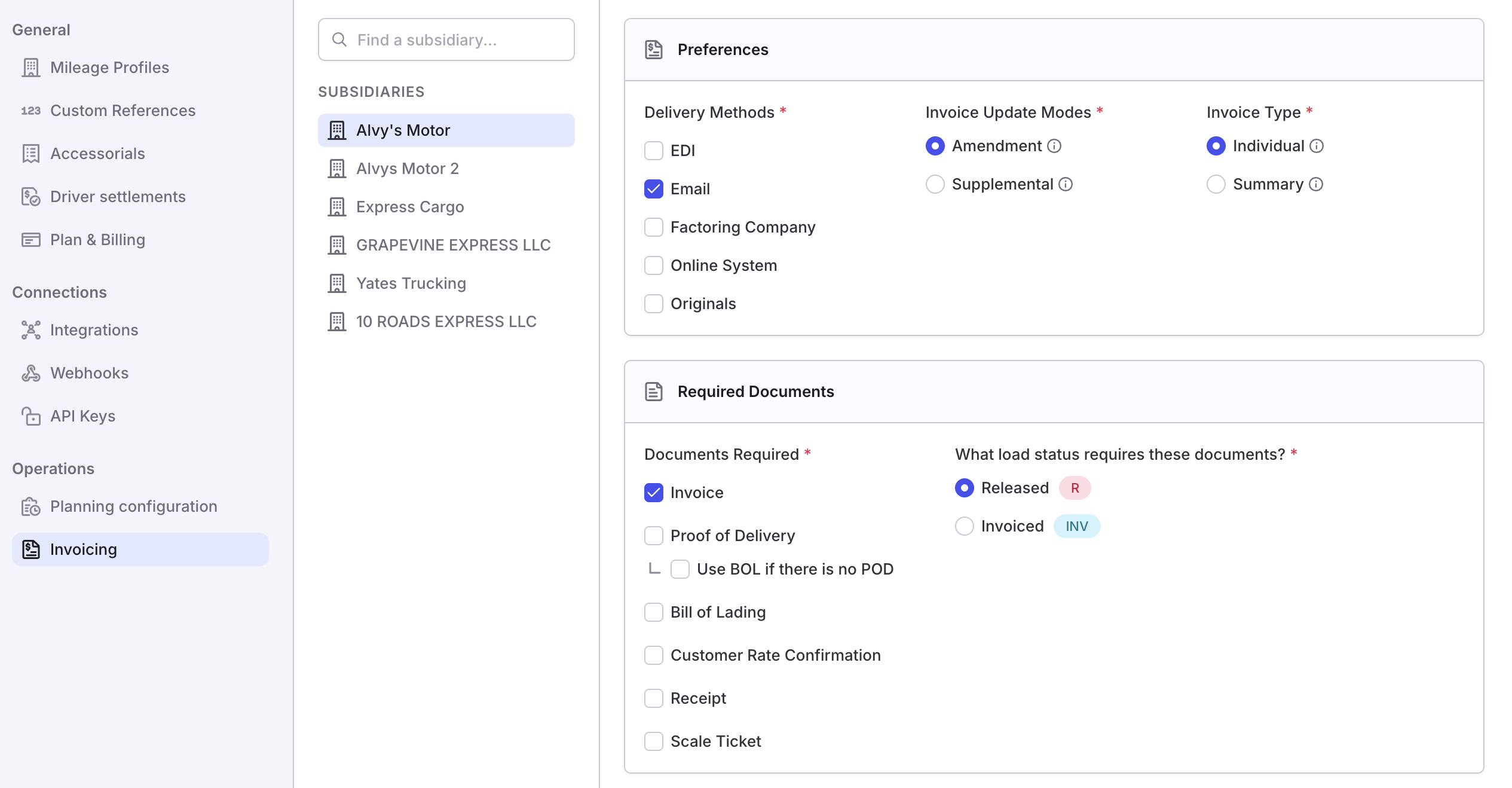 Image of the Invoicing Settings section in Company Profile showing the five configuration areas
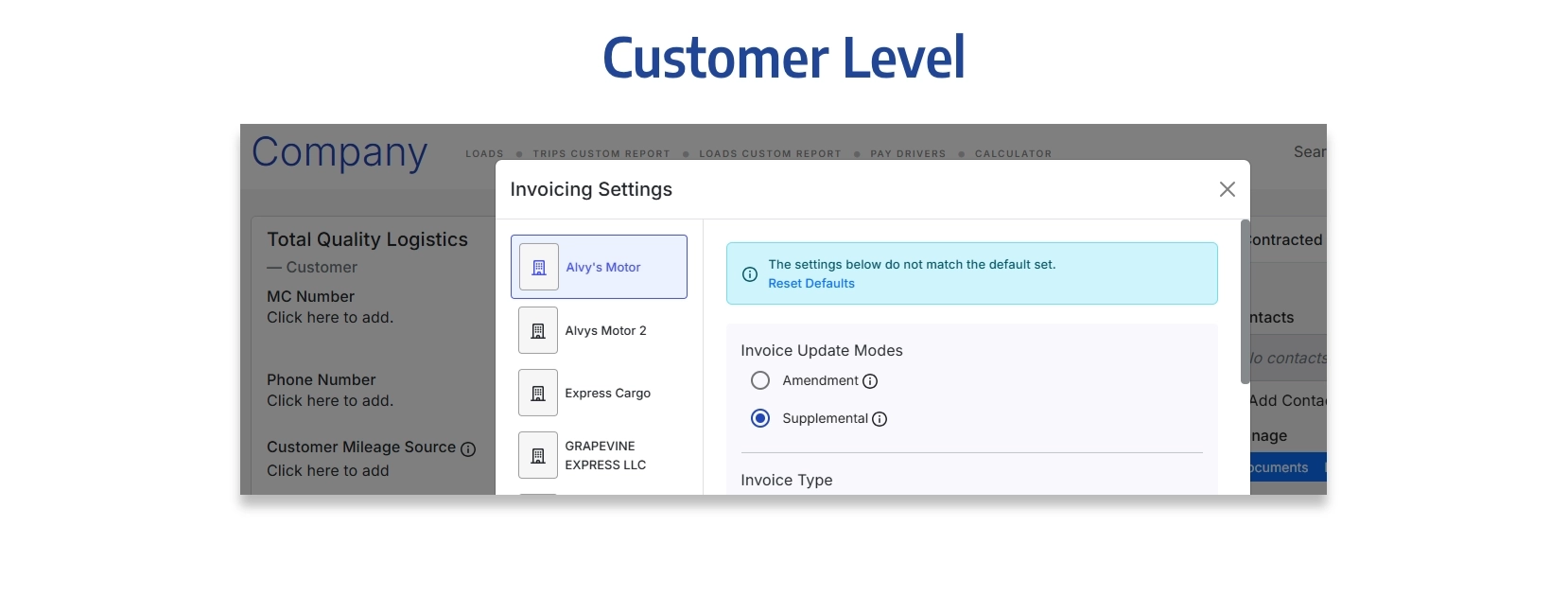 Image of the Invoicing Settings section in Customer/ Broker Profile showing the five configuration areas
Key Concepts
Delivery Methods: Controls how invoices reach the customer. Options are EDI, Email, Factoring Company, Online System, and Originals. Each method determines which integration or address Alvys uses when the invoice is sent. Document Requirements: Specifies which documents must be present on a load before an invoice can be generated. Requirements are set separately for the Released action and the Invoiced action. When Proof of Delivery is required, you can also allow a Bill of Lading to stand in for a missing POD by turning on Use BOL if there is no POD (see Proof of Delivery and Bill of Lading below). Invoice Type: Sets whether invoices are generated per load (Individual) or grouped into one periodic invoice per customer (Summary). See How to use Summary Invoicing for the full workflow when using the Summary type. AutoMerge: Automatically consolidates all loads for a customer into one invoice draft. AutoMerge is required when the customer’s Delivery Method is set to Factoring Company; it must be enabled for factoring customers to invoice correctly. Invoicing Settings toggle: When enabled at the company level, these settings apply as the default for all customers. Customer-level settings override the company default for that specific customer only.How to Use It
For invoice generation workflows using these settings, see Batch Invoicing. For the Summary Invoicing workflow, see How to use Summary Invoicing.Proof of Delivery and Bill of Lading
By default, when a subsidiary requires Proof of Delivery, only an actual POD document satisfies that requirement. If your operation historically accepted the Bill of Lading in place of the POD (for example, because your BOL carries the delivery signatures), you can opt in per subsidiary.1
Open Invoicing Settings for the subsidiary
Go to the subsidiary’s Invoicing Settings and find the Required Documents section.
2
Require Proof of Delivery
Under Documents Required, check Proof of Delivery.
3
Allow Bill of Lading as a fallback
Check the indented sub-option Use BOL if there is no POD. This lets an uploaded Bill of Lading satisfy the POD requirement when no POD is present on the load. Turning this on when Proof of Delivery is not yet required will automatically require Proof of Delivery for you.
4
Save
Your changes save with the rest of the subsidiary’s invoicing settings.
This behavior is rolling out gradually. Existing subsidiaries keep their prior behavior on day one, so nothing changes for your loads until you turn the setting on. If you don’t see Use BOL if there is no POD yet, it hasn’t been enabled for your workspace — contact Alvys support.