
Issue e-checks (electronic checks) to drivers directly from a load, set e-check limits per driver or user, and search all e-check transactions from the Accounting module. Requires the “Issue ECheck” permission to issue.
Overview
E-checks (also called electronic checks, money codes, or Comchek/EFS checks) let you issue instant electronic payments to drivers without cash or physical checks. Alvys supports e-check issuance through integrations with EFS and Comdata. All accounts include a $500 default e-check cap as a security measure to prevent accidental or unauthorized large-value issuances. Admins can customize this cap per driver or per user role. All issued e-checks are searchable and auditable from Accounting > E-Checks.Before You Start
To issue an e-check from a load, your user account must have the “Issue ECheck” permission. Contact your company Admin if the Manage E-Check button is not visible on a load. To set e-check limits for drivers, you need access to the driver profile (Assets > Drivers). To set limits for users, you need access to the Company Profile (Management > Company Profile > Users tab). Contact your Admin if you cannot access these areas. Have the driver or recipient name and the payment amount ready before issuing.Steps
- Open the load from which you want to issue the e-check.
- Open the e-check panel. Scroll to the Money Box section. Click Manage E-Check. Alternatively, right-click the load on the Load Board and select Issue E-Check.
 Image showing the “Manage E-Check” button in money box section on a load.
- Select the driver recipient. In the Manage E-Check panel, search for and select the driver or carrier who will receive the payment.
- Enter the amount. Enter the payment amount. Confirm this is within the driver’s e-check cap and within any user-level cap set on your account.
- Select the reason. Choose the reason for the e-check (for example: Fuel Advance, Lumper Fee, Cash Advance). Available reasons depend on your company’s configuration.
- Choose the provider. If your company has more than one e-check integration active, select EFS or Comdata as the provider for this payment.
- Add a reference (optional). Enter a reference note to associate with this e-check record. This is optional but useful for reconciliation.
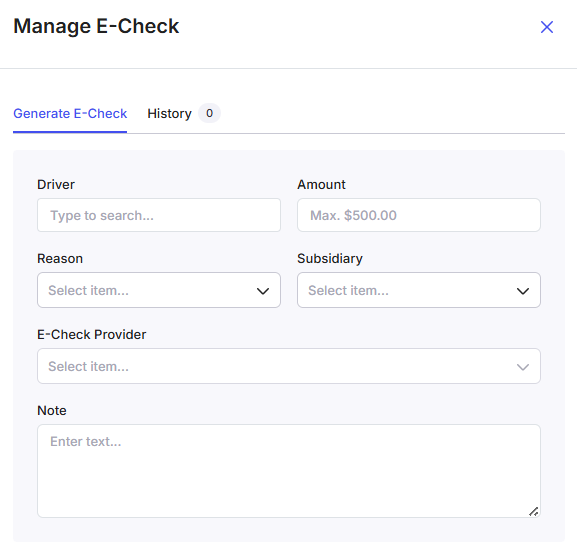 Image showing the manage E-Check panel, which includes input fields for driver, e-check amount, e-check reason, subsidiary, E-check provider and note.
- Generate the e-check. Click Generate. The e-check is created, a payment code is issued, and the e-check appears as a line item in the load’s Money Box.
 Image showing generate E-check button.
Result
The driver or carrier receives a payment code to redeem at authorized locations. The e-check is logged in the load’s activity history. To view all e-checks issued across loads, navigate to Accounting > E-Checks (requires the “ECheckFee” permission to access that page).Variations
Setting E-Check Limits for Individual Drivers
Admins can set a maximum e-check percentage or cap for a specific driver.- Navigate to Assets > Drivers.
- Locate and click on the driver whose e-check limit you want to set or modify.
- In the driver profile, find the E-Check % and E-Check Cap fields.
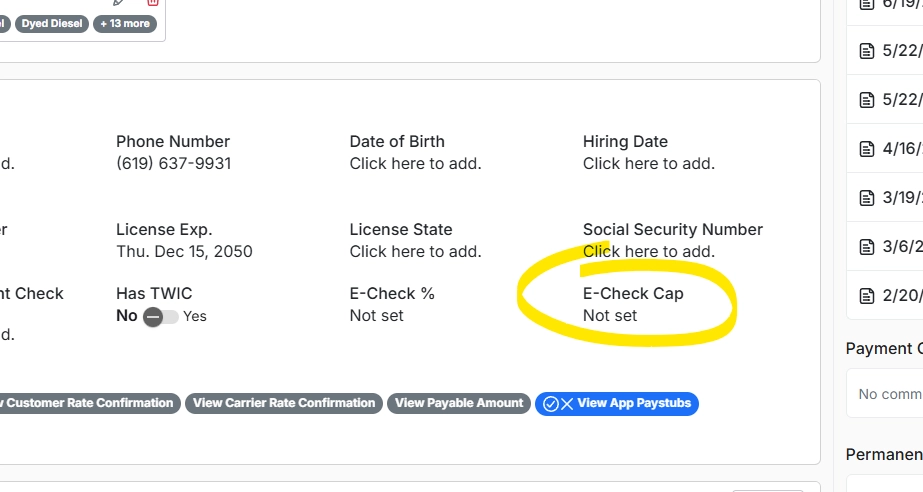 Image of the driver profile showing the E-Check % and E-Check Cap fields.
- Click Not set next to either field to open the input window. Enter the desired limit. E-Check Percentage: The maximum percentage of a payment the driver can receive via e-check. E-Check Cap: A fixed maximum dollar amount the driver can receive per e-check transaction.
- Save your changes.
Setting E-Check Limits for Alvys Users
Admins can set a maximum e-check issuance cap for specific users based on their role.- Navigate to Management > Company Profile.
- Click the Users tab.
- Locate and click on the user whose e-check limit you want to modify.
- Find the E-Check Cap field (default: $500). Click the current value or Not set to open the input window and enter the maximum dollar amount this user can issue per e-check.
- Save your changes.
Searching and Reviewing E-Checks
All e-check transactions are searchable from the Accounting module.- Navigate to Accounting > E-Checks.
- Define your search criteria. You can filter by Money Code/Check Number, Date Range, Driver, Load Number, Amount Issued, Reason, and Date Generated using the respective fields and column filters.
- Execute the search.
- Review the results. The results table shows all matching e-checks with details including driver, load number, amount, reason, and the user who generated it.
- To view the full load record, click the load number in the results to navigate directly to that load’s page.