
Company Management Permissions control who can create, edit, activate, and delete non-customer company records such as shippers, warehouses, and factoring companies. Safety and Driver roles do not have these permissions by default.
Overview
In Alvys, “companies” encompass a wide range of business entities beyond customers. The system supports multiple company types, and the Company Management Permissions category governs who can create, modify, activate, and delete non-customer company records. This includes shippers, warehouses, factoring companies, terminals, lease companies, and other business entities your operation interacts with.💡 Company Management permissions govern actions on non-customer company types, while Customer Management permissions govern actions on Customer and Broker/3PL types.
Where to Find It
Company Management Permissions are configured at the individual user level within the User Management interface. This interface is located at Management > Company Profile > Users tab. To open the Company Management permissions for a user:-
Select your username located in the bottom left corner of the Alvys interface.
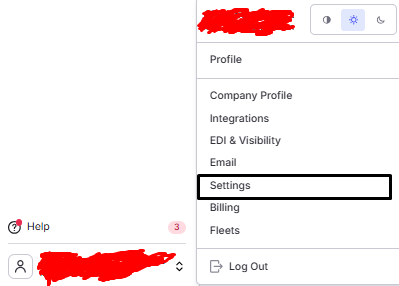 Screenshot showing the username in the bottom left corner of the Alvys navigation, with the user menu expanded.
Screenshot showing the username in the bottom left corner of the Alvys navigation, with the user menu expanded.
Screenshot showing the username in the bottom left corner of the Alvys navigation, with the user menu expanded.
-
Navigate to Management > Company Profile and select the Users tab
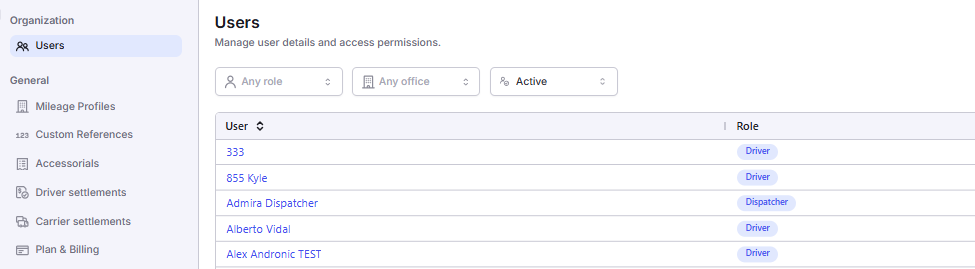 Screenshot of the Management tab with Users highlighted
Screenshot of the Management tab with Users highlighted
Screenshot of the Management tab with Users highlighted
- Choose an existing user to Edit, or select the Add User button to create a new profile.
- Scroll to the Permissions section and locate the Company Management category. Identify the four individual checkboxes: “Create Company”, “Edit Company”, “Activate Company”, and “Delete Company”.
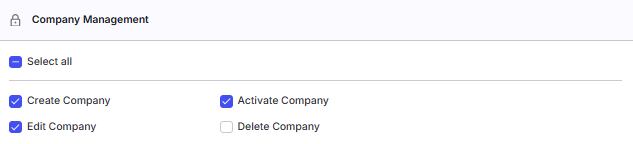 Screenshot showing the Permissions section with the Company Management category expanded and all four permission checkboxes visible.
Company Management Permissions Breakdown
”Create Company”
The “Create Company” permission controls whether a user can create new non-customer company records and import shippers into the system. This applies to company types such as Shippers, Warehouses, Lease Companies, Terminals, Factoring Companies, and other business entities that are not classified as Customer or Broker/3PL.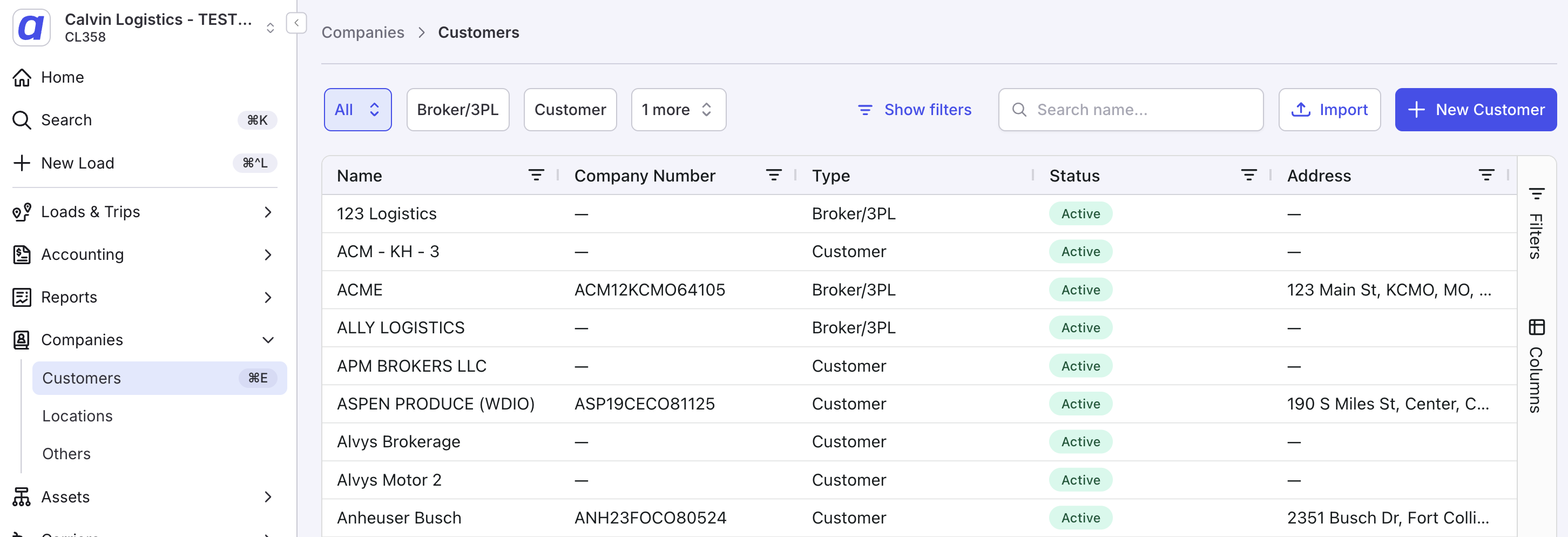 *Screenshot showing the Companies page with the New Customer button visible in the top right. *
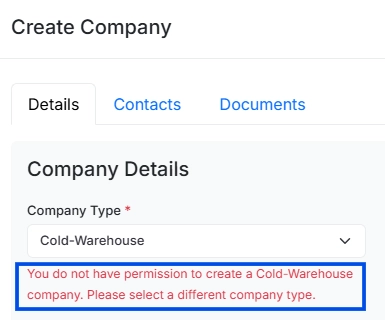 Screenshot showing the error message a user receives when attempting to create a non-customer company type without the “Create Company” permission.
💡 Best Practice: Assign “Create Company” only to roles responsible for operational setup, such as Data Entry staff, managers, owners, or a dedicated Operations Coordinator. Always review new company records promptly to ensure accuracy before they are referenced on loads.
”Edit Company”
The “Edit Company” permission allows a user to modify information on an existing company profile for company types such as Shippers, Warehouses, Terminals, and others. This includes updating addresses, contacts, phone numbers, operating hours, notes, and any other editable fields on the company record. Without this permission, the user can view the company profile, but all fields appear in read-only mode and no changes can be made. By default, this permission is assigned to: Support, Partner Admin, Admin, Operation Manager, Dispatcher, Biller, Sales Agent, Data Entry, and Office Admin. Not assigned by default to: Safety or Driver.💡 Best Practice: Grant “Edit Company” alongside “Edit Customer”. Users who maintain one type of company record typically need access to modify all company types.
”Activate Company”
The “Activate Company” permission controls whether a user can modify the activation status of non-customer company records, including Shippers, Warehouses, and other non-customer entity types. Status options include Active, Inactive, On Hold, Do Not Use, and Disabled. Active companies are available for use in load operations. Deactivating a company removes it from active use, preventing it from being referenced in new loads while preserving all historical records tied to that entity. Without this permission, a user cannot change a non-customer company’s activation status.💡 Deactivating a company does not affect loads that have already been created referencing that entity. In-progress and historical loads remain fully intact. Deactivation only prevents the company from being selected for new transactions going forward.
- Navigate to the Companies page.
- Open the Shipper, Warehouse, or relevant company profile.
-
Locate the status button in the top right corner of the company profile.
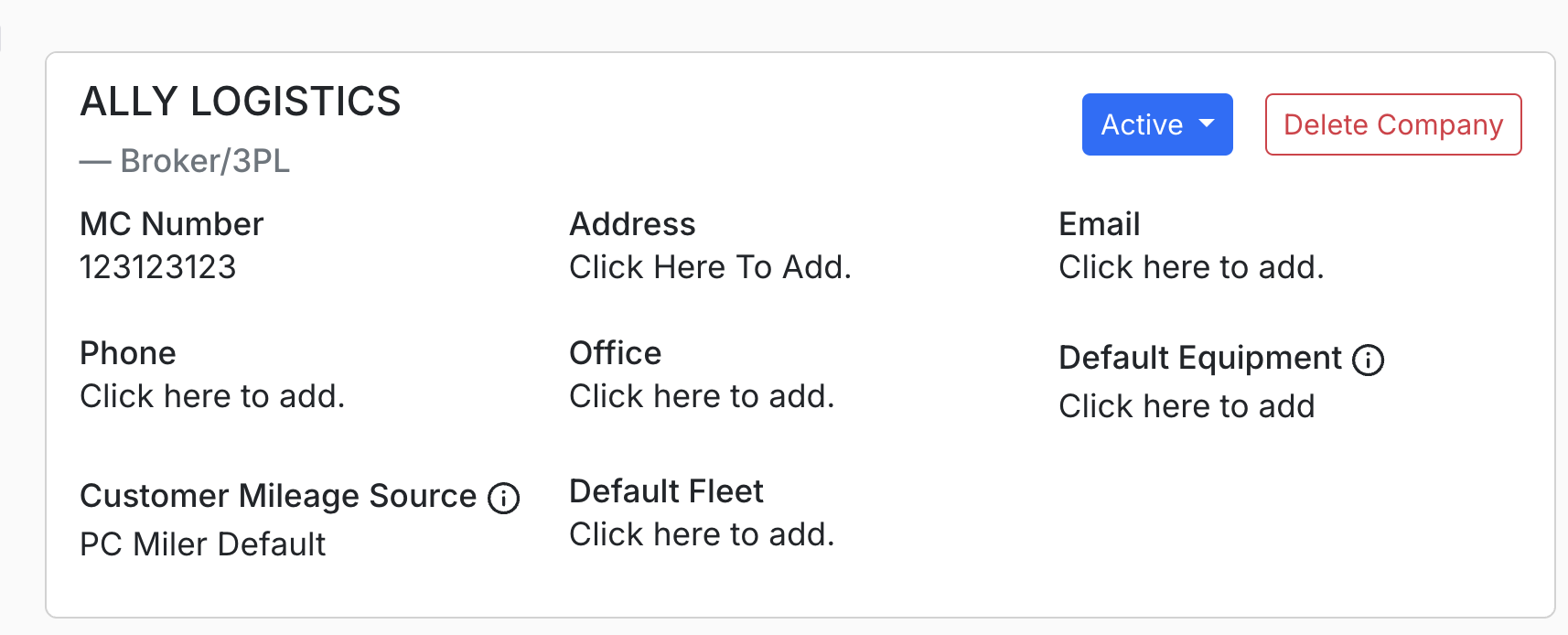 *Screenshot showing the status button in the top right corner of a company profile. *
*Screenshot showing the status button in the top right corner of a company profile. *
*Screenshot showing the status button in the top right corner of a company profile. *
- Click the status dropdown and select the desired status (for example, Inactive).
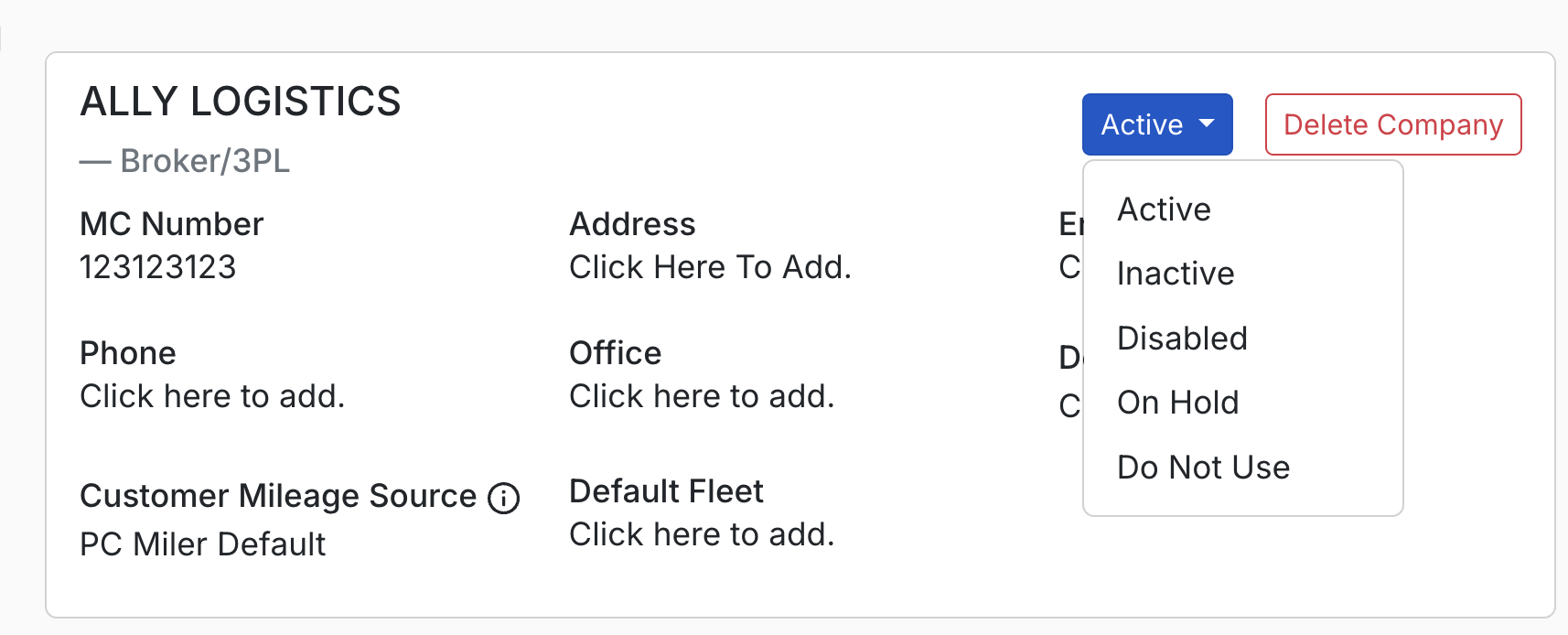 *Screenshot showing the status dropdown open with the available status options: Active, Inactive, On Hold, Do Not Use, Disabled. *
💡 Best Practice: Use deactivation as the default action when a shipper, warehouse, or facility relationship ends or becomes temporarily unavailable. Reserve deletion for confirmed duplicate records or test entries with no load history.
”Delete Company”
The “Delete Company” permission allows a user to remove a non-customer company record, such as Shippers, Warehouses, and other non-customer entity types, from Alvys. When this permission is enabled, a Delete button appears in the top-right corner of the company’s profile.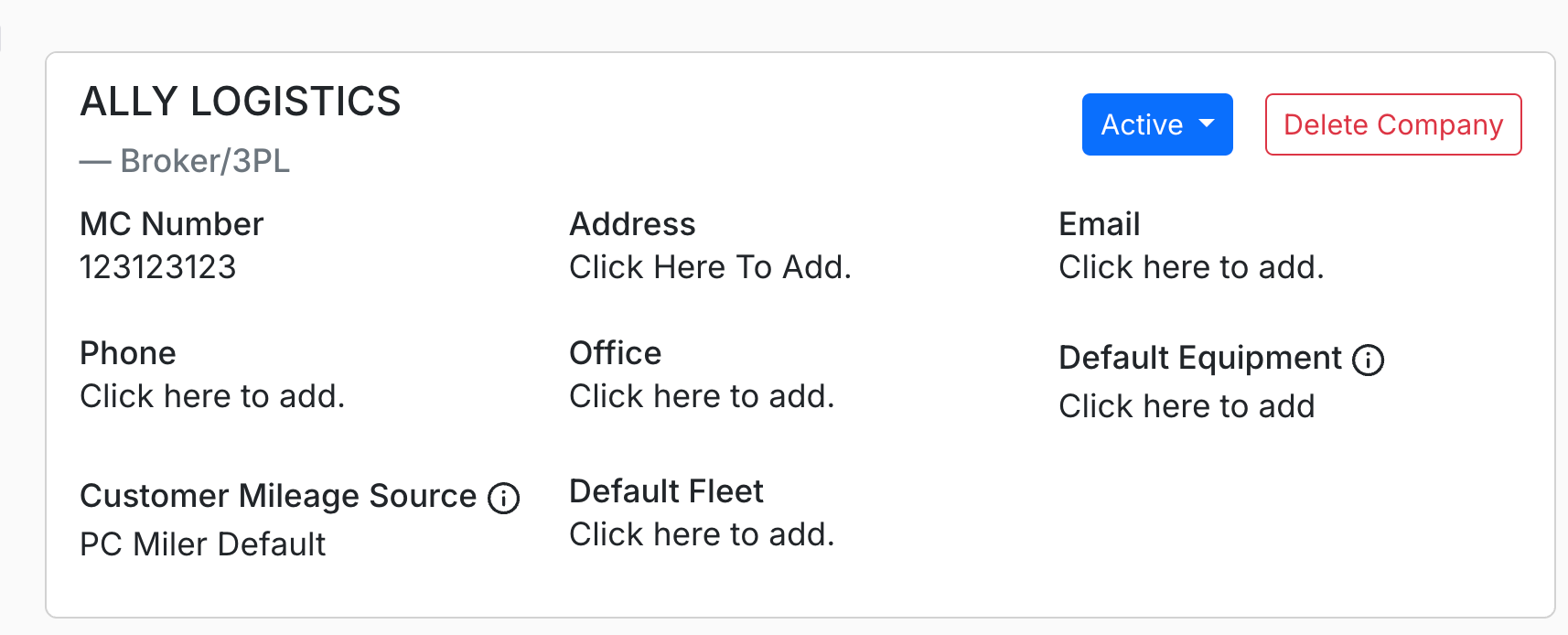 Screenshot showing Delete button in top right corner of customer profile
💡 Best Practice: Never grant “Delete Company” to non-admin roles. Assign it only to one or two trusted administrators in your Alvys account, typically the owner and a senior manager. Before deleting a company, verify that it has no current or active records. Consider requiring a second approval via your internal process before proceeding.