
Management and Privacy permissions control who can manage users, carriers, and assets, and who can access sensitive personal data such as Tax Identification Numbers, Social Security Numbers, and ACH banking details. This article covers all 16 Management permissions and all 4 Privacy permissions.
Overview
Management and Privacy permissions are two distinct permission groups within Alvys. They share a common theme: governing access to company resources and sensitive personal data. Management permissions determine who can create and delete users, manage carriers and assets, view safety records such as accidents and roadside inspections, and configure webhooks. Privacy permissions control who can see or edit Tax IDs, Social Security Numbers, personally identifiable information (PII) in Alvys Insights, and ACH banking details. These permissions are configured at the individual user level. They are not tied to a role by default for all users; each must be explicitly granted or revoked by a user who holds the “Set Permission” permission.Where to Find It
Management and Privacy permissions are found in the User Management interface, inside each user’s profile. To reach the permissions section:- Select your username in the bottom left corner of the screen.
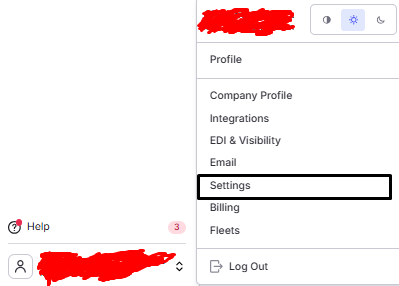 Company Profile Users tab showing the navigation path.
- Go to Company Profile and select the Users tab.
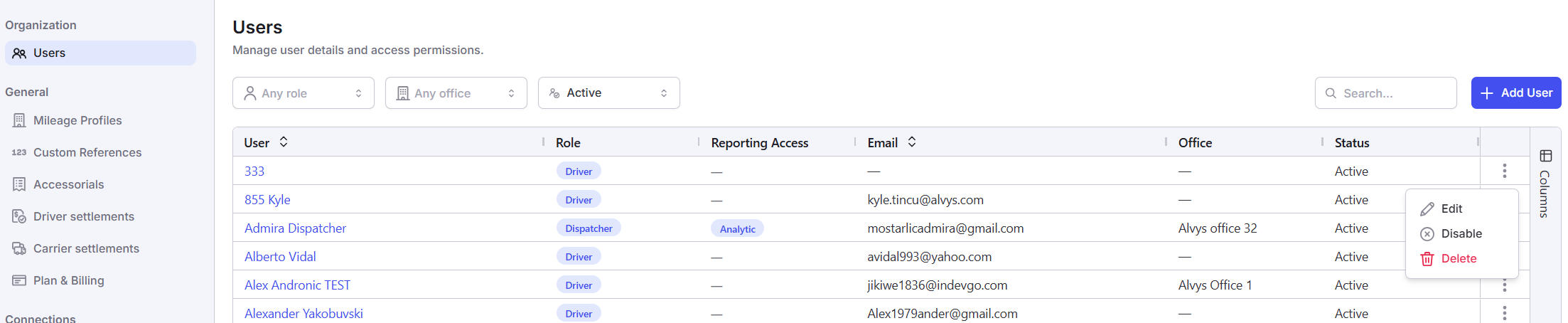 User list showing the Edit option and Add User button.
- Open an existing user’s profile by clicking Edit, or create a new user by clicking Add User.
- Scroll to the Permissions section.
- Locate the Management category to find the 16 checkboxes described in this article.
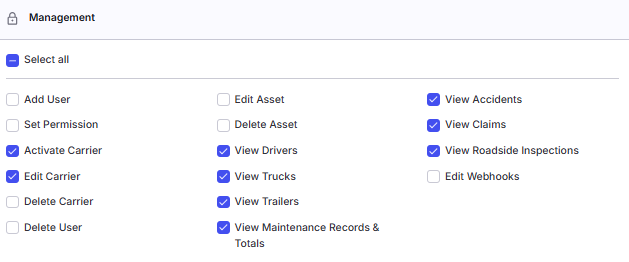 *Permissions section showing all 16 Management permission checkboxes. *
- Locate the Privacy category to find the 4 checkboxes described in this article.
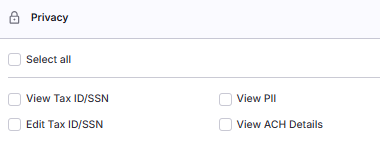 *Permissions section showing all 3 Privacy permission checkboxes. *
Privacy Permissions
”View Tax ID/SSN”
This permission controls whether a user can see Tax Identification Numbers (TINs) and Social Security Numbers (SSNs) stored on carrier and driver records. Without it, these fields are hidden entirely. In Alvys, Tax IDs and SSNs appear in the following locations when the user has this permission: Carrier list and carrier profile: The carrier list includes Tax Identification Number and Tax ID Type columns only for users with this permission. These columns are not visible to users without it.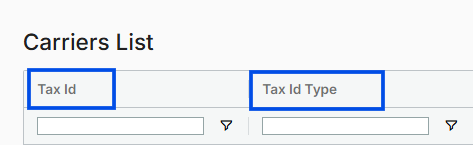 Carrier list showing Tax ID and Tax ID Type columns visible for users with View Tax ID/SSN
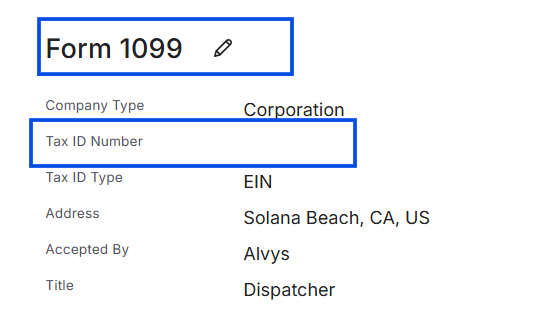 Carrier profile Form 1099 section showing Tax Identification Number
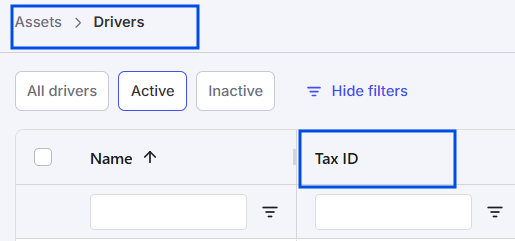 Driver list showing the Tax Identification Number column
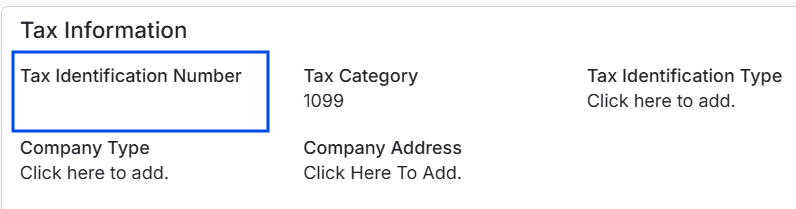 Driver profile tax information section showing tax category, type, and number.
✅ Best Practice: Grant “View Tax ID/SSN” only to accounting, compliance, and finance staff who handle tax reporting. Do not grant it to operational roles unless there is a specific, documented need.
”Edit Tax ID/SSN”
This permission controls whether a user can modify Tax Identification Numbers and Social Security Numbers on carrier and driver records. Without it, the fields are read-only (if the user has “View Tax ID/SSN”) or hidden entirely (if they lack both permissions).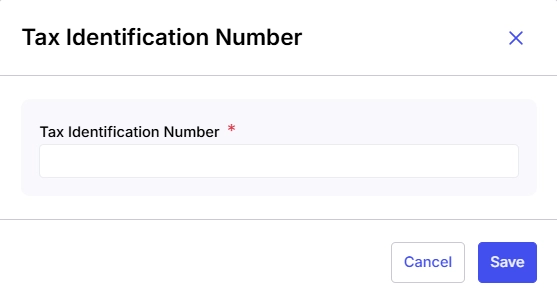 *Driver profile showing “Tax Identification Number” form *
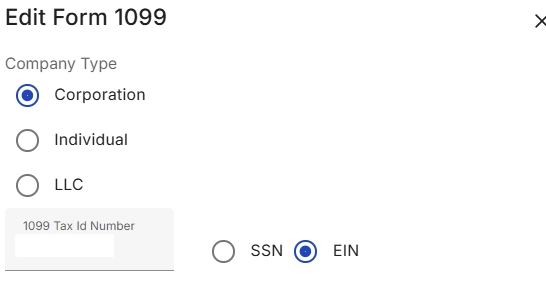 Carrier profile showing Edit Tax ID/SSN field in editable state
✅ Best Practice: Grant “Edit Tax ID/SSN” to the smallest number of users possible, typically only senior accounting or compliance staff. Always pair it with “View Tax ID/SSN” so the user can see the data they are editing.
”View PII”
This permission controls whether personally identifiable information is shown or masked in Alvys Insights responses. “View PII” specifically governs the visibility of sensitive data fields within the Insights AI feature. Without it, sensitive values in Insights results are replaced by masked placeholders. Alvys Insights uses a two-tier access model to protect privacy: Tier 1 (Standard Data Access): Requires at least one matching domain permission such as Billing, View Drivers, or Dispatch. This controls access to operational data fields like financial amounts, vehicle information, and trip counts. Tier 2 (Personally Identifiable Information): Requires both a relevant domain permission and the “View PII” permission. This controls visibility of specific fields such as names, email addresses, phone numbers, dates of birth, driver license numbers, geolocation, and insurance details. Without “View PII”, Tier 2 fields remain masked regardless of Tier 1 domain permissions. By default, this permission is granted to Admin and Partner Admin roles. All other roles must have it explicitly granted by an administrator.”View ACH Details”
This permission controls whether a user can view ACH banking details stored on carrier and driver records. ACH details include bank account and routing information used for direct payment processing. Without this permission, these fields are hidden. If you see masked dots instead of full routing and account numbers, it means your user account does not have the “View ACH Details” permission enabled. This applies to both drivers and carriers. ✅ Best Practice: Grant this permission only to accounting and finance staff who process ACH payments. Do not grant it broadly. By default, this permission is not granted to any role except Admin and Partner Admin.⚠️ Troubleshooting: If ACH details seem to disappear after saving a driver profile, it is likely due to the “View ACH Details” permission not being enabled. Ensure that this permission is active for your user account.Management Permissions
”Add User”
This permission controls whether a user can create new user accounts in Alvys. Without it, the Add User page is inaccessible. Add User form showing name, email, and role fields
✅ Best Practice: Grant Add User only to administrative roles responsible for employee onboarding. Do not assign it broadly just for convenience, it is better to have one or two trusted people who handle account creation consistently. Always pair with **Set Permission **so the same person can both create the account and configure its permissions.
”Set Permission”
This permission controls whether a user can modify the permissions assigned to other users. Without it, the permissions section on a user’s profile is read-only.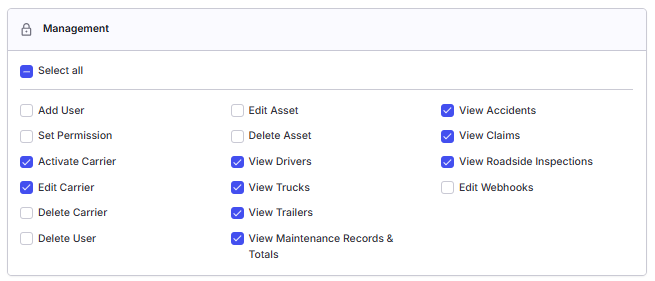 User profile permissions section showing toggleable permission checkboxes.
✅ Best Practice: The Set Permission authorization should be restricted exclusively to administrators who maintain formal responsibility for user access management. Furthermore, permission modifications should be audited on a regular basis to identify any unauthorized adjustments.
”Activate Carrier”
The Activate Carrier permission ensures that only authorized staff can change a carrier’s status e.g. from inactive or pending to active. Carrier activation typically follows carrier onboarding and compliance review, including insurance verification, authority checks, and documentation review. When a company establishes a new carrier relationship, the carrier must be activated before loads can be assigned. Conversely, when a carrier relationship ends or a carrier has compliance issues, deactivation prevents further assignments. By default, this permission is granted to Support, Partner Admin, Admin, and Operation Manager roles.✅ Best Practice: Assign Activate Carrier only to compliance staff or operations managers who are part of the carrier onboarding workflow. Pair this with a documented checklist: insurance certificate on file, operating authority verified, contact information complete before any activation is approved.
”Edit Carrier”
Carrier records need to stay current. Insurance policies expire and are renewed, contacts change, and addresses change. Without the ability to edit carrier records, outdated information remains in the system and can cause dispatch errors, compliance gaps, or failed communications. The Edit Carrier permission controls whether a user can modify carrier profile information, such as contact details, addresses, payment terms, insurance information, MC and DOT numbers, and other carrier attributes. Without it, carrier data is read-only. Accurate carrier data is essential for load assignment, settlement, and regulatory compliance. By default, this permission is granted to Support, Partner Admin, Admin, and Operation Manager roles.”Delete Carrier”
Carrier records may need to be deleted when carriers go out of business, when duplicate records are created by mistake, or when a carrier relationship is permanently terminated. Without the ability to delete records, your carrier list can accumulate stale or duplicate entries that create confusion during dispatch. The Delete Carrier permission controls whether a user can permanently delete carrier records from the system. Carrier records contain historical load, payment, and compliance data; deleting a carrier removes this audit trail. This permission does not require **Edit Carrier **or Activate Carrier. By default, this permission is granted to Support, Partner Admin, and Admin roles.✅ Best Practice: Never grant Delete Carrier to non-admin roles. Even for Partner Admins, consider whether deactivation would serve the same purpose. Require verbal confirmation before performing carrier deletions.
”Delete User”
The Delete User permission controls whether a user can permanently delete other user accounts from the system. Like Delete Carrier, this is a destructive action that removes user records permanently. When an employee leaves the company, their Alvys account should be deactivated or removed, and Delete User is the permission that allows this action. However, because user deletion is irreversible and can affect audit trails, it must be handled carefully. In most cases, disabling a user account is preferable to deletion. This permission is restricted to the highest-level administrators.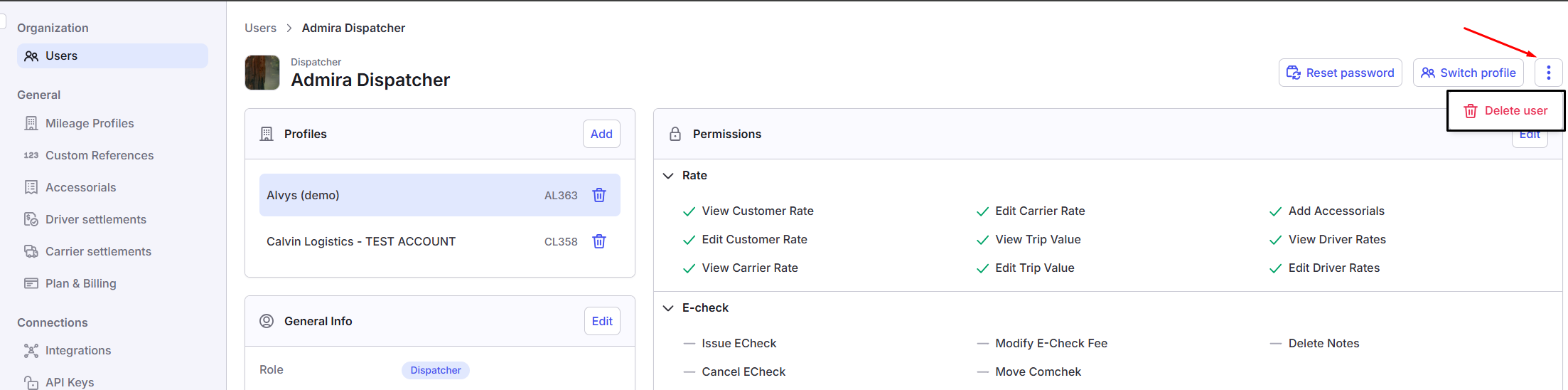
✅ **Best Practice: **Disable user accounts instead of deleting them. This preserves the audit trail and prevents data loss. To disable a user account, navigate to the company profile, select the Users tab, search for the user, click the status dropdown for that user, and select the Disabled option. Reserve deletion for duplicate user accounts or test user accounts with no meaningful history.
”Edit Asset”
The Edit Asset permission controls whether a user can modify asset records, including drivers, trucks, and trailers. This is a broad permission that governs the ability to update asset profiles, change asset information, and manage asset-related data such as driver rate policies and bank information. Asset records form the operational foundation. Driver qualifications, truck specifications, trailer types, and equipment availability all depend on accurate asset data. Additionally, driver rate policies and bank information are sensitive financial data that affect driver settlements. This permission ensures that only authorized staff can modify asset records, preventing unauthorized changes that could impact operations, settlements, or compliance. When this permission is active, the user can: Create and import asset records, such as drivers, trucks, and trailers.


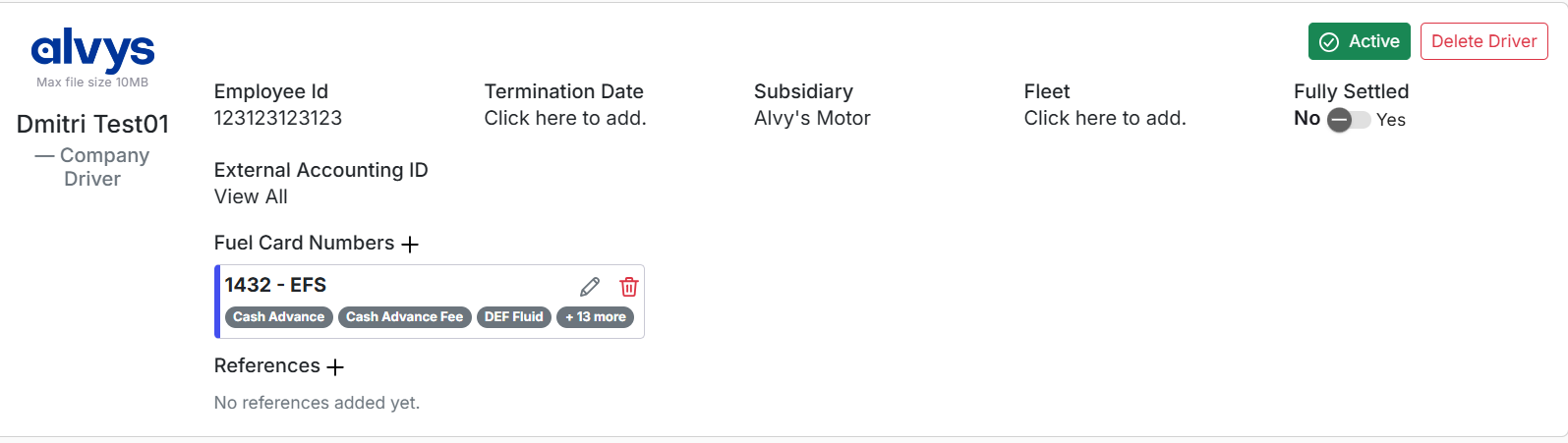
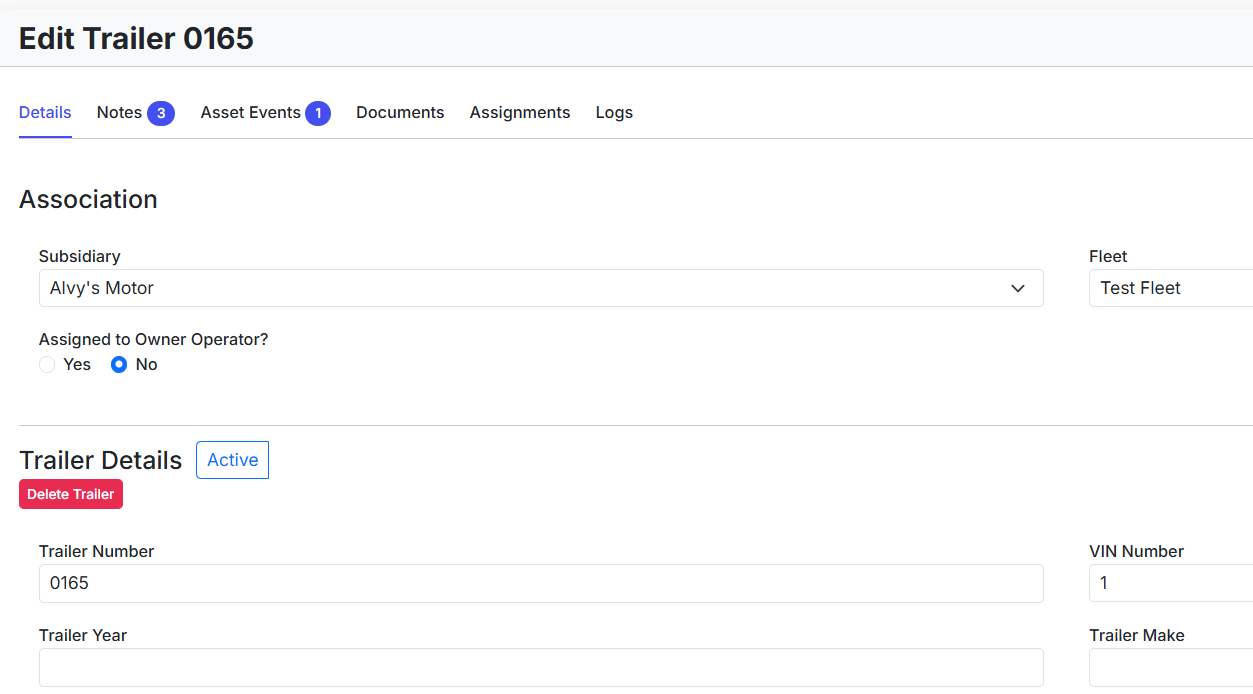
✅ Best Practice: Grant the Edit Asset permission to Billers and Data Entry staff who manage asset onboarding and maintenance. Consider whether Dispatchers need Edit Asset access; in many companies, dispatchers should be able to view but not modify asset records.
”Delete Asset”
The Delete Asset permission controls whether a user can delete asset records (drivers, trucks, trailers) from the system. This is a destructive action that removes the asset and its associated data. In most cases, deactivating an asset is the appropriate action.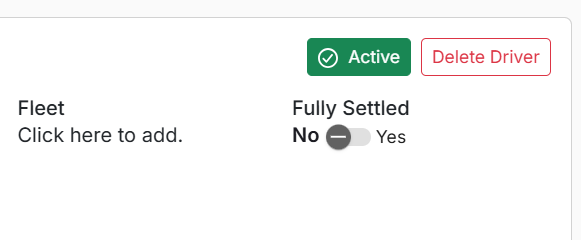
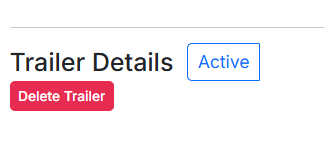
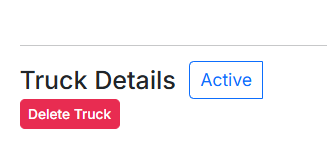
✅ Best Practice: The Delete Asset permission should never be granted to non administrative roles. As a matter of best practice, the deactivation of assets should be utilized rather than deletion for assets that are no longer in service.
”View Drivers”
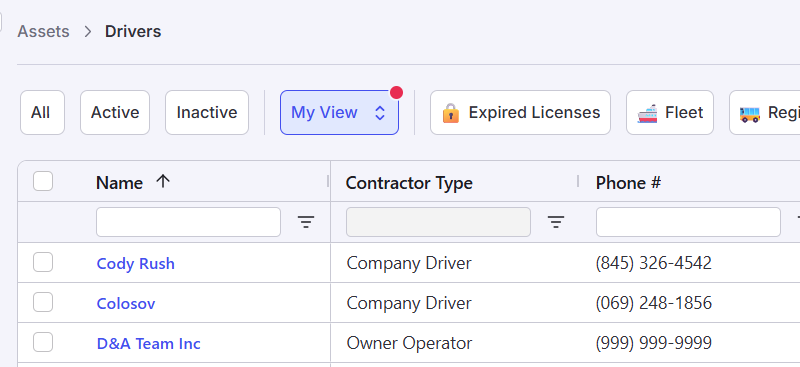
The View Drivers permission controls whether a user can see the driver list and individual driver profiles. Without it, the user cannot select the Driver option from the Assets menu.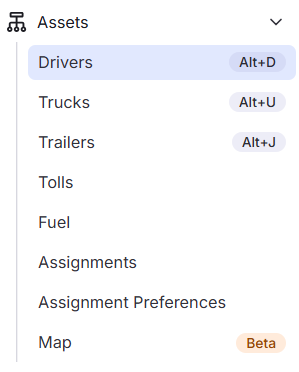
”View Trucks”
The View Trucks permission allows a user to see truck records. Without it, the truck list is hidden and a user cannot view any truck profiles. Its default role assignments, behavior, and risk profile are identical to View Drivers.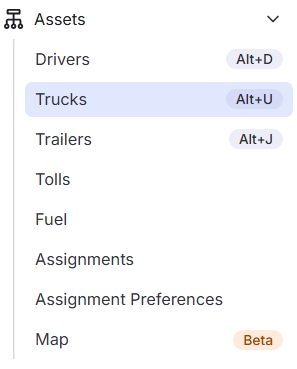
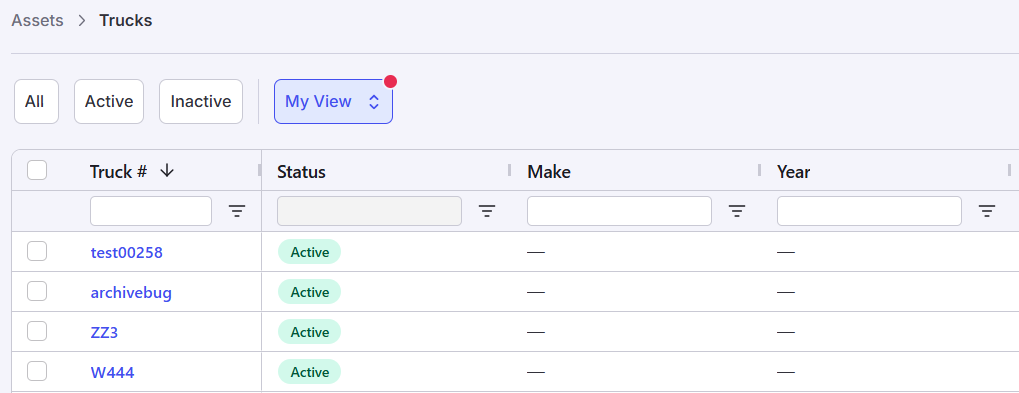
✅ Best Practice: Assign View Trucks to all dispatchers, fleet managers, and operations managers. Pair with the View Drivers permission for anyone who needs to use Assignment Preferences. The Driver role should be excluded, as drivers do not use the TMS web interface and primarily interact with the system through the mobile app.
”View Trailers”
Allows a user to see the list of trailers in the Assets section of Alvys and open individual trailer records. Its default role assignments, behavior, and risk profile are identical to View Drivers and View Trucks. Without this permission, the trailer menu item and list are hidden. It is broadly assigned to almost all roles, as Dispatchers need trailer visibility for load planning, and safety staff need it for inspection and maintenance monitoring.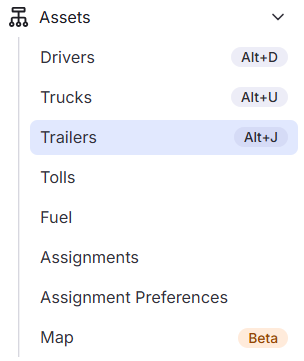
✅ Best Practice: Grant** View Trailers** alongside Truck and **Drivers View **permissions as a set.
”View Maintenance Records & Totals”
This permission determines whether authenticated users can access the maintenance module, view maintenance records, add maintenance records, review closed maintenance records etc., and also see maintenance totals for assets (Trucks and trailers). Without it, maintenance data is hidden.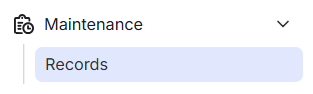

💡 View Maintenance Amounts is an additional permission that reveals the dollar amounts within maintenance records. Both permissions must be active for a user to see the full financial details of maintenance work. With View Maintenance Amounts, dollar amounts on maintenance records, including parts costs, labor costs, and totals, become visible. Without this permission, those fields are hidden.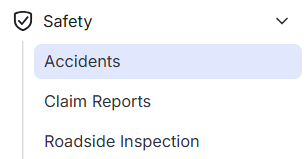
✅ Best Practice: Grant this permission to all fleet managers, maintenance coordinators, and anyone responsible for scheduling repairs. Grant View Maintenance Amounts only to controllers, owners, and operations managers who need to track maintenance costs. Also include these permissions as part of the full Safety View permissions set, since users who need maintenance data typically also require access to accident, claim, and inspection records.
”View Accidents”
The View Accidents permission enables a user to access the Accidents page within the Safety menu and observe detailed accident reports. The View Accidents permission controls whether a user can see, add, and edit accident records associated with assets, including accident reports, dates, descriptions, and related details. When this permission is active, the Safety Accidents menu option becomes visible and accessible. Conversely, in the absence of this permission, any attempt to navigate to the Accidents page is blocked.
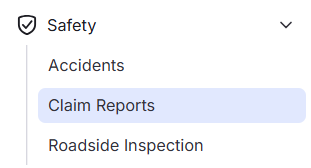
✅ Best Practice: Grant as part of the full Safety View permissions set.
”View Claims”
The View Claims permission controls whether a user can access the Claims report page within the Safety menu to view, modify, and add insurance and cargo claim records associated with specific assets. This includes claim amounts, statuses, descriptions, and related details. Without it, claims data is hidden. Furthermore, insurance claims incorporate sensitive financial and legal information derived from incidents involving organizational assets. Consequently, access should be restricted to safety personnel, management, and operational roles that require comprehensive visibility into claim histories to facilitate informed risk management and assignment decisions.
✅ **Best Practice: ** Assign the View Claims permission to owners, controllers, safety managers, and compliance staff. Do not assign it broadly, as claims data can have legal implications and should be accessed only by staff actively involved in claims management.
”View Roadside Inspections”
The View Roadside Inspections permission allows a user to access the Roadside Inspections page within the Safety menu to view, add, and edit roadside inspection records for assets . This includes inspection results, violations, dates, and locations. Roadside inspection records are critical compliance data, directly impacting the company’s DOT safety rating (CSA scores) and potentially influencing insurance premiums and regulatory oversight. Safety staff use this information to identify problematic vehicles or drivers, while dispatchers may consider inspection history when making assignment decisions.✅ **Best Practice: **Assign the View Roadside Inspections permission to safety managers, compliance officers, and operations managers who actively monitor CSA scores. This is a foundational safety permission for anyone responsible for DOT compliance. Include this permission as part of the full Safety View permissions set.
”Edit Webhooks”
Webhooks are automated connections that send data from Alvys to external software systems, such as load status changes, new bookings, or settlement events. The Edit Webhooks permission controls whether a user can create, update, delete, and enable or disable webhook integrations within the company’s subsidiary settings. Without this permission, the webhooks section of company settings is inaccessible. This is a technical permission typically needed only by IT administrators or integration engineers. Misconfigured webhooks can send sensitive data to unauthorized endpoints, cause integration failures, or overwhelm external systems with excessive notifications. Granted by default to: Support, Partner Admin, Admin, Operation Manager.✅ Best Practice: Assign Edit Webhooks only to technical administrators or IT staff who understand what each webhook does and where it sends data. Before editing or deleting any webhook, confirm with the person or team who built the integration what the downstream impact will be. Do not grant this permission to operational roles.