
Overview
The Dispatch permissions category in Alvys governs the fundamental actions required to keep freight moving from assignment through delivery and into billing. These permissions cover carrier assignment, stop status management, load weight overrides, load release, and carrier compliance overrides. Each permission targets a specific operational need: a dispatcher managing day-to-day carrier assignments requires the “Dispatch” permission, a team member correcting a stop status out of sequence requires “Override Stop Status”, a user adjusting a weight set on a load requires “Override Load Weight”, a user handing off a delivered load to accounting requires “Release Loads”, and a dispatcher assigning a carrier flagged for compliance review requires “Override Carrier Restriction”.Where to Find It
To assign or modify Dispatch permissions for a user:- Select your username in the bottom left corner of the screen.
- Select Company Profile and open the Users tab.
- Choose an existing user to edit, or select Add User to create a new profile.
- Scroll to the Permissions section.
- Locate the Dispatch category. It contains five individual checkboxes: “Dispatch”, “Override Stop Status”, “Override Load Weight”, “Release Loads”, and “Override Carrier Restriction”.
📋 Screenshot: The Dispatch permissions category in the Users tab, showing all five checkboxes.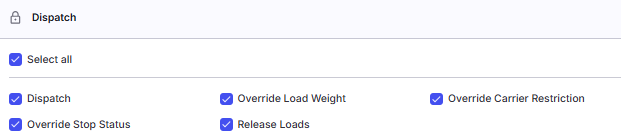
Key Concepts
What “permission” means here
A permission in Alvys is a granular authorization checkbox assigned to an individual user profile. Permissions are separate from roles. A user’s role (for example, Sales Agent or Office Admin) determines their default access, but individual permissions can extend or restrict what that user can do regardless of role.The Dispatch category
The Dispatch category groups five permissions that relate to load execution and handoff. These permissions are independent: a user can hold any combination of them. Granting one does not automatically grant another.How permissions interact with load status
Several Dispatch permissions behave differently depending on the current status of a load or trip. The exact status conditions are noted in each permission’s section below. Load statuses referenced in this article include: Open, Covered, Dispatched, In Transit, Delivered, TONU, Released, Invoiced, and Completed.Settings and Permissions
”Dispatch”
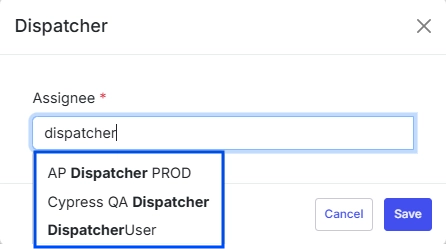
The “Dispatch” permission identifies a user as a dispatcher within Alvys and grants authority to perform core dispatching actions. It governs two distinct things: whether the system recognizes the user as an eligible dispatcher for load assignment purposes, and whether the user can edit mileage on load legs.💡 The act of transitioning a trip’s status from Covered to Dispatched using the Dispatch button on the load details page does not require this permission. That action is governed by trip status alone. The “Dispatch” permission concerns the identification of a user as a dispatcher and the ability to edit mileage, not the Dispatch button itself.
📋 Screenshot: The My Trips column visible on the home dashboard for a user with the Dispatch permission.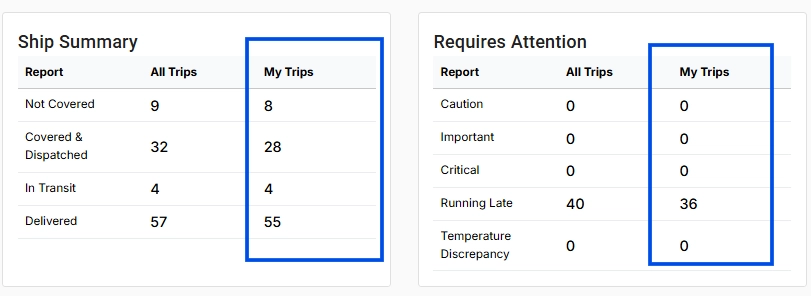
📋 Screenshot: The mileage editing fields on a load leg, showing stop-to-stop and Previous Location miles.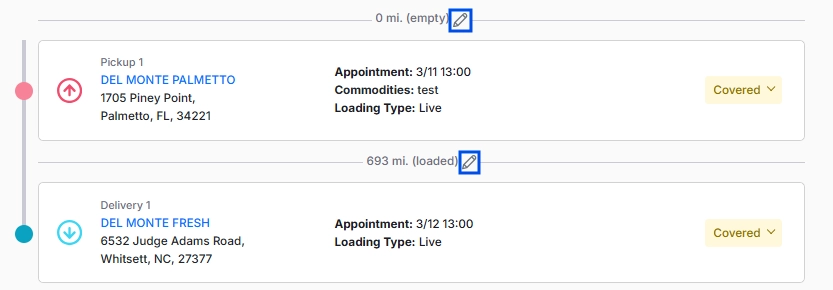
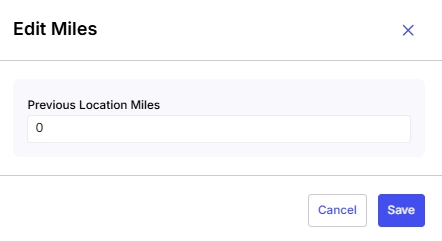
📋 Screenshot: The dispatcher picker dialog filtered to show only users with the Dispatch permission.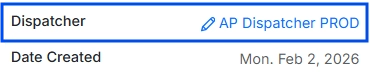
📋 Screenshot: The My Assets tab in the Dispatch Planner, accessible only to users with the Dispatch permission.
”Override Stop Status”
The “Override Stop Status” permission allows a user to change a stop’s status outside the normal sequential workflow. Under standard conditions, stop statuses progress in a fixed order and the status selector is active only when the trip is in an operational status such as Covered, Dispatched, In Transit, or Delivered (provided the driver has not yet been paid). A user without this permission sees the stop status button, but it remains disabled unless the trip meets those conditions. With this permission, the user can interact with the status selector even when the trip is in a locked status such as Released or Invoiced, or after driver payment has been recorded.📋 Screenshot: The stop status button in an editable state for a user with the Override Stop Status permission, on a trip in Released status.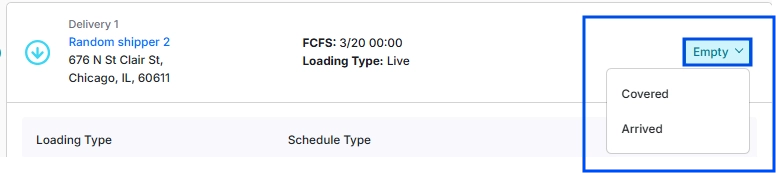
”Override Load Weight”
The “Override Load Weight” permission allows a user to override the weight values set on a load. Without this permission, a user cannot change a load’s recorded weight once it has been entered. This control supports operational corrections, such as adjusting a weight that was entered incorrectly or updating it to match a revised bill of lading, while limiting weight changes to authorized staff. By default, the “Override Load Weight” permission follows your tenant’s standard dispatch role configuration. Confirm the current assignment in the Permissions panel for the role in question before relying on it.”Release Loads”
The “Release Loads” permission authorizes a user to advance a load from Delivered or TONU status to Released status, making it visible to billing and accounting in the invoicing queue. This permission also controls the reverse: moving a load backward from Released to its previous operational status. Without this permission, a user cannot perform either the release or the un-release action. Release button (Trip Info Panel): Advances a trip in Delivered or TONU status to Released status.📋 Screenshot: The Release button in the Trip Info Panel for a trip in Delivered status.
📋 Screenshot: The Revert Status button in the Trip Info Panel for a trip in Released status.
📋 Screenshot: The Release Load button for releasing all trips on a multi-trip load.
”Override Carrier Restriction”
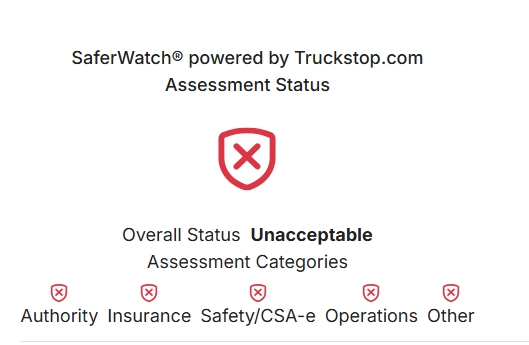
The “Override Carrier Restriction” permission allows a user to assign a carrier whose compliance status is flagged as NonCompliant or RequiresReview during the carrier assignment process. When a user with this permission selects a carrier with one of those compliance statuses, a confirmation dialog appears before the assignment is completed. The dialog asks the user to acknowledge the compliance flag and confirm the assignment. Without this permission, the confirmation dialog does not appear; the user cannot proceed with assigning a non-compliant or under-review carrier.📋 Screenshot: The confirmation dialog shown when a user with Override Carrier Restriction assigns a carrier with a NonCompliant or RequiresReview compliance status.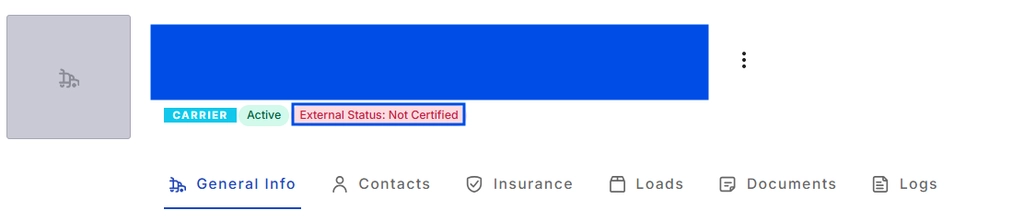
Limits and Behavior
- The “Dispatch” permission does not grant access to the Dispatch button on the load details page. That button’s availability is governed by the trip’s current status (Covered or In Review), not by this permission.
- The “Override Stop Status” permission cannot override the Completed load status. Once a load reaches Completed, stop statuses are immutable.
- The “Override Stop Status” permission has no effect on trips without an assigned carrier. The status button remains disabled regardless of this permission.
- The “Release Loads” permission is required for both releasing (forward) and un-releasing (backward) transitions involving Released status. Holding the permission grants both directions.
- The “Release Load” multi-trip button requires more than one trip on the load and at least one trip in Delivered or TONU status.
- The “Override Carrier Restriction” permission triggers a confirmation dialog rather than silently bypassing the compliance check. The confirmation step is mandatory.
- None of these permissions can be self-assigned. The logged-in user making the change must hold the “Set Permission” permission.