
General Permissions control access to foundational features that span the entire system, from load-board integrations to editing historical records and viewing financial amounts in maintenance logs.
Overview
General Permissions (sometimes called system-wide permissions or platform permissions) in Alvys control access to foundational features that span the entire system: from integrating with external load boards to editing historical records and viewing financial data in maintenance logs. Unlike rate permissions, which are scoped to individual loads, general permissions typically affect entire sections of the platform or unlock capabilities that apply system-wide. General Permissions are a set of five individual user-level toggles found in the General category of a user’s permissions section. Each permission unlocks a distinct capability: enabling DAT or Truckstop freight load board features, selecting past dates on stop dialogs, overriding locks set by other users, and viewing dollar amounts in maintenance records. General Permissions are distinct from Dispatch or Billing permissions even though they may affect workflows in those areas. For example, “Unlock Loads” affects load management but is categorized under General because it is not specific to dispatching or billing alone.Where to Find It
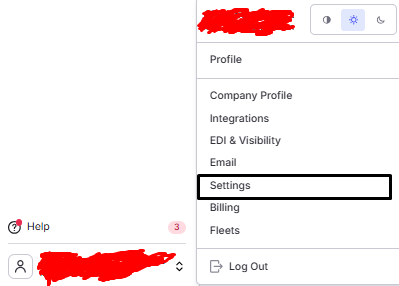
General Permissions are configured at the individual user level within the User Management interface, accessible through Management > Company Profile > Users. To reach the General permissions category:-
Select your username in the bottom-left corner, then navigate to Company Profile and select the Users tab.
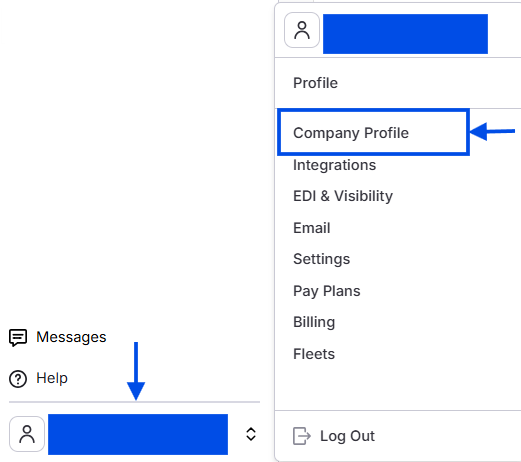 Users tab in Company Profile.
Users tab in Company Profile.
Users tab in Company Profile.
-
Select an existing user to edit, or select Add User to create a new profile.
 Edit user or Add User button.
Edit user or Add User button.
Edit user or Add User button.
- Scroll to the Permissions section and locate the General category. You will see five individual checkboxes: “DAT User”, “TruckStop User”, “Calendar Past Dates”, “Unlock Loads”, and “View Maintenance Amounts”.
 Five General permission checkboxes in the user permissions form.
Key Concepts
General Permissions operate at the per-user level. Each permission is an independent toggle — enabling one does not affect the others. Permissions can be granted or revoked at any time by a user with the “Set Permission” permission (Admin, Partner Admin, and Operation Manager roles receive this by default, as does any user who has been explicitly granted the “Set Permission” permission). The five General Permissions are:- “DAT User”: enables DAT load board features within Alvys for that user
- “TruckStop User”: enables Truckstop load board features within Alvys for that user
- “Calendar Past Dates”: allows the user to select past dates in stop dialogs
- “Unlock Loads”: allows the user to unlock loads locked by other users
- “View Maintenance Amounts”: shows financial columns in the Maintenance module
How to Use It
For step-by-step instructions on managing user permissions, see How to manage user roles and permissions.DAT User
DAT (Dial-A-Truck / DAT Freight and Analytics) is one of the largest digital freight marketplaces in North America, providing load board services, rate data, and carrier-shipper matching. When a company integrates its Alvys account with DAT, the “DAT User” permission controls which individual users can access DAT-powered features within the Alvys interface: posting loads to the DAT load board, deleting postings from DAT, updating posted rates on DAT, and modifying external board rates on loads. Without this permission, the user will not see DAT-related options in the right-click context menu on the Load Board, even if the company has an active DAT integration.⚠️ This permission is relevant only when your company has the DAT integration enabled at the subsidiary level. · It does not grant access to DAT’s own platform or billing; it simply unlocks the DAT features built into the Alvys interface. · For more details on setting up your DAT integration, see Post Loads to DAT Load Board.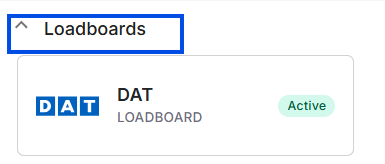 DAT integration note callout with screenshot
DAT integration note callout with screenshot-
Load Board context menu: When a user has the “DAT User” permission and the subsidiary’s DAT integration is active, right-clicking a load with Open, Quoted, or Reserved status displays additional options: Post Load (when the load does not yet have a DAT board record), Update Rate (for loads already posted), and Delete Posting (when a load already has a DAT board record).
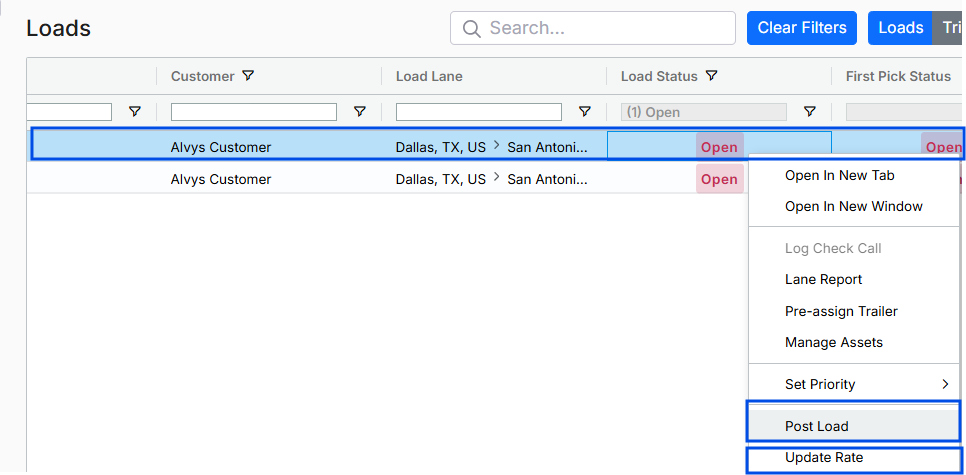 Load Board right-click context menu showing DAT options.
Load Board right-click context menu showing DAT options.
Load Board right-click context menu showing DAT options.
-
Load Details page — Post load: The Post Load action is also available from within the load details page.
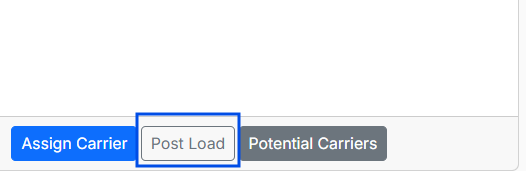 Load Details page showing Post Load option for DAT.
Load Details page showing Post Load option for DAT.
Load Details page showing Post Load option for DAT.
- Load Details — Posted Rate: When the DAT integration is active and the user has this permission, they can modify the Posted Rate field on loads in Open, Quoted, or Reserved status.
 Load Details Posted Rate field (DAT).
💡 Grant “DAT User” to Dispatchers, Operation Managers, and Sales Agents who handle spot freight or manage carrier sourcing. If your company operates exclusively with dedicated carrier relationships, leave this permission disabled for most users to prevent accidental postings.
TruckStop User
The “TruckStop User” permission controls whether a specific user can interact with Truckstop-powered features within Alvys. Truckstop (formerly Truckstop.com, now part of Truckstop Group) is a major digital freight marketplace that provides load board services, rate intelligence, and freight-matching tools to carriers and brokers across North America. Similar to “DAT User”, “TruckStop User” acts as a per-user control on top of the company-wide Truckstop integration. Without it, the user will not see Truckstop-related options in the Load Board context menu.⚠️ This permission is relevant only when your company has the Truckstop integration configured and active at the subsidiary level. · It does not grant access to Truckstop’s platform or billing; it simply unlocks the Truckstop features within the Alvys interface. · For more details on setting up your Truckstop integration, see Truckstop Integration. TruckStop integration note callout with screenshot.
TruckStop integration note callout with screenshot.-
Load Board context menu: When a user has the “TruckStop User” permission and the company has an active Truckstop integration, right-clicking a qualifying load displays: Post Load (for loads in Open, Quoted, or Reserved status without an existing Truckstop record), Delete Posting (when the load has an existing Truckstop board record), and Update Rate (for loads in Open, Quoted, or Reserved status).
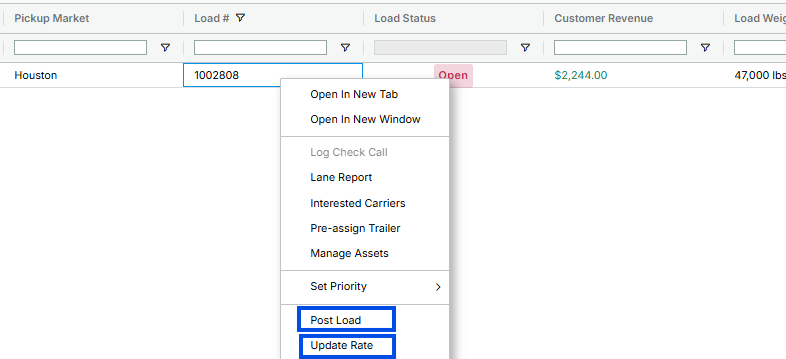
- Load Board right-click context menu showing Truckstop options. *
- Load Board right-click context menu showing Truckstop options. *
- Load Details — External Board Rate: The user can modify the external board rate field on loads in Open, Quoted, or Reserved status when a Truckstop integration is active.
*Load Details External Board Rate field (TruckStop). *💡 If your company uses both DAT and Truckstop, decide whether each dispatcher needs access to both or just one. Assign “TruckStop User” only to users who are trained on the Truckstop platform and understand your company’s posting strategy.
Calendar Past Dates
The “Calendar Past Dates” permission controls whether a user can select past dates in the Add Stop dialog when building a load. When the permission is absent, the date picker’s minimum selectable date is set to today, preventing the user from picking any date in the past. When the permission is present, the full calendar is available, including all past dates. This is useful for back-dating scenarios that occur routinely in trucking: for example, adding a stop with a date that has already passed due to a late system entry or a correction.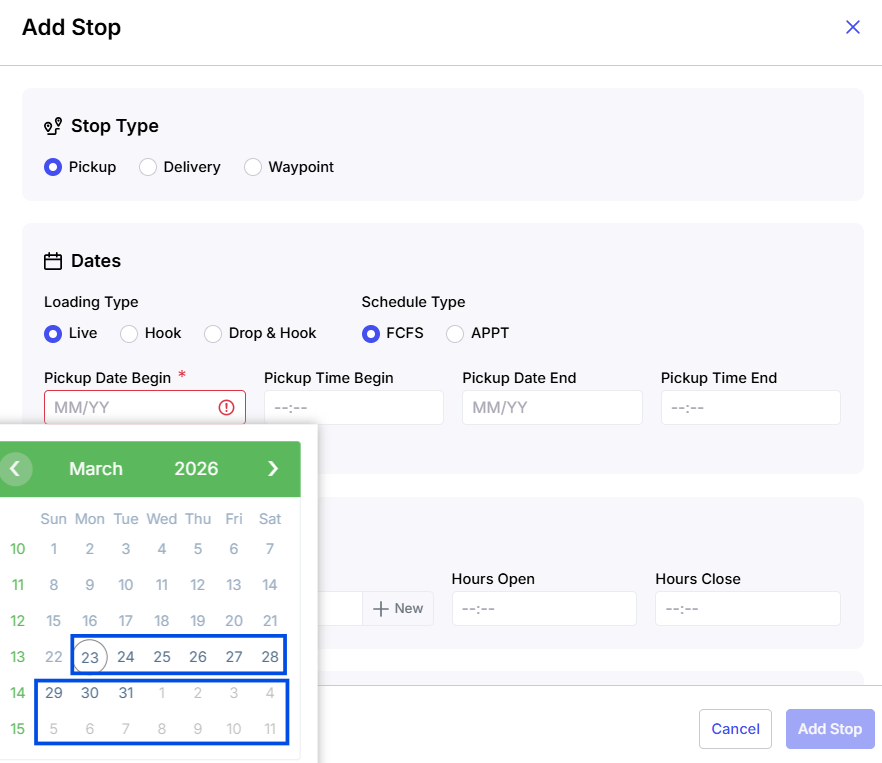 Add Stop calendar without Calendar Past Dates permission (past dates restricted).
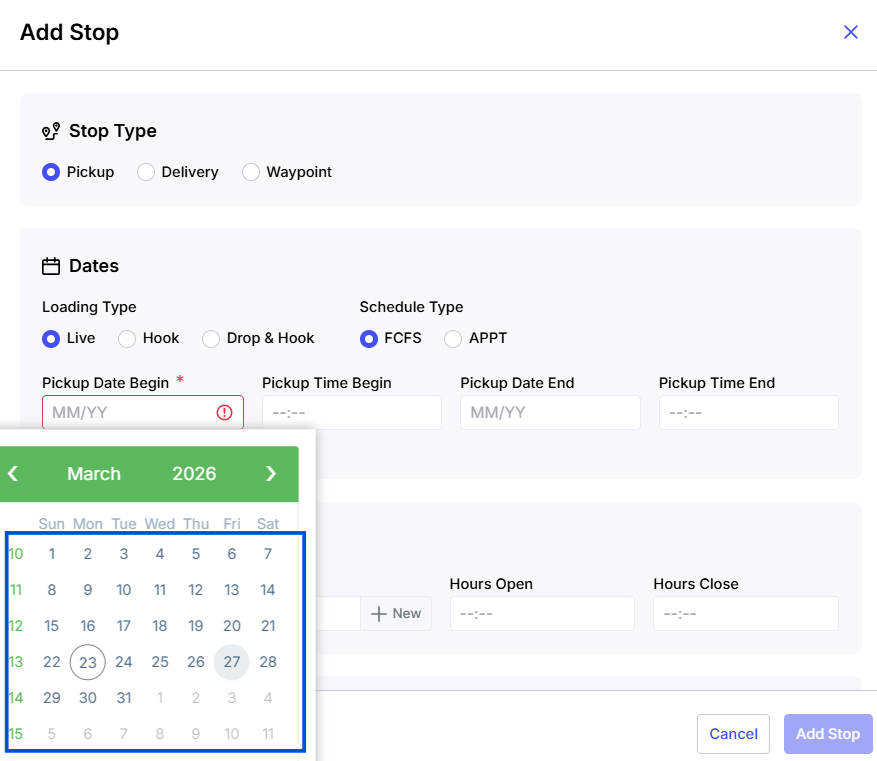 *Add Stop calendar with Calendar Past Dates permission *
💡 Grant “Calendar Past Dates” to roles that regularly perform data entry or manage loads. For roles that are intended to be view-only, consider leaving this permission disabled to prevent accidental changes to historical dates.
Unlock Loads
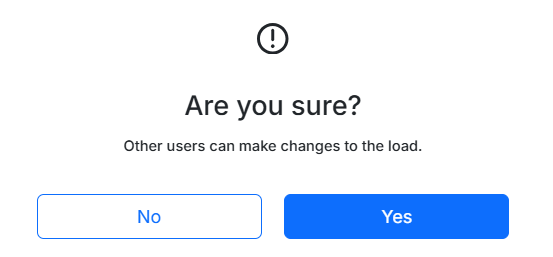
The “Unlock Loads” permission allows a user to unlock any load that has been locked by another user. Without this permission, users are limited to unlocking only the loads they have locked themselves. This capability is essential for maintaining operational continuity when a load becomes inaccessible because the original user is unavailable. A locked load prevents other team members from performing time-sensitive actions such as assigning a carrier, updating rates, or confirming delivery — all of which can impact revenue and customer satisfaction. Granting this permission to designated users provides a controlled override, ensuring that locked loads do not stall operations. When a load is locked, a closed lock icon is displayed in the top right corner of the load details page. Selecting the icon produces one of two outcomes:- With “Unlock Loads” permission: A confirmation dialog appears asking if the user wants to unlock the load. Confirming releases the lock and allows editing.

 *Load details page showing the closed lock icon in the top right corner. *
 Confirmation dialog asking the user to confirm unlocking the load.
- Without “Unlock Loads” permission: The user can see that the load is locked but will not receive a prompt to unlock it (unless they are the user who originally locked it).
💡 Ensure that at least two users per shift have the “Unlock Loads” permission so that someone is always available to release stuck loads. Avoid granting this permission to users who do not regularly work with loads, as unnecessary access increases the risk of accidental unlocks.
View Maintenance Amounts
The “View Maintenance Amounts” permission controls whether a user can see the dollar amounts associated with maintenance records and maintenance expense totals. Without this permission, a user can still view maintenance records if they have the appropriate Management-category permission, but the financial columns — “Amount” in the records grid and “Expenses” in the totals table — are hidden. By separating the ability to view maintenance records from the ability to view maintenance costs, Alvys provides a clear separation of concerns: operational users see operational data, and financial users see financial data.💡 “View Maintenance Amounts” is only useful if the user also has the “View Maintenance Records & Totals” permission from the Management category, which controls access to the Maintenance module itself. Without the Management-category permission, the user cannot access the Maintenance pages where amounts would be displayed.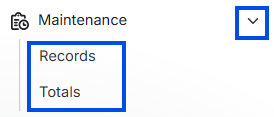 Maintenance module callout showing the relationship between View Maintenance Amounts and the Management-category permission.
Maintenance module callout showing the relationship between View Maintenance Amounts and the Management-category permission.-
Maintenance Records Board: When a user lacks “View Maintenance Amounts”, the “Amount” column is removed from the maintenance records grid. The user can still see all other maintenance record details — asset, date, type of service, vendor, and so on — but the dollar amount of each record is hidden.
 Maintenance Records Board with the Amount column hidden.
Maintenance Records Board with the Amount column hidden.
Maintenance Records Board with the Amount column hidden.
- Maintenance Totals Table: When a user lacks this permission, the “Expenses” column is removed from the maintenance totals summary table. The totals table provides an aggregated view of maintenance spending by asset or category; without the permission, the financial aggregations are not visible.

- Maintenance Totals Table with the Expenses column hidden.*
💡 Grant “View Maintenance Amounts” only to users who have a business need to see maintenance costs, such as fleet managers, safety officers, operations managers, and owners. For users who only need to verify that maintenance was performed — such as checking if a truck is road-ready — the “View Maintenance Records & Totals” permission alone is sufficient.
Settings & Permissions
All five General Permissions are set at the individual user level. A user can hold any combination of these permissions regardless of their role. The list below summarizes which roles receive each permission by default upon user creation.- “DAT User”: Admin, Partner Admin, and Operation Manager receive this by default. Dispatcher, Biller, Sales Agent, Data Entry, Office Admin, Safety, and Driver do not.
- “TruckStop User”: Admin, Partner Admin, and Operation Manager receive this by default. Dispatcher, Biller, Sales Agent, Data Entry, Office Admin, Safety, and Driver do not.
- “Calendar Past Dates”: All roles except Driver receive this by default.
- “Unlock Loads”: Admin, Partner Admin, Operation Manager, Dispatcher, Biller, Data Entry, Sales Agent, and Office Admin receive this by default. Safety and Driver do not.
- “View Maintenance Amounts”: Admin, Partner Admin, Operation Manager, Dispatcher, Office Admin, and Safety receive this by default. Biller, Sales Agent, Data Entry, and Driver do not.
Limits & Behavior
- “DAT User” and “TruckStop User” have no effect unless the corresponding integration is enabled at the subsidiary level. Enabling the permission for a user when no integration is active does not produce any visible UI change.
- “Calendar Past Dates” affects the Add Stop dialog date picker only. It does not affect other date fields in the system.
- “Unlock Loads” is not required to unlock a load the user locked themselves; any user can unlock their own locks. The permission is only required to override locks set by other users.
- “View Maintenance Amounts” is only meaningful if the user also has the “View Maintenance Records & Totals” permission from the Management category. Without it, the user cannot navigate to the Maintenance module at all.
- Permissions changes take effect immediately upon saving; no page refresh or re-login is required.