
The Rates category controls who can view and edit financial rate data on loads, including customer rates, carrier rates, trip values, accessorials, and driver pay rates.
Overview
Rates Permissions govern access to the financial data at the core of every load in Alvys. Nine permissions are organized into four view-and-edit pairs plus one standalone permission, giving administrators precise control over who can see and who can change the numbers that drive revenue, cost, and driver pay. Restricting rate visibility and editing rights (rate access, rate control) protects your company from unauthorized changes that could affect profitability, customer billing accuracy, and driver settlement integrity.Where to Find It
To view or modify Rates Permissions for a user, navigate to Management > Users, open the user’s profile, and select Edit. The Rates section appears within the permissions panel. The logged-in user must have the “Set Permission” permission (located in the Management category) to make any changes. Navigate to Management > Users and open the Users tab.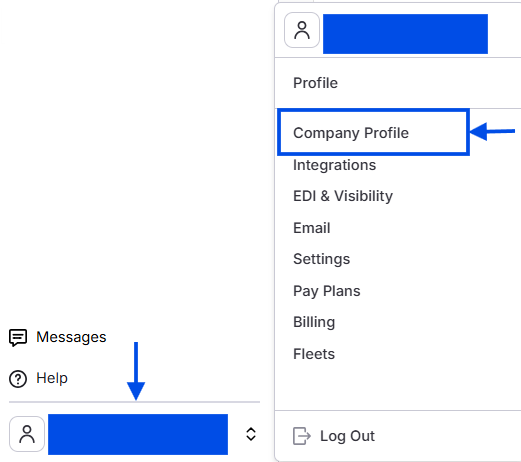 Image showing navigation to the Company/tenant profile
 Image showing “Users” tab on Company Profile with “Add User” button
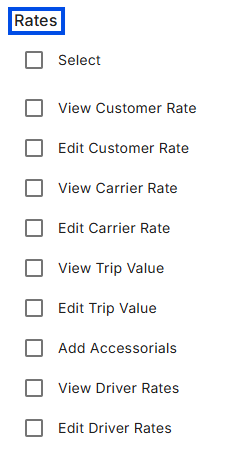 Image showing Rates permissions checkboxes (9 permissions) on user profile
Key Concepts
The Rates category contains nine permissions in four view-and-edit pairs plus one standalone:- “View Customer Rate” and “Edit Customer Rate” — control access to the customer-facing revenue side of a load
- “View Carrier Rate” and “Edit Carrier Rate” — control access to the carrier cost side of a load
- “View Trip Value” and “Edit Trip Value” — control access to the driver compensation amount
- “View Driver Rates” and “Edit Driver Rates” — control access to driver pay rate configurations in driver profiles
- “Add Accessorials” — controls the ability to create and manage supplemental charges (detention, lumper fees, TONU, etc.)
How to Use It
For step-by-step instructions on managing user permissions, see How to Add and Manage Users in Alvys.”View Customer Rate”
The “View Customer Rate” permission controls whether a user can see the customer-facing rate on a load, which represents what the company charges the customer for moving freight. When enabled, users can view the Customer Money Box on the Load Details page and see the Customer Freight Charge and Customer Revenue columns in the Load Board grid.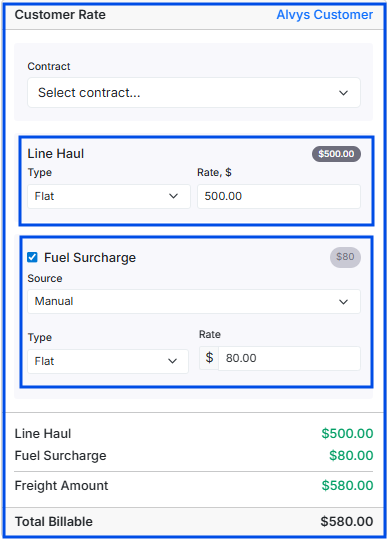 Image showing Customer Rate card / Customer Money Box
 Image showing Customer Freight Charge and Customer Revenue columns in Load Board
💡 Best Practice: Grant “View Customer Rate” to users who need to monitor rates such as Billers and Dispatchers so they can see what loads are worth and make informed sourcing decisions.
”Edit Customer Rate”
The “Edit Customer Rate” permission allows users to modify the customer-facing rate on a load. Editing customer rates directly affects the revenue side of every load and can impact invoicing accuracy, so this permission should be granted carefully.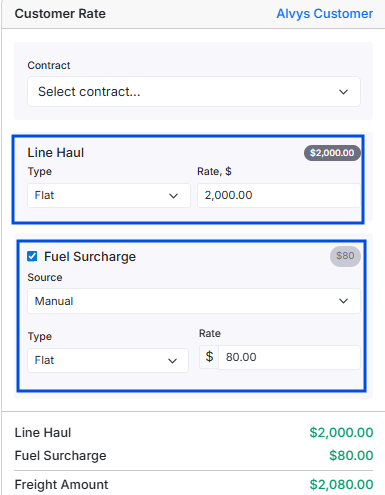 Edit Customer Rate (Customer Money Box editable)
💡 Best Practice: Separate “View Customer Rate” (broad access, most dispatchers) from “Edit Customer Rate” (restricted access, billing and management only). This is the most important rate permission split in Alvys. Letting dispatchers see rates without being able to change them strikes the right balance between operational transparency and financial control.
”View Carrier Rate”
The “View Carrier Rate” permission controls whether a user can see the carrier cost on a load, including the Carrier Money Box on the Load Details page, the Carrier Rate and Carrier All-in Rate columns in the Load Board grid, and the Payment History table in the carrier’s profile.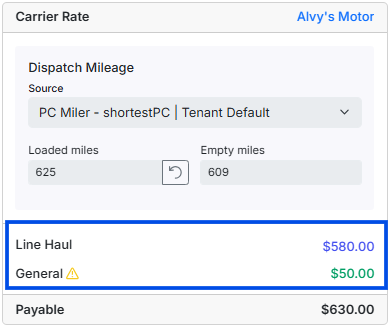 Image showing Carrier Rate card / Carrier Money Box
 Image showing Carrier Rate and Carrier All-in Rate columns in Load Board
- Image showing Payment History table in Carrier Details section on a Trip.*
💡 Best Practice: Grant “View Carrier Rate” to users involved in the load’s financial lifecycle: dispatchers, billers, and operations managers. Withhold this access from personnel who do not require cost visibility.
”Edit Carrier Rate”
The “Edit Carrier Rate” permission allows users to modify the carrier cost on a load. Because carrier rates directly affect profit margins and settlement calculations, editing is status-dependent and restricted on loads that have already entered billing or payment workflows.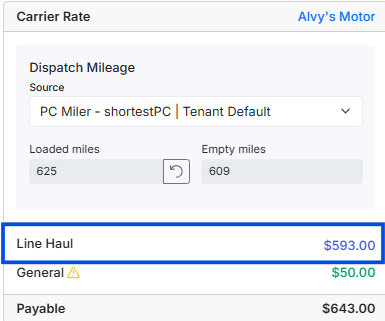
-
Image displaying Carrier Rate (Carrier Money Box editable)*
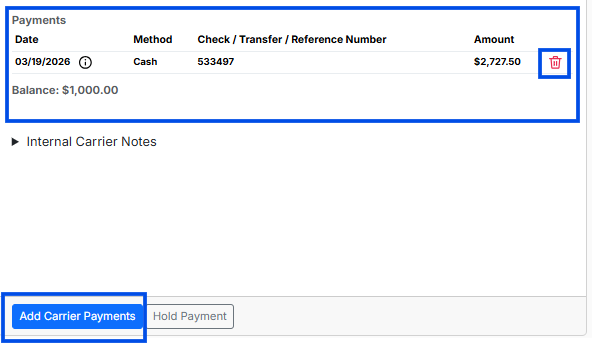
 *Image showing Edit Carrier Rate in Carrier Settlements Module *
💡 Best Practice: Pair “Edit Carrier Rate” with “View Carrier Rate” so that users who can edit rates can also see them. Consider limiting “Edit Carrier Rate” to senior dispatchers and billing staff rather than granting it to all operational roles.
”View Trip Value”
The “View Trip Value” permission controls whether a user can see the driver compensation amount on a load. Trip value is distinct from carrier rate: it reflects what the driver or owner-operator earns rather than what the company pays the carrier. When enabled, users can see the Trip Value Money Box, the Driver Money Box (covering Primary Driver, Secondary Driver, and Owner-Operator pay), the Trip Value column in the Trip Board, and driver pay information in the Alvys mobile app.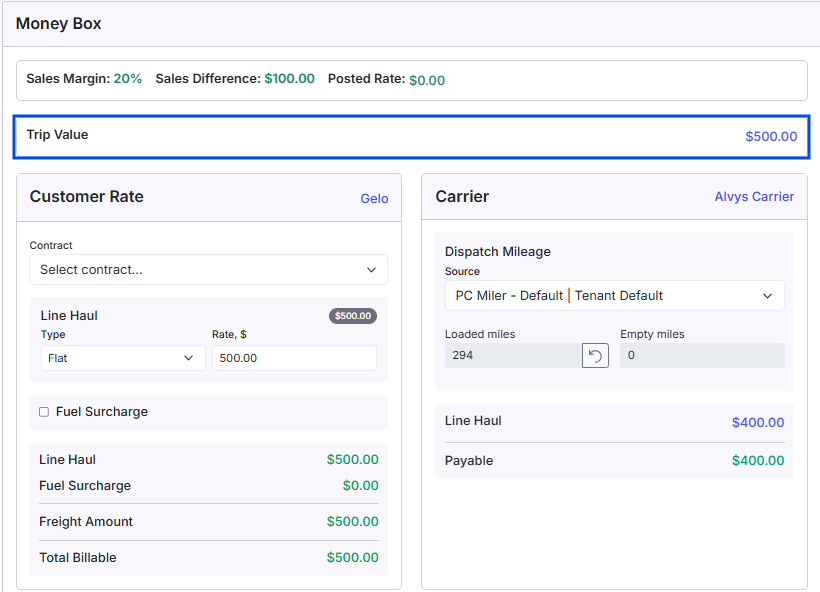 View Trip Value / Trip Value Money Box
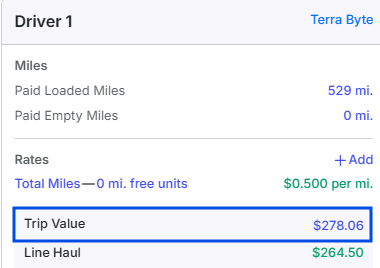 A driver money box card on a load, with the Trip Value row highlighted. A load shows one card per driver position, so a team load shows a second card as well.This screenshot predates the May 2026 rename and still shows the old Driver 1 heading. In the app, driver positions now read Primary Driver and Secondary Driver.
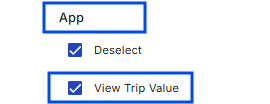 Image showing View Trip Value permission which also controls viewing the trip value in the mobile app
 Image showing the Trip Value column in Trips Board
💡 Best Practice: Grant “View Trip Value” to all users involved in load financial planning and driver settlement. Withhold it from Driver role users (who have separate app-level permissions for viewing their own pay) and Safety personnel who do not need compensation visibility.
”Edit Trip Value”
The “Edit Trip Value” permission allows users to modify the driver compensation amount on a load. Changes to trip value directly affect driver settlements and paystubs, so this permission carries significant financial risk if granted broadly. The trip value fields are interactive when this permission is enabled, but they lock automatically once a driver has been marked as Paid or a truck statement has been generated. This prevents retroactive changes to finalized pay.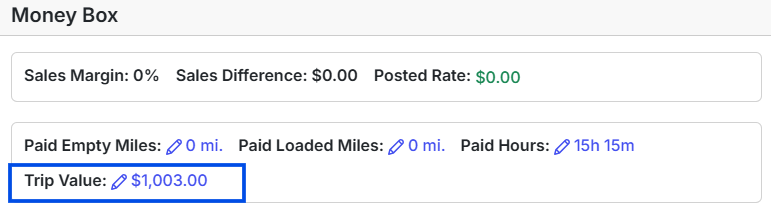 Edit Trip Value (fields interactive) in Money BoxThe Trip Value row in a driver money box card, which becomes editable with this permission. As above, the heading in this screenshot predates the Primary Driver rename.
 Image showing error message displayed to user when the Trip Value locked because a driver was paid.
💡 Best Practice: Restrict “Edit Trip Value” to users who actively manage driver pay, typically dispatchers and billing personnel. For operations managers and sales agents who need to see trip values for planning purposes, grant “View Trip Value” only without the edit capability.
”Add Accessorials”
The “Add Accessorials” permission enables users to create, edit, and manage supplemental charges beyond the base freight rate. These accessorials cover specialized services or conditions encountered during a load’s lifecycle, such as detention, lumper fees, fuel surcharges, layovers, and TONU (Truck Ordered Not Used). Within Alvys, these charges can be applied to three distinct pillars: the Customer for revenue, the Carrier for cost, and the Driver or Owner-Operator for pay. Image showing “Add Accessorial” button
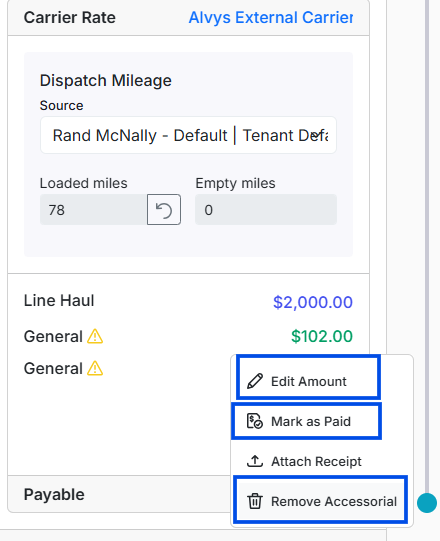 Image showing Alvys money box with options or accessorials such as edit amount, mark as paid and remove accessorial
💡 Best Practice: Grant “Add Accessorials” to dispatchers and billers who regularly manage load charges. Require documentation (such as uploaded receipts) for accessorial charges to maintain an audit trail. Review accessorial patterns periodically to identify unusual activity.
”View Driver Rates”
The “View Driver Rates” permission regulates a user’s ability to access sensitive compensation structures stored within driver profiles and load-level contexts throughout Alvys. This authority encompasses the specific rate data that determines how company drivers and owner-operators are remunerated, such as per mile, per load, percentage, or hourly configurations. This permission is distinct from trip value or carrier rates because it governs the underlying pay methodology rather than just the final settlement amount. Upon being granted, the Rate section of the driver profile becomes visible, driver rates on individual loads are accessible, and the Driver Rate column appears in the Load Board grid. When “View Driver Rates” is enabled, the Rate section of the driver profile is visible, displaying the rate structure (for example: per mile, rate per job, percentage, etc.). This information can be used to calculate expected driver pay for a given load, verify payroll accuracy, or review compensation structures during performance discussions. Without this permission, the compensation section of driver profiles remains hidden.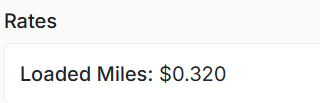 View Driver Rates: driver profile Rate section
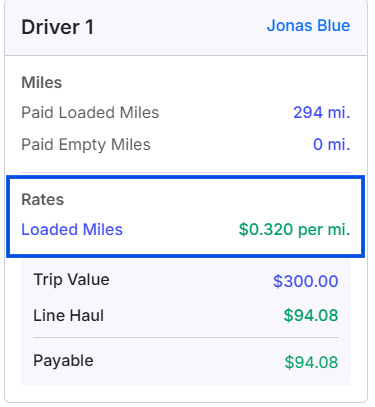 Image showing driver rate at the load level
- Image showing Driver Rate column in Trip Board grid*
💡 Best Practice: Provide “View Driver Rates” only to users who require it for payroll, HR, or fleet management purposes, as general dispatchers typically do not need to observe individual driver pay rates to assign and manage loads. Grant this permission alongside “View Trip Value” for users responsible for managing driver compensation.
”Edit Driver Rates”
The “Edit Driver Rates” permission grants authorized personnel the ability to modify pay rate configurations within driver profiles, including cents-per-mile, flat rates, percentage-based structures, and other compensation parameters. Any adjustment directly influences all subsequent payroll calculations and financial settlements. This permission operates as a view-edit pair with “View Driver Rates”: while “View Driver Rates” enables a user to observe the data, “Edit Driver Rates” provides the authorization to perform inline editing within the driver money box for both revenue and non-revenue load details and driver asset profiles. Without this permission, even users who can view the rates are restricted from making any alterations, ensuring that sensitive financial data remains secure from accidental or unauthorized modification.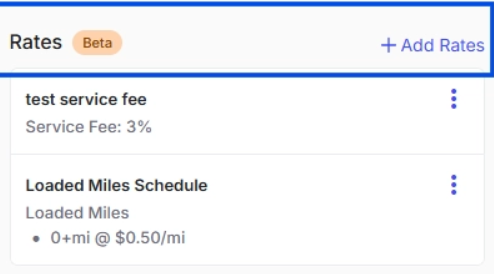
-
Image showing Rates section on Driver Profile *
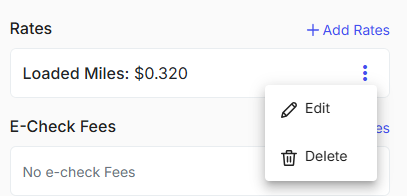
💡 Best Practice: Grant “Edit Driver Rates” to users who manage driver compensation as part of their daily workflow. For users who only need to review rates, such as auditors, grant “View Driver Rates” exclusively.
FAQs
Q: How are Rates Permissions organized in Alvys? A: The Rates category contains nine permissions arranged into four view-and-edit pairs along with a standalone “Add Accessorials” permission. Each view permission governs the visibility of rate data, while each edit permission governs the ability to modify that data. Q: Can a user edit a rate without being able to view it? A: The system does not strictly prevent granting edit access without view access, but doing so creates a poor user experience because the fields will remain hidden. Always grant the view permission alongside its corresponding edit permission. Q: Why does the Billing permission sometimes allow users to see rate information? A: Billers require access to all financial data to process invoices and settlements. If a user has the Billing role, they may see rates even without explicit rate view permissions enabled. Q: Why can’t I edit the carrier rate on a load even though I have the “Edit Carrier Rate” permission? A: Carrier rate editing is status-dependent. The system blocks editing on loads in TONU, Released, Queued, Invoiced, Financed, Completed, or On Hold status. Only loads in Open, Quoted, Reserved, Covered, or Delivered status allow carrier rate editing. Check the current status of the load to determine if editing is available. Q: What happens if I remove all Rates Permissions from a user? A: The user will lose visibility of all financial rate information on loads. The Money Box on the Load Details page will not show customer rate, carrier rate, or trip value sections. The Load Board will not display rate columns. The user can still see non-financial load information such as origin, destination, status, and equipment type, and perform other actions based on their remaining permissions. Q: Does the “Add Accessorials” permission affect e-check operations? A: Yes. The “Add Accessorials” permission is required for some e-check operations such as canceling an e-check, moving an e-check between loads, and marking an e-check as paid. These operations modify load charges that fall under the accessorials umbrella. Q: Can a Driver role user ever see rates? A: The Driver role receives no Rates Permissions by default. However, separate permissions in the App category, such as “View Trip Value”, “View Payable Amount”, and “View App Paystubs”, can grant drivers limited visibility into their own compensation through the Alvys mobile application. These App permissions are distinct from the web-facing Rates Permissions covered in this article. Q: Why do Safety and Driver roles not receive Rates Permissions by default? A: These roles focus on compliance and hauling rather than financial management, so they do not require access to sensitive company revenue and cost data. Q: If I grant “Edit Customer Rate”, does the user also need “Edit Carrier Rate” to modify both sides of a load? A: Yes. Customer rates and carrier rates have separate edit permissions. Granting “Edit Customer Rate” only allows the user to modify the customer side. To modify both sides, the user needs both “Edit Customer Rate” and “Edit Carrier Rate”. Q: What is the relationship between “Edit Carrier Rate” and “Add Accessorials”? A: Some parts of the system require both permissions to modify carrier charges. If a user has “Edit Carrier Rate” but not “Add Accessorials”, they may have limited ability to modify carrier-side line items. Grant both permissions to users who manage carrier rates and charges. Q: Should dispatchers or billing staff have the “Add Accessorials” permission? A: Most operations grant this to both roles so dispatchers can log real-time issues like detention while billers ensure all charges are captured during final reconciliation. Q: I want dispatchers to be able to see both sides of the load margin (customer rate and carrier rate). Do I need to enable four permissions? A: You need two permissions for view-only access to both rates: “View Customer Rate” and “View Carrier Rate”. These two permissions together give the dispatcher a full margin picture including what the load earns and what it costs, without the ability to change either figure. The Edit permissions are separate and not required for read-only visibility.Troubleshooting
”Edit Carrier Rate” is granted but the carrier rate field will not change
Carrier rate editing is status-dependent. Editing is blocked on loads in TONU, Released, Queued, Invoiced, Financed, Completed, or On Hold status. Confirm the load is in Open, Quoted, Reserved, Covered, or Delivered status.Rate columns are missing from the Load Board grid
The user is missing the corresponding view permission. Customer rate columns require “View Customer Rate”, carrier rate columns require “View Carrier Rate”, and the Driver Rate column requires “View Driver Rates”.A user can view rates but cannot edit them
The user holds only the view permission for that rate. Grant the paired edit permission (for example, “Edit Customer Rate” alongside “View Customer Rate”).Go Deeper
Proceed to the E-Check Permissions article to learn how to issue, cancel, and move e-checks for both carriers and drivers, including how to configure processing fees and the specific permissions required to delete load notes.📁 Back to User Roles & Permissions Collection