Applies to: Admin · Partner Admin · SupportModule: Management > EDI & VisibilityEDI (Electronic Data Interchange) lets Alvys automatically exchange load tenders, tender responses, shipment status updates, and freight invoices between your system and your customers’ systems, eliminating manual document handling.
Overview
Electronic Data Interchange, also known as EDI, is a standardized method for exchanging business documents between computer systems without manual data entry. Alvys uses EDI to receive load tenders from customers, send tender responses, transmit shipment status updates, and submit freight invoices automatically.
By automating these exchanges, you reduce manual tasks, minimize data entry errors, speed up communication with major shippers and brokers, and meet the digital communication standards required by large trading partners. EDI integrations in Alvys scale as your business grows, allowing you to connect with additional trading partners without increasing manual workload.
EDI integrations in Alvys are configured per customer. Once an EDI connection is active for a customer, incoming tender documents flow directly into the Alvys Tenders board where users with the “ParticipateInTender” permission can review and act on them.
Where to Find It?
Navigate to the EDI & Visibility page by clicking your username in the bottom-left corner and selectingEDI & Visibility, or by copying and pasting the following URL into your browser: https://app.alvys.com/#/manage/integrations.
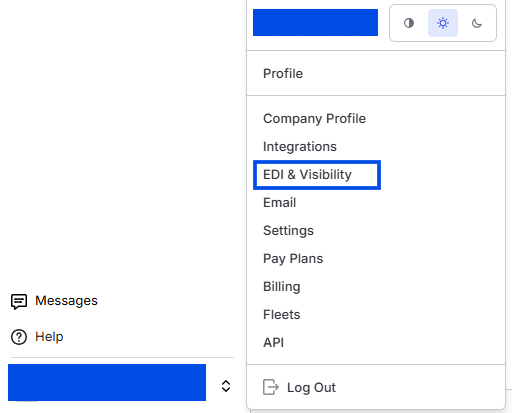 Image showing navigation to EDI & Visibility Page
Key Concepts
Transaction Sets
Alvys supports the following EDI transaction sets:
- 204: Inbound motor carrier load tender. A customer sends a 204 to offer a load to your company.
- 213: Cancellation of a previously sent 204 tender.
- 990: Tender response. Alvys sends a 990 to accept or decline a 204 tender.
- 214: Shipment status update. Alvys sends a 214 to report pickup, delivery, and in-transit events back to the customer.
- 210: Freight invoice. Alvys sends a 210 to submit an invoice for a completed load.
- 997: Functional acknowledgment. Confirms receipt of a transmitted document.
Tender Lifecycle
When a customer sends a 204, the tender appears on the Tenders board. A user with the “ParticipateInTender” permission can accept or decline the tender. If accepted, Alvys sends a 990 back to the customer. As the load progresses, Alvys sends 214 status updates. After delivery, a 210 invoice can be transmitted.
Auto-Acceptance
Auto-acceptance allows Alvys to automatically accept inbound 204 tenders for a specific customer without manual review. This setting is configured per customer record and requires the “EditCustomer” permission to enable or disable.
Auto-Update Settings
Auto-update settings control which EDI events Alvys sends automatically, including 214 status updates triggered by load activity.
How to Use It?
For step-by-step instructions on configuring EDI features, see the related articles in the Go Deeper section below.
Settings and Permissions
Access to the EDI & Visibility settings page under Management requires the Admin, Partner Admin, or Support role.
Enabling or disabling auto-acceptance on a customer record requires the “EditCustomer” permission.
Viewing and acting on tenders on the Tenders board requires the “ParticipateInTender” permission.
EDI connections are configured by the Alvys team during customer onboarding. To add or modify an EDI connection for a customer, contact Alvys support and provide the customer name and the type of integration needed. If you have confirmed the connection is already set up for that customer and it is still not working, contact Alvys support.
Limits and Behavior
EDI connections are configured per customer. The specific transaction sets available depend on the EDI configuration established with each customer; not all customers support every transaction set.
Inbound 204 tenders with missing or incomplete stop data are quarantined when received. A quarantined tender does not appear as actionable on the Tenders board. A tender is quarantined when it is missing a pickup stop, missing a delivery stop, or when a stop address does not include a city and state. The customer must send a corrected 204 to resolve the quarantine.
FAQs
Q: Where do incoming load tenders appear?
A: Inbound tenders appear on the Tenders board at Loads and Trips > Tenders. You must have the “ParticipateInTender” permission to access this board.
Q: Can Alvys automatically accept tenders without manual review?
A: Yes. Auto-acceptance can be enabled per customer on the customer record. See the linked article in Go Deeper for setup steps.
Q: What happens if a customer cancels a tender after it has been accepted?
A: The customer sends a 213 cancellation. Alvys processes the cancellation and updates the load accordingly.
Q: Who can configure the EDI & Visibility settings page?
A: The EDI & Visibility settings page under Management is accessible to users with the Admin, Partner Admin, or Support role.
Q: Why is a tender quarantined on the Tenders board?
A: A tender is quarantined when the inbound 204 message is missing required stop data. The three conditions that cause quarantine are: a missing pickup stop, a missing delivery stop, or a stop address that does not include a city and state. The customer must send a corrected 204 to resolve the issue.
Q: How does an EDI connection get set up for a new customer?
A: EDI connections are configured by the Alvys team during customer onboarding. Contact Alvys support to request a new connection or a change to an existing one.
Go Deeper
