
This article explains how Alvys exports customer invoices, carrier bills, and driver bills to NetSuite, how subsidiaries, customers, and vendors are linked during export, and how to correct a transaction after it has been exported.
Overview
When you generate an invoice or release a load in Alvys, transaction data is automatically queued for export (push) to NetSuite. Alvys determines which NetSuite subsidiary receives each transaction based on fields set on the load (Invoice As, Tender As) and the driver profile. Once exported, all corrections must originate in Alvys and then synchronize to NetSuite. Editing or deleting transactions directly in NetSuite while Alvys still manages that record will cause sync conflicts.Before You Start
Complete the following before exporting transactions:- NetSuite: Prerequisites (Start Here)
- NetSuite: Authentication and Settings Configuration in Alvys
- NetSuite: Account Mappings and Item Mappings
Subsidiary Determination for Transaction Exports
[Heading 4 not supported] The Invoice As field on a load represents the billing subsidiary responsible for issuing the customer invoice. All Accounts Receivable (AR) transactions are exported to NetSuite and linked to the subsidiary mapped to the Invoice As field.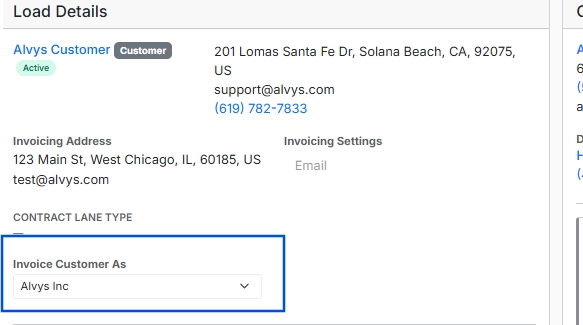 Invoice As field on a load record.
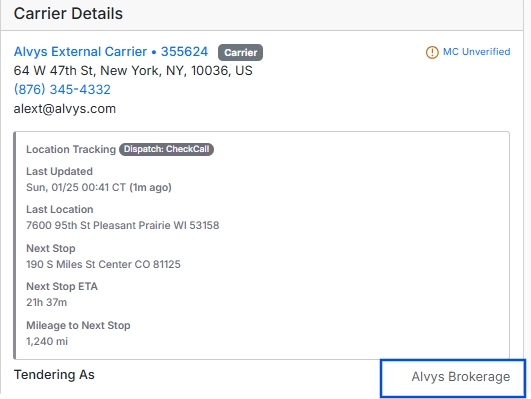 Tender As field on a trip.
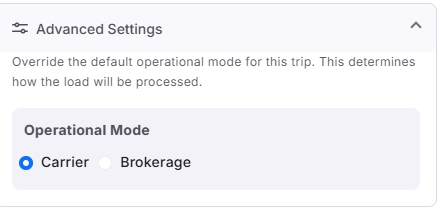 Dual authority carrier operational mode toggle on trip.
- Subsidiary field on a sample driver profile.*
Customer Linkage, Creation, and Accounting Fields
Customer External Accounting Name
By default (when Use Existing Customers is disabled), the customer’s External Accounting Name is used to identify the customer in NetSuite. Alvys first searches for an exact match using this field. If a match exists, the invoice is linked to that customer. If no match is found and the External Accounting Name is set, Alvys automatically creates a new customer in NetSuite using the External Accounting Name. If no External Accounting Name is set, Alvys falls back to the Customer Name.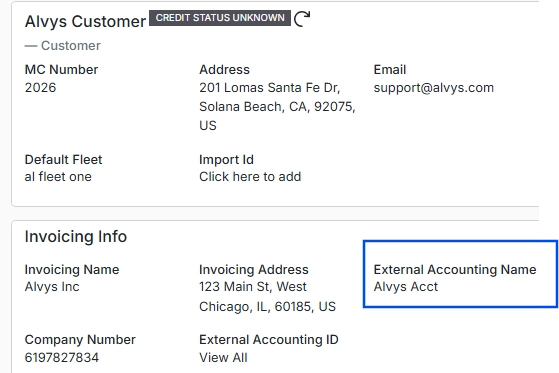 External Accounting Name field on customer profile.
Use Existing Customers
The Use Existing Customers setting in the NetSuite integration determines whether Alvys links invoices to existing customers using their NetSuite customer IDs, bypassing name-based matching. When enabled, set the NetSuite customer ID on each customer profile in Alvys for the relevant subsidiary.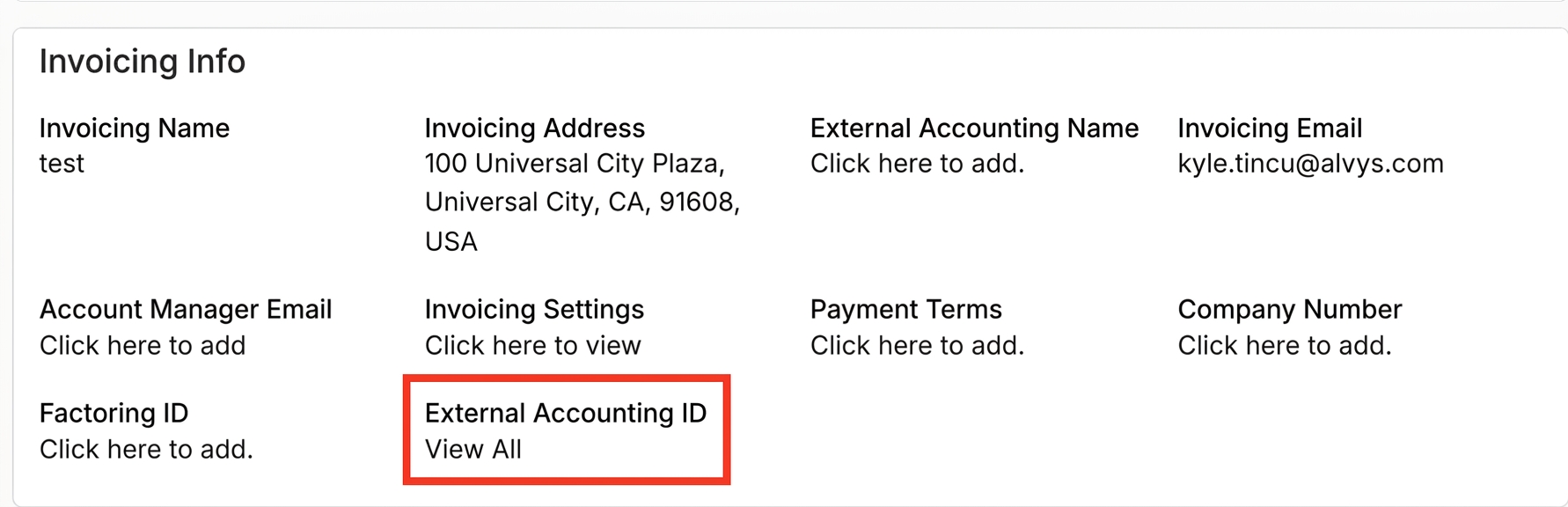 Customer profile with External Accounting ID Field
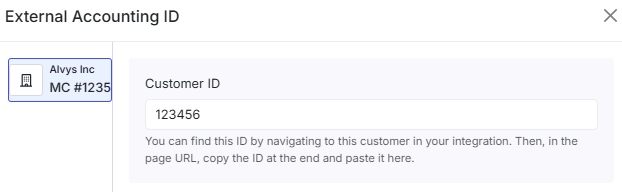 External Accounting form with Customer ID Field
CustomerNotFound: Customer not found. Customer not found for name '[Customer Name]' and id '[Customer ID]'
Invoicing Name
The Invoicing Name determines how the customer or broker appears on invoices generated in Alvys. It does not affect the customer record created or matched in NetSuite.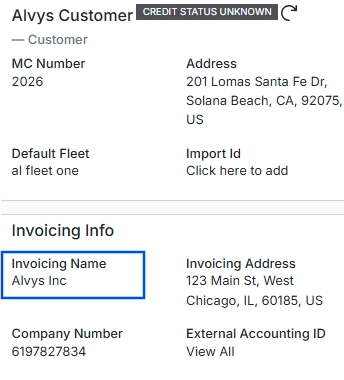 Invoicing Name field on sample customer profile.
Payment Terms
The Payment Terms field specifies the agreed-upon payment period, calculated from the invoice date. In Alvys, this can be set between 0 and 365 days and determines the invoice due date exported to NetSuite.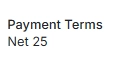 *Payment Terms field on a sample customer profile. *
Vendor Linkage, Creation, and Accounting Fields
Carrier External Accounting Name
The carrier’s External Accounting Name is used to identify a vendor in NetSuite. If a matching vendor exists, the bill is linked to it. If no match is found, Alvys creates a new vendor using the External Accounting Name (or the Carrier Name if External Accounting Name is not set).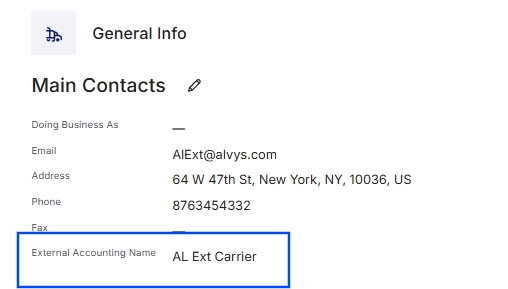 External Accounting Name field on a sample carrier profile.
Driver Name and 1099 Tax Details
Drivers may have additional tax fields on their profiles: Tax Company Name and Tax Company Address. Tax detail fields on driver profile (Tac Category, Tax Company Name and Tax Company Address).
Carrier Payment Terms
The Carrier Payment Terms field defines the time frame for paying a carrier, configured on the company profile (Management > Company Profile) for each subsidiary.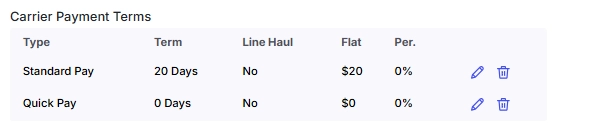 Carrier Payment Terms field on company profile.
Steps
Individual Load Invoice Export
Verify pre-export conditions for a single-load invoice.- Confirm the customer being invoiced is correct.
- Ensure the External Accounting Name is set on the customer profile. If not set, the standard customer or broker name must exactly match the corresponding customer record in NetSuite.
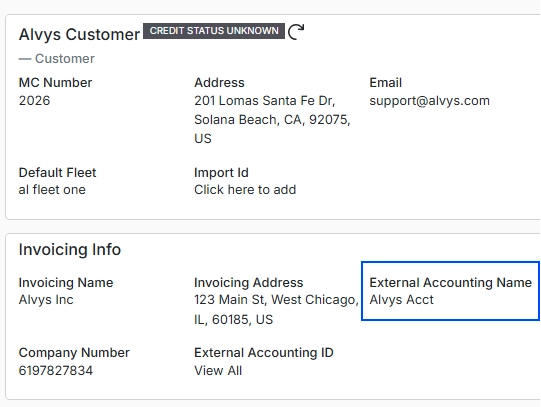 Customer profile with External Accounting Name field highlighted.
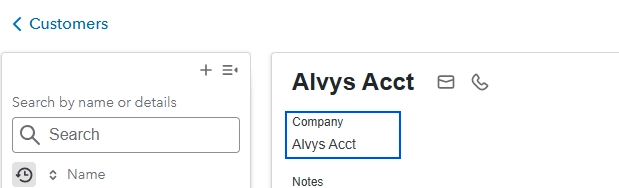 Image showing Customer Name in NetSuite
- If Use Existing Customers is enabled, confirm the NetSuite customer ID is entered in the External Accounting ID field and matches the customer ID in NetSuite.
- Verify the customer’s invoice settings for the subsidiary used as the Invoice As subsidiary on the load.
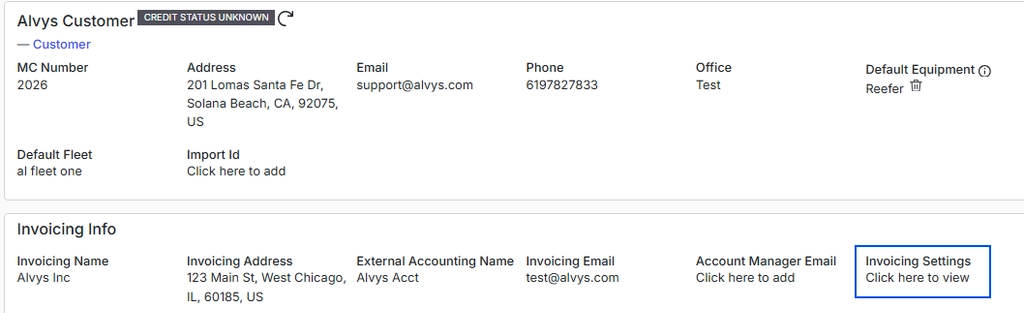 Customer invoice settings per subsidiary.
- Once pre-export conditions are met and the load is in Released status, generating the invoice automatically initiates the export to NetSuite.
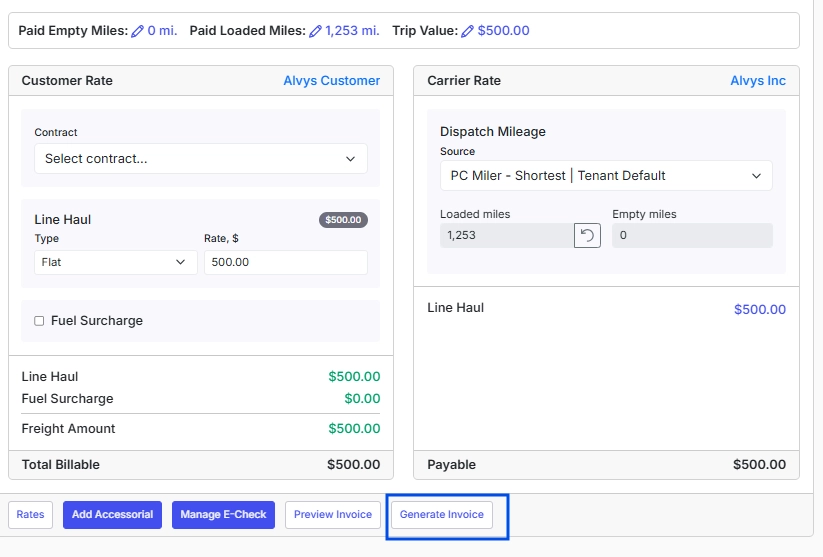 Generate Invoice button on Load Details.
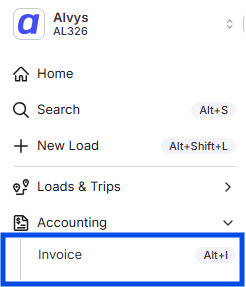 *Image showing navigation to invoicing page *
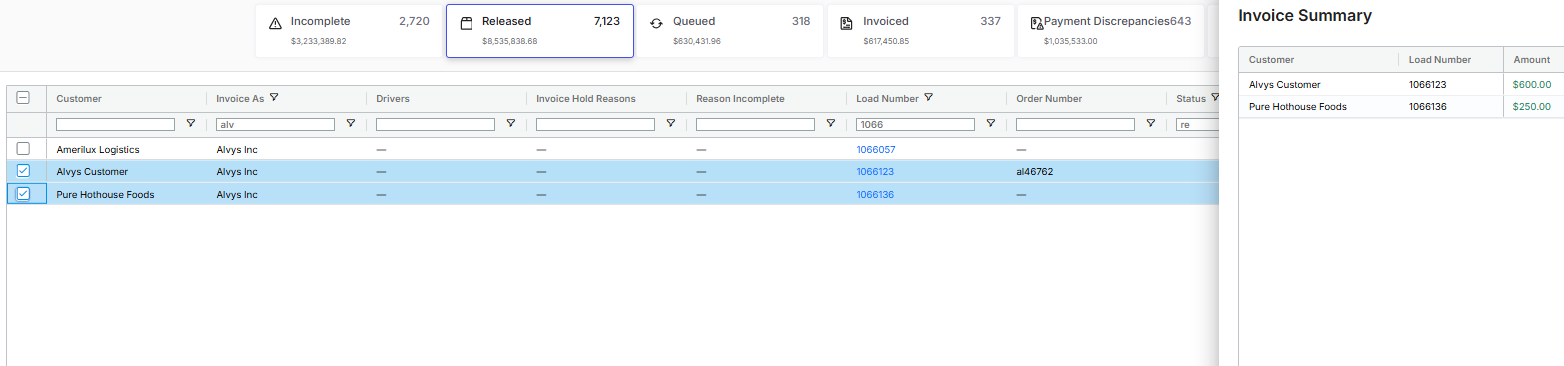 Image showing loads selected for invoicing in the released tab
💡 Ensure that the customer being invoiced is correct. If an External Accounting Name is configured, it must exactly match the corresponding customer record in NetSuite. If no External Accounting Name is configured, the standard customer or broker name must match the customer record.For users with the Use Existing Customers setting enabled, verify that the NetSuite customer ID is set on the customer profile. Additionally, the Invoice As subsidiary on each load must be correctly configured, as this determines which NetSuite subsidiary will be linked to the exported invoice.
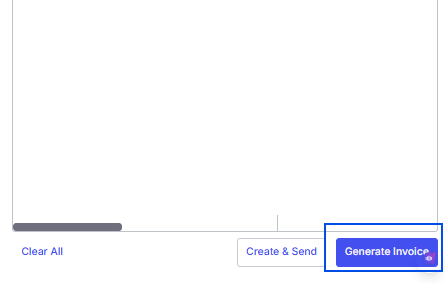 Image showing Generate Invoicing button
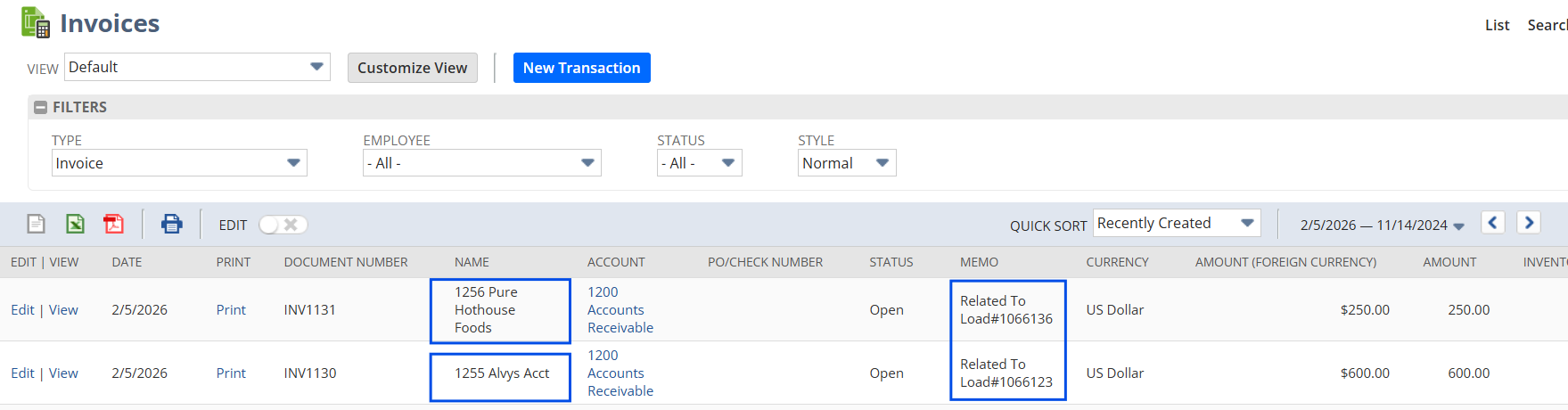 *Image showing the exported invoices from Alvys in NetSuite *
 Image showing the “Loads Not Invoiced” tab on the Summary invocing page with loads selected and the “Add To Draft” button highlighted.
 Image showing the “Draft Invoice” tab on the Summary invocing page with loads selected and the “Generate Invoice” button highlighted.
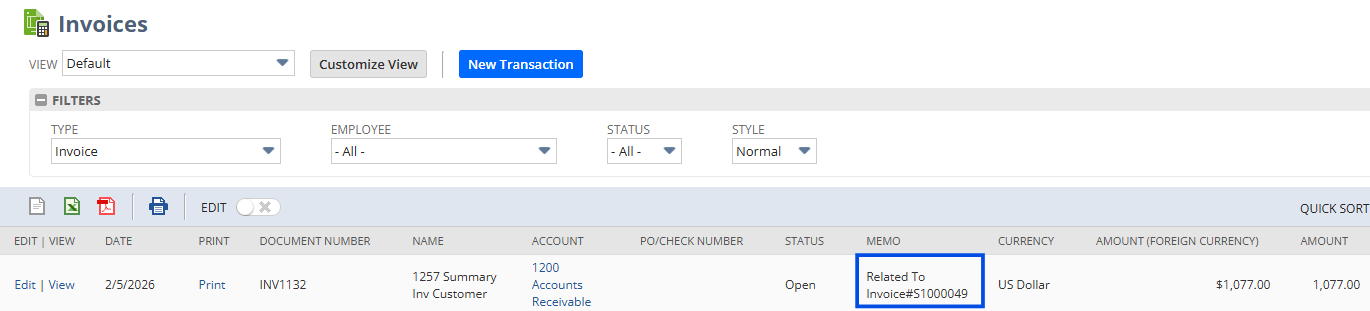 *Image showing the exported summary invoice from Alvys in NetSuite *
Bill Transaction Export Demonstration
This section explains the different methods available in Alvys for exporting bill transactions to NetSuite. It covers external carrier bills, carrier settlements, and driver bill exports, including the configuration requirements that determine when and how each bill is exported. [Heading 4 not supported] External carrier bills can be exported directly from individual loads based on the configured external accounting settings. The export is triggered when the customer invoice is generated. Before generating the invoice, ensure that the correct external carrier is assigned to the trip. The subsidiary selected in the Tender As field must also be verified, as this subsidiary determines which NetSuite subsidiary the carrier bill will be linked to. The selected subsidiary must be configured to receive carrier bills through the NetSuite integration.⚠️ For tenants operating in dual-authority mode, an additional validation is required. The operational mode must be set to Brokerage. If the operational mode is set to Carrier, the external carrier bill export will not occur.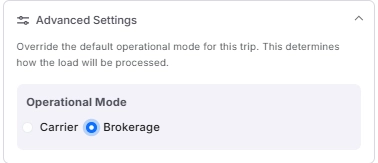 Image showing operational mode with brokerage selected
Image showing operational mode with brokerage selected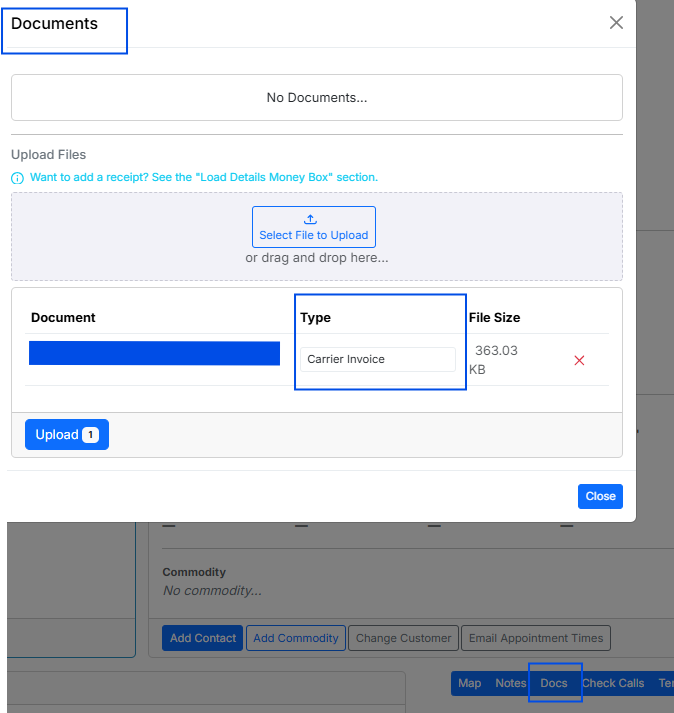 Image showing document upload form with sample carrier invoice document
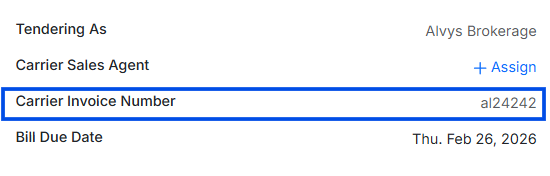 Image showing carrier invoice number on load details page
 Image showing carrier invoice number added to the memo field onthe carrier billing Netsuite
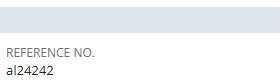 *Image showing Carrier Invoice number used as reference number on carrier bill exported to NetSuite *
Carrier Settlements
The Carrier Settlements module provides brokers with tools to generate transparent and accurate carrier statements and settlement bills. This page can be accessed from the accounting section of Alvys under Carrier Settlements. When carrier settlements are used, the carrier bill is exported when a carrier statement is generated. To allow this export, the Carrier Statements External Accounting setting must be enabled for the subsidiary. If this setting is not enabled, no carrier bill will be exported when the statement is generated Image showing the carrier statements setting enabled in the accounting integration setup.
💡 If a carrier bill requires modification after export, refer to the Modifications to Transactions section for guidance.
Driver Bill Export
Driver bills can be exported either from the legacy Pay Drivers page or from the newer Driver Settlements module. The export behavior depends on the configured driver billing settings. The recommended configuration is Single Bill Export. When enabled, multiple trips, deductions, and credits included in a driver statement are consolidated into a single bill and exported to NetSuite. This approach is ideal for tenants operating on weekly or biweekly pay cycles. The subsidiary used for exporting driver bills is determined by the subsidiary assigned on the driver profile in Alvys. [Heading 4 not supported] For tenants still using the legacy Pay Drivers page, driver statements generated from this page may be reverted from the driver profile. Reverting a driver statement deletes the corresponding driver bill from NetSuite, provided the bill remains open and no payments have been applied. [Heading 4 not supported] Driver Settlements replaces the Pay Drivers module and introduces enhancements such as draft statements, predefined pay periods, and bulk actions. Additional details can be found at: Driver Settlements Help Center Article For statements generated using the Driver Settlements module, reverting the statement from the Statements tab removes the associated driver bill from NetSuite, as long as the bill remains open and no payments have been applied.Modifying Exported Transactions
Once a transaction has been exported from Alvys to NetSuite, all corrections and updates must be made in Alvys and then synchronized to NetSuite through the regeneration process. Alvys serves as the system of record for all accounting transactions that were exported. Changes made directly in NetSuite will not sync back to Alvys and can result in data inconsistencies or failed export updates. This section explains how previously exported transactions can be modified, which changes are supported, and the conditions under which those modifications are allowed. For transactions that have already been exported from Alvys to NetSuite, Alvys remains the system of record. Do not edit or delete these transactions directly in NetSuite if you plan to update and resend them from Alvys. All updates must be made in Alvys and then regenerated to ensure accurate synchronization and maintain data integrity.Customer Invoices Exported from Load and Invoicing Pages
Previously exported invoices can only be modified while they are still considered open (i.e., not fully paid) in NetSuite. Once a payment is fully applied and synced, the invoice becomes closed in Alvys and no further modifications are permitted. In these situations, Alvys Support must be contacted for assistance. Invoice updates are typically synchronized by regenerating the customer invoice after changes are made. However, certain fields automatically update the NetSuite invoice without requiring regeneration. Updates to the following load invoice fields are applied automatically to NetSuite without requiring invoice regeneration: Customer linehaul amount Customer fuel surcharge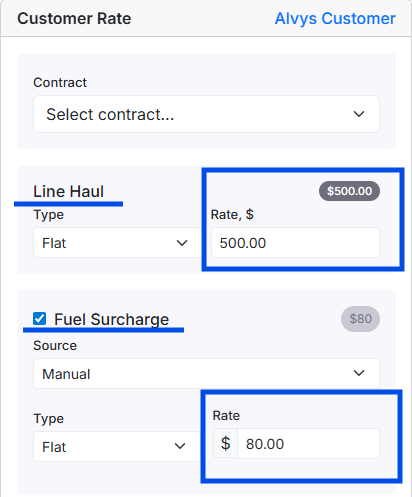 Image showing customer rate card in money box with linehaul and fuel surcharge fields
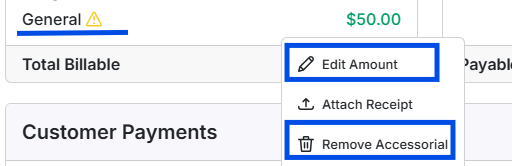 Image showing a sample accessorial with the accessorial options highlighted.
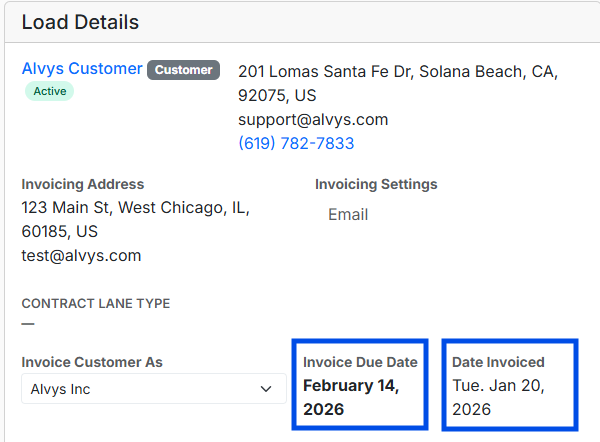 Image showing “Invoice Date” and Invoice Due Date fields on the load details page.
- Navigate to the customer profile in Alvys.
- Apply the necessary changes.
- Save the updates.
- Regenerate the invoice.
- Refresh or reopen the invoice in NetSuite to view the changes.
Customer Payment terms
Alvys does not set customer payment terms on exported invoices. Instead, the payment terms configured on the customer profile are used to calculate the invoice due date.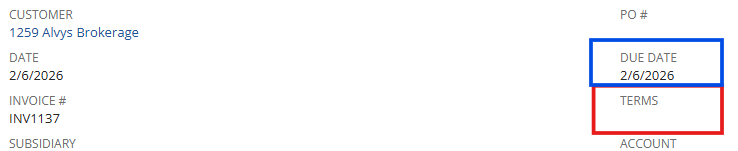 Image showing exported Invoice in NetSuite with invoice due date set.
Modifications to Summary Invoices
Modifications to summary invoices that have already been exported can be made depending on the scenario. [Heading 4 not supported] In Alvys, the only supported mechanism for adding or removing loads from a summary invoice is to revert the summary invoice. A summary invoice can be reverted only when its status is “Processed”. If the invoice has already been Sent or Paid, further modification requires intervention from Alvys Support. Procedure:- Revert the summary invoice by navigating to the All-Invoices tab in Alvys.
- Locate the invoice and Click the Delete icon for the specific summary invoice.
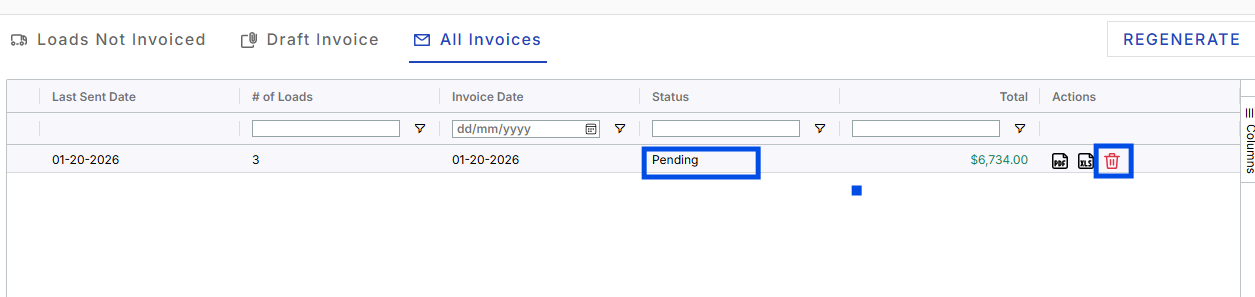 Image showing Summary invoice page, “All invoices” tab with “Delete” icon highlighted for a sample invoice.
- Navigate to the Loads Not Invoiced tab.
- Select the loads to be included in the new summary invoice.
- Regenerate the summary invoice.
- Verify that the updated summary invoice amount is accurately reflected in NetSuite.
- Manually delete the old summary invoice from NetSuite to avoid duplicate records.
Modifying or Adding Charges to Loads within a Summary Invoice
Loads included in a summary invoice can be edited to add charges or make adjustments. Only summary invoices in the following statuses can be regenerated: Pending, Sent, or Partially Paid. If a summary invoice is fully paid, regeneration is not permitted. Steps to Modify or Add Charges to Loads: Confirm that the summary invoice status is not **Paid **in Alvys. If the invoice is marked as Paid, all loads included in the summary invoice are set to Completed, and any subsequent modifications will not sync to NetSuite for completed loads. Navigate to the Load Details page for the specific load included in the summary invoice that requires modification. Apply the necessary updates (e.g., add charges, adjust amounts, update notes). In the image below, the fuel surcharge amount and an accessorial charge were added to the load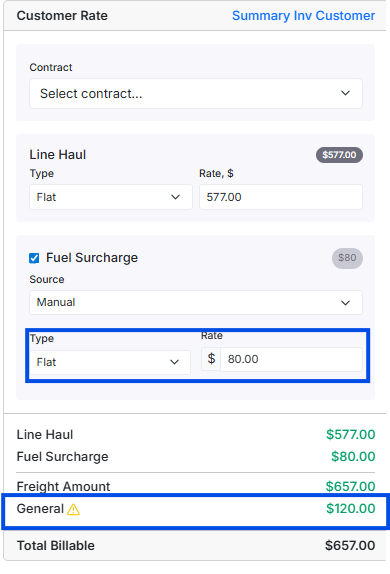 Image showing customer rate card in money box with linehaul, fuel surcharge field and accessorials highlighted.
 Image showing summary invoicing page with regenerate button
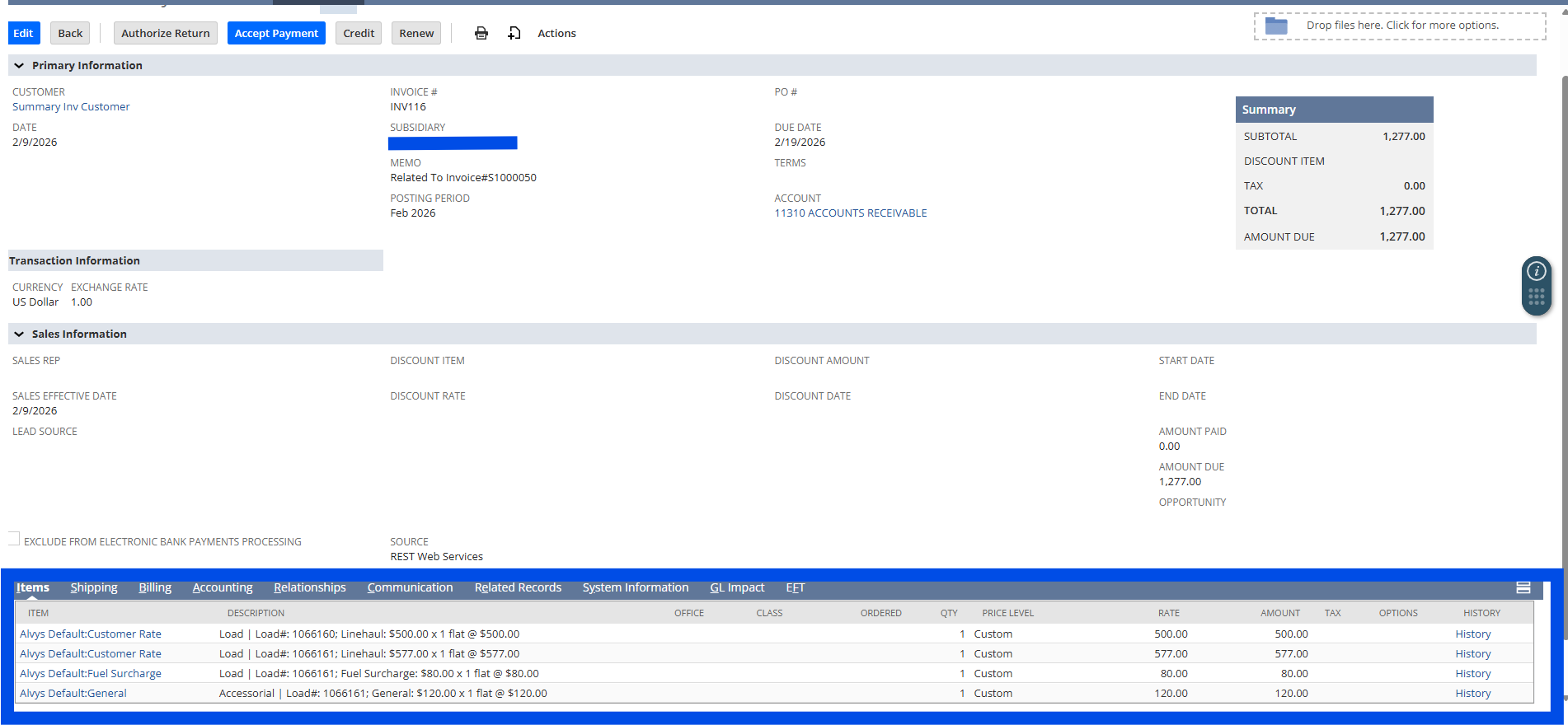 Image showing updated exported invoice in NetSuite
Troubleshooting
Invoice export fails immediately after generation
Step 1: Check the Error Transactions page in Alvys (Management > Integrations). Step 2: Review the error message: common causes are the External Accounting Name not matching any customer in NetSuite, missing or incorrect External Accounting ID when Use Existing Customers is enabled, or the Invoice As subsidiary not mapped in integration settings. Step 3: Correct the underlying issue in the customer profile or integration settings. Step 4: Re-export from the Error Transactions page or by regenerating the invoice.Carrier bill or driver bill not appearing in NetSuite
Step 1: Confirm the carrier or driver has an External Accounting Name set. If not set, the name must match an existing vendor exactly. Step 2: Check the Error Transactions page for any error on that transaction. Step 3: If the driver bill is not appearing, verify that Ignore Driver Bills is not enabled in the NetSuite integration settings.Shared Billing transactions not exporting correctly
Step 1: Confirm Shared Billing is enabled on both the Invoice As subsidiary and the Tender As subsidiary. Step 2: Verify both subsidiaries are mapped to their respective NetSuite subsidiaries in the integration settings. Step 3: Confirm the load has a different subsidiary set in Invoice As and Tender As. Step 4: Check the Error Transactions page for errors related to either subsidiary.Updated transaction not reflected in NetSuite after re-export
Step 1: Confirm the correction was saved in Alvys before the re-export was triggered. Step 2: Check the Error Transactions page. If a conflict error appears mentioning the transaction’s internal ID, the transaction may have been manually edited in NetSuite. Contact Alvys Support if none of the above reasons apply.FAQs
Q: Can I edit a transaction directly in NetSuite instead of in Alvys? A: No. All corrections must be made in Alvys and then synchronized to NetSuite. Editing a transaction directly in NetSuite may cause sync conflicts or result in the NetSuite record being overwritten on the next export. Q: Why was a new customer created in NetSuite instead of linking to an existing one? A: Alvys uses the External Accounting Name on the customer profile to find a match in NetSuite. If the External Accounting Name does not exactly match an existing NetSuite customer name, Alvys creates a new customer. To prevent duplicates, set the External Accounting Name to match the exact name in NetSuite, or enable the Use Existing Customers setting and enter the NetSuite customer ID in the External Accounting ID field. Q: What happens if the Invoice As subsidiary on a load is not mapped to a NetSuite subsidiary? A: The invoice export will fail. An error will appear on the Error Transactions page. The Invoice As subsidiary must be mapped in the integration settings before invoices can be exported for that load. Q: Does the Invoicing Name affect which customer record is created or matched in NetSuite? A: No. The Invoicing Name controls how the customer appears on invoices in Alvys. The External Accounting Name or Customer Name is used for NetSuite matching. Q: Can driver bills be excluded from the NetSuite export? A: Yes. The Ignore Driver Bills setting in the NetSuite integration configuration prevents driver-associated bills from being exported to NetSuite when enabled. Q: What is the error format when a customer is not found during export? A:CustomerNotFound: Customer not found. Customer not found for name '[Customer Name]' and id '[Customer ID]'
Q: For Shared Billing loads, how many transactions are created in NetSuite?
A: Four: a customer invoice linked to the Invoice As subsidiary, a carrier vendor bill linked to the Tender As subsidiary, an intercompany sales invoice from the Tender As subsidiary to the Invoice As subsidiary, and an intercompany vendor bill from the Invoice As subsidiary to the Tender As subsidiary.
Q: What should I enter for the External Accounting Name?
A: Enter the customer or vendor name exactly as it appears in NetSuite. Alvys uses this field to match records during invoice and bill exports. If the field is not set, Alvys falls back to the Customer Name or Vendor Name.
Q: Can Alvys pull customers or vendors from NetSuite automatically?
A: No. The integration is push-only from Alvys to NetSuite. You must manually enter the External Accounting Name (or Customer ID if using Use Existing Customers), which defines the linkage to NetSuite. If no match is found, Alvys can create the customer or vendor automatically in NetSuite.
Q: Which changes are not supported in Alvys after export?
A: Modifying the customer on an invoice or changing the Invoice As or Tender As subsidiary for previously exported transactions will not update the corresponding transaction in NetSuite. Contact Alvys Support to assist with correcting the export in these cases.
Q: How do I update customer details like address, email, or phone?
A: Update the customer profile in Alvys before regenerating the invoice. If the invoice has already been generated, it must be reverted to Queued in Alvys before changes take effect. After updating, regenerate the invoice to sync the changes to NetSuite.
Q: How can I locate an exported invoice or bill in NetSuite?
A: Use the NetSuite search bar to enter the load number or invoice number, including any prefix if configured. Invoices appear under the corresponding customer in the Invoices list; bills appear in the Bills list.
Q: Does the carrier invoice number appear in NetSuite?
A: Yes. When uploading a carrier invoice to a trip, the number is appended to both the Memo and Reference Number fields in the NetSuite bill.
Q: How do I modify a summary invoice after it has been exported?
A: Loads can be added or removed only by reverting the summary invoice (when the status is Processed) and regenerating it. Fully paid or sent invoices require Alvys Support intervention. Each regenerated summary invoice receives a new invoice number in NetSuite; the original remains unless manually deleted.