
On EDI-enabled loads, Alvys shows separate timestamp fields for your internal operational record and the timestamp shared externally with the shipper via EDI. Use the shared fields to control what gets communicated to the shipper without affecting your operational load record.
Overview
On EDI-enabled loads, changing a stop’s status to Arrived, Picked Up, or Empty reveals two sets of timestamp fields on the stop card: one for your operational record inside Alvys, and one for the timestamp shared externally with the shipper over EDI (outbound visibility, EDI 214). The fields interact in a specific way: updating your operational arrival or departure time automatically refreshes the corresponding shared EDI time. Updating the shared EDI time does not change your operational time. This protects your internal load record while giving you full control over what gets communicated to the shipper. Synonyms: EDI stop update, share arrival, share departure, outbound visibility, stop card EDI fields, EDI 214 update.Before you start
Before using the shared EDI timestamp fields, confirm the following:- The load must have an active EDI integration for its assigned customer. The share arrival and share departure fields appear only on loads where outbound visibility sharing is enabled. If the fields are not visible, the load is not EDI-enabled for that customer.
- Your account must have the “EDI Share” permission. This permission is located in the Tendering category of the user permissions panel (Management > Company Profile > Users). Without it, the EDI sharing fields do not appear on the stop card even if the load is EDI-enabled.
- Waypoints are not included in EDI updates. The share arrival and share departure fields appear only at pickup and delivery stops.
How to update a stop
- Open the load. Go to Loads and Trips and open the load you need to update.
- Open the stop card. Expand the Trips / Stops section and click the pickup or delivery stop you want to update.
- Change the stop status to Arrived. Two additional sections appear below the standard arrival timestamp:
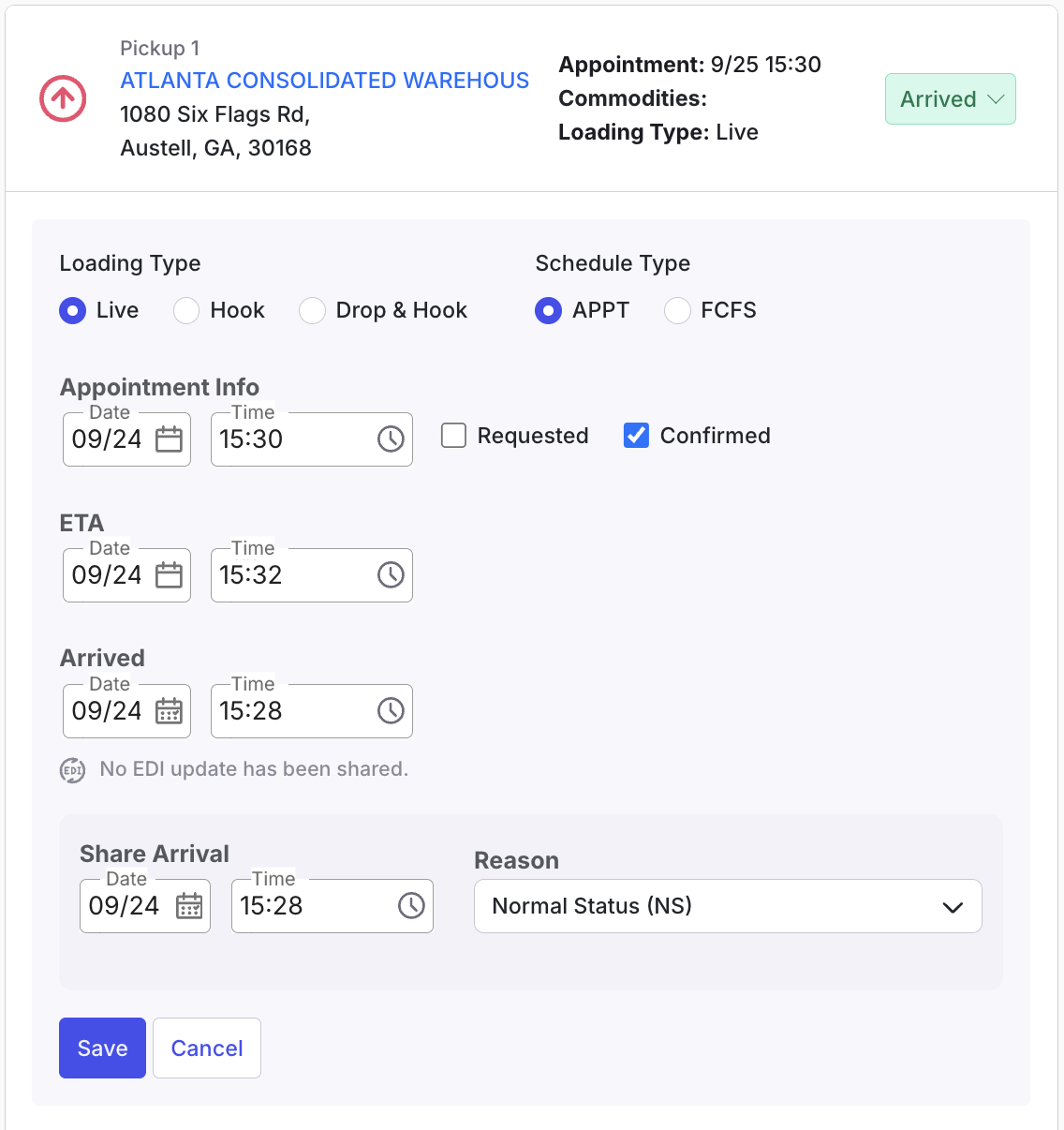 Stop card showing the Arrived status with Share Arrival fields and Reason dropdown
- Enter the Arrived date and time (your operational record).
- Review the Share Arrival date and time. Adjust it if the time you want to communicate to the shipper differs from your operational time.
- Confirm or change the Reason.
- Click Save.
Variations
Depart from a stop
Change the stop status to Picked Up (at a pickup stop) or Empty (at a delivery stop). Departure fields appear below the standard departure timestamp:- Departed: Your operational departure time.
- Share Departure: The timestamp sent to the shipper via EDI. Pre-filled from your operational departure time.
- Reason: Pre-filled from your integration’s configuration.
- Enter the Departed date and time, review or adjust the Share Departure date and time, confirm the Reason, and click Save.
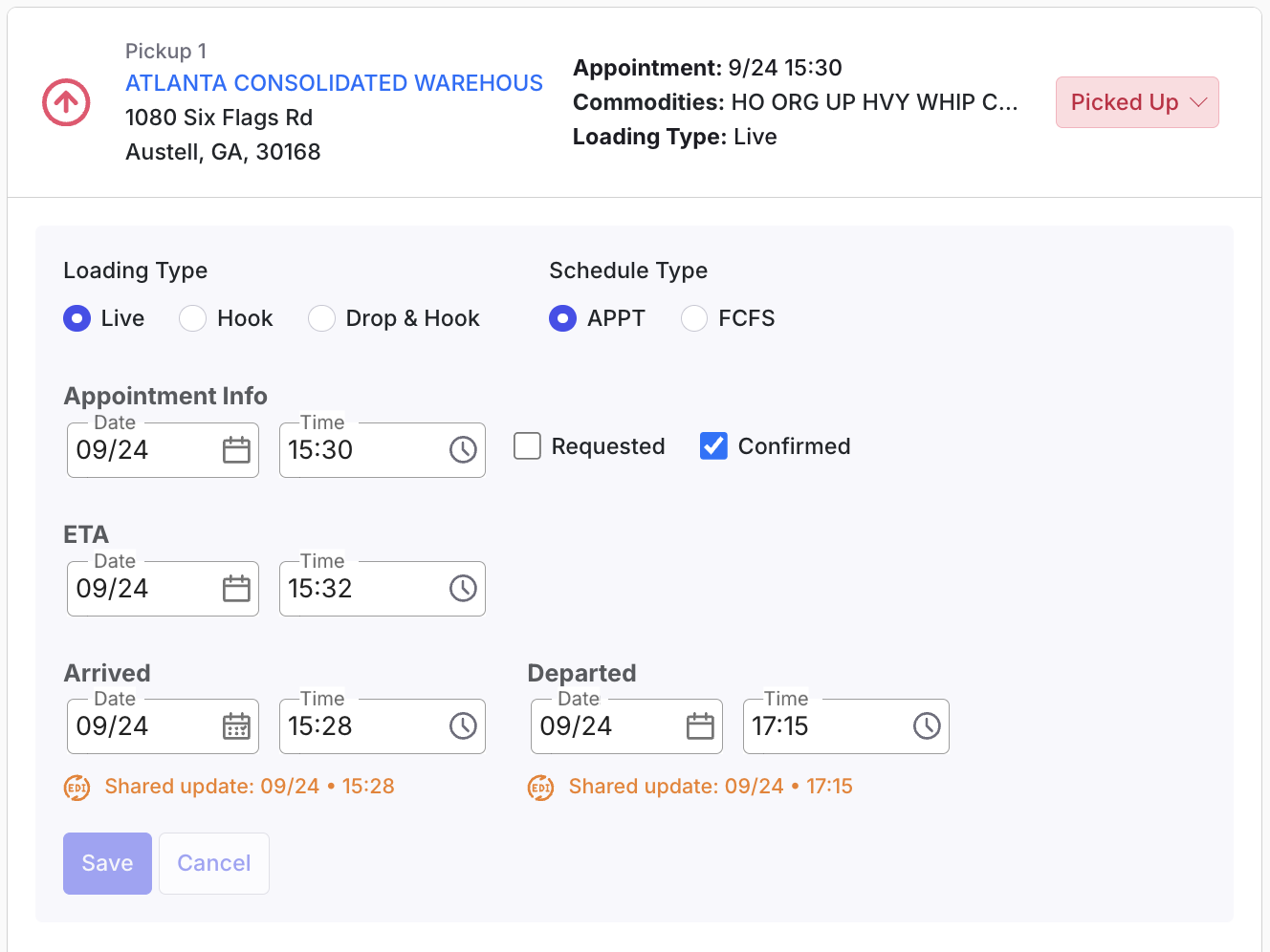 Stop card showing the Share Departure fields
Skip directly to Picked Up or Empty
If you change a stop’s status from Covered directly to Picked Up or Empty, both arrival and departure fields appear together. Enter the actual times for arrival and departure, review or adjust both shared EDI times, and click Save.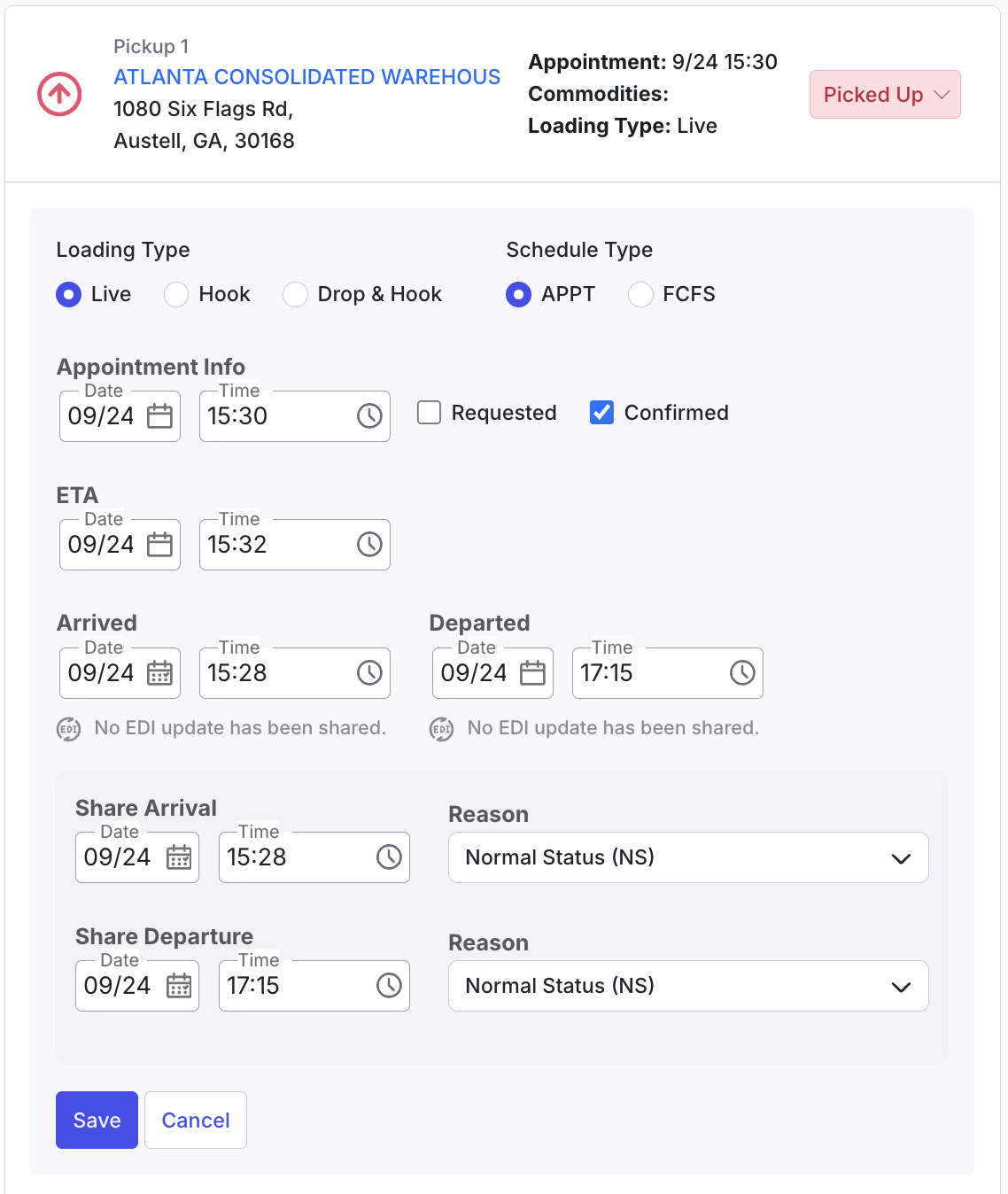 Stop card showing both Share Arrival and Share Departure fields together
Troubleshooting
Share Arrival and Share Departure fields are not visible on the stop card
- Confirm the load is EDI-enabled. These fields appear only on loads where outbound visibility sharing is active for the assigned customer. Check the customer’s company profile to confirm EDI integration is configured and enabled.
- Confirm your account has the “EDI Share” permission. Go to Management > Company Profile > Users, open your user profile, scroll to the Tendering permissions section, and verify “EDI Share” is checked. Contact your Admin if you need the permission granted.
- Confirm the stop is a pickup or delivery stop, not a waypoint. EDI timestamp fields do not appear on waypoints.
- If the load is EDI-enabled, your permission is confirmed, and the stop is a pickup or delivery stop, but the fields still do not appear, contact Alvys support.
Shared EDI time did not update after saving
- Confirm the stop status change was saved successfully. Refresh the stop card and verify the new status is displayed.
- If the shared EDI time still reflects the previous value after refreshing, allow a few minutes for the EDI message to process, then check again. If the issue persists after waiting, contact Alvys support.