
This article explains how to locate failed QuickBooks Online transactions in Alvys and how to resolve the most common QBO API rejections, including duplicate document numbers, duplicate name conflicts, invalid account types, and closed accounting period errors.
Overview
A transaction sent from Alvys to QuickBooks Online can be rejected by QBO when the data conflicts with QBO’s rules. This guide (also covering QBO sync failures and export errors) shows you how to find each failed export in the Error Transactions queue, interpret the QBO error message, correct the underlying issue, and re-export so the invoice or bill records successfully. The page is accessible from the “Accounting” menu by selecting Error Transactions within Alvys.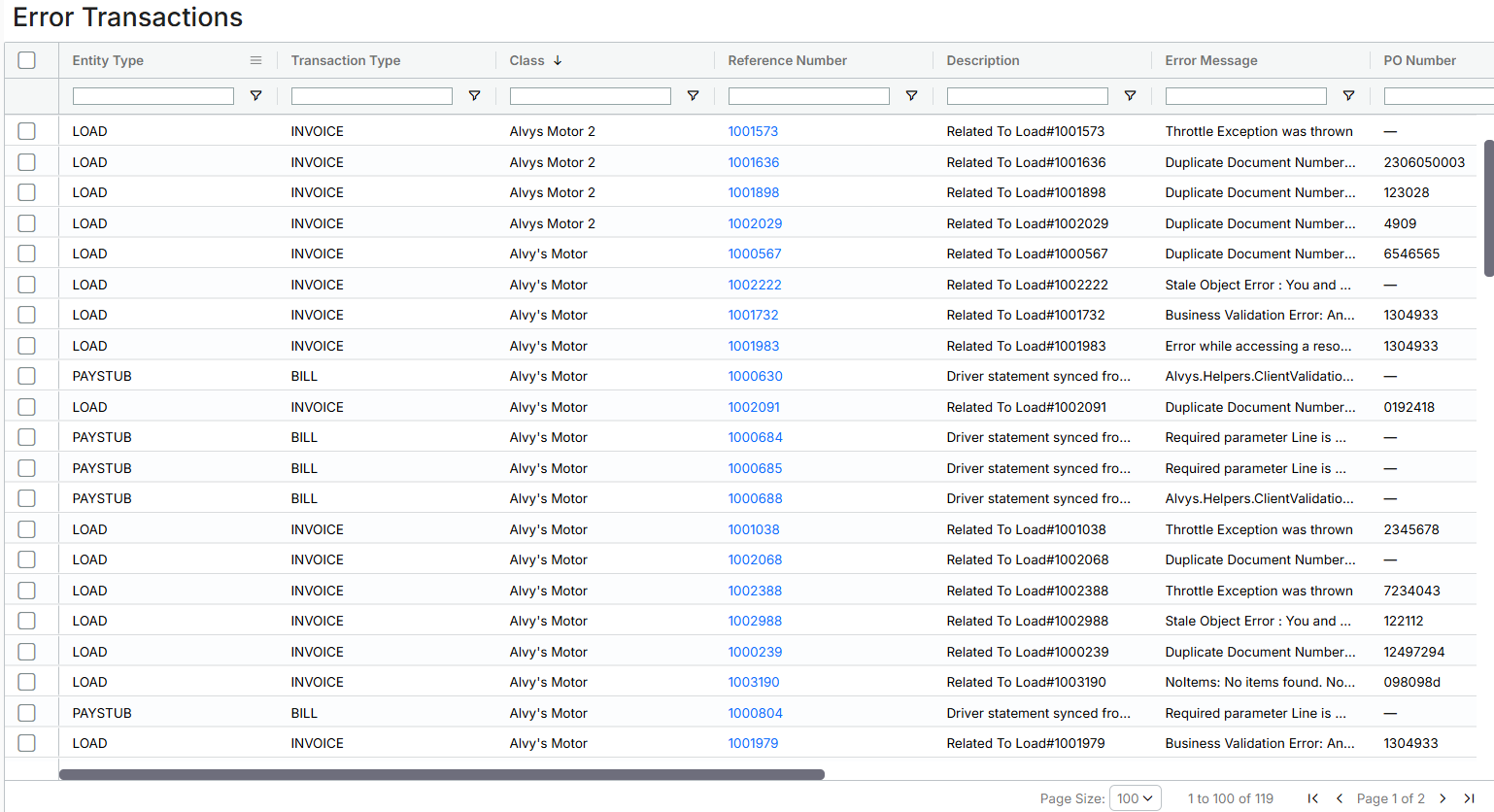 *Image showing Alvys error Transactions Page *
Symptom
A transaction exported from Alvys to QuickBooks Online has failed. The transaction appears in the Error Transactions queue in Alvys with an error message from QBO, and the corresponding invoice or bill is not visible in QBO.Cause
QBO rejects an export when the transaction contains data that conflicts with QBO’s rules. The most common causes are:- Duplicate document numbers: a QBO customer already has an invoice with the same invoice number.
- Duplicate name conflicts: Alvys attempted to create a new customer or vendor in QBO but a record with that name already exists (possibly a different type or with special characters).
- Invalid account type: the QBO account mapped in Alvys is not the correct type for that transaction (for example, an income account was mapped where an expense account is required).
- Closed accounting period: the transaction date falls within a period that has been closed in QBO.
Resolution
Open the Error Transactions queue
Navigate to Management > Integrations in Alvys. Locate the Error Transactions section (also called the Error Queue). This view lists every failed export with the error message returned by QBO. The Error Transactions page includes the following columns:- Entity Type: The type of Alvys transaction that failed to export, showing where the transaction originated. Examples include Load, Trip, Paystub, Deduction, Accessorial Revenue, Toll, Fuel, Escrow, E-check, and Accounting Invoice.
- Transaction Type: How the record is classified in the external accounting system, such as Invoice, Bill, Credit Memo, Vendor Credit, or Journal Entry.
- Class: The subsidiary associated with the transaction.
- Error Message: The message returned by QBO explaining why the transaction failed.
- **Status: **The current state of the transaction, such as Failed or Resolved.
- Reference: Additional identifiers to link the transaction, such as load number, summary invoice number, or trip number.
- Transaction Total: The total amount of the transaction.
- Date Created: The date the transaction was first attempted to be exported.
Read the error message and apply the matching fix
Click on a failed transaction to view the full QBO error message. Match the message to the appropriate resolution below.Resolving duplicate document numbers
This error means a QBO customer already has an invoice with the number Alvys tried to push. Alvys uses the Alvys load number as the invoice number when QBO’s Custom transaction numbers setting is enabled.- In QBO, find the existing invoice with the duplicate number and determine whether it is a valid transaction or a prior import error.
- If the existing QBO invoice is a duplicate or error, void or delete it in QBO.
- Return to Alvys, select the failed transaction in the Error Queue, and click Re-export.
Resolving duplicate name conflicts
This error means QBO rejected the creation of a new customer or vendor because a record with the same name already exists, possibly under a different entity type or with a slight name variation.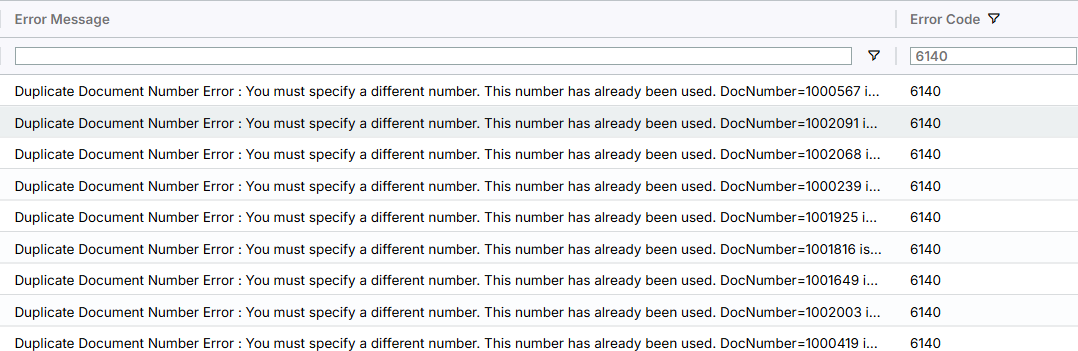 *Image displaying the Error Transactions page with the duplicate document error for a transaction *
- In QBO, search the Customer and Vendor lists for a record with the same or similar name.
- Determine the correct entity type. If the record exists as a customer but Alvys is trying to create it as a vendor (or vice versa), you may need to adjust the Invoice As or Tender As field in Alvys to match the exact QBO name.
- Once the QBO record is resolved, return to Alvys and click Re-export on the failed transaction.
Resolving invalid account type errors
This error means the account mapped in Alvys for this line item type is not the correct QBO account type (for example, a bank account or equity account was selected instead of an income or expense account).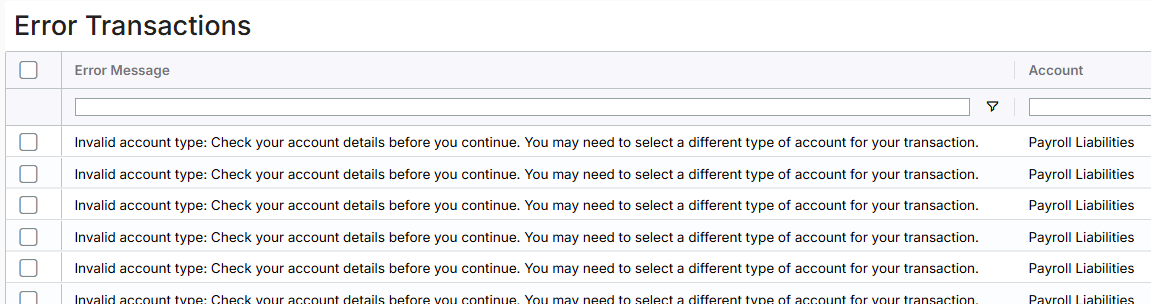 Image displaying the Error Transactions page with the invalid account error for transactions.
- Navigate to Management > Integrations > Account Mappings in Alvys.
- Locate the mapping for the line item type mentioned in the error message and change it to the correct QBO account type.
- Return to the Error Queue, select the failed transaction, and click Re-export.
Resolving closed accounting period errors
This error means the transaction date falls within an accounting period that has been closed in QBO.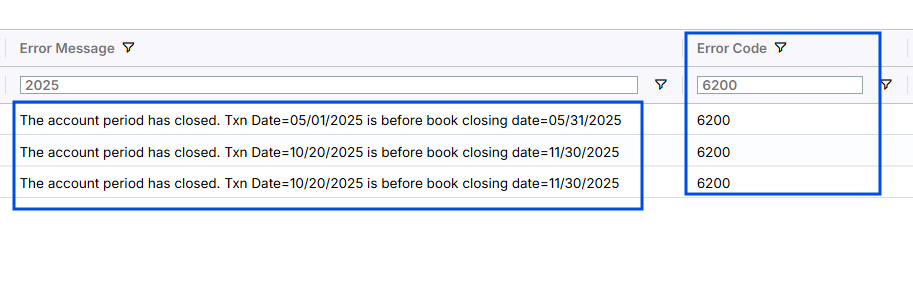 Image displaying the Error Transactions page with the closed accounting period error for transactions
- Log in to QBO and navigate to Settings > Advanced > Accounting.
- Review the closing date. If you can open the period (remove the closing date or move it to an earlier date), do so.
- Return to Alvys, select the failed transaction, and click Re-export.
Resolving Object Not Found errors (Error 610)
This error means the transaction was successfully sent to QuickBooks Online at an earlier time but the record was later deleted or merged in QBO.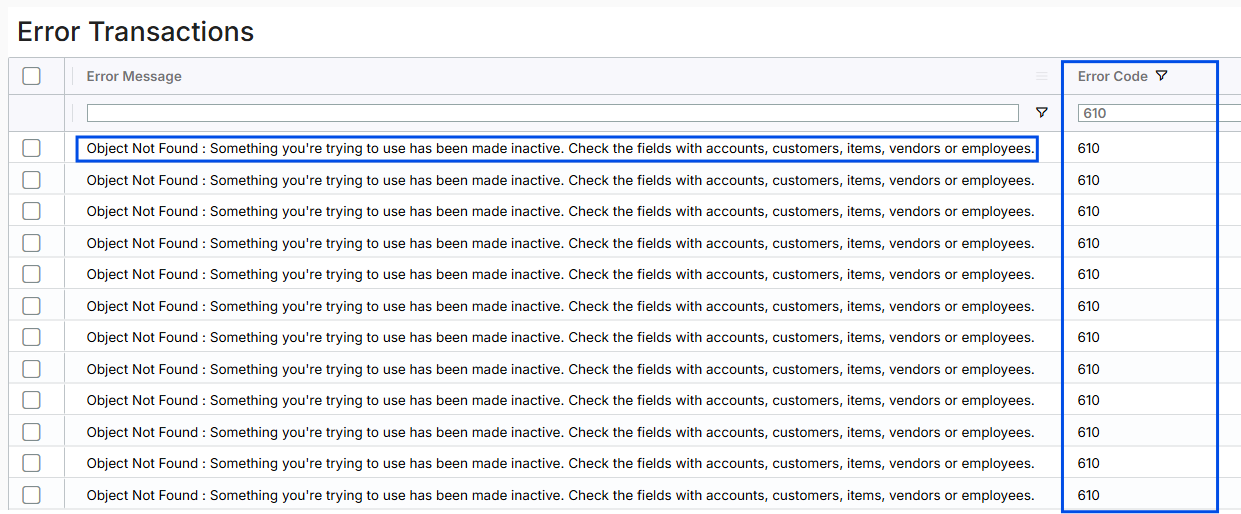 Image displaying the Error Transactions page with the Object Not Found error for transactions
Resolving transaction linking errors (Error 620)
This error occurs when a payment cannot be linked to an invoice because the customer name on the payment does not exactly match the customer name on the invoice in QuickBooks Online.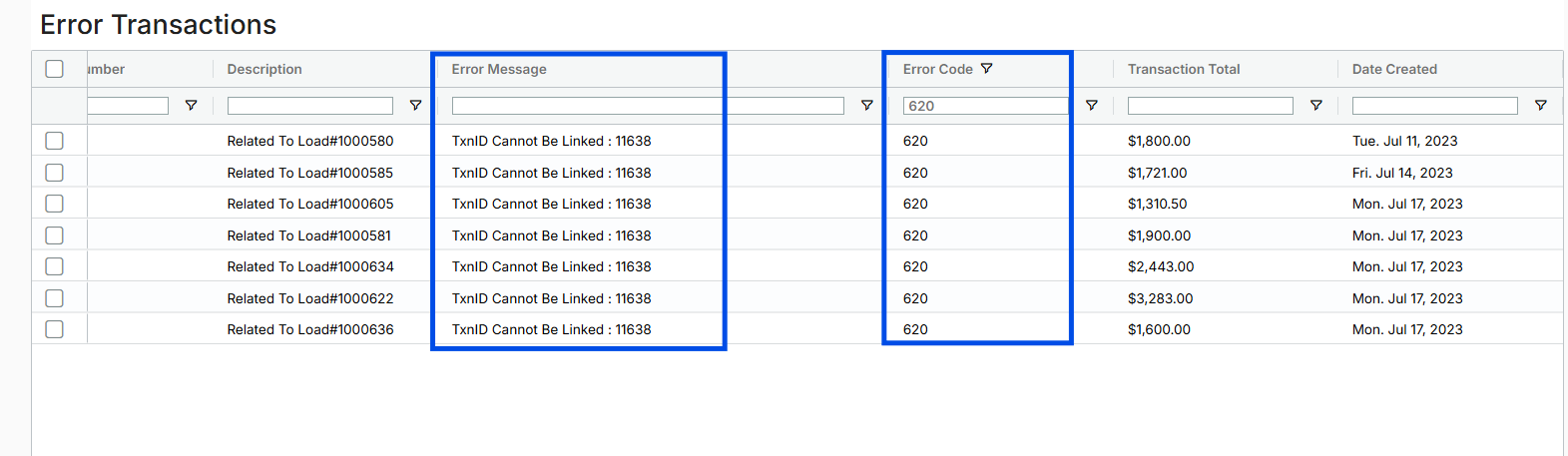 *Image displaying the Error Transactions page with the *transaction linking error ** for transactions
Resolving invalid reference ID errors (Error 2500)
This error means the general ledger account referenced in the transaction was deleted or made inactive in QuickBooks Online after the account mapping was configured in Alvys.- In QBO, go to Settings > Chart of Accounts.
- Find the account referenced in the error message and reactivate it.
- Return to Alvys, select the failed transaction in the Error Queue, and retry the sync.
Resolving business validation errors (Error 6000)
This error typically means the account mapped for Customer Deposits in Alvys is not the correct account type in QuickBooks Online. QBO requires this account to be either Bank or Other Current Asset type.- In QBO, go to Settings > Chart of Accounts and verify that the Customer Deposits account is set to the Bank or Other Current Asset type.
- In Alvys, go to Management > Integrations > Account Mappings and update the Customer Deposits mapping if needed.
- Contact Alvys Support to resync the affected transaction.
Re-export the transaction
After resolving the underlying issue, select the corrected transaction in the Error Queue and click Re-export. Alvys resubmits the transaction to QBO. Supported Transaction Types That Can Be Re-Synced from Error Transactions Not all transactions can be automatically re-synced from this page. Currently, only the following entity types can be re-synced:- Load
- Trip
- E-check
- Paystub
Verify in QBO
Log in to QBO and confirm the invoice or bill now appears under the correct customer or vendor with the expected amounts and reference numbers.Clearing an error transaction you already fixed in QuickBooks Online
If you corrected a transaction directly inside QuickBooks Online rather than re-syncing it from Alvys, you can mark it as resolved in Alvys to remove it from the Error Transactions list. Select the transaction in the Error Transactions list, right-click, and select Mark as Synced. Confirm the action when prompted. The transaction is removed from the Error Transactions queue.Troubleshooting
The error persists after applying the resolution steps
If the error continues after following the resolution steps above:- Confirm the QBO integration is still connected at Management > Integrations. If the connection shows as expired or disconnected, reconnect the integration and retry the export.
- Confirm the account mappings are saved correctly and that no mapping references a QBO account that has been deactivated or deleted in QBO.
- If the error message is not covered by the cases above or the same error appears after re-exporting, contact Alvys Support and include the load number, the exact QBO error message, and the steps already taken.