
Connect RMIS to Alvys to automatically sync carrier compliance data — including safety ratings, insurance, authority information, certification status, and payment methods — so you can validate carrier compliance without leaving Alvys.
What This Integration Does
RMIS (also known as Risk Management Innovative Solutions, provided by TSI) connects to Alvys to automatically import carrier compliance data. Once active, you can view carrier safety ratings, insurance, and authority information directly from the carrier profile in Alvys without switching to RMIS. The integration also imports carrier certification status and pay-to payment methods, reducing manual data entry during carrier onboarding.Prerequisites
Before connecting RMIS to Alvys, you need:- An active RMIS account with integration credentials from TSI
- Admin or Partner Admin access in Alvys to configure integrations under Management > Integrations
- API credentials (Client ID and Password) provided by RMIS/TSI — you must request these by email before configuring the integration in Alvys
Connect / Authenticate
Request integration credentials from TSI
Send a request to TSI at tsi@truckstop.com asking them to provide account integration credentials. Once you receive your Client ID and Password, proceed to the next step.Configure the RMIS integration in Alvys
Navigate to Integrations in Alvys. Find the RMIS integration in the Compliance section and click the pencil icon to open the configuration settings.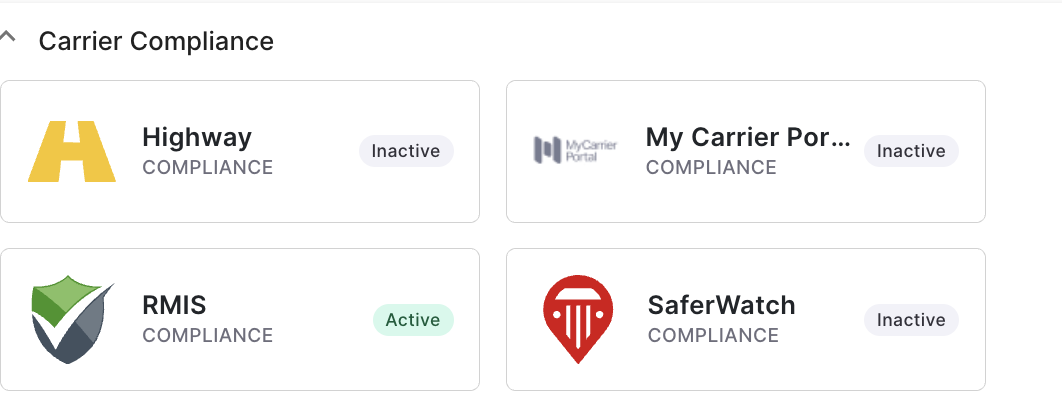 *Alvys Integrations page showing the Compliance section with the RMIS integration box *
Enter your Client ID and Password provided by RMIS/TSI, then select which subsidiaries should use the integration. Click Save to complete the setup.
*Alvys Integrations page showing the Compliance section with the RMIS integration box *
Enter your Client ID and Password provided by RMIS/TSI, then select which subsidiaries should use the integration. Click Save to complete the setup.
Test the integration
After saving your credentials, verify that data is syncing correctly: Update a carrier in RMIS and wait approximately 10 minutes. If the carrier is added or updated in Alvys, the integration is working correctly.Request a Delta push for existing carriers
Once the integration is active, send an additional email to tsi@truckstop.com requesting that all existing carriers be pushed to the Delta overnight. This will import all your existing RMIS carriers into Alvys. Without this step, only new or updated carriers will sync going forward.Field & Data Mapping
The integration imports the following carrier information from RMIS into Alvys: Carrier profile- Name
- MC number and DOT number
- Address
- Contact information Insurance coverage
- Coverage type
- Policy number
- Issue and expiration dates
- Limit amount
- Underwriter (insurance agency) W9 information
- SSN (where available)
- TIN (where available) Pay-to information
- Factoring company (when IsFactoring is true)
- Pay-to name and address
Sync Behavior
- After a carrier is updated in RMIS, changes take approximately 10 minutes to appear in Alvys.
- Sync is one-way: data flows from RMIS into Alvys only. Changes made in Alvys do not update RMIS.
- The Delta push (requested from TSI after initial setup) imports all existing RMIS carriers into Alvys overnight. Without it, only new or updated carriers sync going forward.
- Pay-to information is only imported on first-time carrier import. It is not overwritten on subsequent updates.
Verify It’s Working
After completing setup and the Delta push, confirm the connection is working: Navigate to the Carriers page in Alvys and open a carrier profile. If carrier safety ratings, insurance, and authority information appear on the profile, the integration is active.Troubleshooting
Carrier updates not appearing in Alvys
Step 1: Confirm you have waited at least 10 minutes after updating the carrier in RMIS. The sync interval is approximately 10 minutes. Step 2: Verify the integration credentials (Client ID and Password) were entered correctly in Alvys under Management > Integrations > RMIS. Step 3: If the carrier still does not appear after 10 minutes, contact Alvys support to confirm the integration is active and credentials are valid.Existing carriers not appearing after setup
Step 1: Confirm you sent a Delta push request to tsi@truckstop.com after activating the integration. The Delta push is required to import all existing RMIS carriers into Alvys. Step 2: The Delta push runs overnight. Wait until the following day after sending the request to TSI before expecting all carriers to appear in Alvys. Step 3: If carriers are still not appearing after the overnight Delta push, contact Alvys support.Payment information is not updated on a carrier profile
Step 1: Confirm whether the carrier was manually created in Alvys before the RMIS integration was connected. Pay-to information is only imported when a carrier is first imported from RMIS. If the carrier already existed in Alvys, payment information must be updated manually. Step 2: Update the carrier’s payment details manually in Alvys if needed.Limits / Unsupported
- Pay-to information is only imported on first-time carrier import from RMIS. It is not overwritten on subsequent syncs or for carriers that already exist in Alvys.
- The integration is one-way. You cannot push carrier data from Alvys to RMIS.
- The integration syncs approximately every 10 minutes, not in real time.