
The Lock Load feature lets you temporarily secure a load from other users’ edits. Only you, or a user with the “UnlockLoads” permission, can release the lock.
Overview
When you lock a load, all other users see it as read-only until you unlock it. A red Locked for Editing tag appears under the load status so your team knows the record is in use. This prevents accidental overwrites when multiple people access the same load at the same time. **Synonyms: **load lock, lock load, locked for editing, unlock load, release lock.Before You Start
- You must have access to the load you want to lock.
- To unlock a load that someone else locked, your account needs the “UnlockLoads” permission. Contact your administrator if you need this.
- The lock does not clear when you log out or navigate away; you must unlock the load manually when you are done.
How to lock a load
-
Open the load.
- Go to Loads in the left navigation.
- Find and open the load you want to lock.
-
Click the lock icon.
- In the upper right corner of the load header, select the lock icon (🔒). A tooltip reading “Lock Load” appears when you hover over it.
- A confirmation dialog appears: “Are you sure? Only you will be able to make changes to the load.”
- Click Yes to confirm.
-
Confirm the lock is active.
- A red Locked for Editing tag now appears directly under the load status (for example, under “Open”).
- Other users who open this load will see the tag and will not be able to edit it.
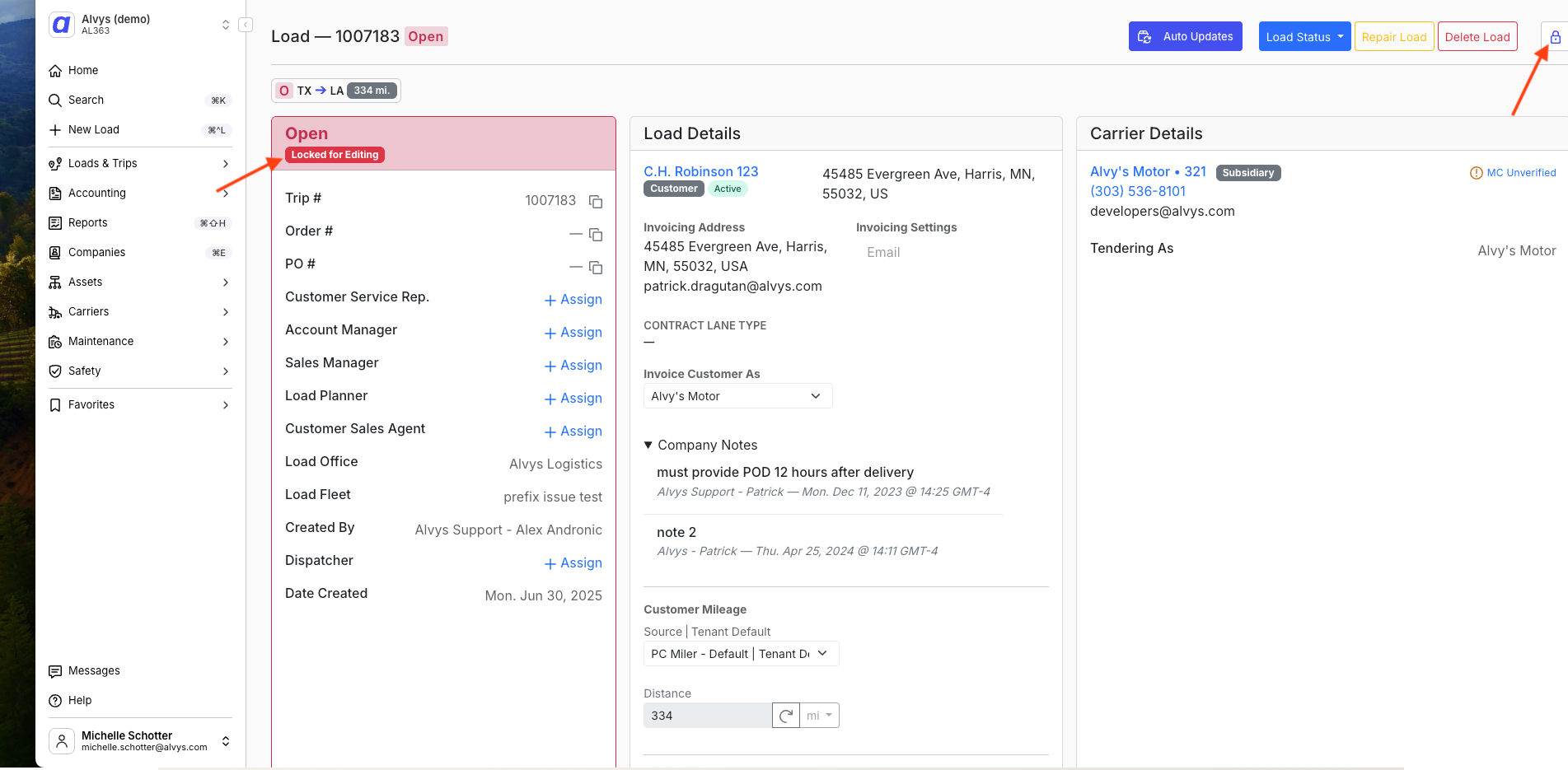 The load details page showing a red Locked for Editing tag displayed below the trip status badge in the load header. An arrow points to the tag to highlight its location. The load number, status, and toolbar buttons are visible in the header area.
How to unlock a load
-
Open the locked load.
- Go to Loads and open the load showing the red Locked for Editing tag.
-
Click the lock icon again.
- Select the lock icon (🔒) in the upper right corner of the load header.
- A confirmation dialog appears: “Are you sure? Other users can make changes to the load.”
- Click Yes to confirm.
-
Confirm the lock is released.
- The red Locked for Editing tag is no longer displayed.
- All users with access to the load can now edit it.