
Overview
The Auto-Assign Fleets feature removes the need to manually set a fleet on every load. When enabled, Alvys checks the fleet associated with the truck, trailer, or driver assigned to the load and applies that fleet to the load automatically. You can also designate a default fleet for loads covered by external carriers, ensuring all loads are attributed to a fleet for reporting purposes. Synonyms: auto-assign fleet, automatic fleet assignment, fleet automation, fleet auto-assign.Before You Start
Only users with the Admin or Partner Admin role can access Management → Fleets and configure this feature.Steps
-
Navigate to Management → Fleets. From the main navigation menu, go to Management, then click Fleets.
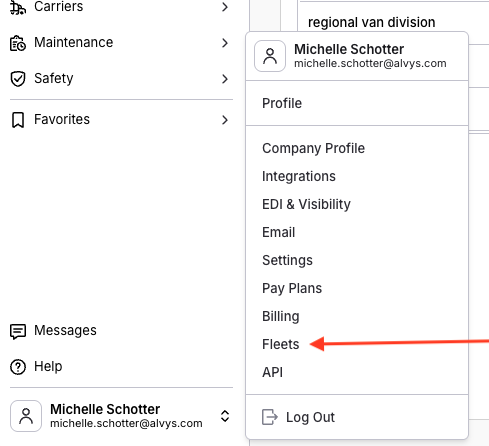 The main navigation showing the Management → Fleets path.
-
Open the Auto-Assign setup. On the Fleets page, locate the “Auto-assign to loads” banner. Click the Add Automation button within the banner.
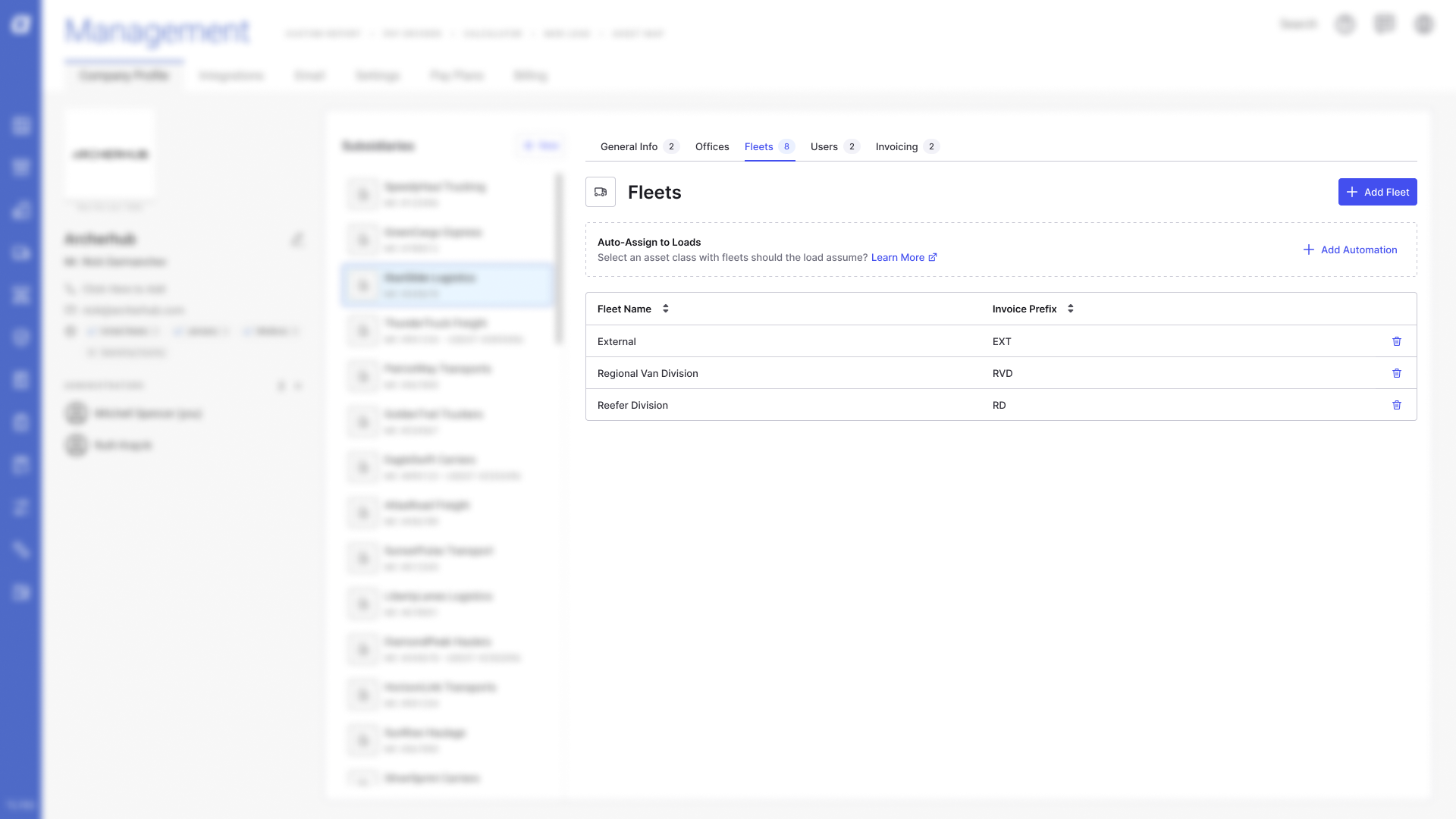 The Auto-assign to loads banner on the Fleets page with the Add Automation button.
-
Select the Asset Fleet matching rule. In the modal that opens, select Asset Fleet as the matching rule. This tells Alvys to match the fleet on a load to the fleet of the truck, trailer, or driver assigned to that load.
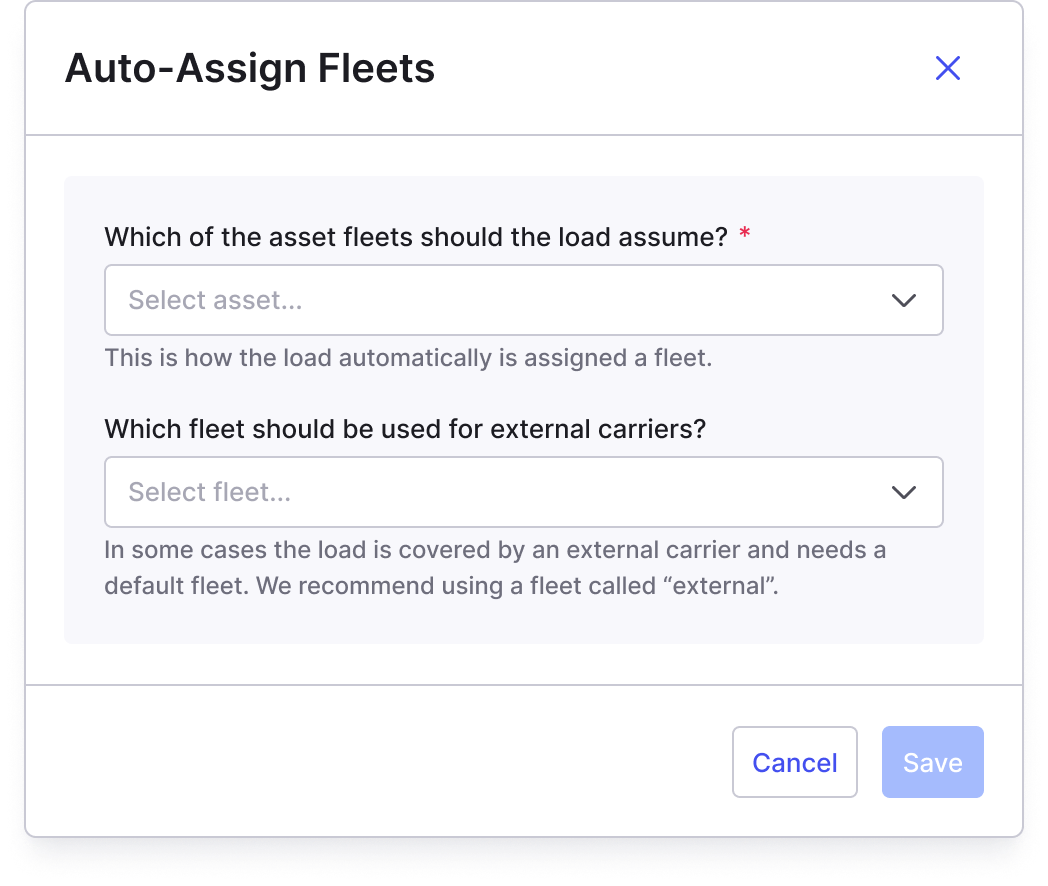 The modal showing the Asset Fleet matching rule option.
- Set a default fleet for external carriers (recommended). When a load is covered by an external carrier rather than one of your internal assets, Alvys needs a designated fleet for reporting. In the same modal, select a fleet to use as the default for these loads.
💡 Create a dedicated fleet named “External” or “Brokerage Loads” and select it here.
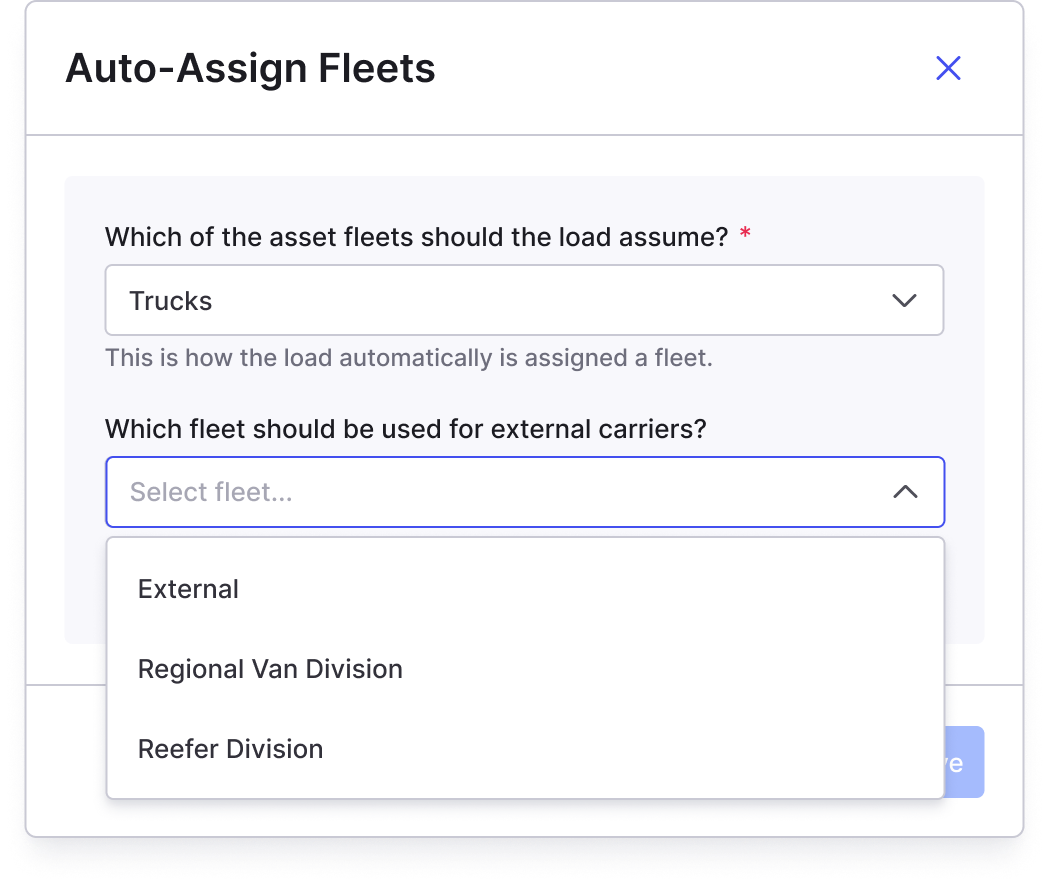 The modal showing the default fleet selection for loads covered by external carriers.
-
Save the automation. Click Save to confirm your settings. The Fleets page updates to show the automation as active.
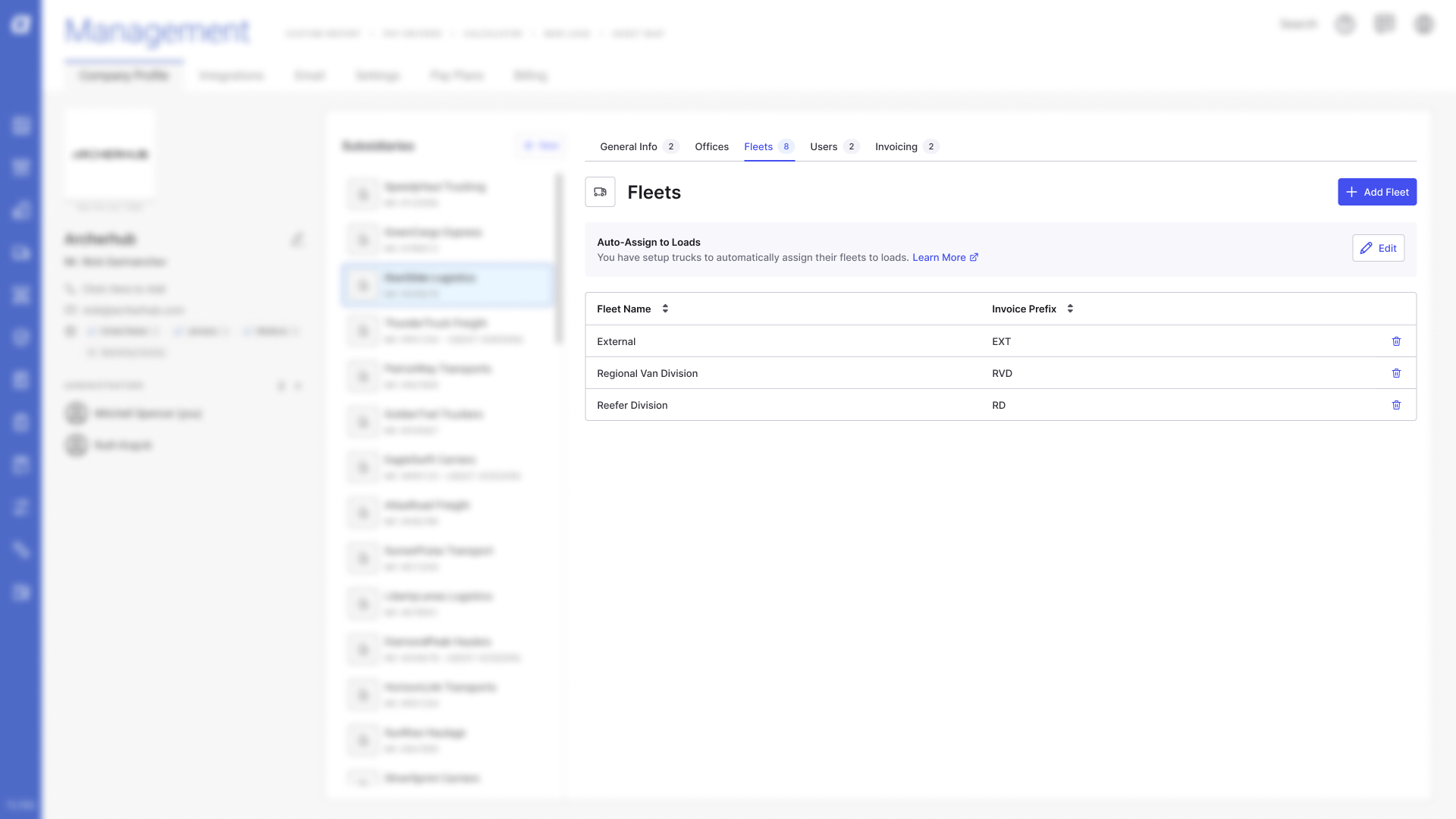 The Fleets page showing the Auto-assign automation as active.
Result
Once active, every time a truck, trailer, or driver is assigned to a load, Alvys automatically finds the fleet that asset belongs to and applies it to the load. Loads covered by external carriers receive the default fleet you configured.Variations
Disable Auto-Assign
If you need to turn this feature off:- Go to Management → Fleets.
- Click Edit on the active Auto-assign banner.
- In the edit screen, click the Disable button.
- Click Save to apply the change.