Account mappings connect Alvys transaction types to Business Central General Ledger accounts, ensuring every exported transaction posts to the correct account. This article covers required default accounts and optional specific mappings for individual transaction categories.
Overview
Account mappings tell Business Central where to post each type of transaction exported from Alvys. There are two levels of mapping: default account mappings, which apply to all transactions of a given type if no more specific mapping exists, and specific account mappings, which apply to individual transaction categories such as fuel, tolls, or specific accessorials. Synonyms: account mapping, GL mapping, General Ledger mapping, account setup, chart of accounts mapping.Before You Start
You must have the “CompanyProfileManager” permission. Users with the “Admin”, “Support”, or “Partner Admin” role have this permission. The Business Central connection must already be authenticated before configuring account mappings. Open the account mappings dialog from Integrations > Accounting > Business Central.Steps
- Open the account mappings dialog. Navigate to Accounting > Integrations and open the Business Central integration settings. Proceed to the account mappings step in the setup dialog.
- Configure Default Account Mappings.
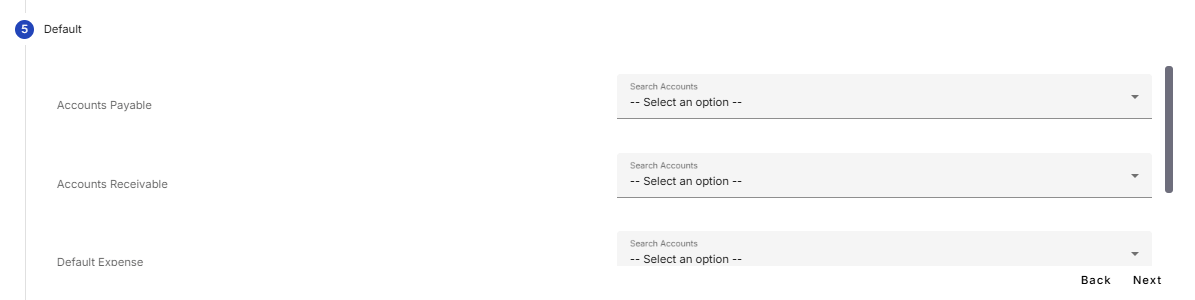



💡 Once the default accounts are configured, they function as fallback accounts. If specific accounts are not set up for individual transaction types, such as fuel surcharges or specialized trip rates, the system automatically uses the default revenue or expense accounts to ensure the transaction exports successfully.
Specific Account Mappings
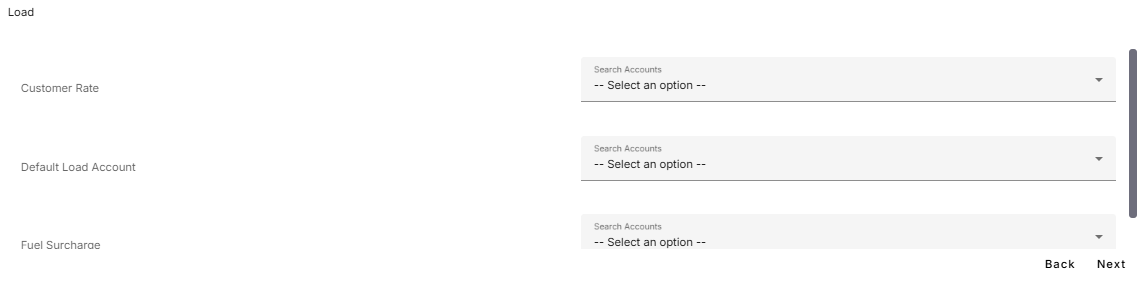
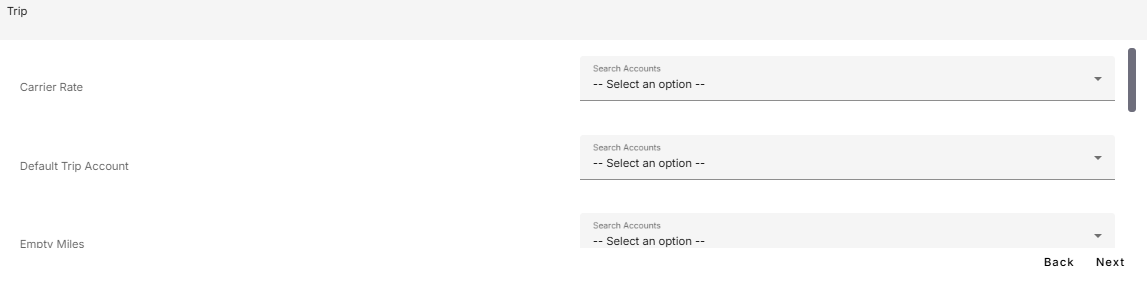
Specific account mapping provides granular control over which Business Central accounts each transaction line-item posts to. This feature is optional but recommended if you have dedicated accounts for individual transaction types in your Business Central Chart of Accounts. For each transaction category, you can map a default account specific to that category. If you have created a dedicated default account for a category, such as a Default Load Account, map it there. This ensures all transactions within that category are posted consistently. If you do not have a category-specific default account, the system will fall back to the general default revenue or expense account configured in the integration. Below is a detailed explanation of the transaction categories and specific line items available for mapping.Configure Load mappings
Configure Trip mappings
Configure Accessorial mappings
Accessorials represent additional charges or fees that can be applied to both customers (revenue) and drivers or carriers (expense). As such, they can impact both revenue and expense accounts in Business Central.

Configure E-Check mappings.
An e-check (also called an electronic check) is a digital payment issued to a driver or external carrier as an alternative to a physical check. Map each e-check type to a Business Central account if one exists.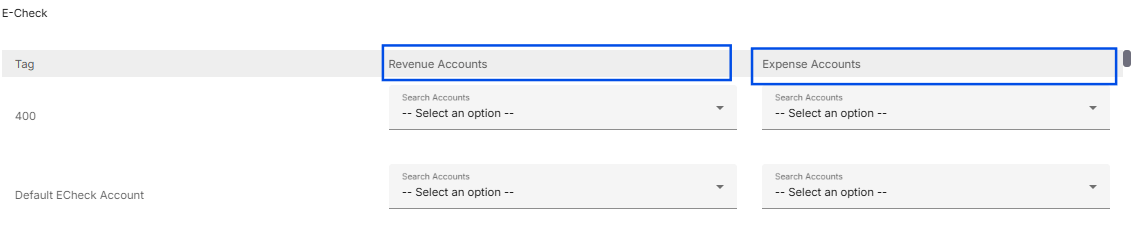
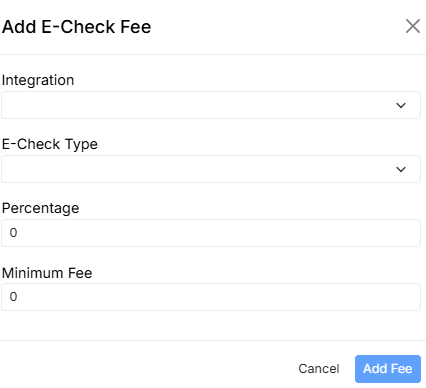
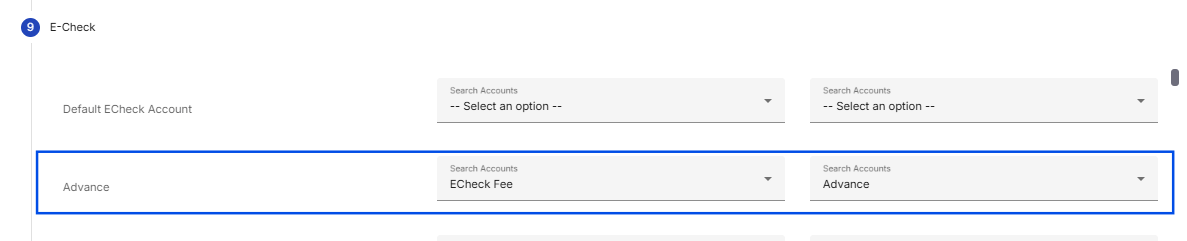
💡 When e-checks are issued to a driver or an external carrier, an associated accessorial may also be created for the driver and the customer. Any accessorials associated with e-checks should be mapped under the Accessorials category if the specific accounts exist.
Configure Driver Deductions Mappings
Alvys provides a predefined list of deduction types. If you have specific accounts in your Business Central chart of accounts for any of these deduction types, you can map them accordingly. If you only have a general account for all driver deductions, you may map it to the Default Deduction Account.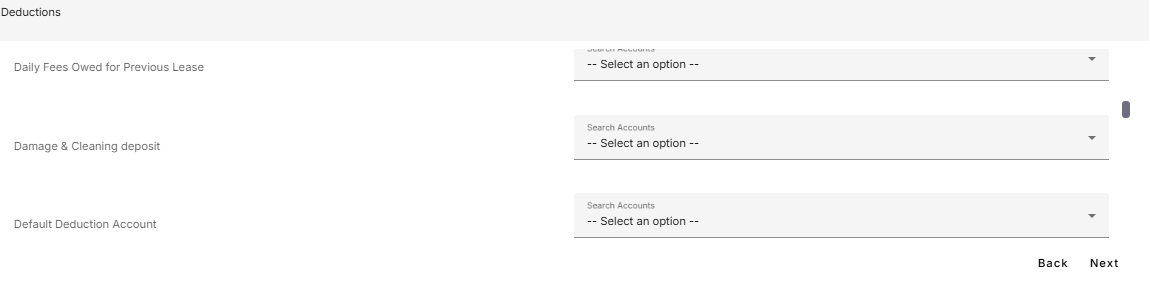
Configure Fuel mappings.
The Fuel category includes fuel transactions, such as diesel, linked to drivers or owner-operators. Each fuel type can be mapped to a specific Business Central account if one exists. If no specific account exists but a Default Fuel Account exists, the transaction will use the Default Fuel Account. If neither a specific nor a Default Fuel Account exists, the transaction will fall back to the Default Expense Account configured in the default account mapping.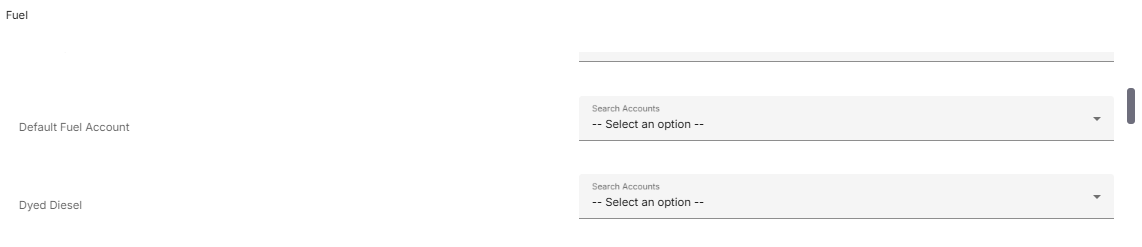
Configure Toll mappings.
Map toll charge line items to a dedicated Business Central account if one exists. If no specific Toll account is mapped, toll transactions fall back to the Default Expense account.
⚠️ The Tax category is deprecated. Please skip this step.
Configure Escrow mappings.
Escrow accounts hold funds on behalf of drivers. These accounts are created on driver profiles, and deposits or withdrawals are reflected when driver statements or paystubs are generated.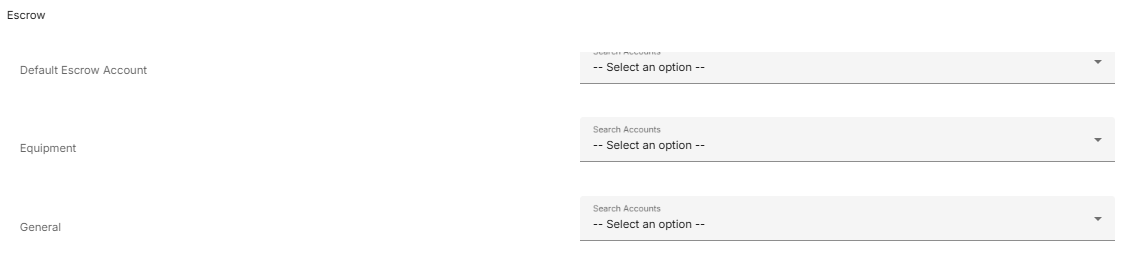
💡 Escrow account mappings must be linked to a liability account in Business Central because these funds are held temporarily on behalf of drivers and do not represent a company expense.
Save and complete setup.
After all required account mappings are configured, click Save to complete the integration setup. A green checkmark confirms the integration is active.