
The Error Transactions page shows load, trip, e-check, and paystub records that failed to export to Business Central, along with the error details needed to identify and fix each issue.
Overview
When a transaction fails to sync to Business Central, it appears on the Error Transactions page (also called the error transactions log) with a description of the failure. From this page you can review the error details, correct the underlying record in Alvys, and re-sync the transaction without re-entering data.Before You Start
You must have the “Billing” permission to access the Error Transactions page. Users with the “Admin”, “Biller”, “Support”, or “Partner Admin” role have this permission. The Business Central integration must be connected and active before transactions can appear on this page.Steps
- Open the Error Transactions page. Go to Accounting > Error Transactions in the Alvys navigation menu.
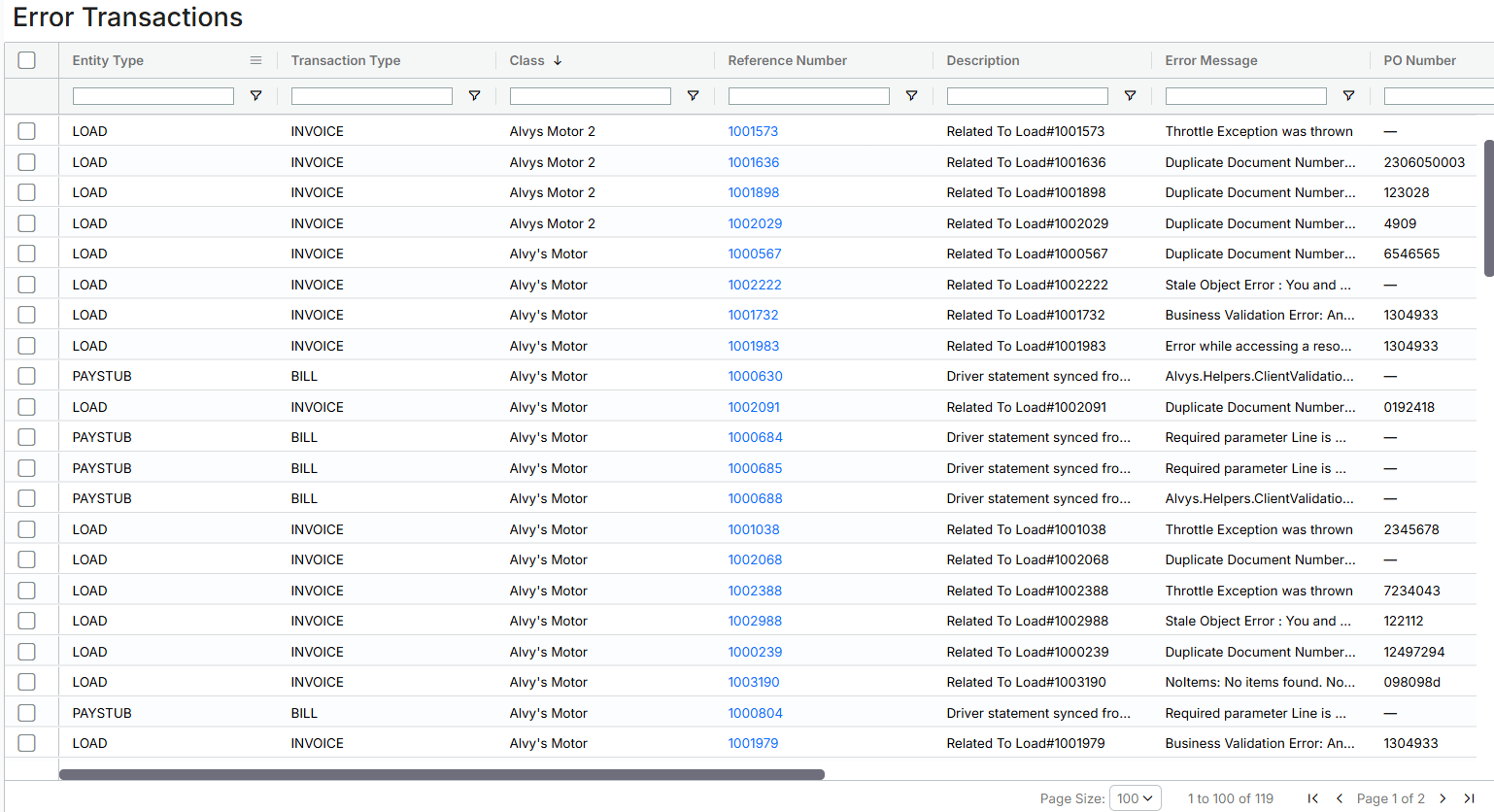
- Identify whether the transaction can be re-synced. The following transaction types support direct re-sync from the Error Transactions page: Loads, Trips, E-checks, and Paystubs. For carrier settlements, summary invoices, and driver pay, corrections and re-syncs must be performed directly from their respective pages in Alvys.
- Correct the underlying record. Read the Error Message column to identify the cause of the failure. Fix the source record in Alvys before attempting to re-sync. Common error types and their resolutions are listed in the Troubleshooting section below.
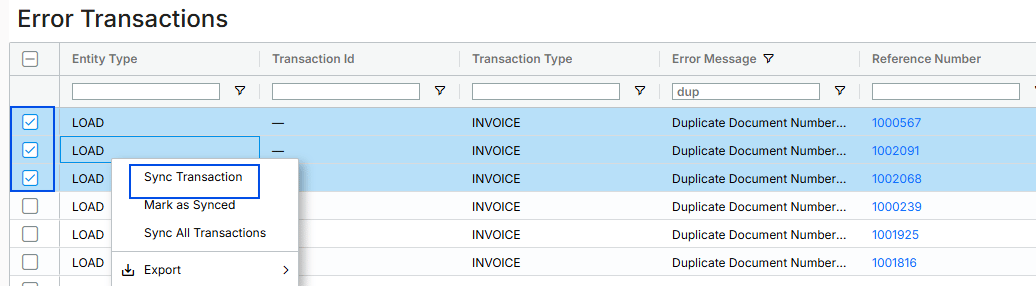
- Re-sync the transaction. To re-sync an individual transaction:
- Right-click the corrected transaction row.
- Select Sync Transaction from the context menu.
- Confirm when prompted.
Result
Once a re-sync is successful, the transaction Status changes to Resolved and the row is removed from the active error list. The record is posted in Business Central as expected.Variations
Marking a transaction as synced manually: Use Mark as Synced when a transaction has already been resolved outside of Alvys (for example, entered directly in Business Central) and should be removed from the error list without being re-sent. Right-click the row, select Mark as Synced, and confirm. This action cannot be undone. The transaction is marked Resolved in Alvys and will not be re-sent to Business Central.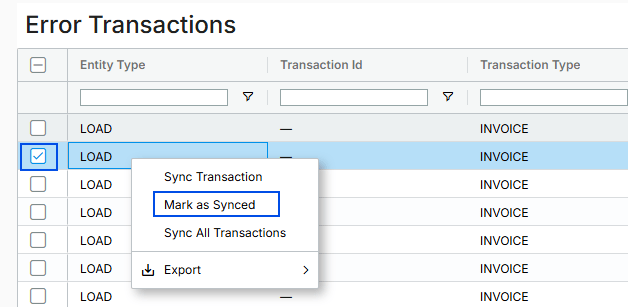
Troubleshooting
Resource Not Found
Business Central cannot locate a record that Alvys references, such as a General Ledger account, dimension value, or item number that has been deleted or renamed in Business Central. Error message: Resource not found for the segment ‘purchaseInvoice’ or ‘salesInvoice’
- Resource Not Found error example. *
Record Already Exists
Business Central has detected a duplicate document number matching the transaction Alvys is attempting to post. Error message: The record in table Sales Header already exists. Identification fields and values: Document Type=‘Invoice’,No.=‘[Invoice Number]’
Duplicate Dimension Set
Two or more dimension values conflict for the same transaction line, causing Business Central to reject the posting. Error message: The dimension set line already exists. Check existing dimension set lines and the default dimension set lines on the parent.
Failed Export of Zero-Valued Transaction
The transaction total is zero and Business Central is configured to reject zero-value postings. Error message: A digit was expected at position 3 in ‘(ID)’.
Manual Numbering Required
The Business Central number series for the transaction type is set to manual, and Alvys is not sending a document number. Error message: You may not enter numbers manually. If you want to enter numbers manually, please activate Manual Nos. in No. Series. CorrelationId: [Unique ID]