
Geotab is a telematics and ELD provider that connects with Alvys to bring real-time truck and trailer locations, Hours of Service (HOS) status, and IFTA mileage data into your dispatch workflow. Also known as ELD, electronic logging device, fleet tracking, or GPS integration.
Overview
Geotab is a telematics and ELD provider that connects with Alvys to bring real-time truck and trailer locations, Hours of Service (HOS) status, and IFTA mileage data into your dispatch workflow, also known as ELD, electronic logging device, fleet tracking, or GPS integration. The integration is one-way: Alvys pulls data from Geotab. Connecting Geotab to Alvys gives your dispatch team visibility into truck and trailer locations, driver HOS remaining-time clocks, and IFTA mileage by state, all without leaving Alvys. Geotab is one of the most comprehensive integrations available in Alvys, supporting trucks, trailers, HOS, and IFTA in a single connection.Prerequisites
Before connecting, confirm you have the following:- An active Geotab account with API access
- Your Geotab username and password
- An “Admin” or “Partner Admin” role in Alvys
You do not need to look up or enter your Geotab database identifier. Alvys retrieves this automatically when you authenticate, so you only provide your username and password.
How to connect
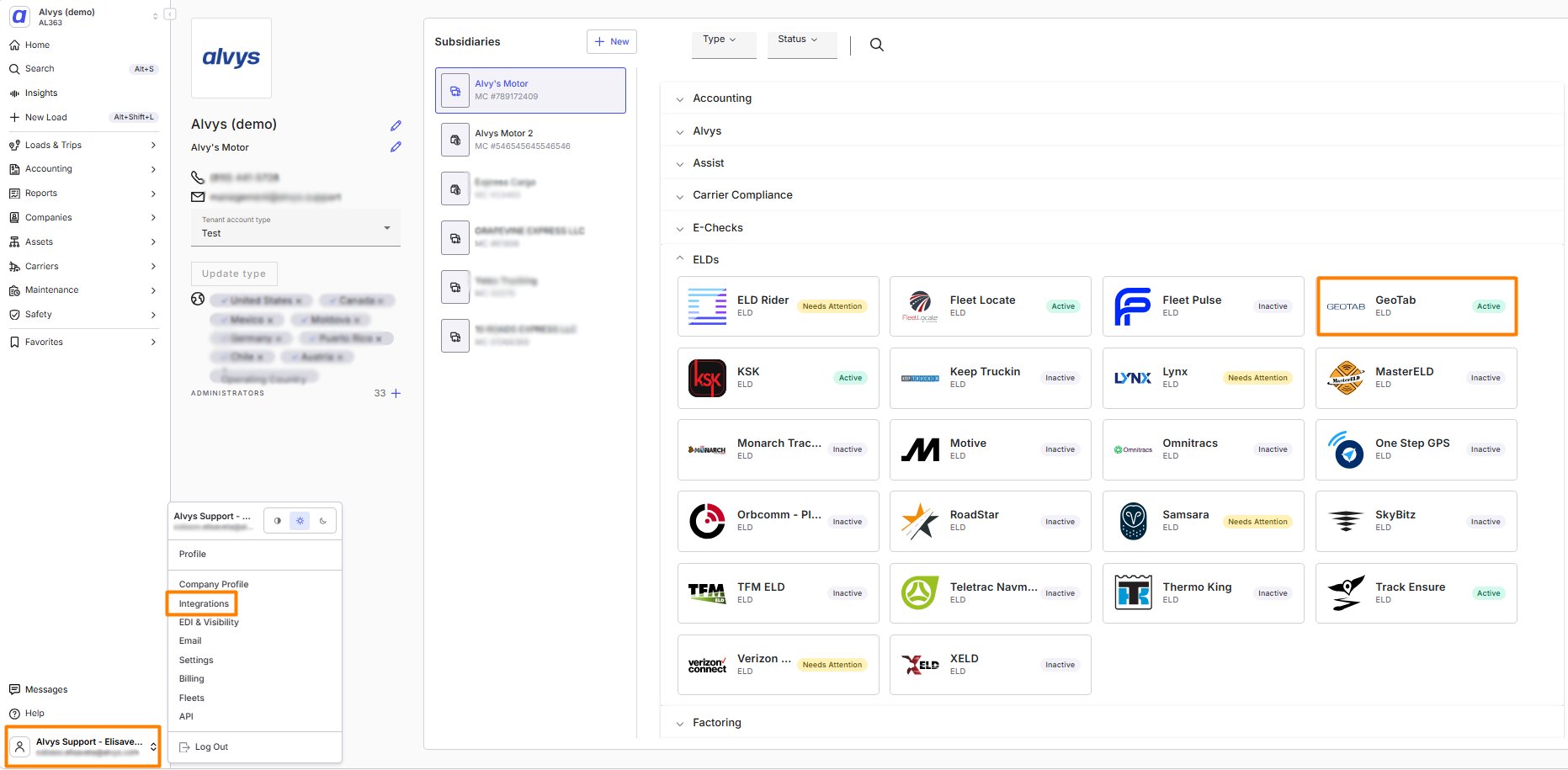
- Click on your username in the bottom left corner of the screen and select the Integration page.
- From the left panel, select the correct subsidiary for this integration.
- Expand the ELD section of the integrations list and click the pencil icon on the Geotab integration box.
- Enter your Geotab account username and password. Do not enter a database name; Alvys retrieves this automatically.
-
Save and activate. Click “Save”. Alvys authenticates with Geotab and retrieves your database identifier. Once confirmed, the integration status changes to active.
Verify it’s working
- Open a load with an assigned truck and driver.
- Check truck location. Look for the truck location on the map or in the tracking panel.
- Check HOS clocks. The remaining-time HOS values should appear next to the driver’s name or in the driver detail panel.
- Confirm IFTA data (if applicable). IFTA mileage by state is visible in the IFTA reporting section of Alvys.
Enable Location Tracking for Assets
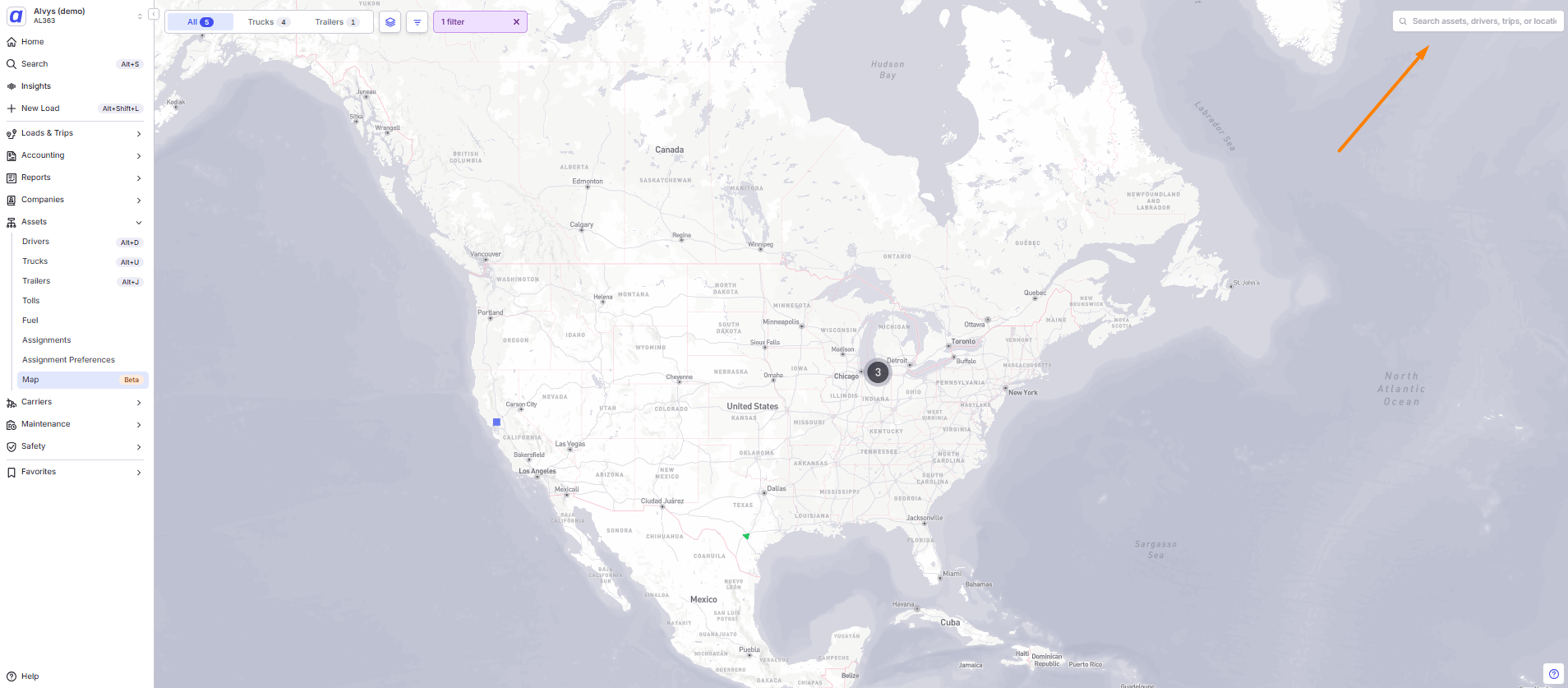
After connecting the integration, add the GeoTab asset ID to each truck and trailer that will be tracked in Alvys. Without this step, location tracking will not appear for those assets.- Go to Assets on the Alvys toolbar and select Trucks or Trailers depending on which assets you want to configure.
- Find and double-click the asset to open the Edit Asset page.
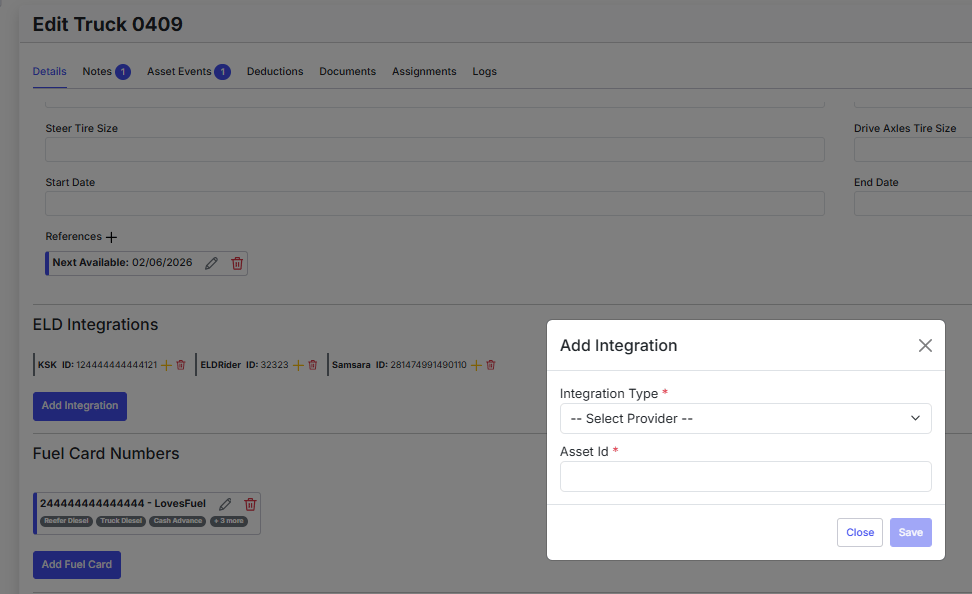
- Scroll down to the ELD Integrations section and click the blue Add Integration button.
-
In the Add Integration window, click the drop-down menu and select GeoTab. Enter the GeoTab asset ID in the Integration ID field and click Save.
- Repeat for each truck and trailer that will use GeoTab location tracking.
Find Your GeoTab Asset ID
-
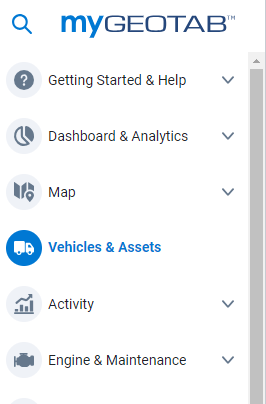
Log in to GeoTab and select Vehicles & Assets from the sidebar.
- Select the vehicle you want to configure.
-
Copy the asset ID from the URL. Use only the portion that comes after “id:”.

Enable Hours of Service for Drivers
After connecting the integration, add the GeoTab asset ID to each driver’s profile to enable Hours of Service (HOS) tracking. Without this step, HOS clocks will not appear in Alvys for those drivers.- Go to Assets on the Alvys toolbar and select Drivers.
- Find and double-click the driver to open their profile.
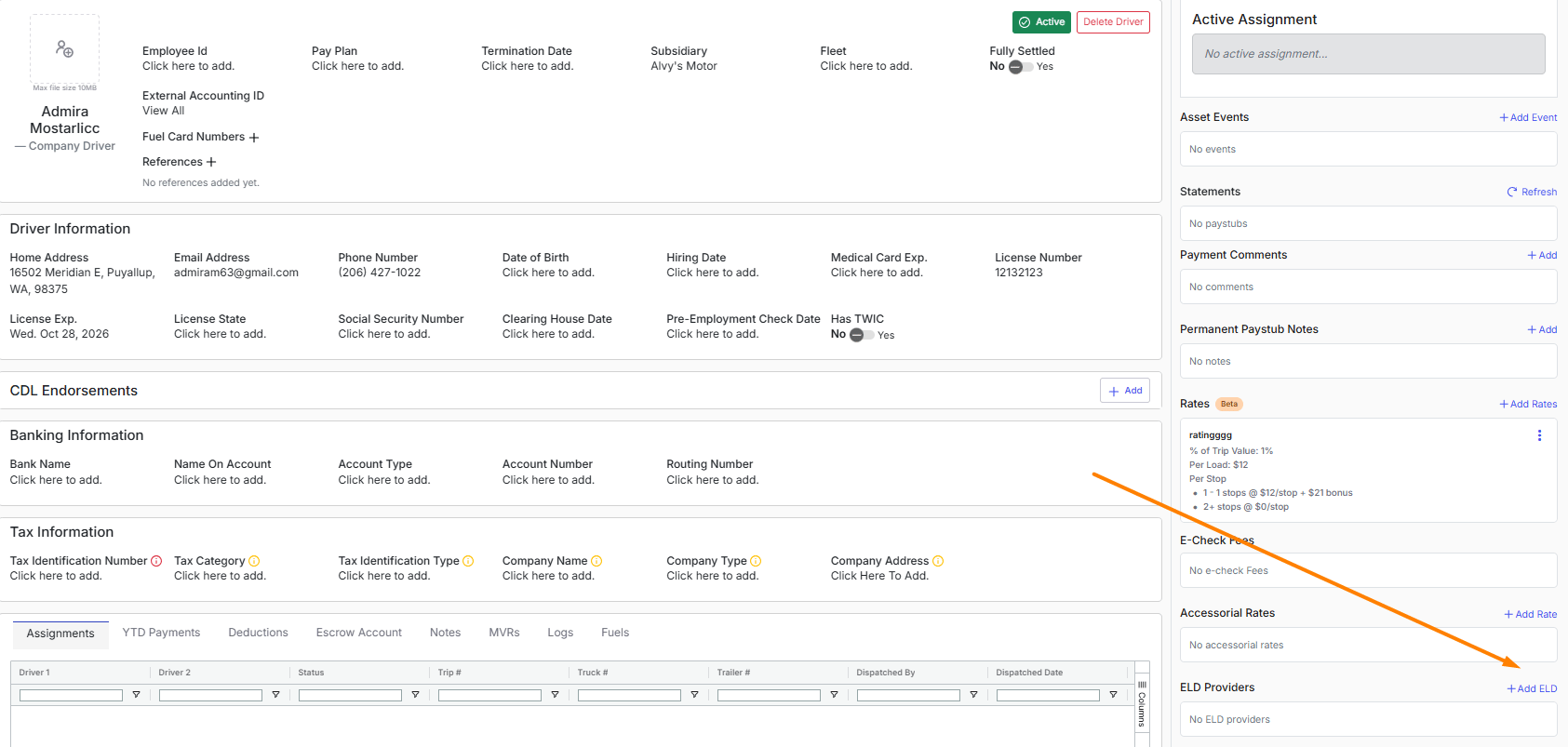
- On the right panel of the Driver details page, scroll to the ELD Providers section and click +Add ELD.
-
Enter the GeoTab asset ID in the Integration ID field and click Save.
- Repeat for each driver who will use the GeoTab Hours of Service feature.
Find Driver Asset IDs
-
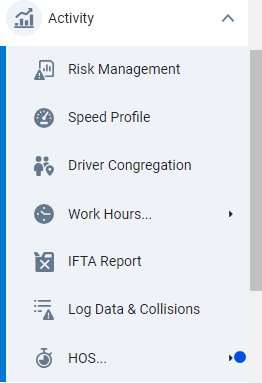
Log in to GeoTab and select Activity > HOS > Availability from the sidebar.
- Select the driver you want to configure.
-
Copy the asset ID from the URL. Use only the portion that comes after “id:”.
What Syncs: Geotab to Alvys
The following data is automatically pulled from Geotab into Alvys every 15 minutes:- Truck Location: Real-time GPS coordinates for each truck asset, which are displayed on both the Load page and the Asset Map.
- Trailer Location: Real-time GPS coordinates for each trailer asset, also visible on the Load page and the Asset Map.
- HOS Clocks: Countdown clocks showing the remaining time for each driver’s daily and cycle limits (Drive Time, Shift Time, Cycle Time, and Break Time), visible directly within the Dispatch Planner.
- IFTA Mileage: State-by-state mileage data to streamline your fuel tax reporting.
- Note: Once a truck is configured with its Geotab Asset ID, you can select Geotab as the primary mileage source. These calculations are automatically based on the time zone of your subsidiary’s address in Alvys.
Troubleshooting
Truck or trailer location is not showing
- Confirm the asset has a Geotab device installed and that the device is powered on and reporting.
- Verify your Geotab username and password are correct in Alvys. Go to “Integrations” and re-enter your credentials if needed.
- Check that the integration status shows as active.
HOS clocks are blank
- Confirm the driver is logged in to the Geotab ELD device for their current shift.
- Verify the device is actively transmitting data to Geotab’s servers. If the device shows as offline in the Geotab portal, the HOS data will not update in Alvys.
IFTA mileage appears incorrect
- Check your subsidiary’s physical address in Alvys. The time zone of that address is used to determine state-line crossings for IFTA purposes.
- Confirm that trips are marked as completed in Alvys. IFTA mileage is calculated for completed trips.