
Connect Twilio to Alvys to enable Driver Chat, which allows dispatchers to send and receive SMS messages with drivers directly inside Alvys. All customers must upgrade to the Twilio (New) integration to meet A2P 10DLC compliance requirements and continue using Driver Chat.
Overview
The Twilio (New) integration (also referred to as Twilio V2 or the upgraded Twilio integration) powers Driver Chat in Alvys. Once connected, dispatchers can send and receive text messages with drivers from within the Alvys platform. Twilio routes those messages as SMS to drivers’ phones. This version of the integration adds support for a subsidiary selector, which ensures messages are sent from the correct legal entity when you manage multiple brands or subsidiaries. It also includes an onboarding flow that registers your business with Twilio’s A2P 10DLC compliance framework, a requirement for all business texting in the United States. This is a one-way integration: Alvys sends outbound SMS through Twilio to drivers. The Twilio (New) integration uses a new phone number. Your drivers will see this number when you text them.Prerequisites
Before connecting Twilio (New), you need:- Admin or Partner Admin access in Alvys.
- A website for your company with two separate pages: a Privacy Policy and SMS Terms & Conditions. Twilio requires both pages to be on your own website, each with its own full https:// link. Social media pages, Google Docs, and your home page are not accepted. Your home page should show your company name, address, phone number, MC/DOT number, and a short description of your services.
- Your Privacy Policy must include this text: “No mobile information will be shared with third parties or affiliates for marketing or promotional purposes. All the above categories exclude text messaging originator opt-in data and consent; this information will not be shared with any third parties.
- Your SMS Terms & Conditions must describe what messages you send, how drivers opt in, “Msg frequency varies. Msg & data rates may apply.”, how to opt out (Reply STOP), how to get help (Reply HELP), and link to your Privacy Policy.
- Need a starting point? Use the example pages below. Copy the text onto your website and replace the items in [brackets] with your details. For more detail, review Twilio’s compliance guide.
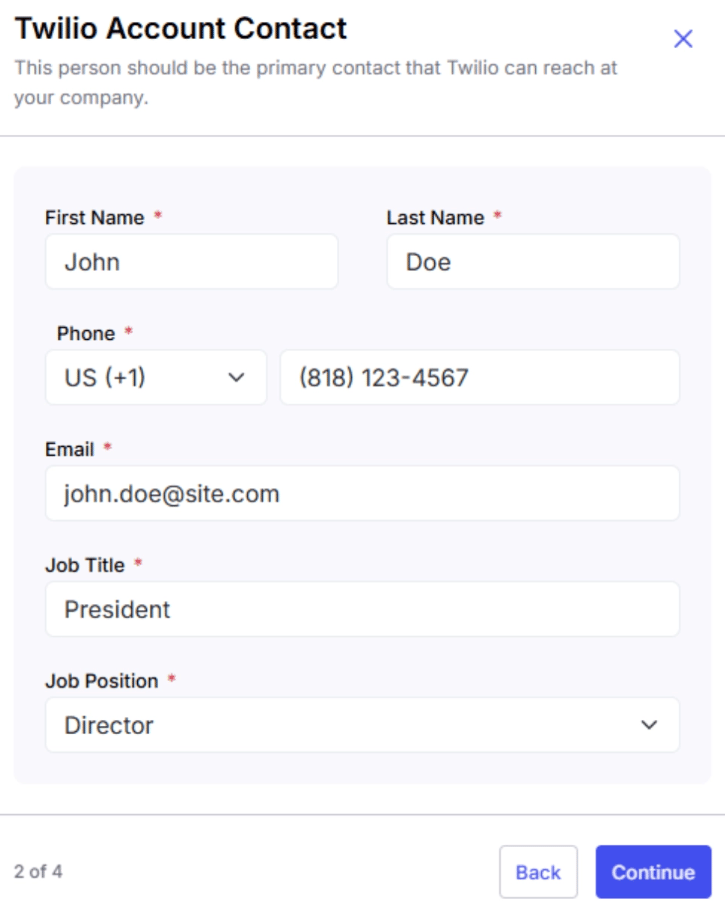
- A primary contact person Twilio can reach if issues arise during registration.
- The EIN (Employer Identification Number) for each legal entity you are registering.
Example Privacy Policy and SMS Terms & Conditions pages
Use these examples as a starting point. Copy the text onto two separate pages on your website. Replace the items in [brackets] with your details.Example Privacy Policy page
Example Privacy Policy page
Example SMS Terms & Conditions page
Example SMS Terms & Conditions page
How to connect
Navigate to Twilio (New) in Alvys.- Log in to Alvys and navigate to Management > Integrations.
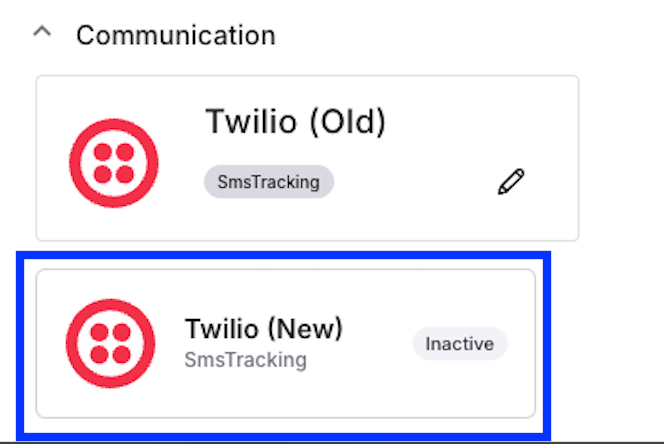
- Locate the Twilio (New) integration.
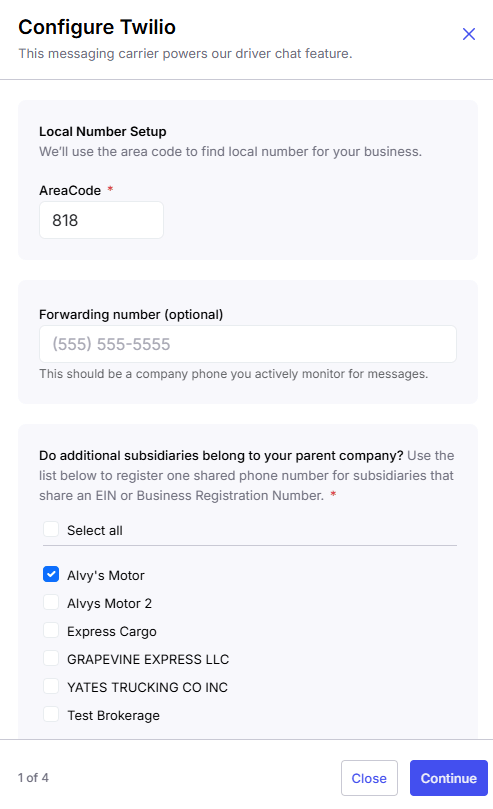
- Choose your area code for your Twilio phone number. Twilio may not have numbers available in every area code, especially smaller or rural ones. If you see a message that no number is available, choose a nearby area code. Your drivers will see this number when you text them.
- Set a forwarding number (optional) — calls to your Twilio number will forward to this number.
- Add subsidiaries: select any subsidiaries under your parent company that share the same EIN. For subsidiaries with separate EINs, complete the onboarding flow separately for each entity.
- Provide contact information: enter a primary contact person Twilio can reach if issues arise.
- Add your website, privacy policy, and terms and conditions links in the opt-in description (Campaign Flow) field. These must meet Twilio’s A2P 10DLC requirements — see Twilio’s compliance guide for exact requirements.
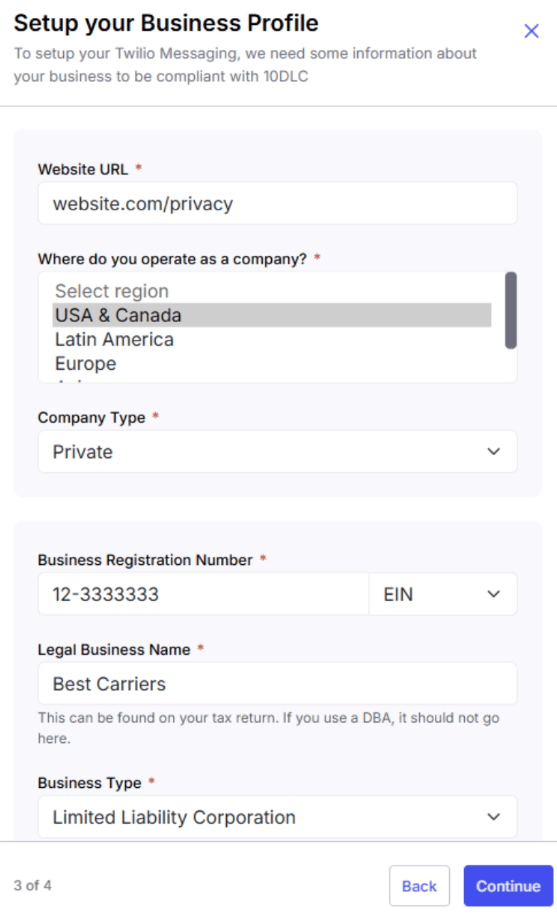
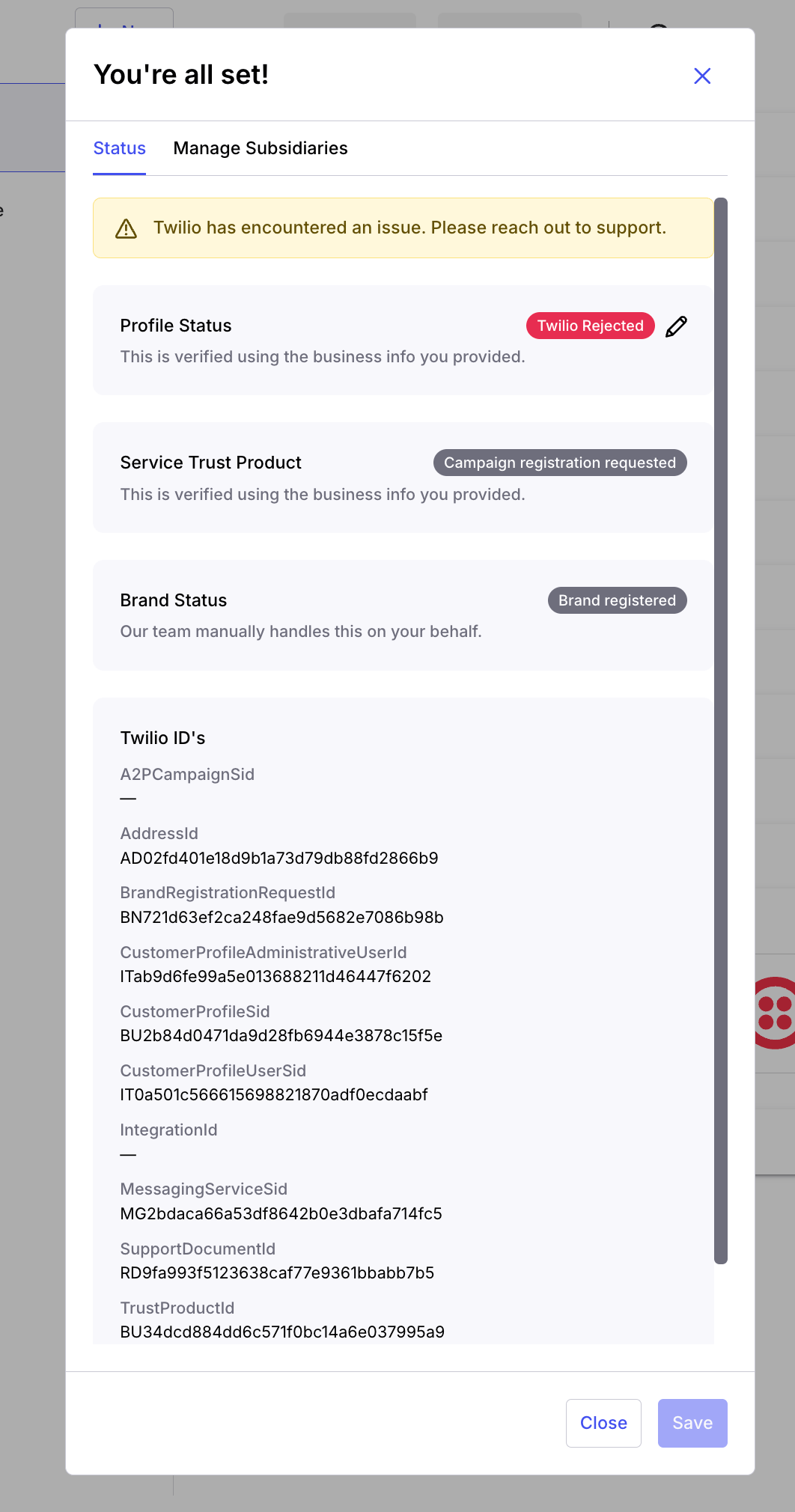
- Monitor the progress tracker. After submitting, a progress tracker appears. All three of the following must turn green before your integration is active: Profile Status, Service Trust Product, and Brand Status. The review and approval timeline is controlled by Twilio and can take up to one month to complete.
What syncs
The Twilio (New) integration does not sync structured data fields between systems. It routes SMS messages between Alvys and drivers via Twilio’s messaging infrastructure. The onboarding flow collects your business profile information (legal entity name, EIN, contact details, website, and policy URLs) and submits it to Twilio for A2P 10DLC registration.- Messages sent from Alvys Driver Chat are routed outbound through Twilio to drivers’ phones via SMS.
- Drivers must opt in to receive messages from your Twilio number. A blue banner appears at the top of the driver chat window if the driver needs to opt in again after the upgrade, and it shows which number the driver should send the opt-in message to.
- Each legal entity (subsidiary) with a different EIN requires a separate Twilio registration and phone number. To confirm the integration is working after all three progress tracker steps turn green, navigate to Driver Chat in Alvys, open a conversation with a driver who has opted in to SMS, send a test message, and confirm the driver receives it on their phone. If the driver has not yet opted in, they will see a prompt to send an opt-in message to your Twilio number; once they opt in, messaging will work normally.
Troubleshooting
Integration shows “needs attention”
Click the “needs attention” status to open the status detail panel.Twilio (New) integration showing “needs attention” status with a click indicator.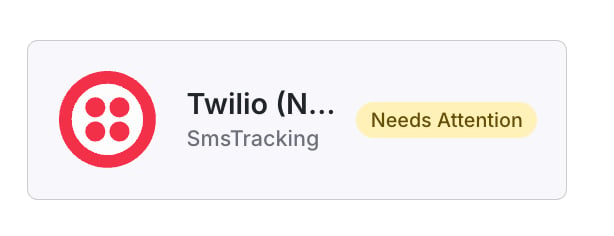
- Review the status panel to identify which section failed: Profile Status, Service Trust Product, or Brand Status.
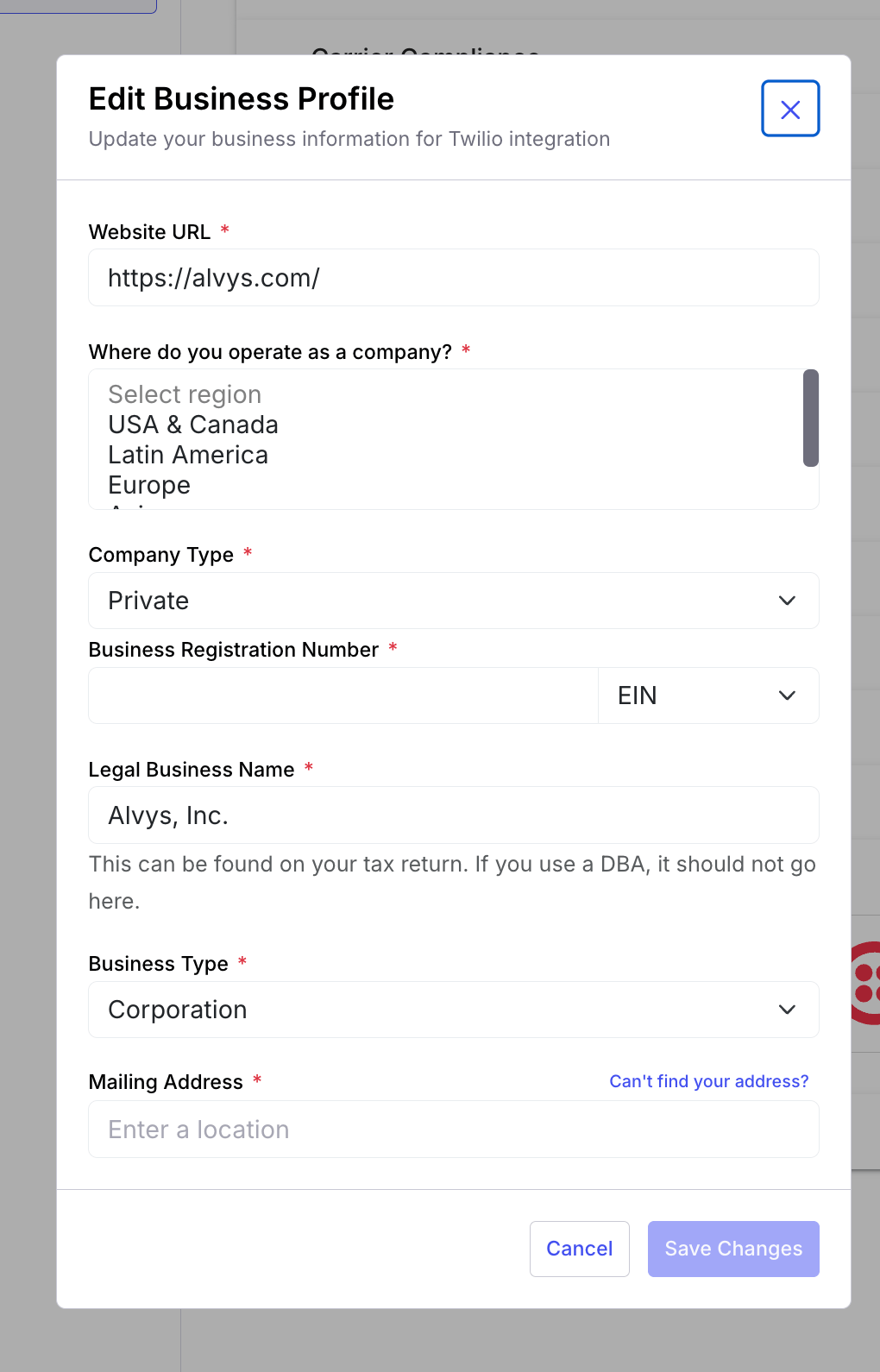
- Click the edit icon next to the failed section and resubmit the corrected information to Twilio for additional review.
Brand status failed
- Twilio will send an email to your listed contact with instructions to resolve the issue. Follow the instructions in that email, then resubmit through the edit icon in the status panel (see above).
No phone number is available on Twilio under the selected area code
Your registration can be fully approved but still not have a phone number, because Twilio has no numbers available in the area code you chose. The setup window says “You’re all set!” with a yellow banner: “Twilio has encountered an issue. Please reach out to support.” Number Details shows the “No phone number is available” message in red, and the Twilio (New) integration shows “needs attention.” Your old Twilio integration keeps working, so texting is not interrupted.- Click Edit next to Number Details.
- Choose a different area code nearby. Small or rural area codes often have no numbers available. Your drivers will see this number when you text them.
- Click Save.
- Confirm the error clears and the integration no longer shows “needs attention.”
Driver is not receiving messages
- Check whether a blue banner appears at the top of the driver’s chat window in Alvys. If it does, the driver has not yet opted in to the new Twilio number.
- Ask the driver to send the opt-in message to the number shown in the blue banner. Once they opt in, messaging will resume.
- If no blue banner appears and the driver is still not receiving messages, confirm all three progress tracker steps are green in Management > Integrations > Twilio (New). If any step is not green, the integration is not yet active.
- If all steps are green and the driver has opted in but messages are still not being received, contact Alvys support and include your Twilio account details and the affected driver’s information.