
Run a broker credit check (also called a customer credit check or factoring credit check) to have your factoring company evaluate the creditworthiness of a customer or broker before submitting an invoice for funding. Supported providers: OTR Solutions and Saint John Capital Factoring.
Overview
A broker credit check is a procedure your factoring company uses to assess the creditworthiness of a customer or broker before agreeing to purchase an invoice. Running a credit check before submission reduces the risk of a declined invoice and helps keep your factoring workflow moving. In Alvys, credit checks can be triggered manually by a user or automatically by the system. Manual checks are available from the Credit Status row on the customer or broker profile and from the load details page. Automatic checks are triggered at specific points in the invoicing workflow. This feature is only available when your subsidiary has an active factoring integration that supports broker credit checks. The two supported integrations are OTR Solutions and Saint John Capital Factoring.Before You Start
- Your subsidiary must have an active factoring integration set up for either OTR Solutions or Saint John Capital Factoring. To set up the integration, go to Management > Integrations, select the subsidiary, expand the Factoring section, and configure the provider.
- The customer or broker profile must have Factoring Company set as the invoicing method for the subsidiary where the integration was added.
- A Broker/3PL must have an MC number on file. A Customer without one can still be checked (see Troubleshooting).
Steps
Set up the factoring invoicing method on the customer or broker profile
- Go to Companies → Customers and open the customer or broker profile.
- On the Details tab, find the Invoicing card and click Manage.
- Select the subsidiary where your OTR Solutions or Saint John Capital Factoring integration is configured.
- Under Delivery Methods, check Factoring Company.
- Click Save.
Run a manual credit check from the customer or broker profile
The credit check lives in the Credit Status row of the Customer Details card, on the profile’s Details tab, just under Status.- Open the customer or broker profile.
- On the Details tab, find Credit Status in the Customer Details card.
- Click the sync button (Run credit check) at the end of the row.
A broker that has never been checked shows Unknown with the sync button, so you can run the first check before you book its first load. You don’t need Legacy mode to run a credit check.
Run a manual credit check from the load details page
- Go to Loads and open a load whose customer has a subsidiary using the Factoring Company invoicing method.
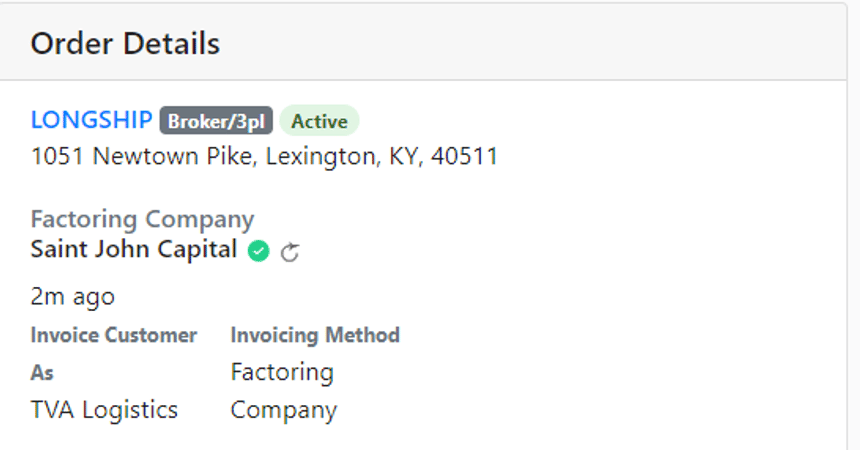
- In the Order Details section of the load, locate the Factoring Company row.
- Click the refresh icon (↻) to trigger a credit check for that customer.
Result
After a credit check runs, the badge in the Credit Status row updates to the current result, and the time since the last check resets. The status is visible on both the company profile and the load details page.Variations
Automatic credit checks during invoicing
Alvys runs a credit check automatically in the following situations:- When you click Invoice Load to generate an invoice, if the last credit check for that customer or broker was more than 24 hours ago, a new check is triggered automatically before the load moves to Queued status.
- When a new load is created with a customer who has a factoring invoicing method configured, if the last credit check was more than 24 hours ago, a check is triggered automatically at load creation.
Submitting a load to factoring when a credit check is declined
The behavior when a declined status exists depends on which factoring provider is configured. Saint John Capital Factoring: If a load’s customer has a credit check status of Declined, you cannot select that load on the Factoring Upload page. The load will be greyed out and cannot be added to a batch. OTR Solutions: Whether the credit check status is Declined, Call Credit, or Approved, you can still select the load and submit it to OTR Solutions. OTR Solutions does not block batch submission based on credit check status. The full workflow to submit a load to factoring after a credit check:- Open or create a load with a customer whose subsidiary is configured with the Factoring Company invoicing method.
- Advance the load to Released status.
- Click Invoice Load to generate the invoice. If the last credit check is older than 24 hours, a new check runs automatically at this step. The load moves to Queued status.
- Go to Accounting > Factoring Upload.
- Select the correct subsidiary.
-
Select the loads to include in the batch. For Saint John Capital, any load with a Declined credit check status cannot be selected.

- Click Submit Batch.