
Connect your Highway account to Alvys to automate carrier compliance checks, import onboarded carriers, receive real-time status updates, and optionally enable Load Lock monitoring and Secure Rate Con delivery — all without leaving your TMS.
Overview
The Highway integration (also called carrier compliance integration or carrier vetting integration) connects Alvys to Highway’s carrier compliance platform. Once connected, Alvys syncs with Highway every five minutes to keep carrier data current. Carriers who complete onboarding in Highway are automatically created in Alvys, and status changes are reflected in near real time. This eliminates manual carrier entry and ensures your team always has accurate compliance information before assigning a carrier to a load. Two optional add-ons are available for tenants with a Highway Load Lock contract:- Load Lock — pushes your open brokered loads to Highway for real-time monitoring. Highway sends alerts back to Alvys when it detects a problem (e.g. a carrier’s insurance lapses while hauling your freight).
- Secure Rate Con Delivery — sends rate confirmations to carriers through Highway instead of email, providing signed delivery confirmation and supporting Highway’s performance guarantee.

Prerequisites
Before you begin, you need an active Highway account and an Alvys integration key from Highway. If you are switching from another TMS, revoke your Highway connection in that TMS before connecting to Alvys. Running two active connections simultaneously can cause sync conflicts. Once your Highway contact confirms the integration key is ready, all of your previously onboarded carriers will automatically sync into Alvys after you complete the setup below.How to connect
- Open Integrations in Alvys. Click your profile icon in the bottom left corner of Alvys and select Integrations. Under the Carrier Compliance section, locate the Highway card and click it to open the configuration.
- Enter your API key and select subsidiaries. Enter the API key provided by your Highway representative. Then select which subsidiaries you want the integration to apply to. Alvys validates your API key automatically. If the key is invalid or expired, a banner appears prompting you to re-enter your credentials.
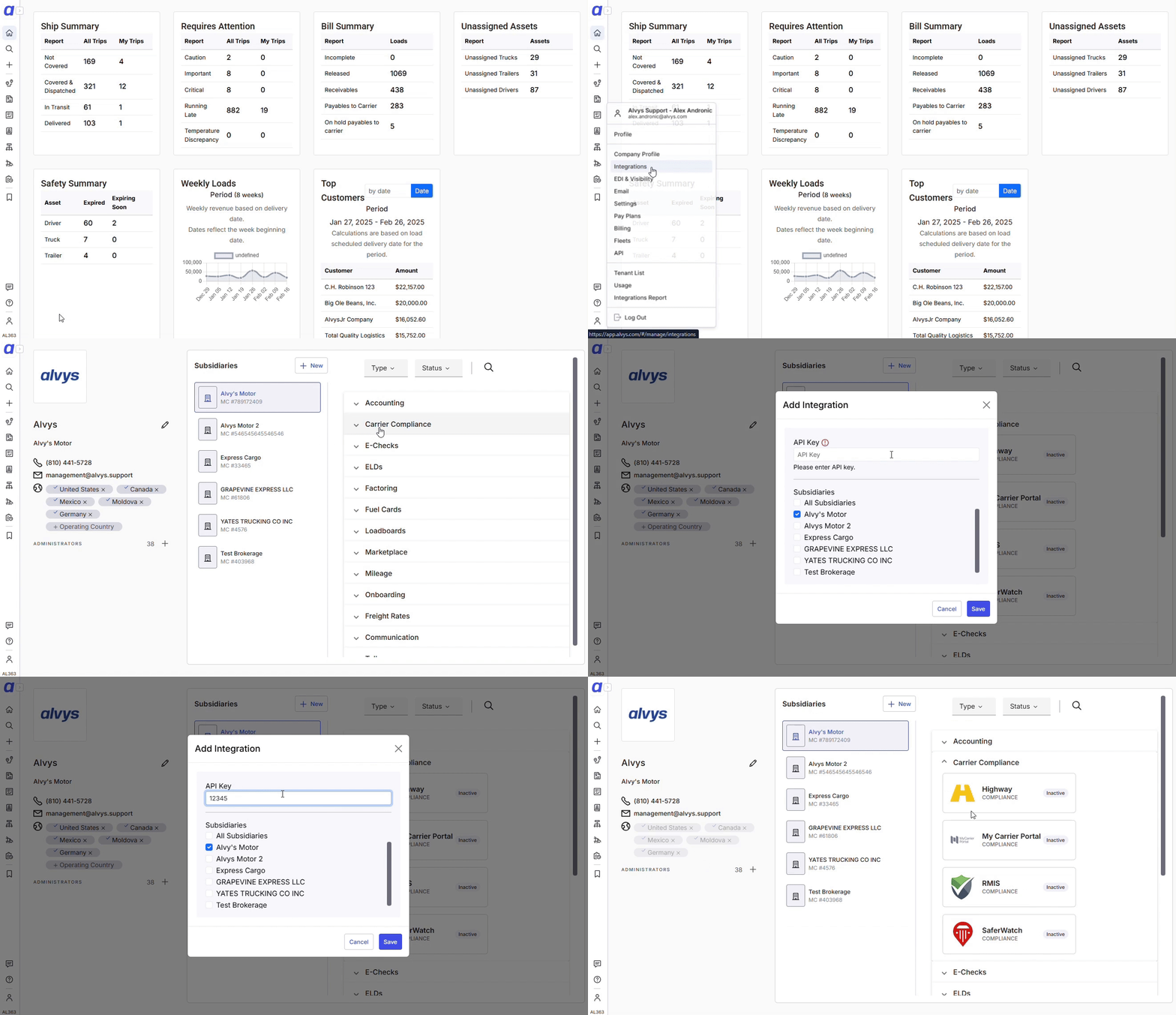
- Confirm the integration is active. Once the API key is accepted, the Highway integration status changes to active. Previously onboarded carriers from Highway will begin syncing into Alvys automatically.
What syncs?
When a carrier completes onboarding in Highway, Highway sends the following data to Alvys: carrier name, MC/DOT number, address, insurance details, and compliance status. These fields are mapped to the corresponding carrier record in Alvys. Alvys does not push carrier records to Highway; Highway is the system of record for carrier creation. Real-time updates from Highway include insurance changes, address updates, and compliance status modifications. Each update is applied to the matching carrier record in Alvys. Alvys polls Highway every five minutes for compliance status changes and new carrier records. To confirm the integration is working, go to your carrier list and look for carriers that were already onboarded in Highway. They should appear automatically in Alvys within five minutes of the integration becoming active. Each carrier should display a Highway compliance status (Pass, Partial Pass, Incomplete, or Fail) on their carrier record. If carriers are not appearing, confirm that your Highway representative has marked the integration setup as complete on their side.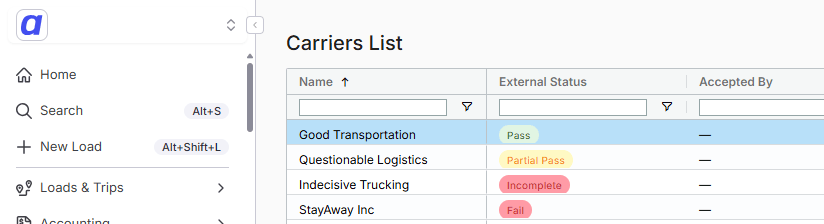
Minimum acceptable compliance status
Use this setting to choose the lowest Highway status that you accept for a carrier. Highway statuses, from best to worst, are Pass, Partial Pass, Incomplete, and Fail.- If the Highway status of a carrier is below your minimum, Alvys blocks the carrier from assignment.
- If the Highway status of a carrier is the same as your minimum or better, Alvys does not mark the carrier Expired Insurance because of an expired policy.
This setting does not change the required insurance types of a subsidiary. A carrier must still have a current policy of every type that the subsidiary requires. See A carrier is Active but the assign dialog says insurance is missing.
How to set the minimum
- Click your profile icon in the bottom left corner of Alvys and select Integrations.
- Under Carrier Compliance, click the Highway card.
- In Minimum acceptable compliance status, select a status. Leave the field empty to apply no minimum.
- If you see a Save button, click it.
What happens when you change the minimum
When you save a different minimum, Alvys checks your existing Highway carriers again in the background. You do not need to do anything.- Alvys checks a limited number of carriers every five minutes. A large carrier list can take a few hours.
- A carrier whose Highway status is below your minimum stays Expired Insurance.
- If Import carrier payment details from Highway is on, a refreshed carrier also gets its Highway payment details. This is the same as the Sync carrier action. A payment route that is locked on the carrier does not change.
Remove and add Highway again
If you remove the Highway integration and add it again, Alvys keeps your minimum and your payment import setting. Enter your API key again. Alvys does not keep the API key. If you select a different minimum when you add Highway again, Alvys uses the one you select.Load Lock
Load Lock is a separately contracted Highway product that monitors your open brokered loads in real time. When enabled, Alvys automatically pushes your open brokered loads to Highway. Highway monitors those loads and sends alerts back to Alvys if it detects a problem — for example, a carrier’s insurance lapsing or an authority issue while the carrier is hauling your freight.Prerequisites for Load Lock
- You must have an active Load Lock contract with Highway. Load Lock is a paid Highway add-on, available on request.
- Your Highway integration must already be connected in Alvys (see How to connect above).
- Your Highway API key must have the Loads V2 permission. If you are unsure, ask your Highway representative to confirm.
How to enable Load Lock
- Go to Settings › Integrations › Highway.
- Under Load Lock, click Enable Load Lock. When you save, Alvys generates a webhook key and begins a full sweep of your open brokered loads. Pushes to Highway start within minutes.
- Copy your webhook key: click Webhook API key › Show key. Send this key to your Highway representative privately. Highway needs this key to configure their webhooks for your account.
- Highway configures two webhook endpoints on their side using the key you provided. The webhook URLs are the same for every tenant — only the key differs. You do not need to configure the URLs yourself.
Choosing an alert mode
After enabling Load Lock, choose how Alvys handles alerts from Highway under When Highway reports a problem:- Inform (default) — alerts appear on the load for your team to review, but dispatch is not blocked.
- Block — dispatch is blocked while any alert is open on the load.
Secure Rate Con Delivery
Secure Rate Con Delivery (SRCD) sends rate confirmations to carriers through Highway instead of standard email. Highway provides signed delivery confirmation, which supports their performance guarantee.Prerequisites for Secure Rate Con Delivery
- Load Lock must be enabled first.
- Your Highway API key must have the rate confirmation permission. This is separate from the Loads V2 permission. Ask your Highway representative to confirm it is granted.
- Highway must provision SRCD for your account on their side.
How to enable Secure Rate Con Delivery
- Go to Settings › Integrations › Highway.
- Turn on Secure Rate Con delivery.
- Decide whether to enable Send anyway when Highway cannot: when on (default), if Highway cannot deliver the rate con, Alvys falls back to sending it by email. When off, the delivery fails and no fallback is attempted.
Highway’s $100k performance guarantee requires both Load Lock and a Highway-signed rate confirmation on the load. Enabling both Load Lock and Secure Rate Con Delivery is necessary to qualify.
Troubleshooting
API key validation error on save
- Confirm you have copied the full API key from your Highway representative with no extra spaces.
- Ask your Highway representative to generate a new integration key and try again.
- If the error persists after entering a valid key, contact Alvys Support.
Carriers not syncing after setup
- Confirm your Highway representative has completed their side of the integration setup.
- Wait up to five minutes. The sync interval is five minutes between polls.
- If carriers that are fully onboarded in Highway are still missing after 10 minutes, contact Alvys Support.
Carrier with Incomplete or Fail status cannot be assigned to a load
Carriers with Incomplete or Fail status are blocked from load assignment by default. This is the expected behavior when the Highway integration is active. If your account has the “OverrideCarrier” permission enabled, you can proceed with the assignment at your discretion.A carrier is Active but the assign dialog says insurance is missing
The assign dialog checks the required insurance types of the subsidiary that you tender the load as. This check is separate from the Highway status. The Highway minimum does not change it. If the dialog shows No [type] insurance information available, the carrier has no policy of a type that the subsidiary requires.- In the assign dialog, read which insurance type is missing.
- Open the carrier profile and compare the policies. Some type names look alike. A policy of Automobile Liability does not count as Commercial General Liability.
- If the policy exists, add the current policy of the missing type to the carrier profile.
- If your company does not need this type, open the subsidiary in Settings. In the Required carrier insurance card, remove the type.
- If the subsidiary has no required insurance types and the carrier is still blocked, contact Alvys Support. Give the load number, the carrier MC number, and a screenshot.
A carrier shows Expired Insurance but Highway shows Pass or Partial Pass
- Check that the Highway status of the carrier is the same as your Minimum acceptable compliance status or better.
- If it is, wait for the next sync. If you changed the minimum in the last few hours, the check of your carriers can still be running. Alvys refreshes a carrier from Highway only when Highway reports a change for that carrier, or when the check of your carriers reaches it.
- If the carrier still shows Expired Insurance after the next sync, contact Alvys Support.
Loads not appearing in Highway after enabling Load Lock
- Confirm your Highway representative has set up the webhooks with the key you provided.
- Only open brokered loads are pushed. Loads that are not tendered as a Brokerage subsidiary, have no carrier assigned, or are deleted/hidden are not sent to Highway.
- Wait a few minutes after enabling — the initial sweep can take a moment for accounts with many open loads.
- If loads are still not appearing after 10 minutes, contact Alvys Support.