
Automatically import BestPass toll transactions into Alvys nightly by connecting your BestPass account and linking each transponder to its corresponding truck.
Overview
BestPass is a toll tracking integration (toll transponder sync, toll transaction import) that automatically imports toll transactions for your fleet assets into Alvys nightly. The integration is one-way: data flows from BestPass into Alvys only. Setup requires two actions: adding an Alvys contact to your BestPass account, and linking each BestPass transponder to its corresponding truck in Alvys.Prerequisites
Before you begin:- You must have an active BestPass account with admin access to add contacts.
- You must have your BestPass Account ID available.
- You must have access to the Alvys Management > Integrations page.
How to connect
- Log in to your BestPass account portal.
- Navigate to the Contacts section and add integrations@alvys.com as a contact. BestPass requires this contact before Alvys can authenticate and retrieve your toll data.
- In Alvys, click your username in the upper left corner and select Integrations (or navigate to Management and select the Integrations tab).
- Go to the Tolls section and click the pencil icon next to BestPass.
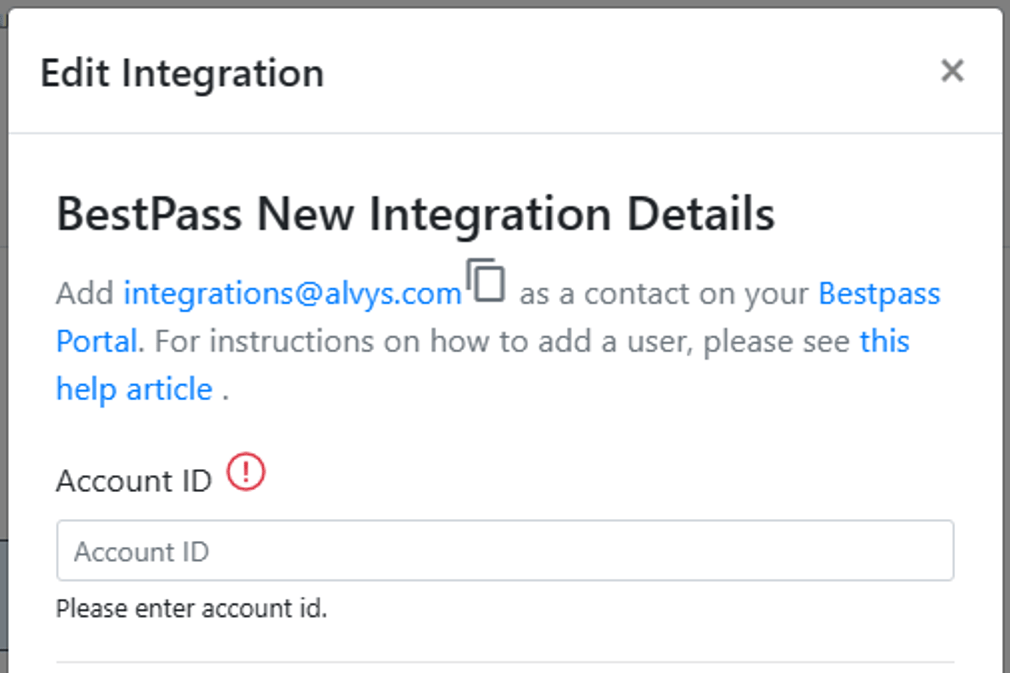
- Enter your BestPass Account ID in the integration settings field.
- Select which subsidiaries you want this integration to apply to.
- Click Save at the bottom. For toll transactions to be attributed to the correct truck, each BestPass transponder must be linked to its corresponding truck in Alvys:
- From the blue toolbar on the left, navigate to Assets and select Trucks.
- Find and select the truck that corresponds to the transponder you want to add.
- Scroll down to the Pass Details section.
- Select whether or not to deduct tolls from driver pay.
- Choose BestPass in the Issued By field.
- Enter the transponder ID in the Pass Number field.
- Click Add Pass.

💡 Tip: Transponder IDs are typically associated with trucks because the transponder device is physically mounted in the truck. · You can add pass details to other asset types if your setup requires it.
What syncs
- Toll data updates automatically each night via the BestPass REST API.
- New toll transactions appear in Alvys the day after they occur.
- There is no manual upload step once the integration is configured and transponder IDs are added.
- The integration is one-way: data flows from BestPass into Alvys only.
To confirm the sync is working:
- From the Alvys toolbar, select Reports and navigate to the Toll Report.
- Enter at least one search parameter (such as a date range or truck) and click Search.
- Confirm that toll transactions appear for your assets.

Troubleshooting
Toll transactions not appearing in the Toll Report
- Confirm that integrations@alvys.com has been added as a contact in your BestPass account. If this step was missed, the integration cannot authenticate with BestPass.
- Verify that the BestPass Account ID entered in Alvys is correct. Go to Management > Integrations > Tolls > BestPass and confirm the Account ID.
- Verify that transponder IDs are correctly entered on each truck’s Pass Details section in Alvys. The Pass Number must match the transponder ID exactly as it appears in BestPass.
- Check the date range on the Toll Report. Transactions import nightly, so transactions from today will not appear until the following day.
- If none of the above resolves the issue, contact Alvys support.
I used to see two BestPass options and now there is one
- The older BestPass connection has been retired, so the Tolls section of Integrations and the Issued By field on a truck now offer a single BestPass option. If your toll transactions stopped arriving, follow the setup steps in this article again against that option.