
This article explains how to set up the Wex FleetOne FTP integration in Alvys, add reference numbers to loads, and submit invoice batches via FTP to Wex FleetOne.
What This Integration Does
The Wex FleetOne FTP integration (also called Wex FleetOne factoring or invoice factoring via FTP) transmits invoice batches from Alvys to Wex FleetOne via FTP when you submit a batch from the Factoring Upload page. Before loads can be submitted, each load must have a reference number assigned. Wex FleetOne provides these reference numbers in a spreadsheet. Loads missing a reference number display a red warning icon in the Factoring Upload queue and cannot be included in a batch until the number is entered. Synonyms: invoice factoring, accounts receivable financing.Prerequisites
Before configuring this integration, confirm the following:- You hold an Admin or Partner Admin role to add the Notice of Assignment and configure integration credentials.
- You hold the “Billing” permission to submit batches from the Factoring Upload page.
- Your subsidiaries are created in Alvys. FTP credentials must be configured separately for each subsidiary that uses Wex FleetOne FTP.
- You have received your FTP host address, username, and password from Wex FleetOne. Contact Wex FleetOne directly if you have not received these credentials.
- You have received the Notice of Assignment text from Wex FleetOne to add to your invoices.
- If you previously set up the Wex FleetOne manual (non-FTP) integration, you must remove it before setting up the FTP version. See Connect / Authenticate below.
Connect / Authenticate
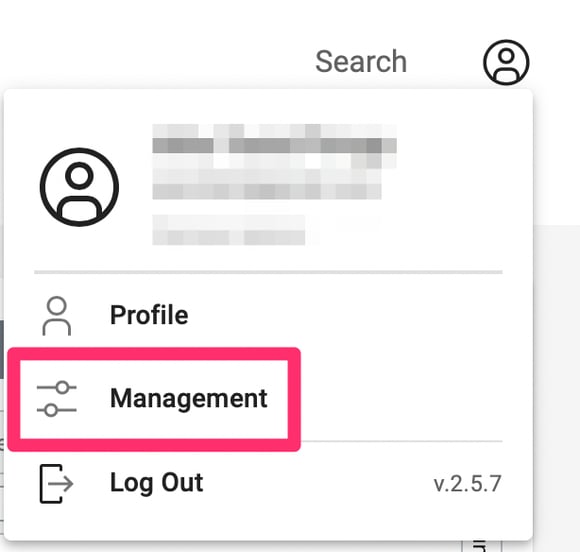
Step 1: Add your Notice of Assignment The Notice of Assignment (NOA) declares to your customers that Wex FleetOne has the right to collect payment on the invoices you factor. It must appear on every invoice submitted through this integration.- Click the Profile button in the upper right corner and select Management to open your Company Profile.
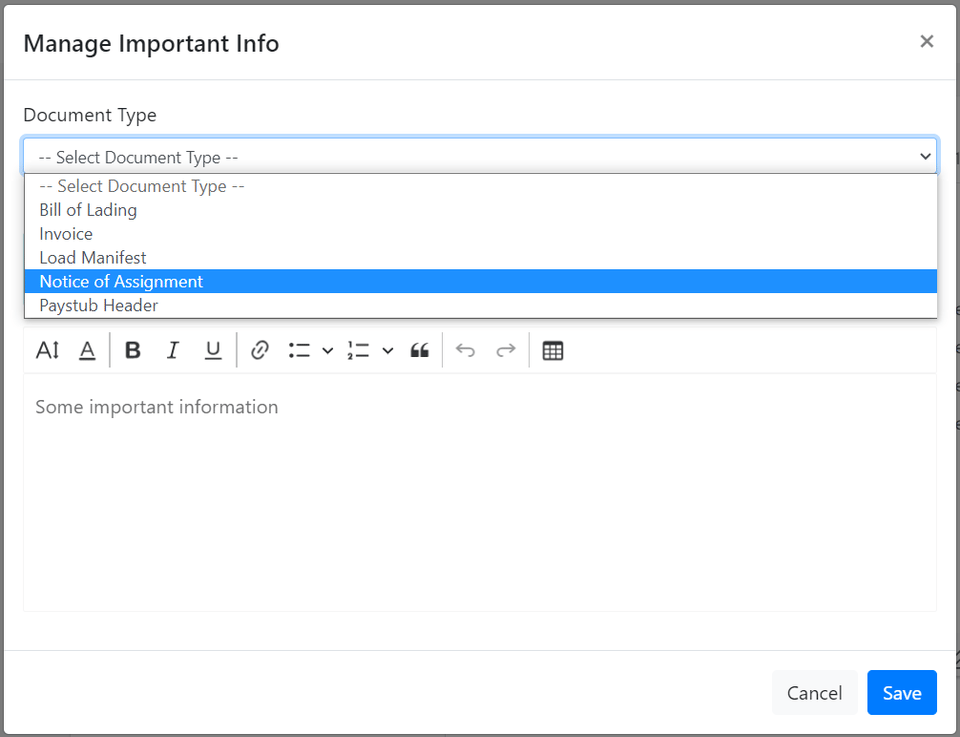
- In the Document Configuration section, click the plus sign (+) button. The Manage Important Info window will appear.
- In the drop-down menu, select Notice of Assignment.
- Paste the NOA text provided by Wex FleetOne into the text box.
- Click Save.
- Navigate to Management and open the Integrations page.
- Under the Factoring section, locate the existing Wex FleetOne integration and click Deactivate to remove it.
- Find Wex FleetOne FTP in the Factoring section.
- In the subsidiary list, click the pencil icon next to the subsidiary you want to configure.
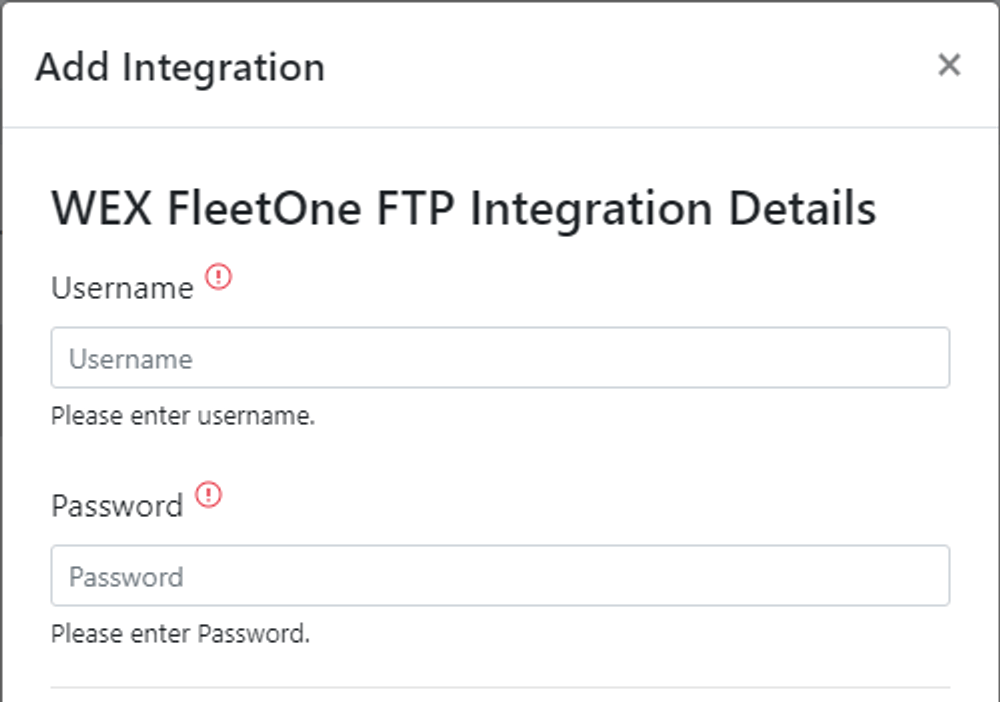
- Enter the FTP Host, Username, and Password provided by Wex FleetOne.
- Click Save. Repeat sub-steps 4 through 6 for each additional subsidiary that uses Wex FleetOne FTP.
Field & Data Mapping
Wex FleetOne FTP requires a reference number on each load before that load can be submitted in a batch. Wex FleetOne provides these reference numbers to you in a spreadsheet. You must enter each reference number on the corresponding load in Alvys before submitting. Batch files are transmitted via FTP in the format expected by Wex FleetOne. No CSV download or manual upload to Wex FleetOne is required after batch submission.Sync Behavior
This integration is one-way and outbound. Alvys transmits batch files to Wex FleetOne via FTP when you submit a batch from the Factoring Upload page. Purchase and payment report uploads are not available for this integration.How to Add Reference Numbers to Loads
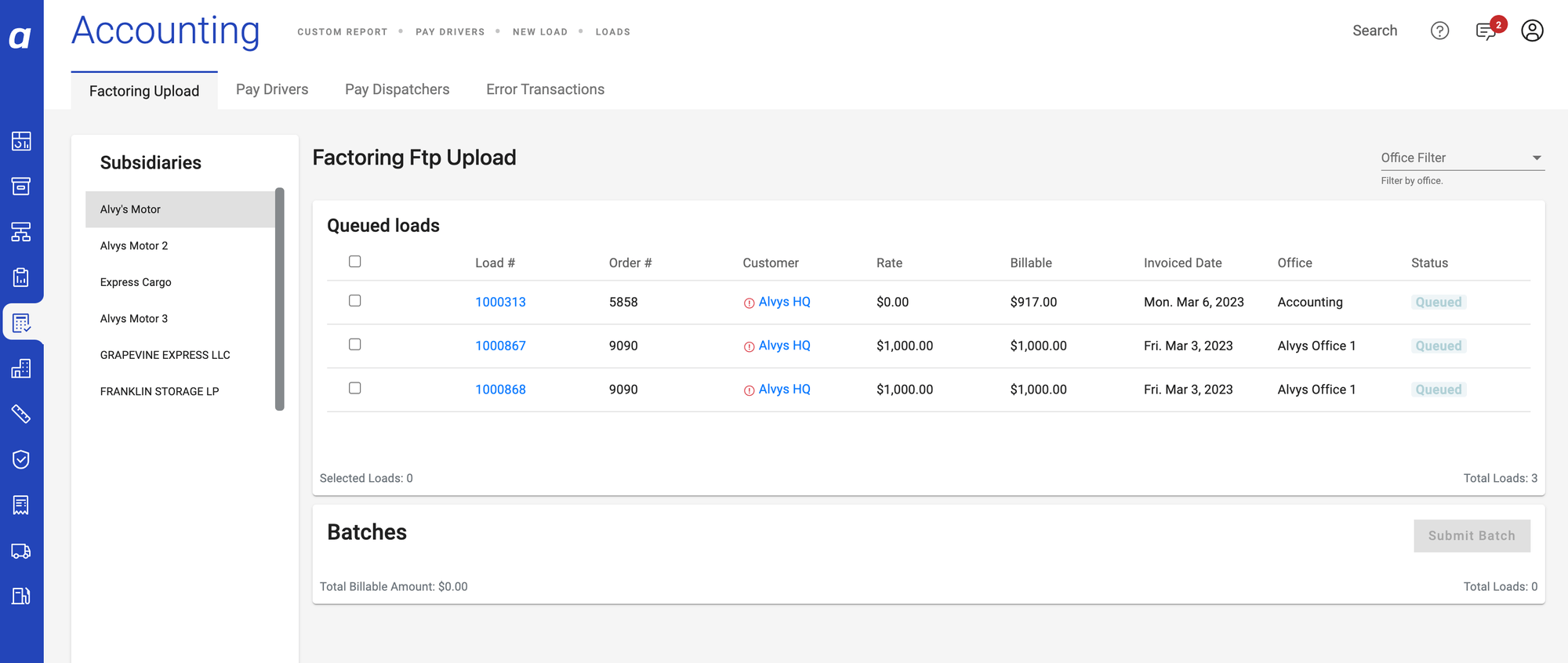
Wex FleetOne provides a reference number for each load in a spreadsheet sent to you by the provider. Each reference number must be entered on the corresponding load in Alvys before that load can be included in a batch submission. Loads missing a reference number will display a red warning icon in the Factoring Upload queue.- Obtain the reference number spreadsheet from Wex FleetOne.
- Open the load in Alvys that corresponds to a reference number in the spreadsheet.
- Locate the Reference Number field on the load and enter the value from the Wex FleetOne spreadsheet.
- Save the load. Repeat for each load that needs a reference number before batch submission.
How to Submit a Batch
- Confirm that all loads you want to submit have a reference number entered. Loads displaying a red warning icon cannot be submitted until a reference number is added.
- Navigate to Accounting > Factoring Upload.
- Select the subsidiary you are submitting for.
- Select all loads in Queued status that you want to include in the batch.
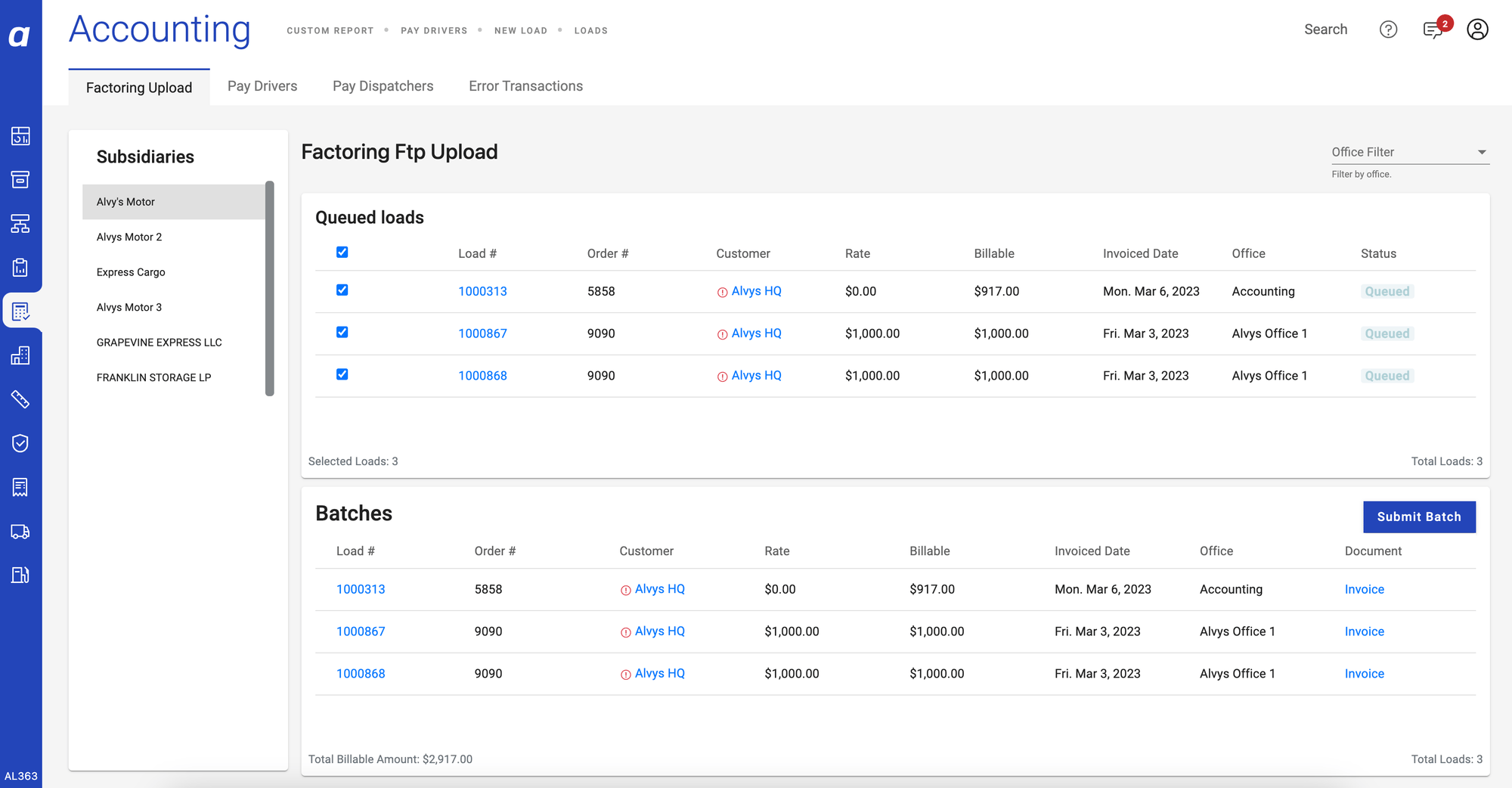
- Click Submit Batch.
- Stay on the page until the submission completes. Navigating away during submission may interrupt the FTP transfer. Loads submitted in the batch will update to Invoiced status.

Verify It’s Working
After submitting a batch, loads included in the batch should move to Invoiced status. If a load remains in Queued status or displays a red warning icon, see the Troubleshooting section below.Troubleshooting
Load not showing on Factoring Upload
- Confirm the load status is Queued.
- Confirm the load’s invoicing settings use Factoring Upload as the delivery method.
- Confirm the invoice and required documents were merged, either automatically or manually.
- Confirm the load was not already included in another factoring batch.
Load displays a red warning icon in the Factoring Upload queue
- The load is missing a required reference number. Obtain the reference number spreadsheet from Wex FleetOne and enter the correct reference number on the load. Save the load and return to the Factoring Upload page; the warning icon should clear and the load can now be submitted.
- Contact Alvys Support if the warning icon persists after entering the reference number.
”Unable to locate file”
This error usually means the invoice file is no longer available. To resolve it:- Review the load number shown in the error message.
- Open that load in Alvys.
- Regenerate the invoice.
- Try submitting the factoring batch again.
”SFTP Authorization Error — Permission Denied (Password)”
This error usually means the credentials used to set up the integration are incorrect. To resolve it:- Review the credentials entered in the factoring integration setup.
- Confirm the password is correct.
- If the integration uses FTP/SFTP credentials from the factoring provider, make sure you are using those credentials — not your personal Wex FleetOne portal login.
Batch does not submit or loads remain in Queued status
- Confirm all selected loads have reference numbers entered and no red warning icons are visible. Loads without reference numbers cannot be submitted.
- Confirm you stayed on the Factoring Upload page until the submission completed. Navigating away during submission may interrupt the FTP transfer. Retry the submission if needed.
- Verify that the FTP credentials in Management > Integrations are correct for the subsidiary. Re-enter the host, username, and password from Wex FleetOne if needed and retry.
- Confirm with Wex FleetOne that the FTP server is available and your credentials are active.
- Contact Alvys Support if the batch continues to fail after verifying credentials.
”Duplicate batch or invoice numbers”
This can happen if the page is refreshed, closed, or reopened while a batch is being submitted.Purchase or payment report upload issues
If a purchase or payment report fails to upload, review the file format and the error message. The message usually identifies what is missing or incorrect. Make sure the file includes the load number as the unique identifier. Without the load number, Alvys cannot match the report to the correct load or update the load as financed or completed.The FTP integration will not configure because a previous Wex FleetOne integration exists
- Navigate to Management > Integrations, find the existing Wex FleetOne (non-FTP) integration, and click Deactivate to remove it.
- Proceed to configure the Wex FleetOne FTP integration as described in Connect / Authenticate above.
- Contact Alvys Support if the integration cannot be deactivated.
Slow large batch submissions
Large files or batches with a high volume of loads may take longer to upload.Limits / Unsupported
- Purchase and payment report uploads are not available for the Wex FleetOne FTP integration.
- Each subsidiary requires its own set of FTP credentials. A single credential set cannot be shared across multiple subsidiaries.
- Only loads in Queued status can be included in a batch submission.
- Loads must have a reference number entered before they can be submitted. Reference numbers are provided by Wex FleetOne in a spreadsheet.