
Share real-time load location and status updates from Alvys to FourKites so customers can track shipments in their FourKites portal without contacting your team.
Overview
Share real-time load location and status updates from Alvys to FourKites (also called 4Kites) so customers can track shipments in their FourKites portal without contacting your team. Synonyms: FourKites outbound, 4Kites, outbound visibility, customer tracking, location sharing, shipment milestones. The FourKites Outbound integration connects Alvys to FourKites using basic authentication credentials provided by FourKites. Once connected and activated for a customer, Alvys automatically sends location updates and shipment milestones to FourKites based on the sharing preferences you configure for that customer. This integration enables your customers who use FourKites to receive real-time visibility into load progress, including location coordinates, delivery status, and delivery confirmation. This is a one-way integration. Data flows in one direction, from Alvys to FourKites.Prerequisites
Before setting up this integration you will need:- An active FourKites account.
- Basic authentication credentials (username and password) from FourKites. Contact support@fourkites.com to request these credentials.
- The Alvys Customer ID for each customer you want to activate data sharing for.
- Admin, Partner Admin, or Support access in Alvys.
How to connect
Open the integration settings. Navigate to Management > EDI & Visibility in Alvys. Select the subsidiary you want to configure and click the pencil icon.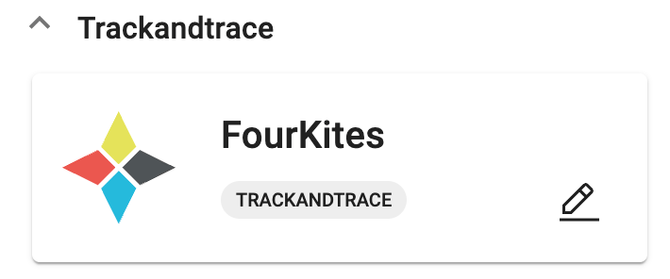
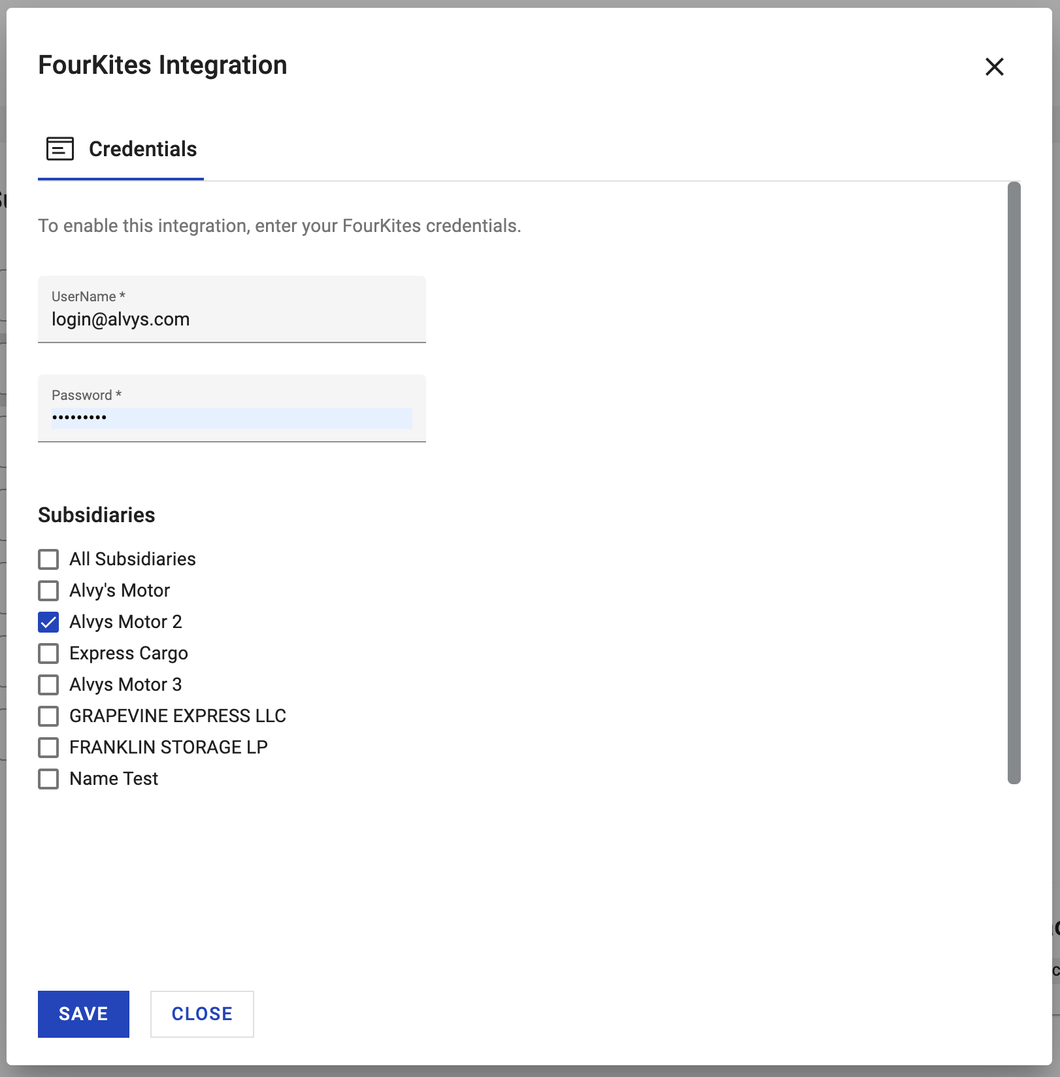
https://app.alvys.com/#/companies/affa5b56ceaeb45dc44z9af3cf855e8c6c12b/edit, the Alvys Customer ID is affa5b56ceaeb45dc44z9af3cf855e8c6c12b.
Link the customer in FourKites.
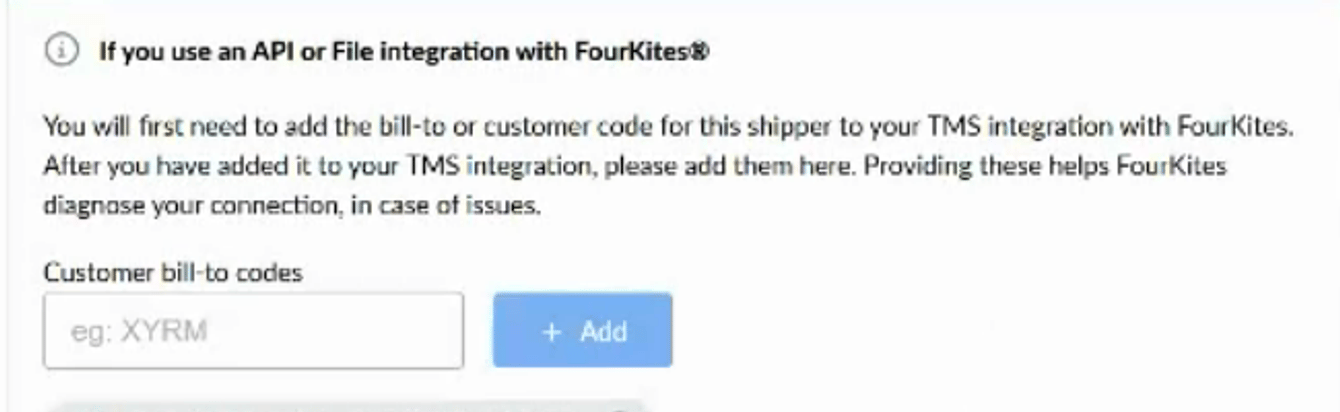
Add the Alvys Customer ID to the Customer Bill-to codes in the FourKites customer settings. You can do this at app.fourkites.com/self-service/carrier/customers following the instructions in the FourKites Connect Carrier Flow guide, or provide the Alvys Customer ID to the FourKites contact who gave you your integration credentials.
What syncs
When a load is shared with FourKites, Alvys sends the following data:- The Alvys Customer ID is used by FourKites to identify which customer this load is shared with. The load order number is submitted as the bill of lading value. The load PO number is submitted as the load identifier. Last known location coordinates, city, state, and country are included. Delivery status is sent as confirmed or not confirmed. Delivery time from the empty time at the last location is included when the load reaches a delivered state.
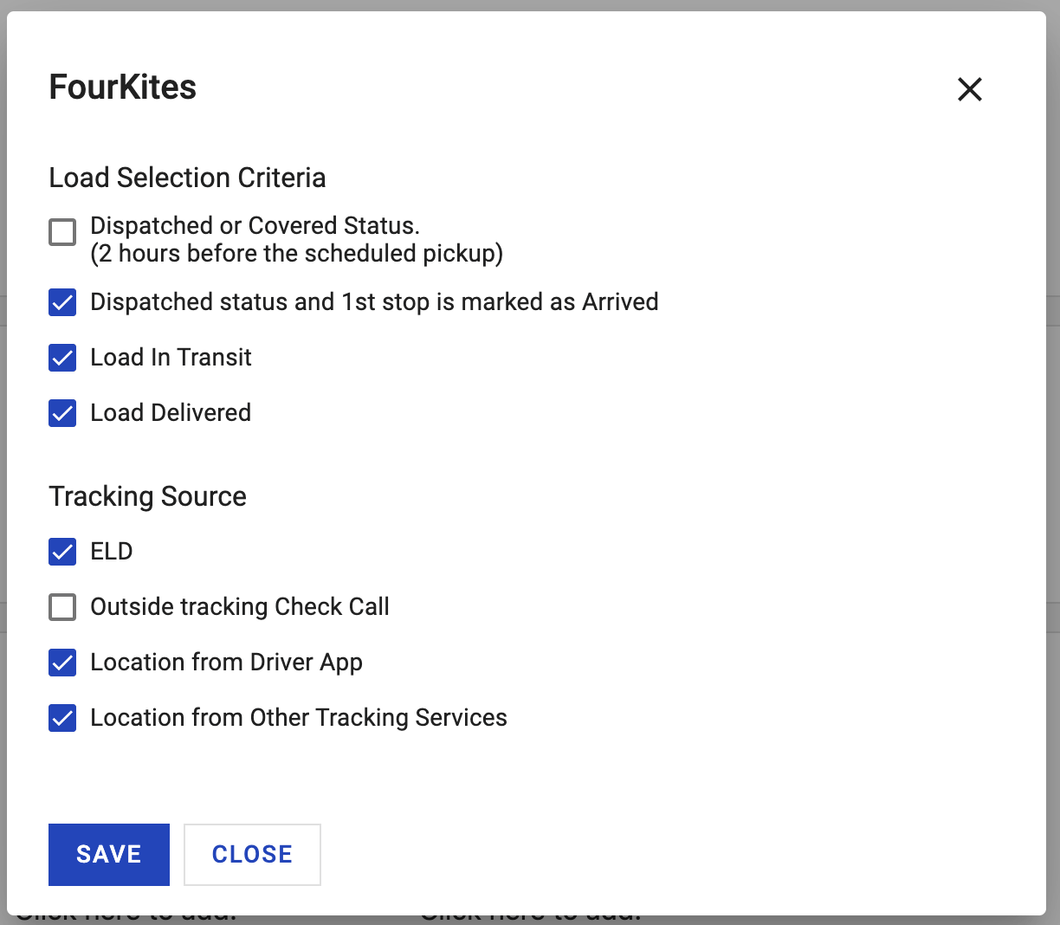
- Location updates are sent to FourKites automatically based on the sharing preferences configured for each customer. Each customer has eight sharing preference options:
- Dispatched or Covered status: Sends updates when the load is in Dispatched or Covered status and it is two hours or less before the scheduled pickup.
- Dispatched status and 1st stop is marked as Arrived: Starts sending updates when an arrival time has been recorded at the first stop.
- Load In Transit: Sends updates for loads in In Transit status.
- Load Delivered: Sends updates for loads in Delivered status. This option must be enabled to notify FourKites when a load has been delivered.
- ELD: Parses location information from ELD sources you have integrated with FourKites.
- Outside Tracking Check Call: Sends location updates from third-party tracking sources that support stop status events.
- Location from the Driver App: Sends location updates when the driver assigned to the trip is using the Alvys Driver Companion app.
- Location from Other Tracking Services: Sends location from other tracking service providers such as MacroPoint, FourKites tracking, Trucker Tools, or Project44.
Managing updates per load
You can pause or resume data sharing for a specific load directly from the load detail page. Auto-updates are on by default for loads where the assigned customer has data sharing enabled.
Verify it is working
- Open a load assigned to a customer you have activated FourKites sharing for.
- Confirm that auto-updates are active on the load.
- Log in to FourKites and confirm the load is receiving location updates.
Troubleshooting
Updates stopped, but the integration still shows Active
FourKites can expire or reset the password for your FourKites Outbound credentials. When this happens, Alvys cannot send updates to FourKites. The integration still shows Active in Management > EDI & Visibility, because that status does not check whether the saved password is still valid. This affects every customer that shares updates through that subsidiary.- Open a recent load for a customer that has FourKites sharing enabled, and open the Auto Updates panel. Look for failed updates to FourKites.
- Contact FourKites support at support@fourkites.com. Ask them to confirm whether they receive API updates from your account and whether your password expired.
- If the password expired, ask FourKites to reset it and send you the new credentials.
- In Alvys, go to Management > EDI & Visibility, open the FourKites Outbound integration, and enter the new username and password exactly as FourKites sent them. Do this for each subsidiary that uses FourKites, then click Save.
- Ask FourKites to confirm that updates arrive again.
No updates are reaching FourKites for a customer
- Confirm the FourKites Outbound integration credentials are saved correctly in Management > EDI & Visibility. If updates worked before and then stopped for all customers, see Updates stopped, but the integration still shows Active.
- Confirm the customer profile in Alvys has sharing preferences configured. The FourKites banner must be visible in the customer profile integration settings.
- Confirm the Alvys Customer ID is linked to the correct customer in FourKites.
- Confirm at least one sharing preference option is enabled for the customer.
- If updates are still not reaching FourKites after confirming the above, contact Alvys support.
FourKites banner is not visible on a customer profile
- Confirm the FourKites Outbound integration is set up and saved in Management > EDI & Visibility for the subsidiary associated with the customer.
- Confirm the customer is assigned to the subsidiary that has FourKites enabled.
- If the banner is still not appearing after confirming the above, contact Alvys support.
Limits and unsupported
- Data flows from Alvys to FourKites only. FourKites cannot update load status or modify any data in Alvys.
- The Active status in Management > EDI & Visibility does not confirm that your saved FourKites password is still valid.
- The integration must be configured separately for each subsidiary.