
Overview
The Alvys Marketplace module is a powerful tool designed for carriers to efficiently search for and secure loads, helping to optimize routes, reduce deadhead miles, and manage spot freight. It integrates with multiple load providers to offer a comprehensive view of available freight. This centralized platform allows you to:- 🚚 Connect to External Integrations Search across our data partners, Uber Freight, DAT & Truckstop.
- 🔍 Complete Robust Searches Narrow your search parameters, and sort and filter results to quickly find the loads that meet your needs.
- 🖐️ Bid on and Book Loads Submit offers and counter offers on DAT loads that are configured as negotiable, and book loads instantly from Uber Freight.
- 📋 Manage Your Bids Review bids you’ve submitted and convert awarded bids into loads within Alvys.
Permissions
- (General) View Marketplace Loads — View the module and complete searches.
- (General) Book Marketplace Loads — Bid and book search results.
Configuring integrations
To begin using the Alvys Carrier Marketplace, you must first configure your integrations with our supported load providers: Uber Freight, DAT, and Truckstop. Each provider has specific prerequisites and setup instructions to ensure seamless access to their load offerings within Alvys.Uber Freight integration
To use Uber Freight within the Marketplace, Alvys Support can assist with a basic eligibility confirmation. This process can result in you being provided with an account and access to their load search. Step 1: Set up Uber Freight as a customer- From the navigation bar, click Companies.
- Select Add New Company.
- In the Company Name field, enter UberFreight LLC.
- Ensure that Uber Freight is correctly categorized as a Broker/3PL.
- Enter this address in the company profile: 433 W Van Buren St, 9th Floor, Chicago, IL, 60607, USA.
- Include their MC#: 987790.
- Complete all required details.
- Email your IM to book a time to integrate and get started.
- Have your Uber Freight credentials ready, including your group email login (for example, dispatch@yourcompanyname.com).
DAT integration
To integrate with DAT, you must have a license and a service account that provides API access. Step 1: Obtain DAT Service Account credentials Contact DAT at techsupportteamleads@dat.com to request the credentials needed for Alvys. In your request, provide:- A service account email that you are not currently using with DAT
- Your MC number
- Your company name
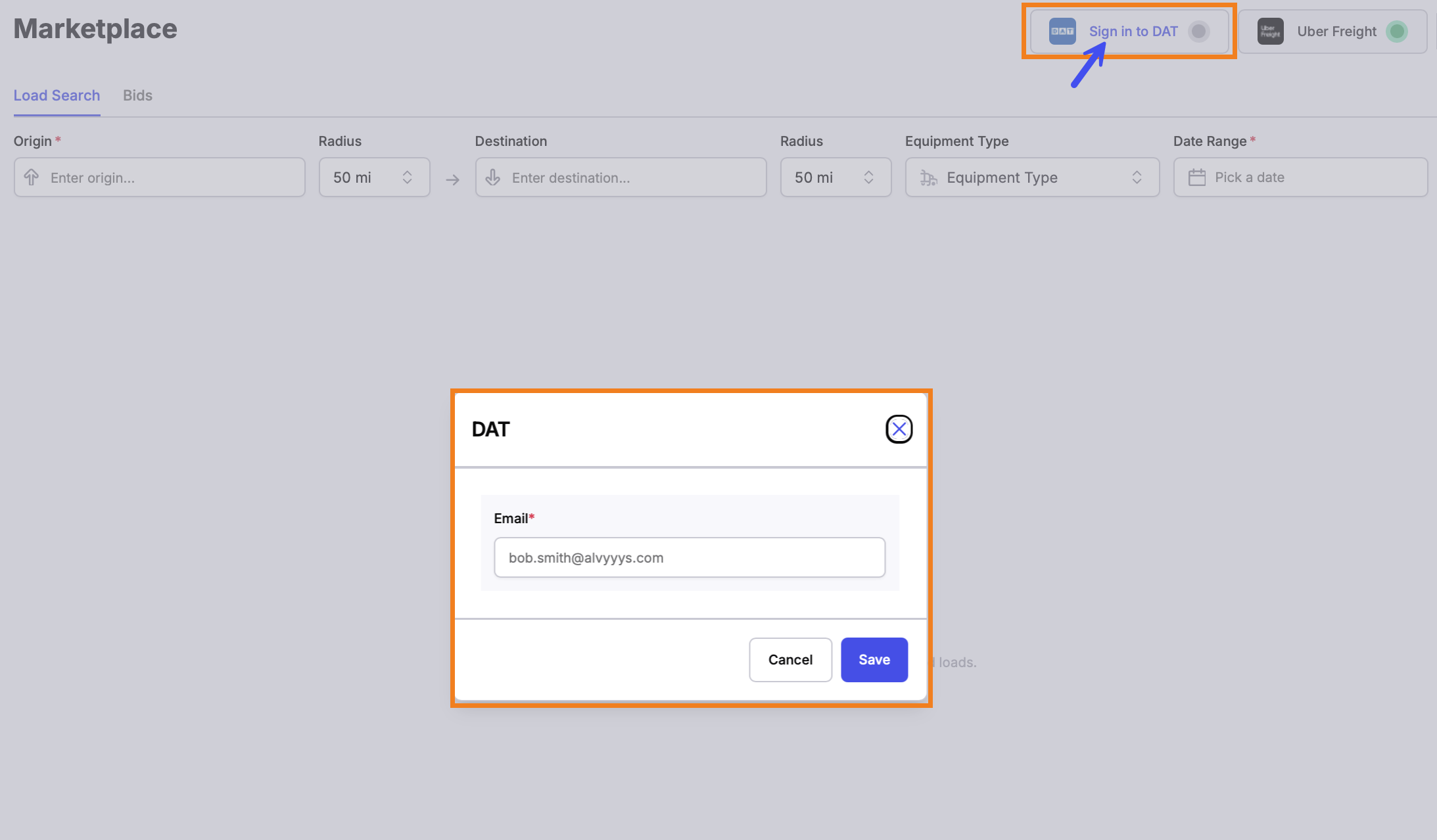
- Go to the Management page.
- Click the Integrations tab.
- Under Marketplace, locate DAT.
- Input your Service Account credentials in the provided fields.
- Click Save to enable the integration(s).
- Once approved, your DAT account is connected and you are ready to start using the Marketplace.
Truckstop integration
The Truckstop integration also requires API access. Step 1: Obtain a Truckstop Integration ID Truckstop requires an Integration ID to connect with Alvys. Contact Truckstop at TSI@truckstop.com to request your Integration ID. For additional details, see the Truckstop developer overview. Step 2: Enable and configure the Truckstop integration- Go to the Management page.
- Click the Integrations tab.
- Under Marketplace, enable the Truckstop integration.
- Enter the Integration ID in the Truckstop section of your Marketplace Integrations.
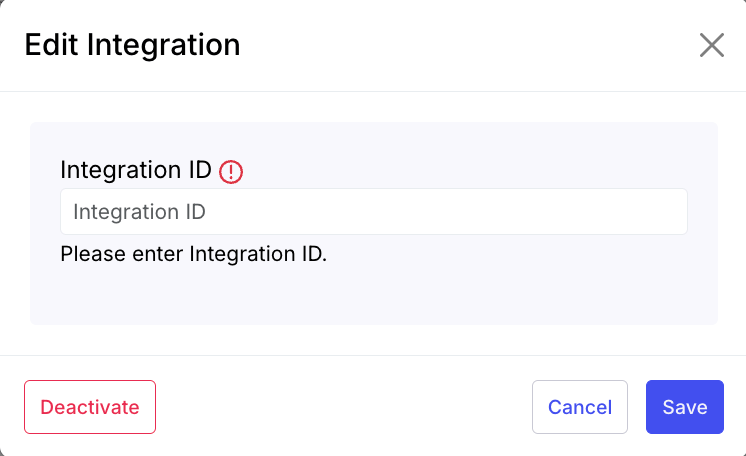
- Click Save to enable the connection.
- Once configured, the Truckstop chip status in the Marketplace will glow green, indicating a successful integration.

FAQ
Q: What if I don’t have a Load Board license for DAT? A: A Load Board license and a service account with API access are prerequisites for using DAT within Alvys Marketplace. Contact DAT at techsupportteamleads@dat.com to request credentials. Provide a service account email that you are not currently using with DAT, plus your MC number and company name, before configuring the integration in Alvys. Q: Can I use the Marketplace without configuring any integrations? A: No. You must configure at least one load provider integration (Uber Freight, DAT, or Truckstop) to access and use the load search and other functionality within the Alvys Carrier Marketplace.Searching for loads
Once your load provider integrations are configured, you can access the Marketplace module to search for loads. Alvys offers a variety of parameters and filters to refine your search, ensuring you can quickly locate loads that meet your specific requirements. You can also customize the display of search results for a personalized viewing experience.Step-by-step instructions
1. Access the Marketplace module Navigate to the Marketplace module within Alvys from the navigation bar on the left. 2. Enter search parameters You can search for loads using a variety of parameters:- Origin: Enter the origin of the load. Alvys treats the selected origin as a single point or a precise address.
- Destination: Enter the destination of the load. Alvys treats the selected destination as a single point or a precise address.
- Mileage Radii: Set mileage radii for both the origin and destination to broaden your search area.
- Equipment Type: Filter by expected equipment types (Van, Reefer, Flatbed, Specialized, or Other). These are standardized across all our data providers.
- Load Type: Filter your search by the type of load:
- Bookable: Loads that can be booked immediately from within Alvys.
- Negotiable: Loads that you can place a bid on from within Alvys.
- Other: For these loads, your main course of action is to review the details on the search result and contact the poster via email or phone.
- Load source (for example, Truckstop, DAT, Uber Freight)
- Customer
- Advertised rate on the trip
- And more
- Other stops along the way
- Provided contact information
- Any notes attached to that load
- DAT-specific columns: For DAT loads, you can pull in whether the loads are factorable, assurable, or quick-payable.
- Customize display: You can resize columns and turn them on or off to customize the look and feel of the search results to your needs.
FAQ
Q: Can I save my search filters for future use? A: The current version of the Alvys Carrier Marketplace does not support saving search filters. You will need to re-enter your desired parameters for each new search. Q: Why are some load details missing, such as contact information? A: The availability of detailed information like contact information depends on the data provider and the specific load. For “Other” load types, you may need to click into the details and contact the poster directly outside of Alvys.Bidding and booking loads
The Alvys Carrier Marketplace offers different calls to action for loads depending on the integrated provider. You can instantly book loads, bid on them, or retrieve contact information to negotiate offline. Understanding these distinctions is crucial for efficient load acquisition.Step-by-step instructions
1. Identify the call to action On the far right of any search result, you will see a call to action if one is available. The available actions differ across our data providers. 2. Booking Uber Freight loads Uber Freight loads can be booked instantly.- Click “Book Now” when you see this option for an Uber Freight load. The load is booked at the advertised rate.
- Customer creation: Alvys treats Uber Freight itself as the customer. Ensure “Uber Freight” exists as a customer in your Alvys instance. These loads will always show “Uber Freight” as the customer.
- Instant load creation: The load is created instantaneously in your Alvys system and appears on your tenant’s load board for further management.
- Book Now: Available when the load is configured as “bookable.” Booking is subject to confirmation by the provider.
- Bid Now: Available when the load is configured as “negotiable,” allowing you to submit bids or counter offers.
- If a load does not offer an immediate action, you may need to contact the customer offline. Alvys surfaces the relevant contact information so you can reach out to the provider for more details.
- Truckstop loads appear in search results but do not support direct API-based booking or bidding.
- Contact information (email and phone number) is provided for each load so you can reach out directly to negotiate and secure the load. Email addresses and phone numbers are hyperlinked to streamline next steps.