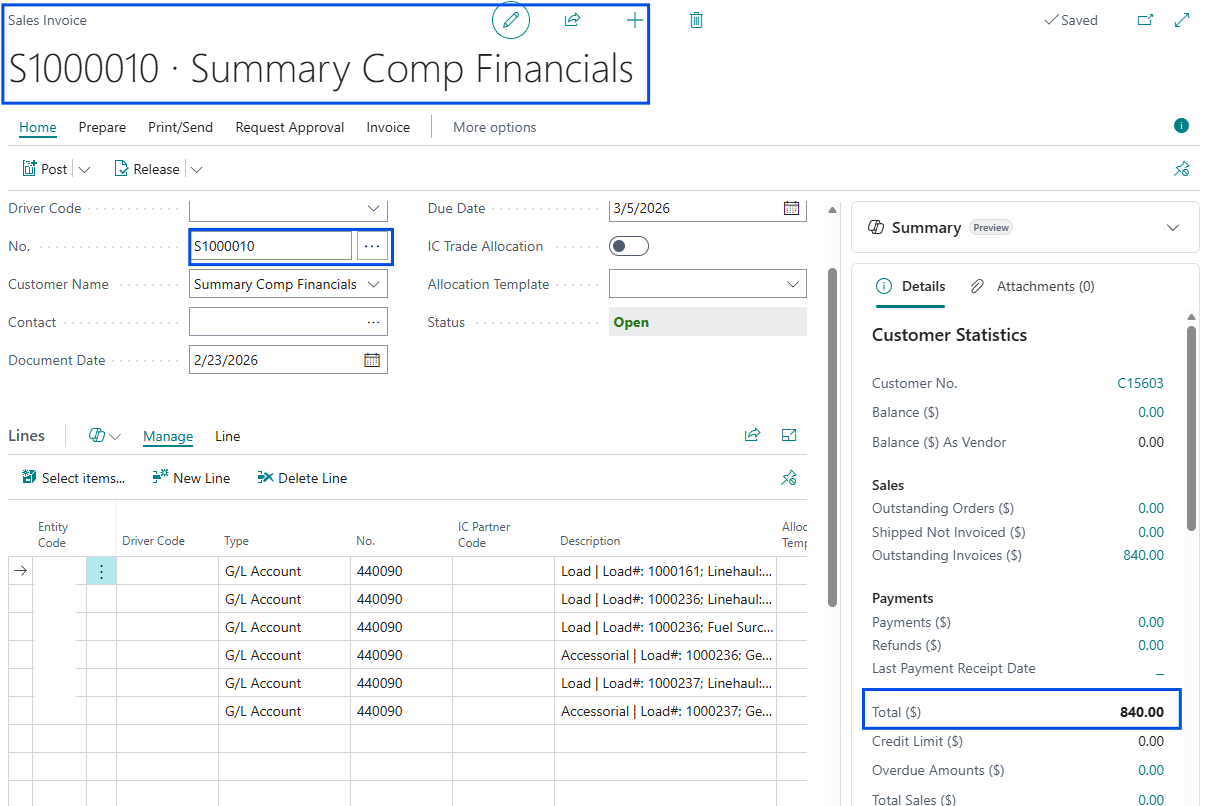
This article explains how Alvys exports customer invoices and carrier and driver bills to Business Central (BC, Business Central, accounting export), how subsidiary routing determines which BC company or entity receives each transaction, and how to modify previously exported transactions.
Overview
The Business Central integration enables Alvys to automatically export accounting transactions (including customer invoices (sales invoices), carrier purchase invoices, and driver purchase invoices) to your Business Central environment. Alvys serves as the system of record for all exported transactions. Changes must always be made in Alvys and then synchronized to Business Central through regeneration; edits made directly in Business Central can cause data inconsistencies. This article covers:- How Alvys determines which Business Central company or entity receives each transaction (subsidiary routing)
- How customer and vendor records are matched or created in Business Central
- How to export invoices and bills from Alvys
- How to modify previously exported transactions depending on their status in Business Central
- Limitations specific to the Carrier Settlements module and Summary Invoicing
Where to Find It?
- Load Details page: Individual load invoice export is triggered from the load record itself.
- Batch Invoicing page: Accounting > Invoice (https://app.alvys.com/#/accounting/invoicing)
- Summary Invoicing page: Accounting > Summary Invoicing (https://app.alvys.com/#/accounting/summary-invoicing)
- Carrier Settlements page: Accounting > Carrier Settlements
- Pay Drivers page (legacy): Accessible from the Accounting section for tenants using the legacy driver pay workflow.
- Driver Settlements page: Accessible from the Accounting section for tenants using the Driver Settlements module.
- Error Transactions page: Accounting > Error Transactions (https://app.alvys.com/#/accounting/error-help): review failed exports here.
Key Concepts
Subsidiary Routing
When configuring the Business Central integration, each Alvys subsidiary is linked to a specific company connection. This routing logic determines which connected Business Central entity receives exported invoices and bills. Routing works differently depending on your organizational setup:- Individual Company Setup (no subsidiary mapping): Alvys directs transactions to the specific, separate Business Central database connected to that subsidiary.
- Multi-Entity Management (MEM) setup (subsidiary mapped to entity dimension value): Alvys sends transactions to a shared Business Central database and tags each transaction with the correct Entity Code (Dimension) based on the subsidiary mapping. This allows multiple legal entities to be managed accurately within a single Business Central company.
Invoice As Field
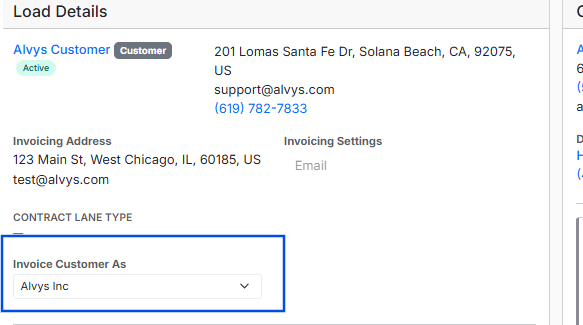
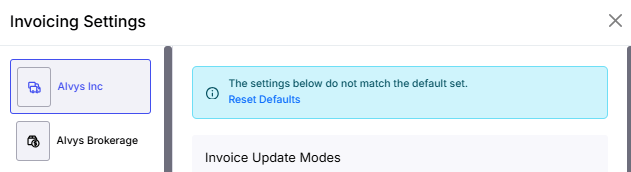
The Invoice As field on a load represents the billing subsidiary responsible for issuing the customer invoice. It determines the legal entity name displayed on the invoice. All Accounts Receivable (AR) transactions exported to Business Central are linked to the subsidiary mapped to the Invoice As field. For example, if a load’s Invoice As field is set to Alvys Inc:- Standard Integration: The sales invoice is exported to the specific Business Central company connection tied to that subsidiary.
- MEM Integration: The invoice is exported to the shared Business Central database, and the Entity Code (Dimension) on the invoice is automatically set to the Business Central value linked to the Invoice As subsidiary (Alvys Inc in this example).
Tender As Field
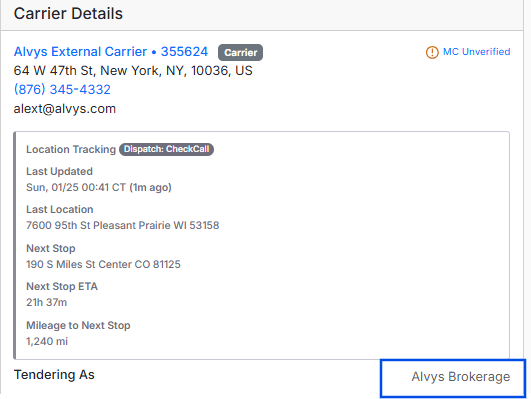
The Tender As field identifies the subsidiary responsible for dispatching the load and paying the carrier. It also determines the trip type: if the selected subsidiary is set up as a broker, the trip type is Brokerage; if set up as a carrier, the trip type is Carrier. For example, if a load’s Tender As field is set to Alvys Brokerage:- Standard Integration: The carrier purchase invoice is exported to the specific Business Central company connection tied to that subsidiary.
- MEM Integration: The bill is exported to the shared Business Central database, and the Entity Code (Dimension) on the bill is automatically set to the Business Central value linked to the Tender As subsidiary (Alvys Brokerage in this example).
Dual Authority Carriers
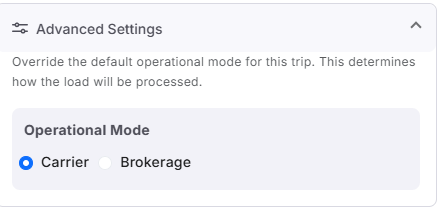
For carriers operating with dual authority, the operational mode is automatically determined based on the Tender As subsidiary. Users can manually change the operational mode to Carrier or Broker. The chosen operational mode affects how bills are categorized and exported to Business Central.
Driver Subsidiary Field
Each driver profile includes a Subsidiary field representing the business unit to which the driver is assigned. When generating driver statements, the resulting Vendor Bill is exported based on the driver’s assigned subsidiary:
Business Central Transaction Statuses
The status of a transaction in Business Central determines what modifications are possible:- Draft: The transaction is unposted and can be edited directly in Business Central. Changes made in Alvys will update the existing Business Central record on the next sync or invoice regeneration.
- Open: The transaction has been posted. It can no longer be edited directly. Alvys will automatically generate and export a Sales Credit Memo to reverse the original transaction, followed by a new Sales Invoice with the updated details, when the invoice is regenerated in Alvys.
- Closed: A payment has been fully applied and synced from Business Central. No further modifications are permitted at this stage. Contact Alvys Support; this status is the code-verified reason why self-service modification is blocked, as the transaction record is locked once payment is fully reconciled.
How to Use It?
Customer Linkage and Accounting Fields
External Accounting Name (Customers)
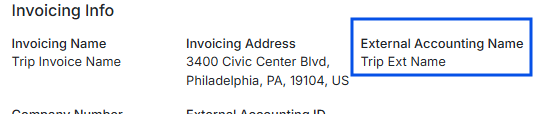
The customer’s External Accounting Name is used to identify a customer or broker in Business Central. When exporting an invoice, Alvys first searches for an exact match in Business Central using this field.Customer External Accounting Name
The customer’s External Accounting Name is used to identify a customer or broker in Business Central. When exporting an invoice Alvys first searches for an exact match in Business Central using this field.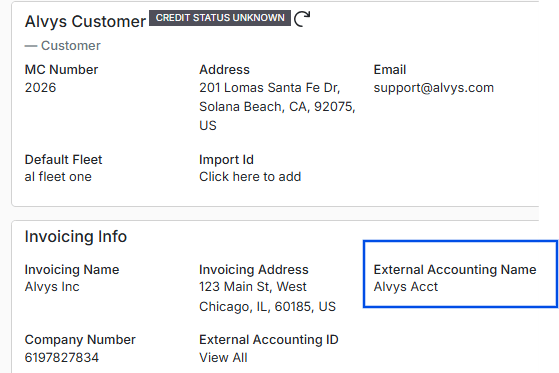
- If a matching customer exists in Business Central, the invoice is linked to that customer.
- If no match is found and the External Accounting Name is set on the customer profile, Alvys automatically creates a new customer in Business Central using the External Accounting Name.
- For tenants where the External Accounting Name is not set, Alvys attempts to match using the Customer Name. If no match is found, a new customer is created in Business Central using the Customer Name.
Invoicing Name
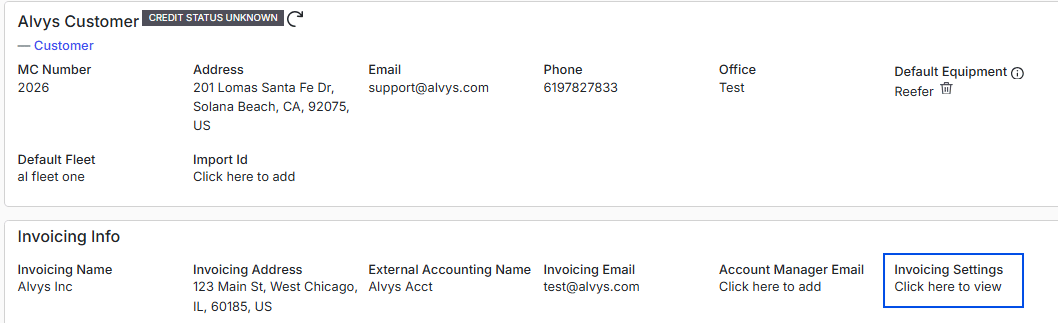
The Invoicing Name (previously called Billing Name) determines how the customer or broker appears on invoices generated in Alvys. It does not affect the customer record created in Business Central.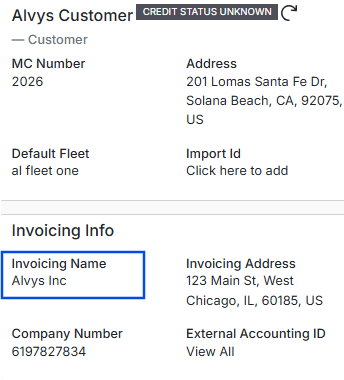
- Name: The External Accounting Name is used; if the external name is not set, it defaults to the customer or broker’s name.
- Invoicing Address
- Customer Email (not the Invoicing Email)
- Customer Phone (not the Company Number)
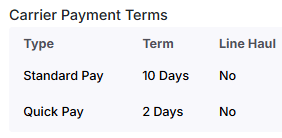
- Payment Terms
Payment Terms
The Payment Terms field specifies the agreed-upon period within which a customer must pay an invoice, calculated from the invoice date. In Alvys, this can be set to any value between 0 and 365 days within the customer profile.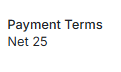

Vendor Linkage and Accounting Fields
External Accounting Name (Carriers)
The carrier’s External Accounting Name is used to identify a vendor in Business Central. When exporting a purchase invoice, Alvys first searches for an exact match in Business Central using this field.Carrier External Accounting Name
The carrier’s External Accounting Name is used to identify a vendor in Business Central. When exporting a purchase Invoice, Alvys first searches for an exact match in Business Central using this field.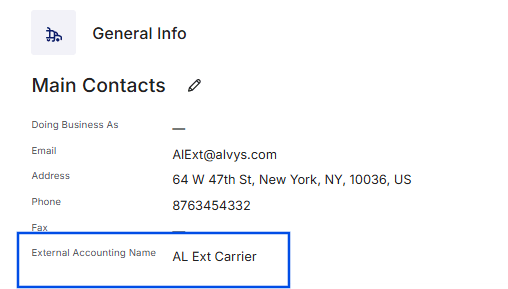
- If a matching vendor exists in Business Central, the bill is linked to that vendor.
- If no match is found and the External Accounting Name is set on the carrier profile, Alvys automatically creates a new vendor in Business Central using the External Accounting Name.
- For carriers where the External Accounting Name is not set, Alvys attempts to match using the Carrier Name. If no match is found, a new vendor is created in Business Central using that name.
Driver Name and 1099 Tax Details
Drivers, including company drivers and owner-operators, may operate as 1099 drivers. These drivers have additional tax detail fields on their profiles:- Tax Company Name
- Tax Company Address


Invoice Transaction Export
Individual Load Invoice Export
Generating a customer invoice from the Load Details page triggers its export to Business Central. Before generating the invoice, verify the following:- Verify that the customer being invoiced is correct. Ensure the External Accounting Name is properly configured on the customer profile. If no External Accounting Name is set, the standard customer or broker name must exactly match the corresponding customer record in Business Central.
Individual Load Invoice Export
Generating a customer invoice from the Load Details page triggers its export to Business Central. To ensure a successful export, all relevant configurations and data must be verified before the invoice is generated. Verify that the customer being invoiced is correct. Ensure the External Accounting Name is properly configured on the customer profile. If no External Accounting Name is set, the standard customer or broker name must exactly match the corresponding customer record in Business Central.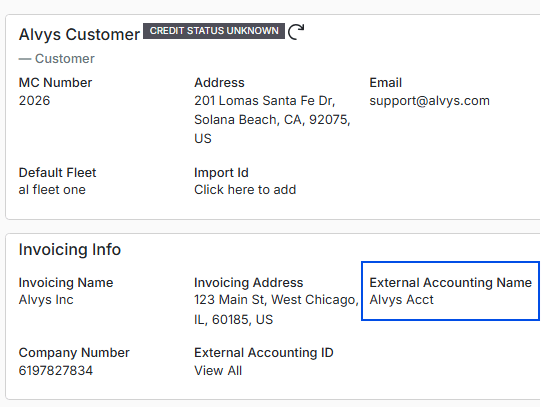
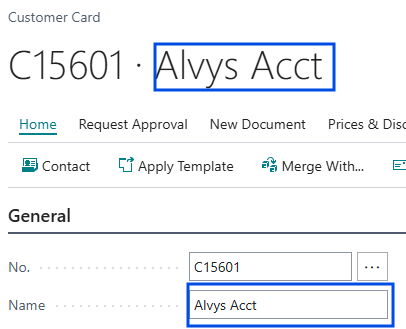
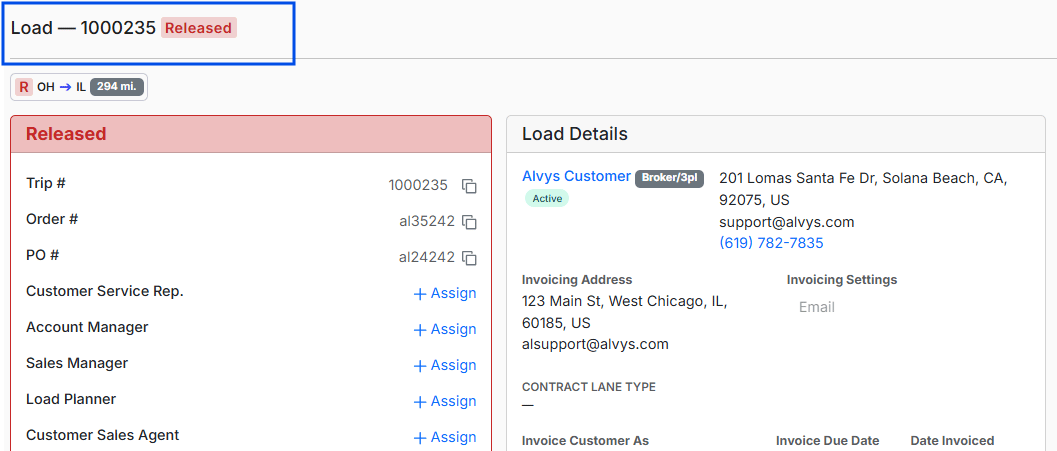
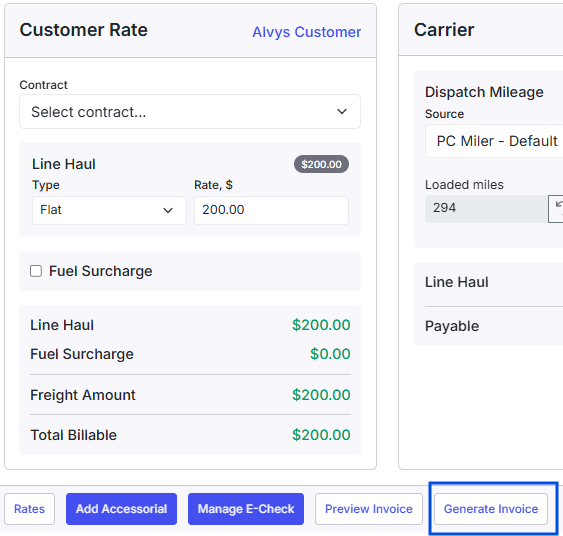
- Once these conditions are satisfied and the load is in Released status, generate the invoice. Generating the invoice automatically initiates the export to Business Central.
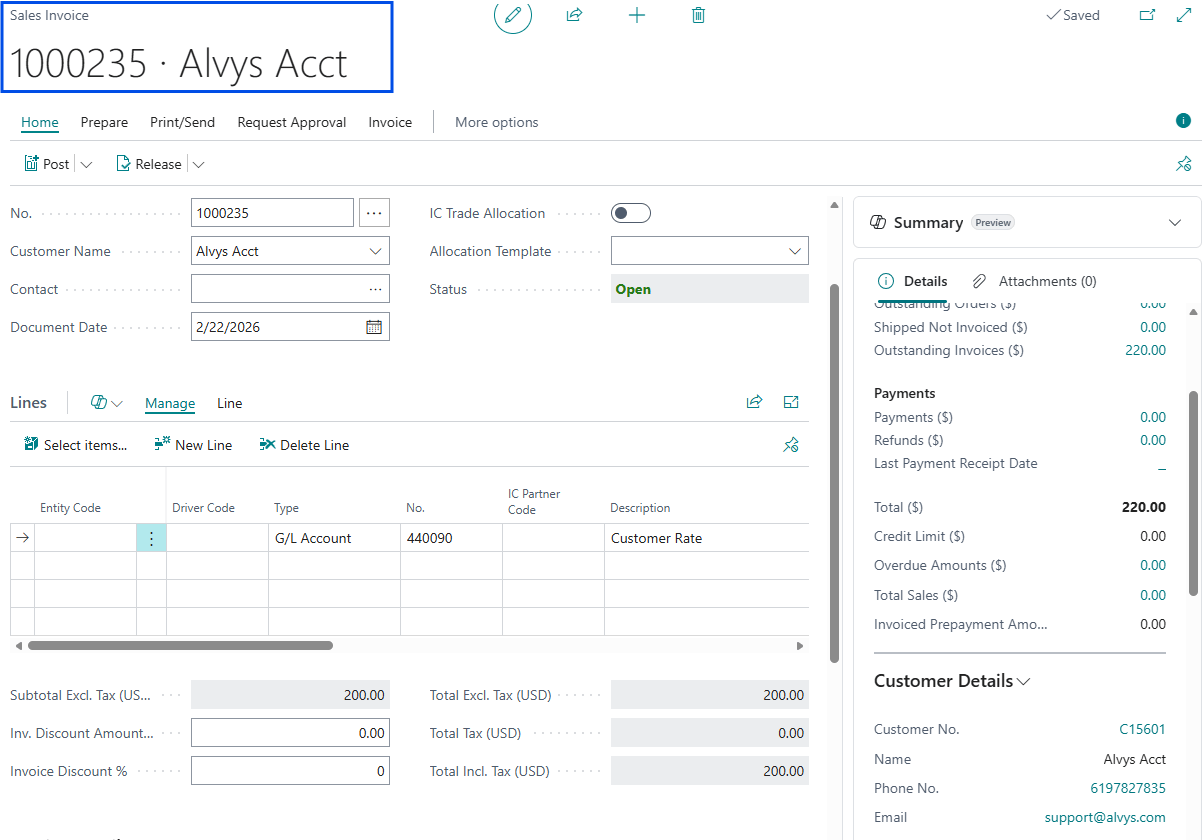
- Once the invoice is successfully exported from Alvys, locate it in Business Central by navigating to the Sales dropdown menu and selecting Sales Invoices. Invoices are exported as Unposted Sales Invoices, allowing the accounting team to perform a final review of amounts and tax codes before posting to the General Ledger.
Batch Invoice Export
The Batch Invoicing page is located at Accounting > Invoice in the left navigation menu (https://app.alvys.com/#/accounting/invoicing). This page allows users to create invoices for multiple loads across one or more customers simultaneously. Each selected load is processed as an individual invoice, and the export to Business Central is triggered automatically when the invoices are generated.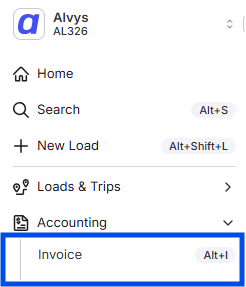
-
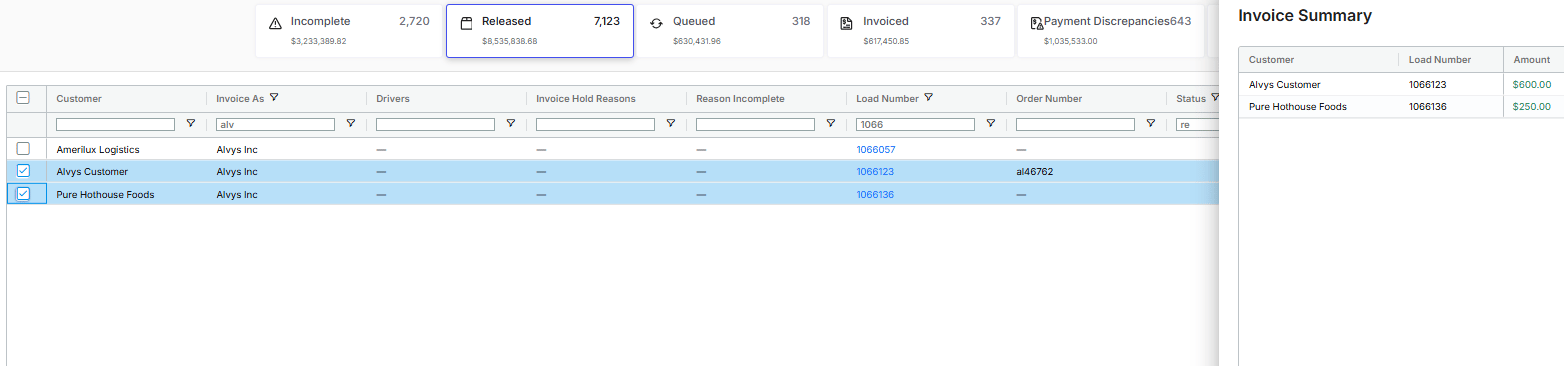
From the Released tab, select the loads for which you want to generate invoices. Verify that the customer being invoiced is correct. If an External Accounting Name is configured, it must exactly match the corresponding customer record in Business Central. If no External Accounting Name is configured, the standard customer or broker name must match the customer record. Verify that the Invoice As subsidiary on each load is correctly configured, as this determines which specific Business Central company or entity dimension receives the transaction data.
-
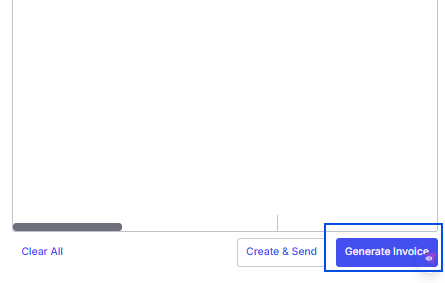
Generate the invoices using one of the following options:
- Generate Invoice: Creates the invoices and exports them to Business Central.
- Create and Send: Generates the invoices, exports them to Business Central, and sends them to the customer according to the invoicing method configured for that customer.
Summary Invoice Export
Summary invoicing consolidates multiple loads for a customer into a single invoice. The Summary Invoicing page can be accessed at Accounting > Summary Invoicing. For information on configuring customers for summary invoicing, see the Summary Invoicing article (How to use Summary Invoicing). The invoice export is triggered when the consolidated summary invoice is generated, creating a single invoice reflecting the total amount for all included loads. Only customers configured with the summary invoice type will appear when selecting a subsidiary. The subsidiary selection determines the Business Central subsidiary to which the invoice will be linked.- On the Summary Invoicing page (https://app.alvys.com/#/accounting/summary-invoicing), open the Loads Not Invoiced tab. Select the loads to include and add them to a draft summary invoice.


- Generate the invoice. This creates the summary invoice and exports it to Business Central.
Bill Transaction Export
Individual Trip External Carrier Bill Export
External carrier bills can be exported directly from individual loads based on the configured external accounting settings. The export is triggered when the customer invoice is generated. Before generating the invoice, verify the following:- The correct external carrier is assigned to the trip.
- The subsidiary selected in the Tender As field is verified; this subsidiary determines which Business Central company or entity dimension the carrier bill will be linked to. The selected subsidiary must be configured to receive carrier bills through the Business Central integration.
⚠️ For tenants operating in dual-authority mode, an additional validation is required. The operational mode must be set to Brokerage. If the operational mode is set to Carrier, the external carrier bill export will not occur.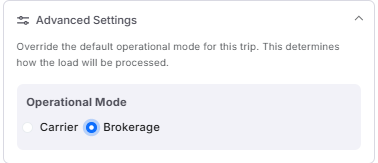
- If this setting is not enabled: The carrier bill is exported automatically when the customer invoice is generated.
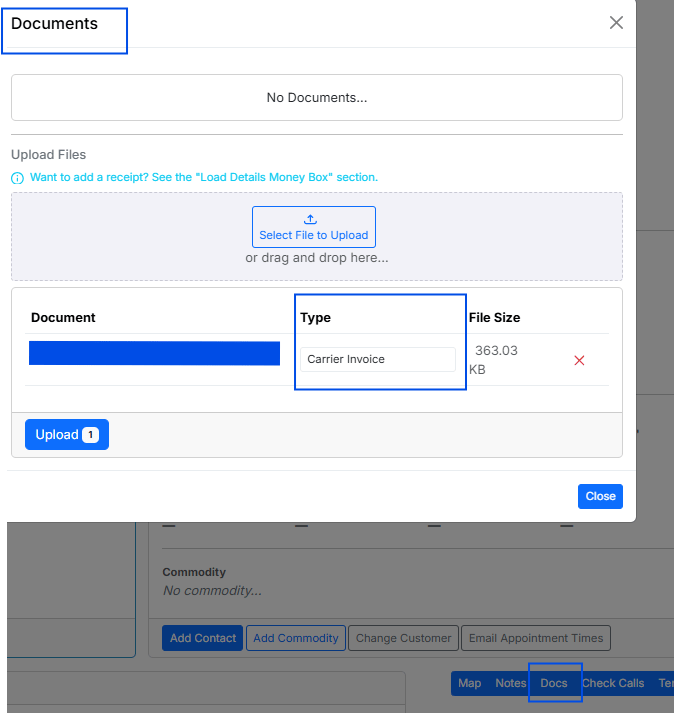
- If this setting is enabled: The system checks whether a document of type Carrier Invoice has been uploaded to the trip. If the document is present, the carrier bill is exported to Business Central when the customer invoice is generated.
Carrier Invoice Number
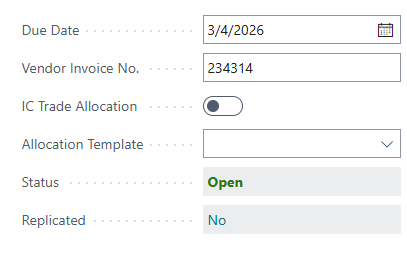
In Alvys, the carrier invoice number is entered when uploading a document of the type Carrier Invoice to a trip. When the carrier purchase invoice is exported to Business Central, this number is automatically populated in the Vendor Invoice No. field. This allows accounting teams to quickly locate purchase invoices within Business Central by searching the Purchase Invoices list using the specific carrier invoice number.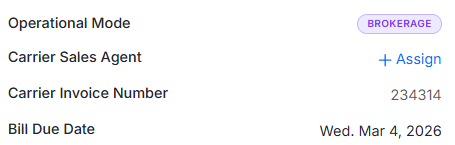
Carrier Settlements Bill Export
The Carrier Settlements module provides brokers with tools to generate transparent and accurate carrier statements and settlement bills. This page is accessible from Accounting > Carrier Settlements. For additional details, see the Carrier Settlements article (Carrier Settlements). When carrier settlements are used, the carrier bill is exported when a carrier statement is generated. To allow this export, the Carrier Statements External Accounting setting must be enabled for the subsidiary. If this setting is not enabled, no carrier bill will be exported when the statement is generated.
Driver Bill Export
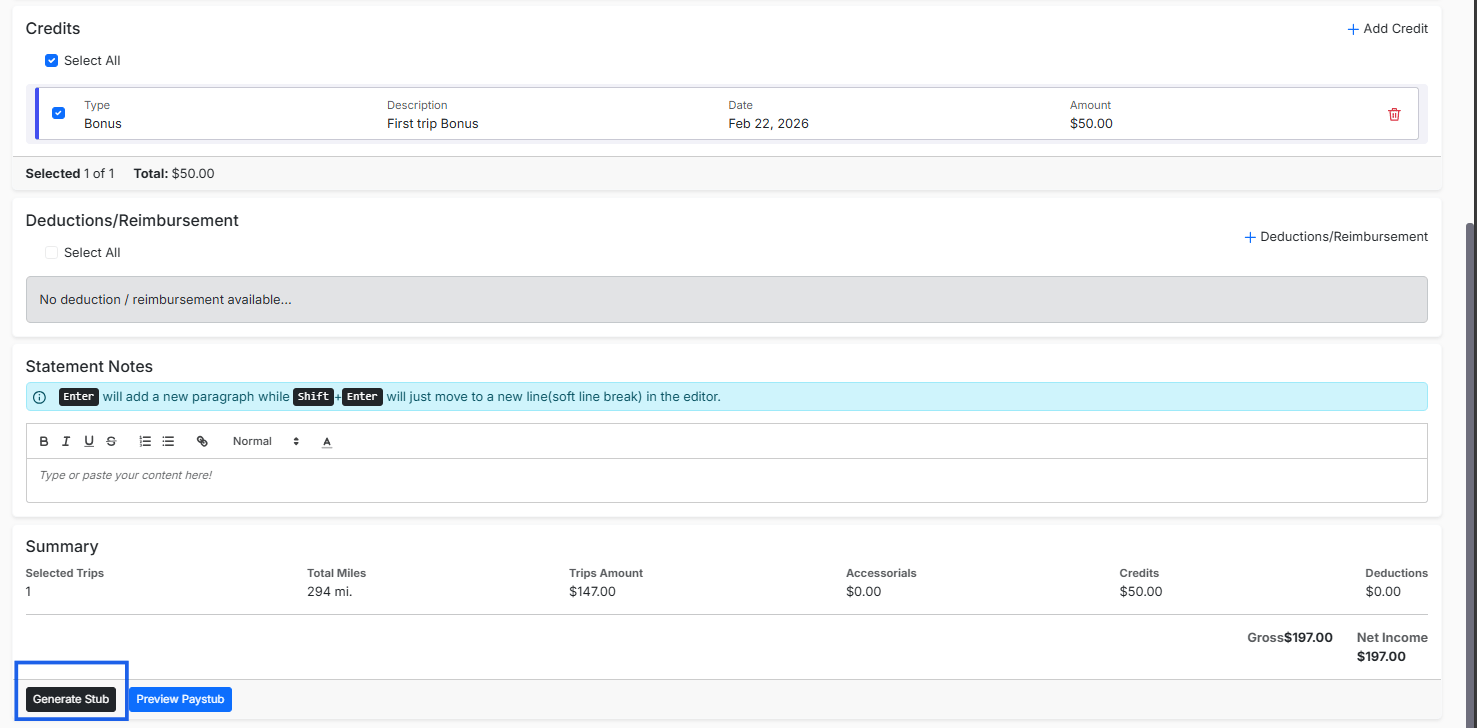
Driver statements (purchase invoices) can be exported from either the legacy Pay Drivers page or the Driver Settlements module. The export behavior is governed by your specific driver billing configuration. Single Bill Export (Recommended) The recommended configuration is Single Bill for Driver Statement Export. When enabled, all trips, deductions, and credits included in a driver statement are consolidated into a single bill for export to Business Central. This approach is ideal for tenants operating on weekly or biweekly pay cycles. The subsidiary used for exporting driver bills is determined by the subsidiary assigned on the driver profile in Alvys. Pay Drivers Page (Legacy) For tenants using the legacy Pay Drivers page, generating a driver statement automatically triggers the export of the purchase invoice to Business Central. If an error occurs while exporting a carrier purchase invoice from the Carrier Settlements module, the error details are displayed directly within the module. Carrier statements cannot be re-sent from the Error Transactions page. All corrections must be made within the Carrier Settlements module, and the statement must be regenerated there. For tenants that use the Carrier Settlements module but prefer carrier bills to export when the carrier invoice is uploaded on the trip, it is recommended not to enable the Carrier Statements external accounting setting. In this configuration, enabling the generate carrier invoice separately setting and uploading the carrier invoice to the trip then generating the customer invoice will trigger the carrier bill export.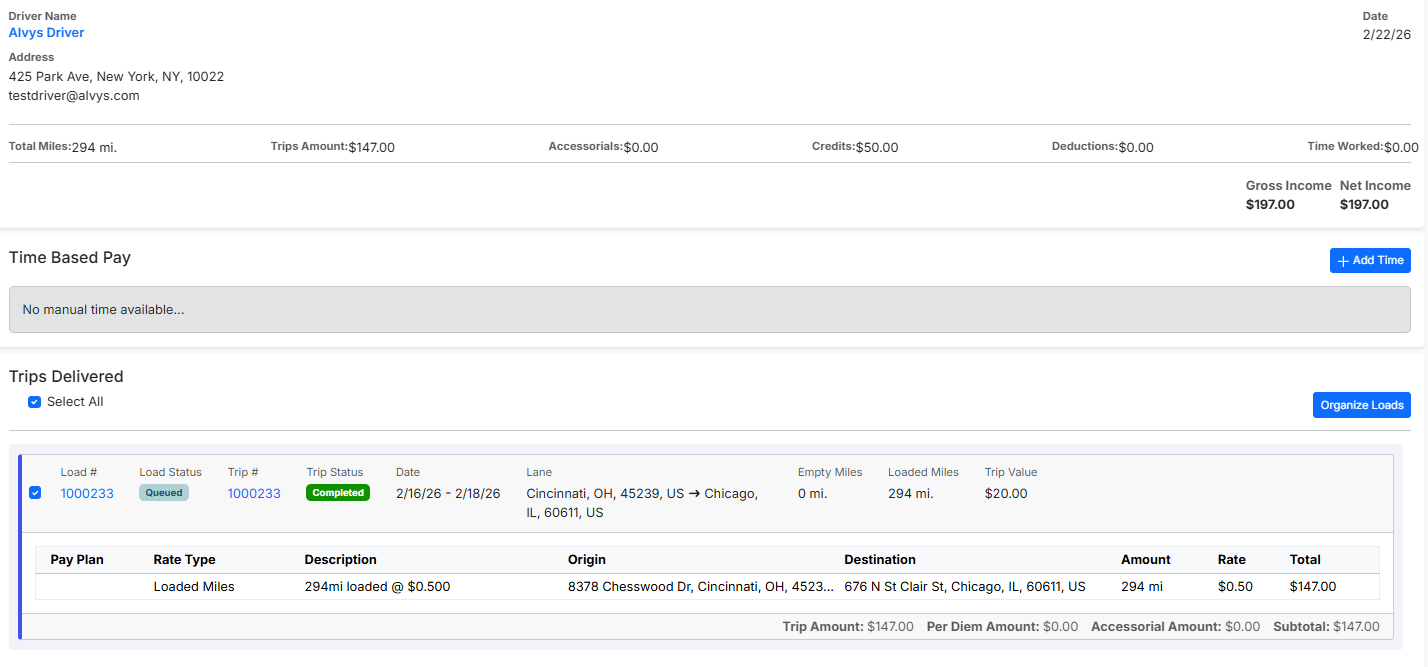
Settings and Permissions
- Who can export transactions: Users with the “Admin” or “Partner Admin” role. The Accounting Integrations area is restricted to these roles.
- Carrier Statements External Accounting setting: Must be enabled per subsidiary to allow carrier bill export from the Carrier Settlements module. When enabled, carrier bills will not export from individual load invoice generation for external carriers; the system expects the bill to come from the Carrier Settlements module instead.
- Generate Carrier Invoice Separately setting: When enabled, carrier bill export from an individual load is held until a Carrier Invoice document is uploaded to the trip.
- Single Bill for Driver Statement Export: Configured per tenant. When enabled, all trips and adjustments in a driver statement are consolidated into a single purchase invoice for Business Central.
- 1099 Tax Details for vendor creation: When this setting is enabled in the Business Central integration configuration, Alvys uses the driver’s Tax Company Name and Tax Company Address to create the vendor record instead of the driver’s name.
- Alvys is the source of truth: Customer and vendor field values managed in Alvys (name, address, phone, payment terms) will overwrite any changes made directly in Business Central on the next sync.
Limits and Behavior
##a inconsistencies and prevent updates from syncing correctly. Do not delete transactions in Business Central if you plan to edit and resend them.Customer Invoices Exported from Load and Invoicing Pages
The behavior of modifications to previously exported invoices depends on the status of the record in Business Central: Unposted Invoices (Draft status in BC) If the invoice remains unposted in Business Central (Draft status), changes made in Alvys will update the existing record upon the next synchronization or invoice regeneration. Posted Invoices (Open status in BC) If the invoice has already been posted (Open status), it can no longer be directly edited. Alvys will automatically generate and export a Sales Credit Memo to reverse the original transaction, followed by a new Sales Invoice containing the updated details, once the invoice is regenerated in Alvys. Closed Invoices (Closed status in BC) Once a payment has been fully applied and synced from Business Central, the invoice reaches Closed status in Alvys. At this stage, no further modifications are permitted. The reason is that the transaction record is locked once payment is fully reconciled in Business Central. Contact Alvys Support for assistance if a Closed invoice requires changes.Automatic Field Synchronization (No Regeneration Required)
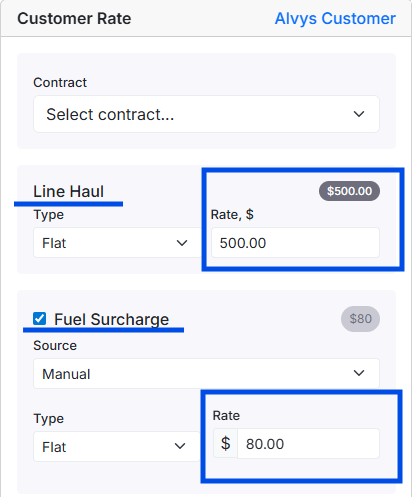
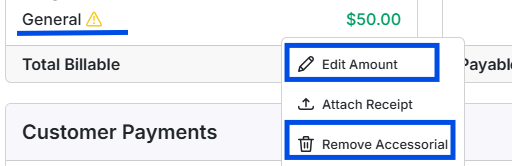
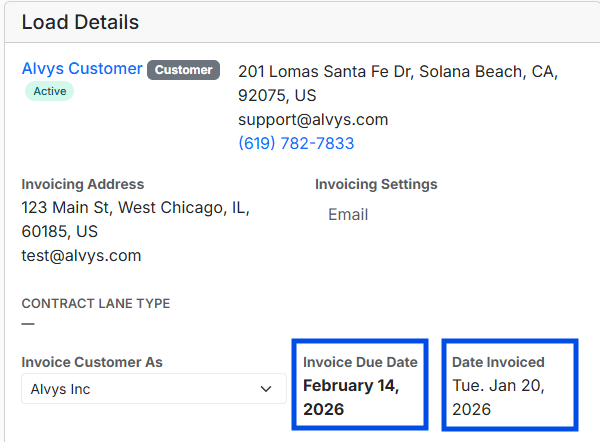
Certain load invoice fields automatically update the Business Central sales invoice without requiring invoice regeneration. Updates to the following fields are applied automatically when saved in Alvys; refresh the invoice page in Business Central to see the changes:- Customer linehaul amount
-
Customer fuel surcharge
-
Accessorial charges (added, edited, or removed)
- Invoice Date (Document Date in BC)
- Invoice Due Date
Changing the Customer on a Previously Exported Invoice
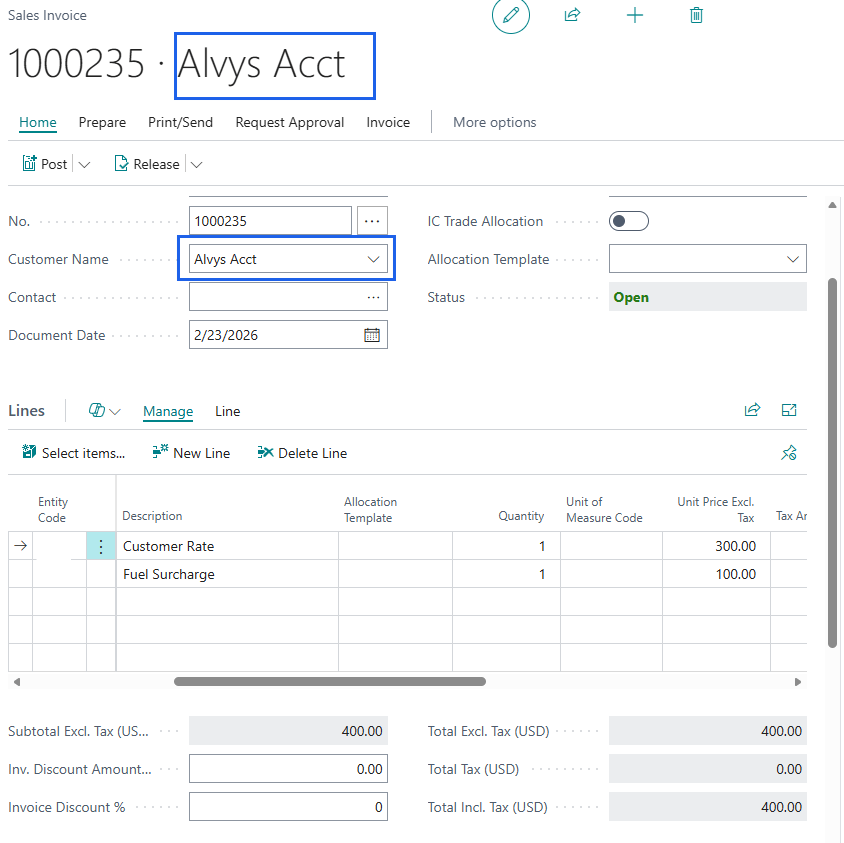
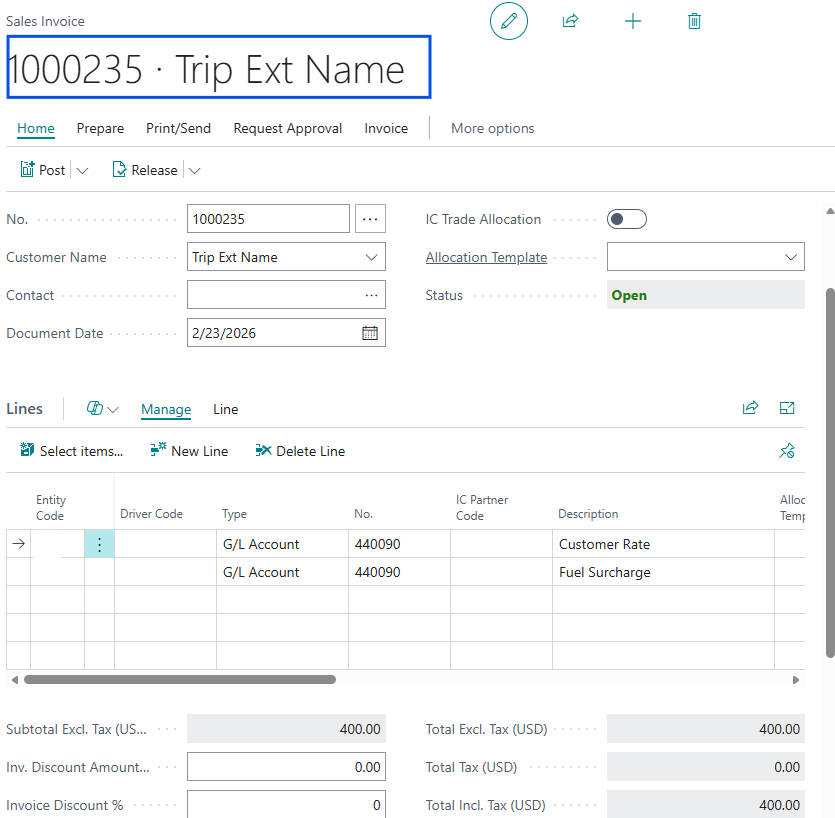
The customer associated with a load can only be changed while the load is in a status prior to Invoiced (for example, Queued). Queued status indicates that the invoice has been generated in Alvys but has not yet been submitted to the customer. Once the invoice has been submitted, the load status updates to Invoiced based on the invoicing mode, and the customer cannot be changed directly. If the load is in Invoiced status, contact Alvys Support to revert the load status to Queued, which then allows the customer to be updated and the invoice to be regenerated for synchronization with Business Central. Sample Business Central Invoice Exported from Alvys The customer’s name displayed on the exported invoice reflects the External Accounting Name.Sample Business Central Invoice Exported from Alvys
The customer’s name displayed on the exported invoice reflects the External Accounting Name.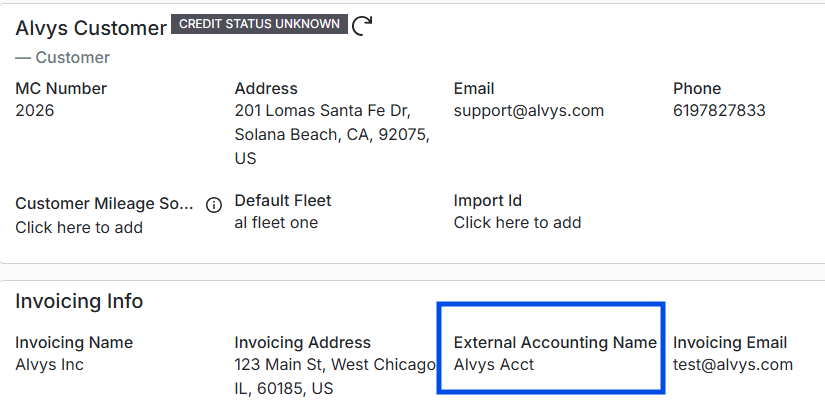
-
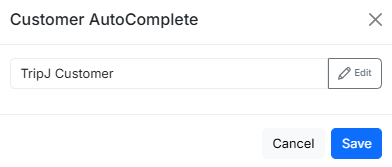
In the Load Details section of the load, click the Change Customer button.
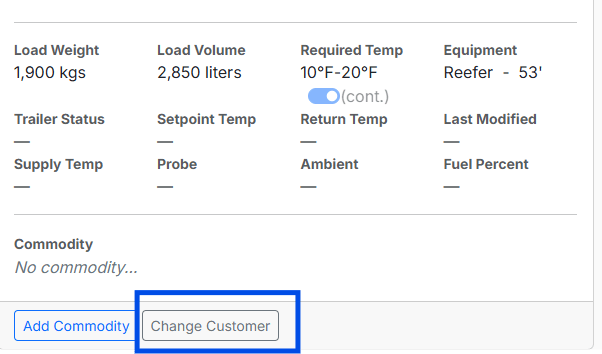
- Select the correct customer to assign to the load and save the change.
-
Regenerate the invoice in Alvys.

- Refresh or reopen the invoice in Business Central to verify that the customer information has been updated correctly.
Updating Invoice Customer Fields
Fields such as invoicing address, shipping address, customer email, and customer phone are managed in the customer profile. For these changes to take effect, the load status must be prior to Invoiced. If the load has already been invoiced, contact Alvys Support to revert the status to Queued before making updates. To update customer fields:- Navigate to the customer profile in Alvys.
- Apply the necessary changes.
- Save the updates.
- Regenerate the invoice.
-
Refresh or reopen the invoice in Business Central to view the changes.
Updating the Invoice As Subsidiary After Invoice Export
Modifications to Summary Invoices
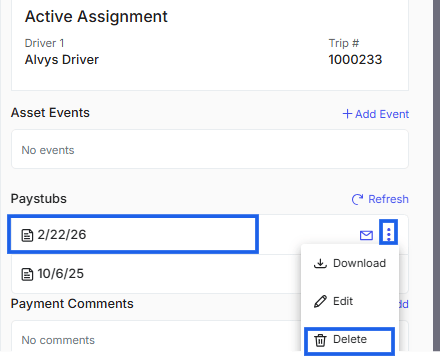
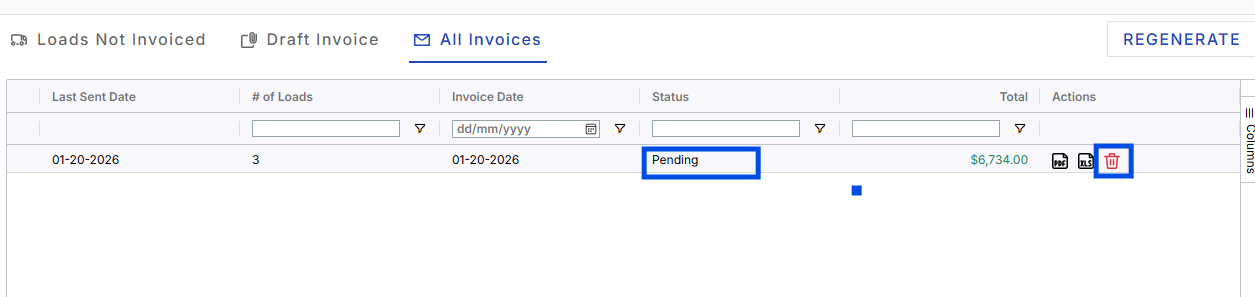
Modifications to summary invoices that have already been exported depend on the specific scenario. Adding or Removing Loads from a Summary Invoice The only supported mechanism for adding or removing loads from a summary invoice is to revert the summary invoice. A summary invoice can be reverted only when its status is Processed. If the invoice has already been Sent or Paid, further modification requires intervention from Alvys Support. Reverting a summary invoice does not update the original invoice in Business Central. After reverting, the user must generate a new summary invoice in Alvys. This new invoice will receive a new summary invoice number, which will be exported to Business Central. The old summary invoice remains in Business Central unless manually deleted. Procedure:- Navigate to the All-Invoices tab in Alvys.
-
Locate the invoice and click the Delete icon for the specific summary invoice.
- Navigate to the Loads Not Invoiced tab.
- Select the loads to be included in the new summary invoice.
- Regenerate the summary invoice.
- Verify that the updated summary invoice amount is accurately reflected in Business Central.
- Manually delete the old summary invoice from Business Central to avoid duplicate records.
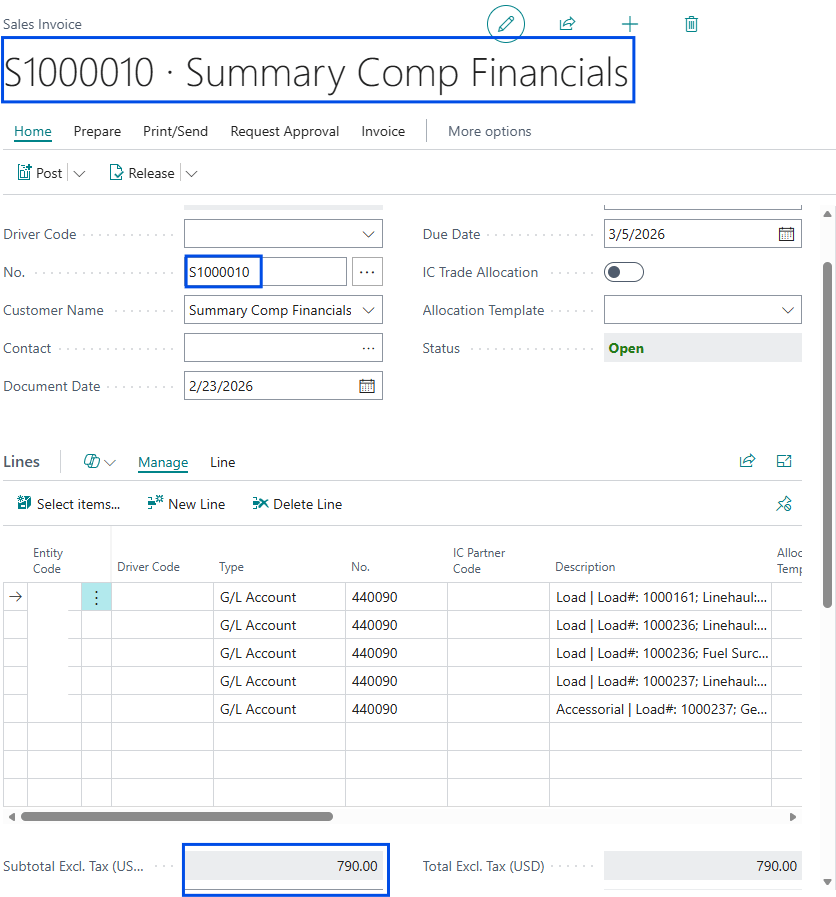
- Confirm that the summary invoice status is not Paid in Alvys. If the invoice is marked as Paid, all loads included in the summary invoice are set to Completed, and any subsequent modifications will not sync to Business Central for completed loads.
-
Navigate to the Load Details page for the specific load included in the summary invoice that requires modification.
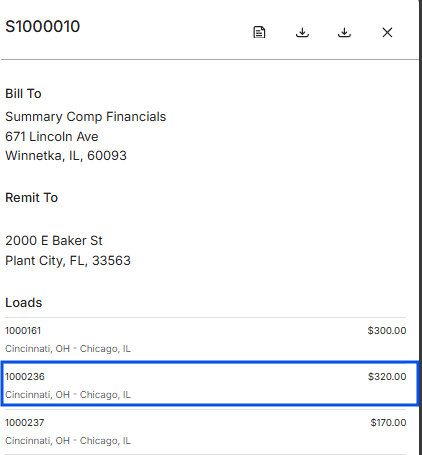
- Apply the necessary updates (for example: add charges, adjust amounts, update notes).
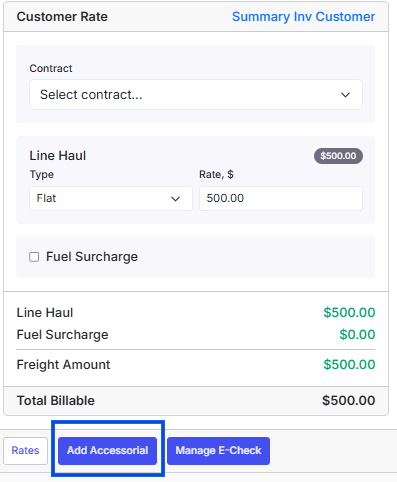
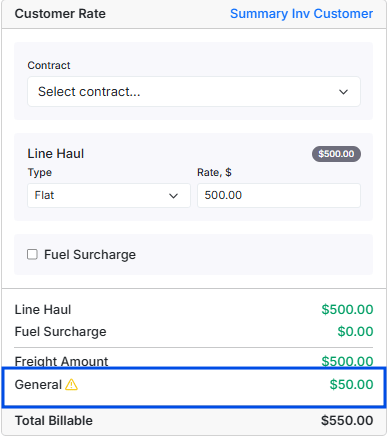
-
Navigate back to the Summary Invoice in Alvys and regenerate the summary invoice.
- Verify in Business Central that the updated invoice amount and associated load details are accurately reflected.