
Report Permissions govern which users can view the “View Summary Financial Report” and the “View Detailed Financial Report”; this article covers each permission, who receives it by default, and best practices for configuring access.
Overview
Report Permissions (also called reporting access or financial report permissions) control access to financial and operational reporting within Alvys. This article covers the two financial report toggles in the Report category: “View Summary Financial Report” and “View Detailed Financial Report”. Each permission grants access to a specific report, and they can be assigned independently. Together, they allow designated users to access the performance and financial data they need to do their jobs without exposing sensitive information to users who do not require it.💡 The Report category in the permissions section also contains other report toggles such as “Fuel Report”, “Toll Report”, “View Statement List Report”, “View Statement Items Report”, “View Asset Safety Report”, “View Driver YTD”, and “View Insights”. This article focuses on the two financial reports; see the User Permissions Glossary for the rest.
Where to Find It
Report Permissions are configured at the individual user level within the User Management interface. To adjust these settings:- Select your username in the bottom-left corner of the Alvys interface.
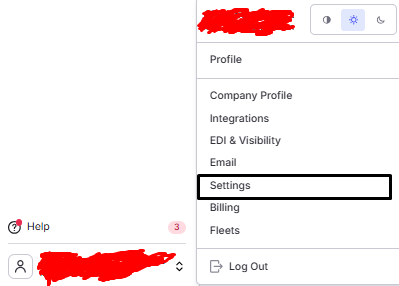 *Image showing navigation to Company profile *
- Navigate to Company Profile and select the Users tab.
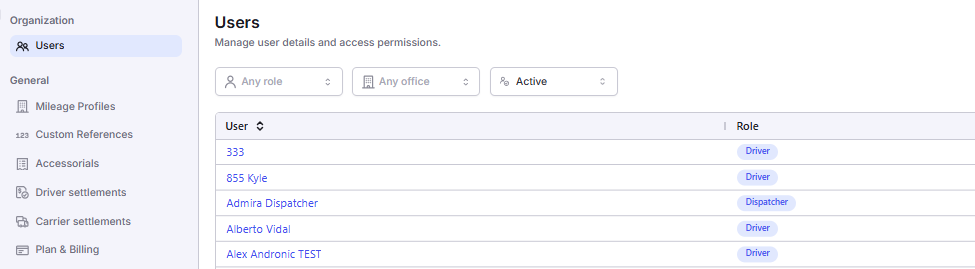 *Screenshot showing the Users tab selected in Company Profile. *
- Choose an existing user to Edit, or select the Add User button to create a new profile.
- Scroll to the Permissions section and locate the Report category.
- Identify the eight (8) individual checkboxes corresponding to the specific permissions detailed in this article: Fuel Report, Toll Report, View Summary Financial Report, View Detailed Financial Report, View Statement List Report, View Statement Items Report, View Asset Safety Report, **View Driver YTD **and View Insights.
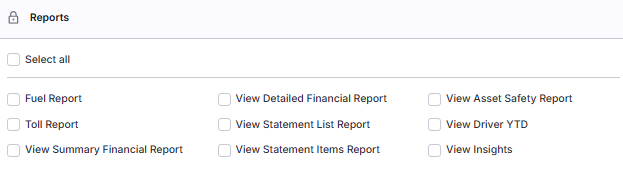 Image Showing Report permissions category
Report Permissions Breakdown
”Fuel Report”
Fuel constitutes one of the largest variable costs for a trucking company, often ranking second only to driver wages. The Fuel Report provides essential visibility into fuel expenditures by driver, vehicle, location, and time period. The Fuel Report permission governs access to the Fuel Report page which is located within the Asset Reports section of the Reports module. This report displays fuel transaction data for both drivers and vehicles, allowing users to audit fuel card purchases, analyze gallon consumption, manage driver fuel deductions, and upload external transaction files among other related functions. In the absence of this permission, the page remains hidden from the navigation menu of the user.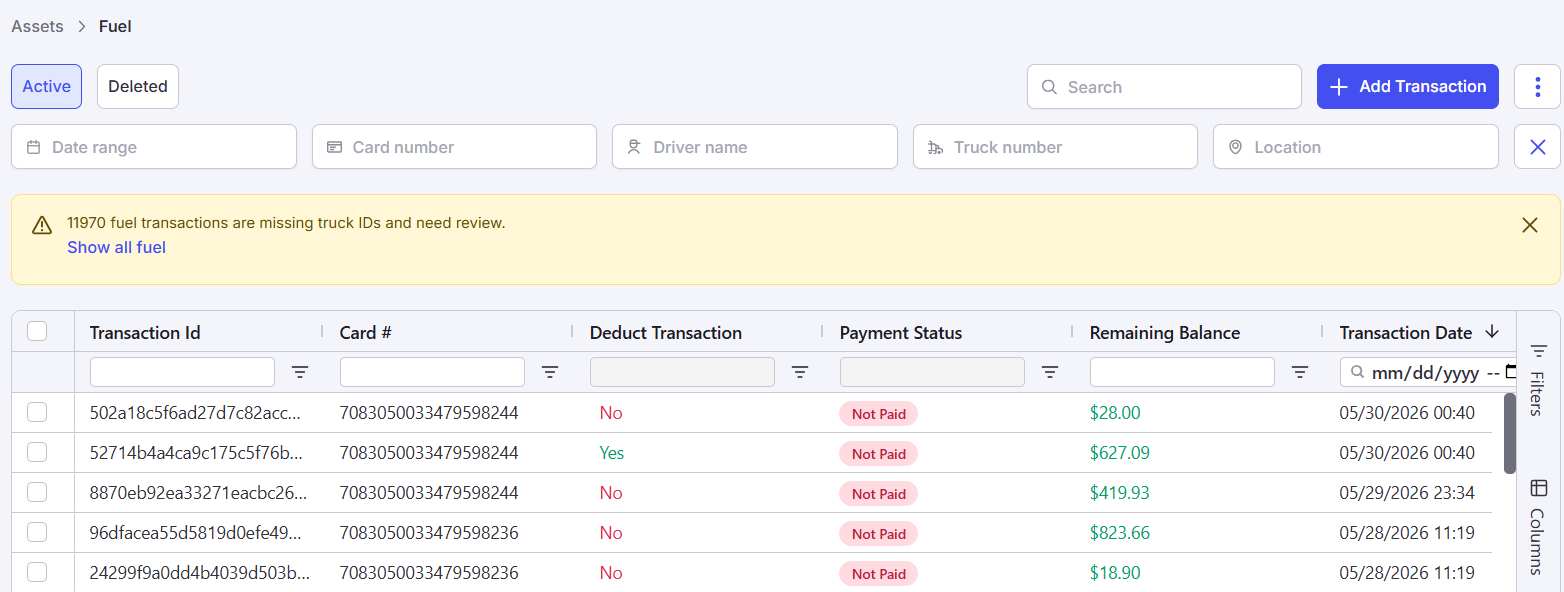 Screenshot showing the Alvys Fuel Report.
✅ Best practice: Grant the Fuel Report permission to all staff who manage fuel expenses or who need to audit driver fuel card usage. Consider also giving it to fuel card administrators who need to reconcile transactions. You do not need to restrict this permission as tightly as financial or HR reports.
”Toll Report”
The Toll Report permission governs access to the Toll Report page situated within the Asset Reports section of the Reports module. This report provides a comprehensive display of toll transaction data, enabling users to analyze toll charges according to specific drivers, vehicles, routes, and time periods. In the absence of this permission, users are unable to navigate to the Toll Report page as it remains excluded from the navigation menu.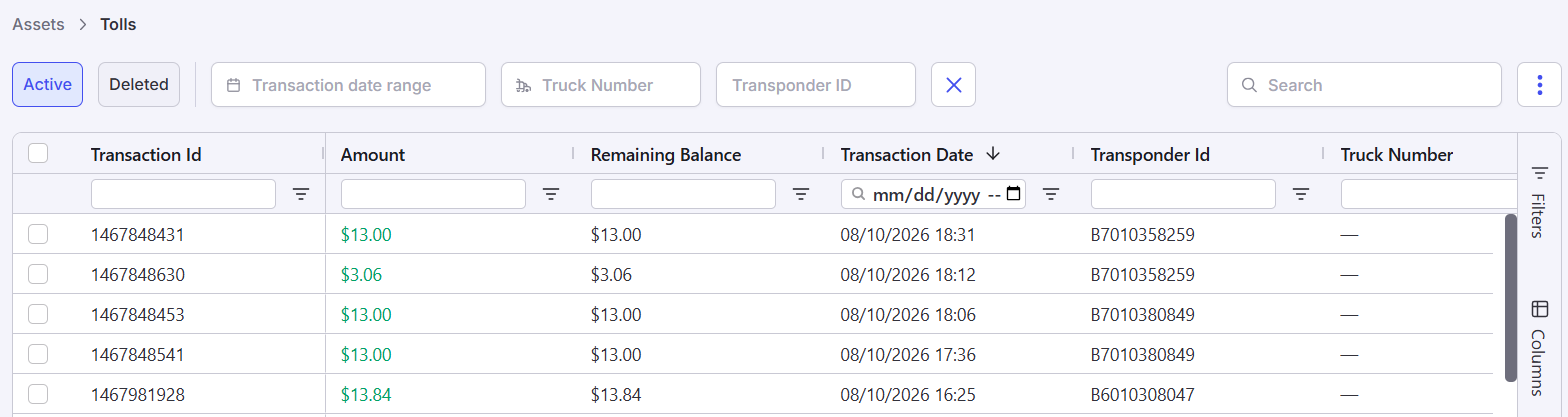 Screenshot showing the Alvys Toll Report.
”View Summary Financial Report”
The “View Summary Financial Report” permission grants access to the Summary Financial Report in Alvys, which provides an operational and financial overview of load and trip activity across a configurable date range. The Summary Financial Report gives managers and dispatchers a quick view of revenue and expenses aggregated by asset, load counts, and other high-level metrics without requiring access to individual invoice-level line items.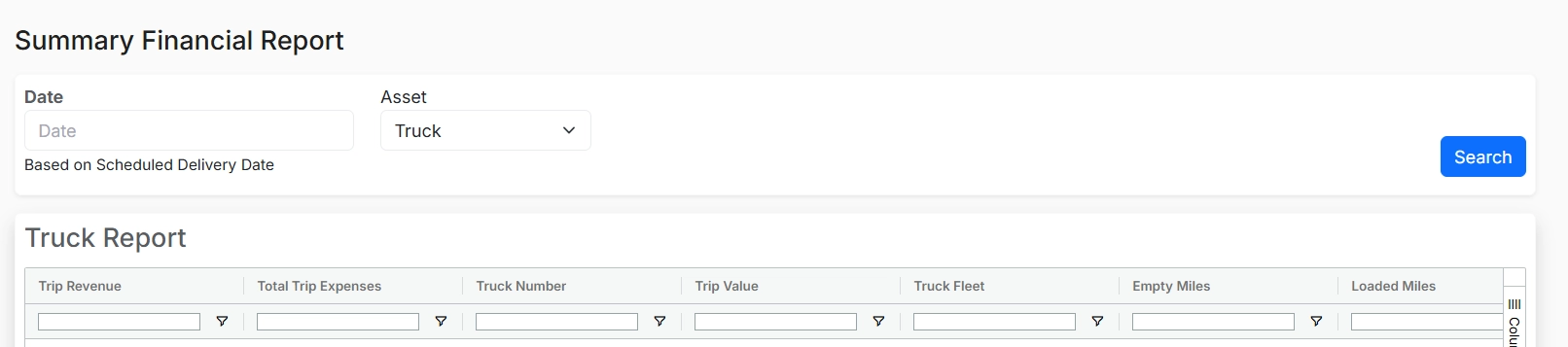 Screenshot showing the Alvys Summary Financial Report.
✅ Best practice: Grant “View Summary Financial Report” broadly to roles that manage or monitor operational activity. This report aggregates revenue and expenses by asset rather than exposing individual invoice line items. Use the “View Detailed Financial Report” permission to control access to more granular financial data.
”View Detailed Financial Report”
The “View Detailed Financial Report” permission grants access to the Detailed Financial Report in Alvys, which provides a granular breakdown of revenue, costs, and margins at the load and trip level. This report exposes individual invoice amounts, cost breakdowns, and margin data and should be limited to roles that genuinely need detailed financial visibility. Screenshot showing the Alvys Detailed Financial Report.
💡 Best practice: Restrict “View Detailed Financial Report” to roles with a direct need for financial data: billing staff, office managers, senior managers, and owners.
”View Statement List Report”
The View Statement List Report permission governs access to the Statement List Report page located within the Financial Reports section of the Reports module. This report provides a comprehensive audit trail of all driver statements for both owner operators and company drivers, which are summarized at the statement level. It enables billing and settlement personnel to observe all statements for a specific driver, including the date period and their respective totals for mileage, gross revenue, deductions, credits, and net earnings without the requirement to open each statement individually. Access to this information should be limited to billing and accounting personnel who manage carrier payments.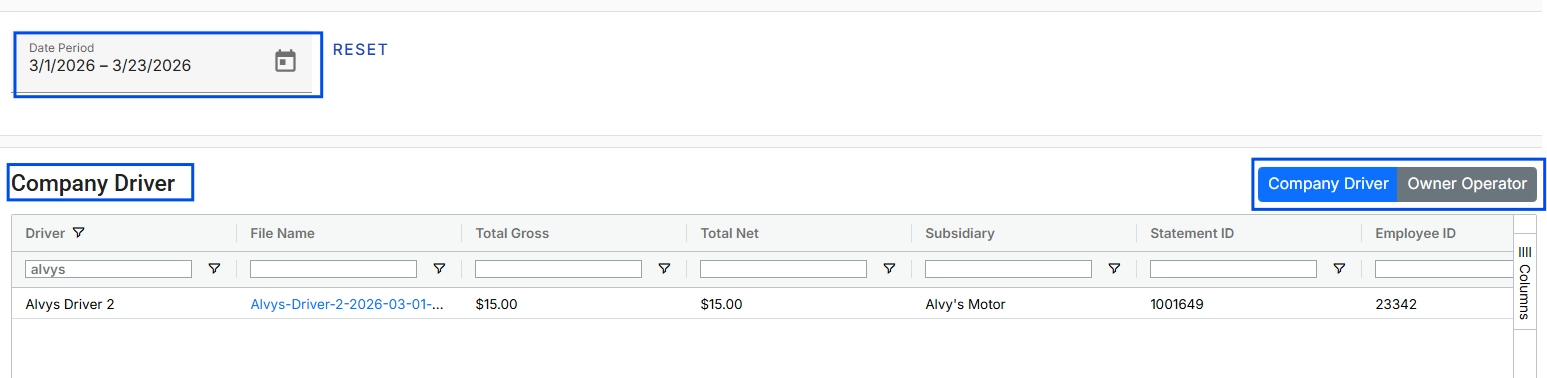 Screenshot showing the Alvys Statement List Report.
✅ Best practice: Grant “View Statement List Report” and “View Statement Items Report” together. The Statement List shows which statements exist; the Statement Items report shows the line-item detail on each statement.
”View Statement Items Report”
The View Statement Items Report permission controls access to the Statement Items Report page within the Reports module. While the Statement List Report provides an overview of all driver statements, the Statement Items Report displays the individual line items within those statements, such as specific loads, charges, and deductions. These statement items represent the granular financial detail behind each driver payment, including individual load charges, accessorial fees, deductions, and adjustments. This level of detail is necessary for billing staff who need to verify the accuracy of driver statements to ensure that all charges are accounted for. Restricting access prevents unauthorized users from viewing detailed driver payment breakdowns.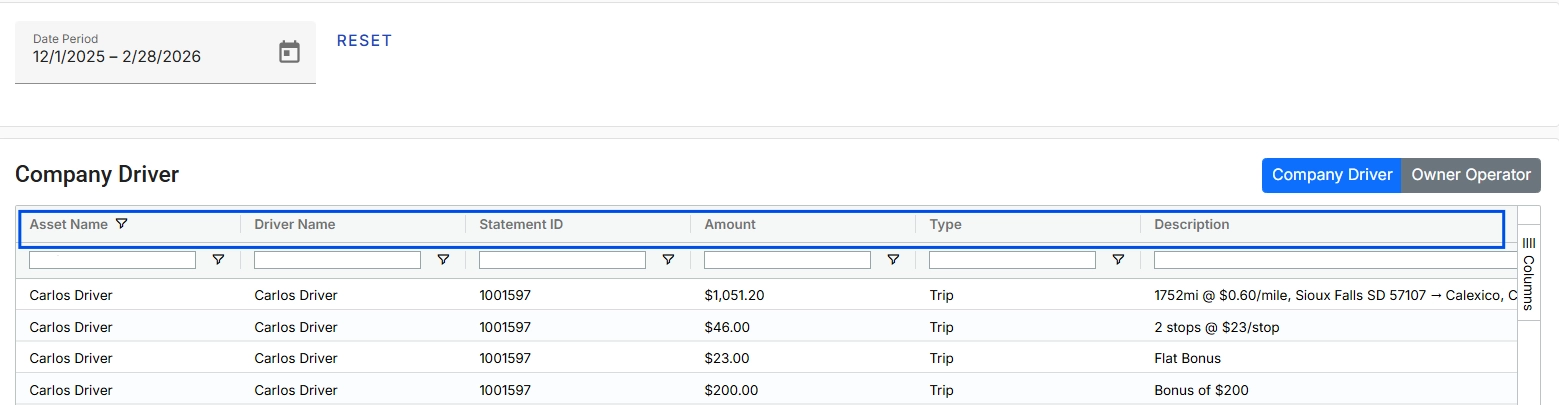 Screenshot showing the Alvys Statement Items Report.
”View Asset Safety Report”
The View Asset Safety Report permission governs access to the Asset Safety Report page situated within the Reports module. Safety personnel bear the primary responsibility for ensuring that documentation for all assets remains current and that the fleet can legally operate within regulatory frameworks. This report provides a centralized view for safety users to monitor essential certifications that have expired or are approaching expiration. For drivers, the report highlights critical data points including license expiration, medical certification expiration, the most recent motor vehicle record date, and Clearinghouse status dates. Regarding equipment, the report tracks assigned drivers, license plate expiration, and inspection expiration dates for both trucks and trailers. Additionally, it provides visibility into lease commencement and termination dates to ensure lease compliance across the fleet. By centralizing these diverse metrics, the Asset Safety Report enables proactive management of asset documentation to prevent operational disruptions and maintain full compliance. Screenshot showing the Alvys Drive Safety Report.
”View Driver YTD”
The View Driver Year to Date permission governs access to the Driver Year to Date report page situated within the Reports module. This report serves as a centralized resource for monitoring cumulative earnings and financial data for drivers throughout the current calendar year. It provides comprehensive visibility into driver compensation totals, detailed pay period breakdowns, and cumulative year to date accumulations. Because this data discloses sensitive individual earnings and financial performance over time, this authorization acts as a critical security measure to ensure that only authorized personnel can evaluate these specific compensation metrics. Screenshot showing the Alvys Driver Year to Date Report
✅ Best practice: Restrict “View Driver YTD” to accounting staff and managers who handle driver pay and tax reporting. This report contains sensitive earnings data.
”View Insights”
The View Insights permission controls entry to the Alvys Insights feature, the AI-powered chat interface where users ask plain-English questions about their operational and financial data such as loads, drivers, financials, carriers, and other TMS data. The Insights chat interface can be accessed from the left navigation panel, **Insights **menu item.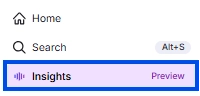 Image showing navigation to Insights Page
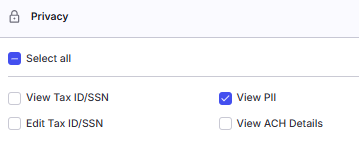 Image showing View PII Permissions
✅ Best practice: Grant “View Insights” only to senior management and owners. If a user was just granted this permission but Insights data has not appeared, ask them to log out and log back in. Data may take up to 24 hours to populate after the permission is first enabled.
Settings & Permissions
- “View Summary Financial Report” is assigned by default to: Support, Partner Admin, Admin, Operation Manager, Dispatcher, Biller, Sales Agent, Office Admin, and Data Entry. Not assigned to: Safety and Driver.
- “View Detailed Financial Report” is assigned by default to: Support, Partner Admin, Admin, Operation Manager, Biller, and Office Admin. Not assigned to: Dispatcher, Sales Agent, Data Entry, Safety, and Driver.
Limits & Behavior
- Both report permissions operate independently. Granting one does not automatically grant the other.
- Users without either Report permission will not see the reporting section or will encounter an access-denied state when navigating to it.
- Changes to permissions take effect immediately upon saving the user profile. No session restart is required.