
📋 Applies to: Admin, Partner Admin, Office Admin, Dispatcher, Operation ManagerModule: Dispatch PlannerDispatch Assist is a paid add-on that evaluates your entire fleet against every open trip, surfaces optimal driver and asset pairings, and shows clear reasoning for each suggestion directly in the Dispatch Planner.
Overview
Dispatch Assist is an AI-powered planning tool that continuously evaluates every open trip against your entire fleet to surface the best driver and asset pairings. Each suggestion includes transparent reasoning so dispatchers can dispatch with confidence, learn from trade-off data, and manage more assets without adding headcount. Dispatch Assist applies to carrier subsidiary loads only. Brokerage subsidiary loads are excluded from both Dispatch Planner and Dispatch Assist. Dispatch Assist runs automatically in the background; no manual trigger is needed. It continuously evaluates open trips and available assets, refreshing suggestions approximately every 15 minutes.Where to Find It
Dispatch Assist surfaces inside the Dispatch Planner. Once enabled, a Suggestions column becomes available in the trips table column configuration menu. The number displayed in that column for each trip represents the count of AI-generated suggestions for that trip.Key Concepts
Optimization Factors
Every Dispatch Assist suggestion is evaluated against six factors:- Deadhead miles: minimizing empty miles between the driver’s current position and the trip pickup
- Hours of service (HOS): ensuring the driver has enough legal drive time remaining to complete the trip
- Equipment compatibility: matching the trip’s trailer requirements against the asset’s configured capabilities
- Revenue: maximizing rate per trip and protecting margin across the network
- Driver availability: calculating when a driver will be free based on current trips, scheduled events, and configured dwell time
- Dispatch preferences: honoring the rules and constraints configured for each asset in Assignment Preferences
Network-Wide Optimization
Dispatch Assist optimizes across your entire fleet, not just individual trips. A suggestion for one trip factors in the downstream impact on every other open trip. Alvys will work with your team to fine-tune the agent in line with your existing planning process and standard operating procedures.Dispatcher Control
Dispatch Assist does not auto-assign drivers. Every suggestion must be reviewed and either accepted or overridden by a dispatcher.Eligibility
Suggestions appear only for trips in Open or Planned status that are tendered to a carrier subsidiary and have at least one eligible, available asset with a configured Assignment Preference.How to Use It
Setting Up Dispatch Assist
Before Dispatch Assist can generate suggestions, three setup tasks are required.- Enable Dispatch Assist. Dispatch Assist is a paid add-on. Contact your Alvys account representative to enable it for your company.
- Configure Assignment Preferences. Dispatch Assist relies on Assignment Preferences to know which drivers and trucks are eligible for each trip.
- Navigate to Assets > Assignment Preferences.
- Click the blue + New Assignment button for each driver and truck combination you want Dispatch Assist to consider.
- Assets without a configured Assignment Preference will not be considered by Dispatch Assist. The more complete your preferences, the better the suggestions. For full details on creating and managing Assignment Preferences, see Assignment Preferences.
- Configure Availability Settings (recommended). These settings control how Dispatch Assist determines when a driver is free and whether they have enough time to take a new trip.
- Navigate to Settings > Planning configuration.
- Under Driver availability, configure the following fields:
- Average dwell time: the average time a driver spends at a delivery location before becoming available again. Default: 2 hours.
- “Available for” minimum: the minimum free time a driver must have to be considered available for a new trip. Default: 4 hours.
- Click Save.
Viewing Suggestions in Dispatch Planner
- Open Dispatch Planner.
- Click the column configuration menu in the trips table.
- Select the Suggestions column to enable it.
- The column displays the number of AI suggestions available for each eligible trip.
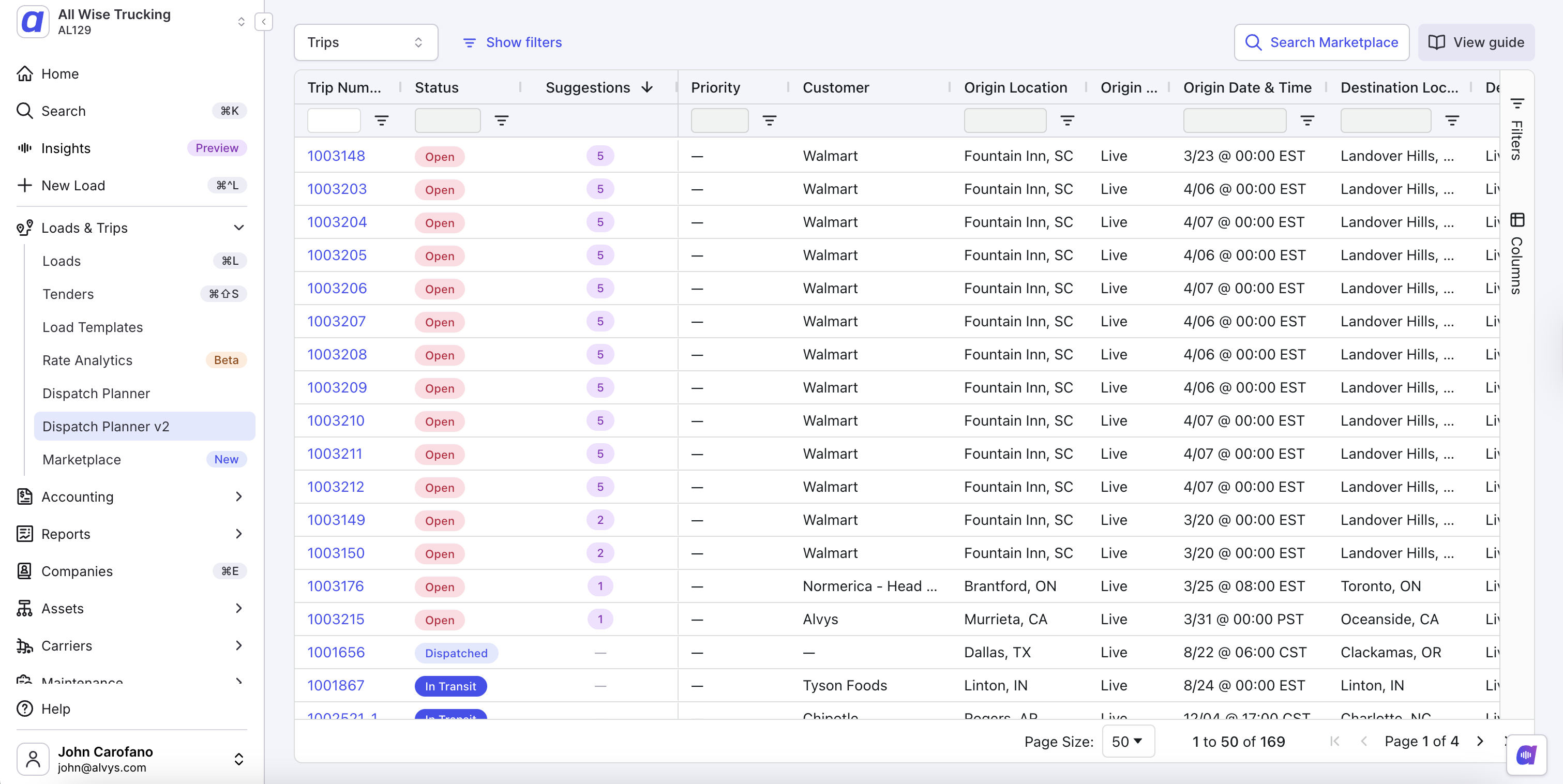 Screenshot of the Suggestions column in the Dispatch Planner trips table.
Understanding a Suggestion
Each suggestion represents the AI’s recommended driver and asset assignment for a specific trip. Clicking a suggestion opens a details panel that shows the reasoning behind the recommendation, including trade-offs across deadhead miles, HOS remaining, equipment match, and revenue impact. The reasoning panel helps dispatchers dispatch with confidence, learn from the data, and scale operations: one dispatcher can manage more assets because the AI handles the analytical work.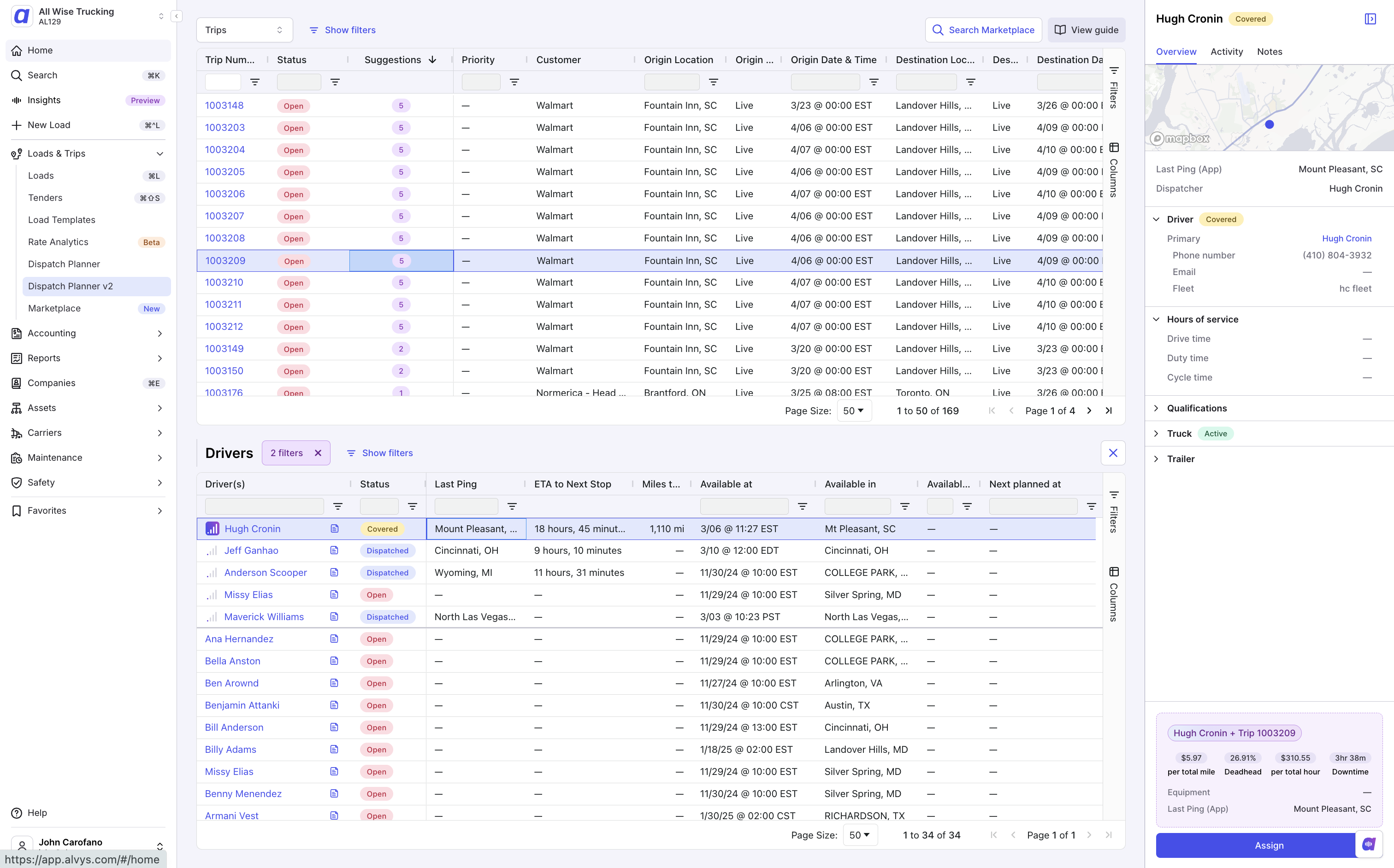 Screenshot of the Dispatch Assist reasoning panel showing suggestion details and KPIs.
- per total mile: rate per total mile
- Deadhead: empty miles as a percentage of total miles
- per total hour: rate per total hour
- Downtime
Accepting a Suggestion
- Locate the trip in the Suggestions column of the trips table.
- Click on the suggestion to open the recommended driver and asset pairing.
- Choose your action:
- Assign: assigns the driver and asset without dispatching the trip
- Assign and dispatch: assigns the driver and asset and dispatches the trip in one step
Overriding a Suggestion
- Select a trip from the trips table.
- Choose a different driver from the assets table.
- Complete the assignment as usual.
How Dispatch Assist Works
Dispatch Assist runs through a continuous three-step cycle:- Data aggregation: gathers open trips, available drivers, asset constraints, Assignment Preferences, hours-of-service data, and revenue information across your entire fleet.
- Optimization: the AI model evaluates all possible assignments simultaneously, minimizing deadhead, respecting hours of service, maximizing revenue, and honoring dispatch preferences across the network.
- Suggestions delivered: optimal assignments appear in the Suggestions column with clear reasoning for each recommendation.
Settings & Permissions
Access to Dispatch Assist requires the following:- A role with planner access: Admin, Partner Admin, Office Admin, Dispatcher, or Operation Manager
- Dispatch Assist enabled at the company level (paid add-on; contact your Alvys account representative)
- At least one carrier subsidiary configured on the load
- Assignment Preferences configured for the assets you want included
Limits & Behavior
- Dispatch Assist applies to carrier subsidiary loads only. Brokerage subsidiary loads are excluded.
- Suggestions refresh approximately every 15 minutes.
- Dispatch Assist does not auto-assign; every suggestion requires dispatcher review and action.
- Trips in Covered, Dispatched, or In Transit status do not show suggestions by default.
- Assets without a configured Assignment Preference are not evaluated and will not appear in suggestions.
- Dispatch Assist requires both a feature flag and an active integration to be enabled at the company level; a standard Alvys subscription alone does not activate it.