
Login Activity shows the sign-in history of the users in your company: successful and failed sign-ins, sign-outs, password changes and resets, MFA events, and blocked attempts. Use it to check who signed in, when, and from where.
Overview
You open Login Activity from Settings → Users → Advanced → Login Activity. The page lists the newest events first. Each row shows one event for one user. Select a row to see the full details of that event. Synonyms: login history, sign-in history, audit log, who logged in, failed logins, blocked sign-ins, suspicious sign-in, login report, security log.Before You Start
Your user account must have one of these roles: Admin, Partner Admin, or Support. If you have any other role, you do not see the Advanced menu and you cannot open the page.Login Activity covers sign-ins to the Alvys web app. It shows only the users in your own company. If you have the Admin or Partner Admin role, it does not show activity from Alvys Support staff.
Open Login Activity
How to view login activity
- Select your name at the bottom left of the screen, then select Settings.
- Select Users.
- Click Advanced in the toolbar above the users table.
- Select Login Activity.
Read the table
Each row has these columns:
The table shows up to 100 events on each page. The footer shows how many days back the page reads.
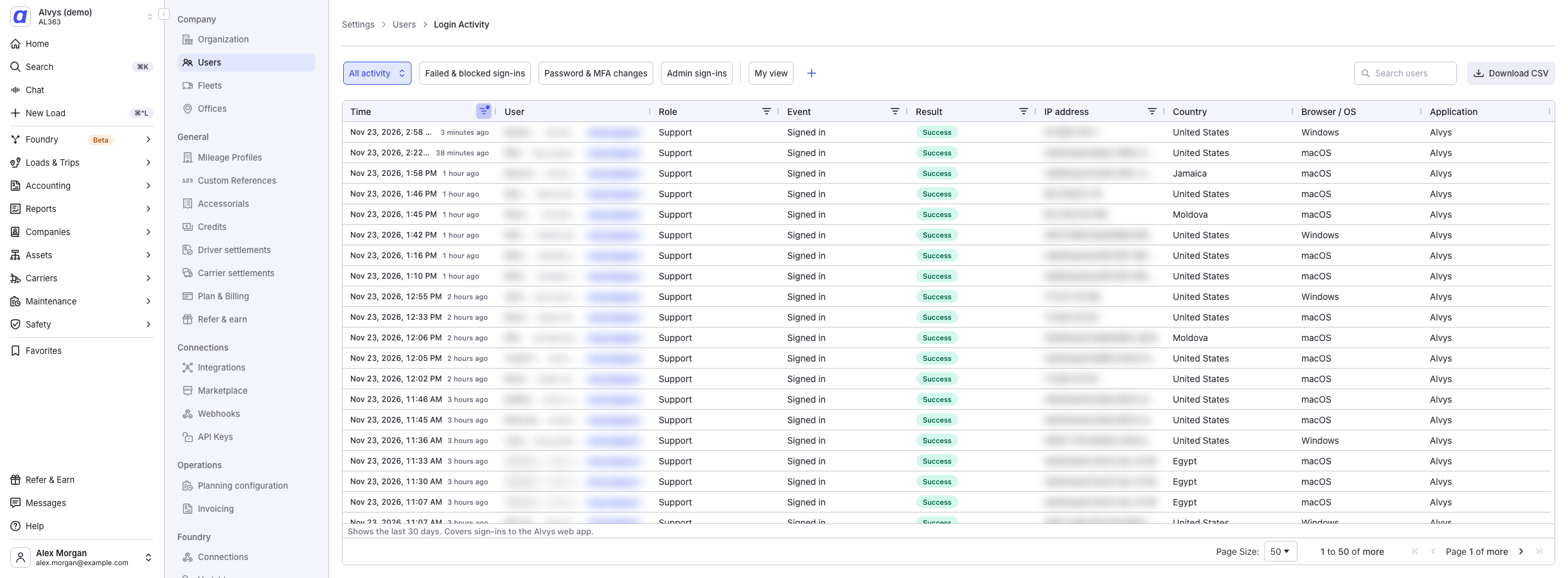
Find an event
- To find one person, type the user’s name or email address in Search users.
- To narrow the list by a column, open the filter on the column header and click Apply. You can filter by Time, Role, Event, Result, and IP address.
- To remove all search text and filters, click Clear all.
Use a saved view
Saved views set the filters for you. Select a view from the views list above the table.See the details of an event
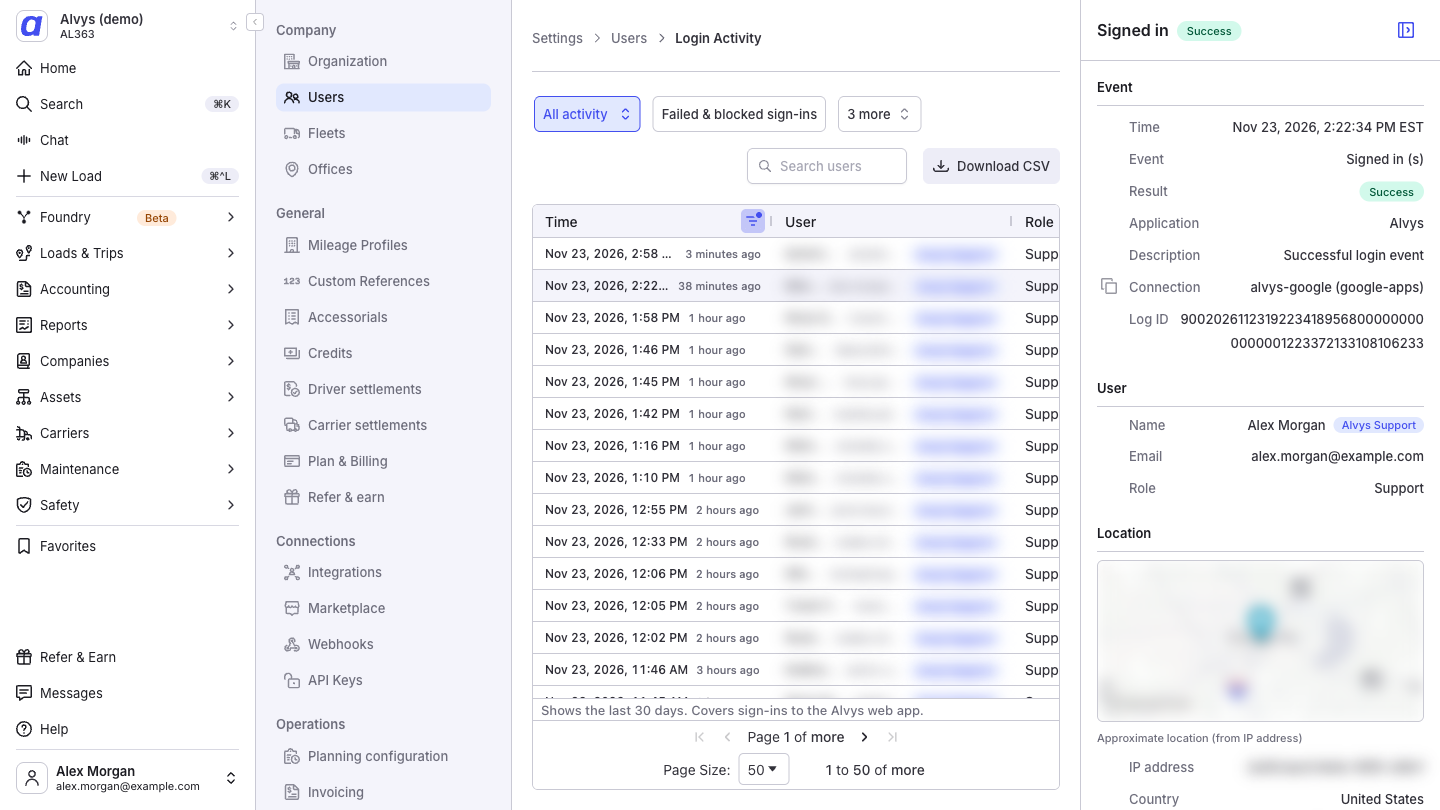
- Click a row in the table. A details panel opens on the right.
- Read the sections of the panel:
- Event: the time, the event, the result, the application, and, for a failure, the failure reason.
- User: the name, email address, and role.
- Location: the IP address, country, city, and time zone. A map shows the approximate location. The location comes from the IP address, so it is not exact.
- Device: the browser and operating system, whether the device is mobile, and the full user agent.
- Close the panel to return to the table.
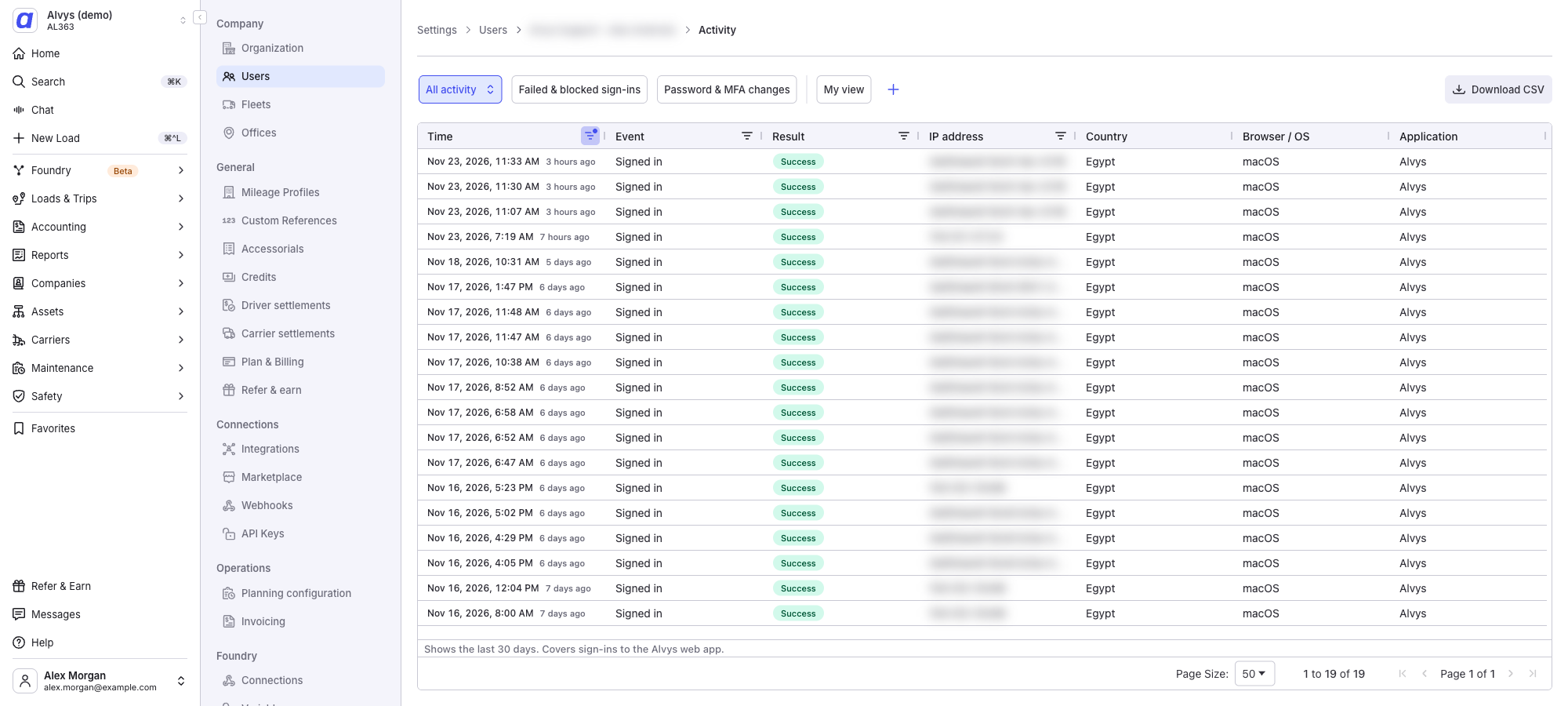
See the activity of one user
- Open Settings → Users.
- Open the profile of the user.
- Click Activity at the top of the page.
Download the events as a CSV file
- Set the search, filters, or saved view you want.
- Click Download CSV.