
Overview
Saved Views, also called grid views or saved layouts, are available on a growing set of grid pages. Each page keeps its own independent set of views. As of September 2026, Saved Views are available on:- Drivers List
- Trucks List
- Trailers List
- Dispatch Planner
- Load Templates
- Driver Pay
- Load Board — in beta
Saved Views on grid pages are a different feature from the saved views in Custom Reports, which remember dashboard filter and date selections and are always personal. See Open your first report for those.
Before You Start
Viewing and applying any saved view requires no specific permission and is available to all users. Creating your own personal view also requires no permission. Managing views shared with your whole organization requires permissions:- “CreateTenantSavedView” — create a shared view
- “UpdateTenantSavedView” — rename, re-icon, reconfigure, or duplicate a shared view
- “RemoveTenantSavedView” — delete a shared view
Steps
Find the views bar
The views bar appears at the top of any grid page that supports Saved Views. It shows the available views for that page as selectable chips. Clicking a chip applies that view’s column layout, filters, and sorting immediately, without reloading the page. If there are more views than fit on screen, a + More dropdown holds the rest, listed alphabetically. Views always appear in this left-to-right order: Alvys-Defined (Global) views first, then your personal My View, then shared Tenant-Defined views.Recognize the three view types
Alvys-Defined (Global) views are built in and available to everyone in your organization. The Drivers List, for example, ships with “All”, “Active”, and “Inactive”. Global views cannot be edited or deleted, but you can use one as a starting point: apply changes to it, then save the result as a new personal or shared view. User-Defined (My View) is a single private view each user can create per grid page. Only you can see it. It captures your preferred columns, filters, and sorting without affecting anyone else. Tenant-Defined (shared) views are created by users with the appropriate permission and shared with everyone in your organization. They are the right tool for standardizing how a team looks at data — an “Endorsement Expirations” view on the Drivers List, or an “Open Trips by Region” view on the Dispatch Planner. All users can see and apply them. Shared views are visually distinct from personal views in the views bar, so you can tell at a glance which are shared and which are yours.Know what a saved view remembers
When you create or update a saved view, these grid settings are captured:- Column visibility — which columns are shown or hidden
- Column order — the arrangement from left to right
- Column widths — how wide each column appears
- Column pinning — columns pinned to the left or right
- Filters — any active filter conditions
- Sorting — the multi-column sort order
Save your personal view
Configure the grid the way you want it, then open the dropdown on the active view’s chip and choose Save in My View. If My View is already the active view, choose Save changes instead. Each user gets one personal view per grid page. If you already have one, saving again updates it rather than creating a second.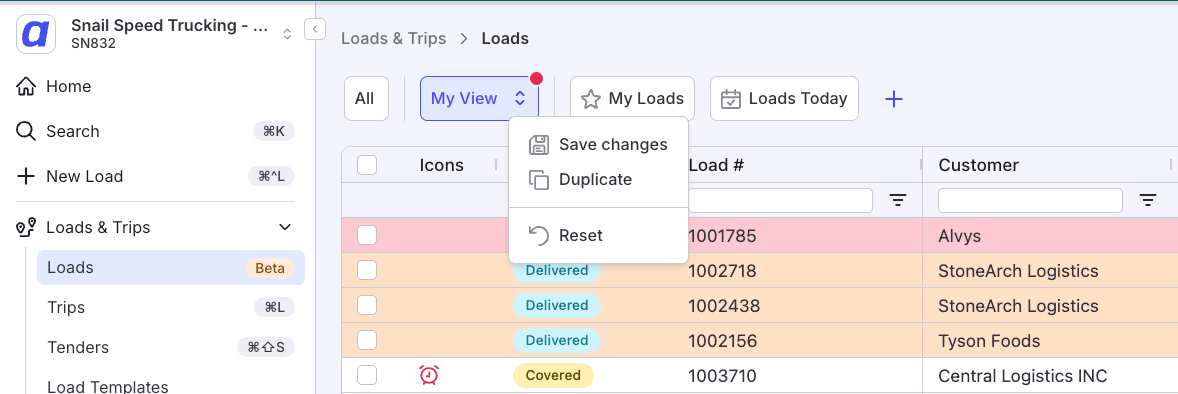
Create a shared view for your organization
With the “CreateTenantSavedView” permission, click the + button in the views bar, enter a name (up to 30 characters), choose an icon, and save. Shared view names must be unique within your organization. Alvys prompts you to pick a different name if there is a conflict.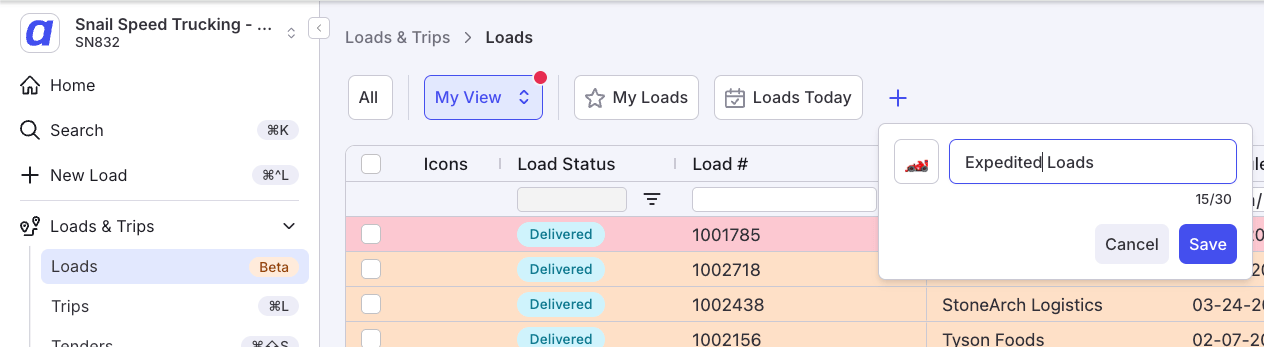
Work from the modified state
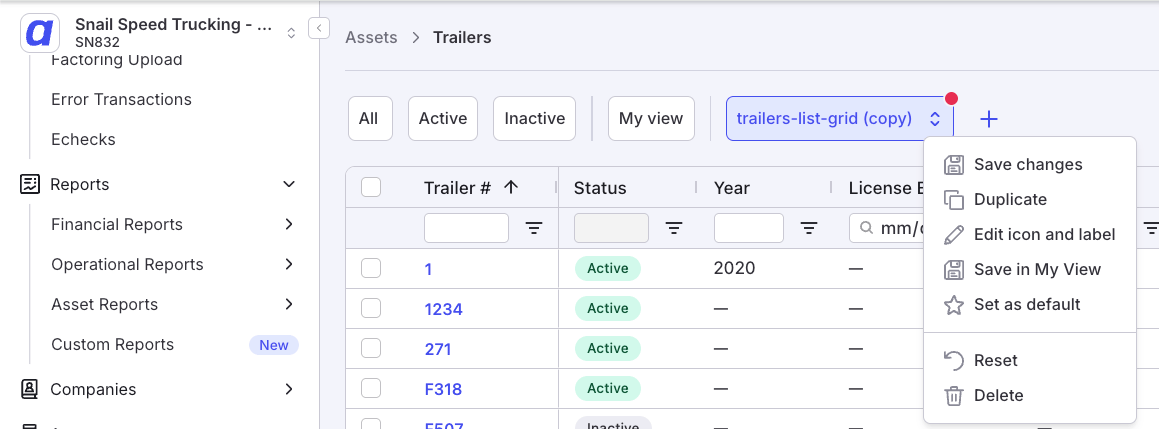
If you change a filter, sort, or column arrangement while a saved view is active, a red dot appears on that view’s chip. The dot means the current grid state differs from what the view saved. What the menu offers from there depends on which kind of view is active. On a shared (Tenant-Defined) view:- Save changes — overwrite the view with your current configuration
- Duplicate — create a copy of the view, leaving the original untouched
- Edit icon and label — change the view’s icon and name
- Save in My View — save the current configuration into your personal view, leaving the shared view untouched
- Set as default — make this the view that loads automatically when you open the page
- Reset — discard your changes and restore the view’s saved state
- Delete — remove the view for everyone in your organization
Reorder and set a default
Shared views can be reordered by dragging and dropping them in the views bar. Alvys-Defined views always come first and cannot be reordered. Any view can be set as your default landing view for a page — the one that loads automatically when you open it.Result
You can switch between saved layouts on any supported grid with one click, keep a personal layout for your own daily work, and — with the right permission — publish shared views that standardize how your team reads the same data.Variations
- Starting from a built-in view: apply an Alvys-Defined view, adjust it, then save the result as your personal or a shared view. The original is unchanged.
- Borrowing a shared view: any user can modify a shared view’s filters, sorting, or columns and save the result into their own My View without affecting the original.
- Dispatch Planner: Saved Views apply to the top table only. You can save separate views for when Trips is the top table and when Drivers is the top table; each is stored independently.
Troubleshooting
There is no views bar on the page
- Confirm the page is one of the supported grids listed in the Overview. Saved Views is being released progressively and not every grid has it yet.
- Refresh the page. If the views bar still does not appear on a supported grid, contact Alvys Support.
The + button to create a shared view is missing
- Creating shared views requires the “CreateTenantSavedView” permission, which is not granted to all roles by default.
- Ask your organization’s administrator to grant it. Admin and Partner Admin roles have it by default.