
Overview
Trucks and trailers in Alvys hold routing and fuel specs: their dimensions, weight ratings, axle and tire counts, and fuel details. Alvys uses these specs for routing and cost estimates. Every field is optional. A field you leave blank, or clear, is not set. You enter truck specs in the Routing & Fuel section of the truck form. You enter trailer specs in the Routing Specs section of the trailer form, which has a Reefer sub-section for reefer equipment types.Before you start
You must have the “EditAsset” permission to add or change specs on a truck or trailer. Without it, you cannot add or edit trucks and trailers.Add specs to a truck
- In the left navigation bar, select Assets, then click Trucks.
- Open a truck from the list, or click New Truck to create one.
- Scroll to the Routing & Fuel section and fill in the specs you know.
- Save the truck. For a new truck, click Add Truck.
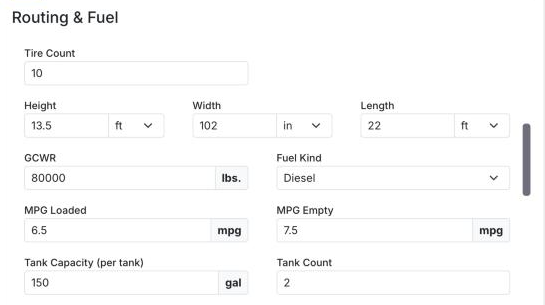 Shows the Routing & Fuel section of the truck form with example values in each field
Add specs to a trailer
- In the left navigation bar, select Assets, then click Trailers.
- Open a trailer from the list, or click New Trailer to create one.
- Scroll to the Routing Specs section and fill in the specs you know. If the Equipment Type is a reefer type, also fill in the Reefer sub-section.
- Save the trailer. For a new trailer, click Add Trailer.
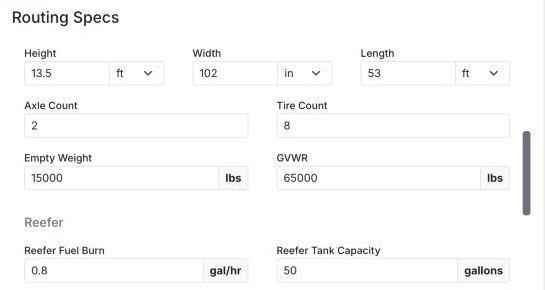 Shows the Routing Specs section of the trailer form, with its Reefer sub-section, filled in with example values
Truck fields
Each field shows its description when you hover over it.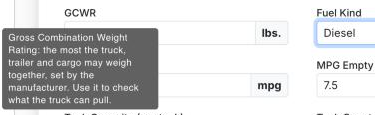 Shows the description that appears when you hover over the GCWR field
Trailer fields
Each field shows its description when you hover over it.
The Reefer sub-section shows only when the trailer’s Equipment Type is a reefer type. If you change the Equipment Type to a type that is not a reefer, the reefer values you already entered are kept.
Units, limits, and blank fields
- Every field is optional. Leave a field blank, or clear it, and it is not set.
- Height, Width, and Length have a unit list next to the field. On a truck, select ft, in, yd, or m. On a trailer, select ft, in, or m. Width starts in inches on both.
- Out-of-range values show a message under the field. For example: “Height must be greater than 0 and at most 20 feet (240 in).” Correct the value, or clear the field.
- Number fields accept only digits, and a decimal point where a fraction makes sense. You cannot type or paste the letter “e”, a plus sign (+), or a minus sign (−).
Tire size suggestions
Tire size fields suggest common sizes as you type. Select a size from the list, or keep typing to enter any other size. Tire sizes you saved before stay as they are.- On a truck, Steer Tire Size and Drive Axles Tire Size suggest sizes such as 295/75R22.5, 11R22.5, and the wide-base 445/50R22.5.
- On a trailer, Tire Size suggests common trailer sizes, including low-deck 17.5” and 15” sizes.
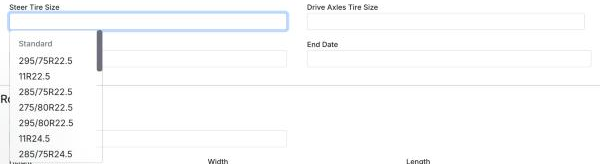 Shows the Steer Tire Size field with the list of suggested standard tire sizes open below it
Show the spec columns on the Trucks and Trailers lists
The Trucks and Trailers lists have a column for each spec. The columns are hidden until you turn them on.- Open Assets > Trucks or Assets > Trailers.
- On the right edge of the list, click Columns.
- Select the check box next to each spec column you want to show, for example Height or Length.
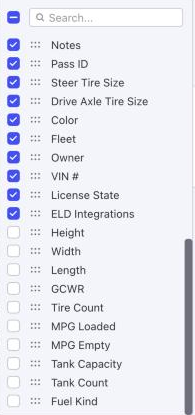 Shows the Columns panel on the Trucks list, with the routing and fuel spec columns not selected, which is how they start
When you filter a spec column, Height and Length filter in feet and Width filters in inches. Each filter box shows its unit. Weights show in lbs and tank sizes in gallons.
Shows the Columns panel on the Trucks list, with the routing and fuel spec columns not selected, which is how they start
When you filter a spec column, Height and Length filter in feet and Width filters in inches. Each filter box shows its unit. Weights show in lbs and tank sizes in gallons.